[태그:] iptables

  • Ubuntu iptables Firewall Management: Practical Setup and Commands

    Ubuntu iptables Firewall Management: Practical Setup and Commands

    This guide is a fuller English adaptation of the original Korean Ubuntu iptables article. The source post is a practical server-administration note, not just a short firewall overview. It explains how to understand iptables, check rules, flush chains, add local and inbound rules, save changes, and read common iptables command options.
    Ubuntu iptables firewall setup
    Ubuntu iptables firewall setup.

    Original Korean article: Ubuntu 방화벽 iptables 설정 및 관리

    1. Understanding iptables Firewall Management on Ubuntu
    checking current iptables rules
    checking current iptables rules.

    Firewall management is the process of deciding which network traffic should be allowed, rejected, or dropped. Ubuntu often provides UFW as a user-friendly firewall interface, but iptables gives administrators a more detailed view of the rule structure behind packet filtering.

    iptables is useful because it helps you understand chains, rules, policies, interfaces, ports, and connection states. Even if you later use UFW or nftables, learning iptables improves your understanding of Linux server security.

    The original tutorial proceeds by disabling UFW and configuring the firewall directly through iptables. The goal is to build a reasonable, extensible framework rather than blindly copying a single command.

    2. Initial iptables Setup Strategy
    adding inbound firewall rules
    adding inbound firewall rules.

    A firewall can be configured in two broad ways. The first approach is to allow most traffic and block only known unwanted traffic. The second approach is to define allowed traffic and block everything else. For cloud servers and production-like systems, the second approach is usually safer because it reduces accidental exposure.

    However, restrictive firewall rules can also lock you out of your own server. Before applying strict rules, always make sure SSH access is allowed and that you have a recovery method from the hosting console or virtual machine interface.

    1) Check current iptables rules

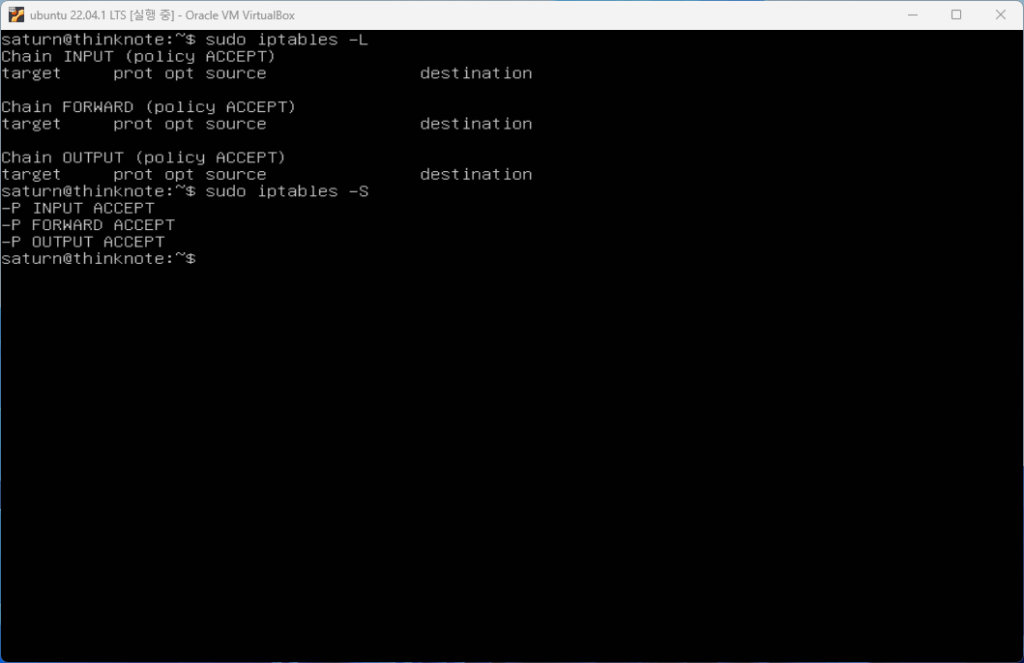
    Before changing anything, check the current rules. The original article explains that the -L option lists rules in chains, while the -S option prints rules in a format closer to commands. Both are useful.

    The basic chains include INPUT, OUTPUT, and FORWARD. INPUT applies to packets coming into the local server. OUTPUT applies to packets leaving the server. FORWARD applies to packets routed through the server rather than delivered locally.

    Other chains such as PREROUTING and POSTROUTING appear in routing and NAT contexts. PREROUTING processes packets before routing decisions. POSTROUTING processes packets after routing decisions and before packets leave through network hardware.

    2) Flush existing rules carefully

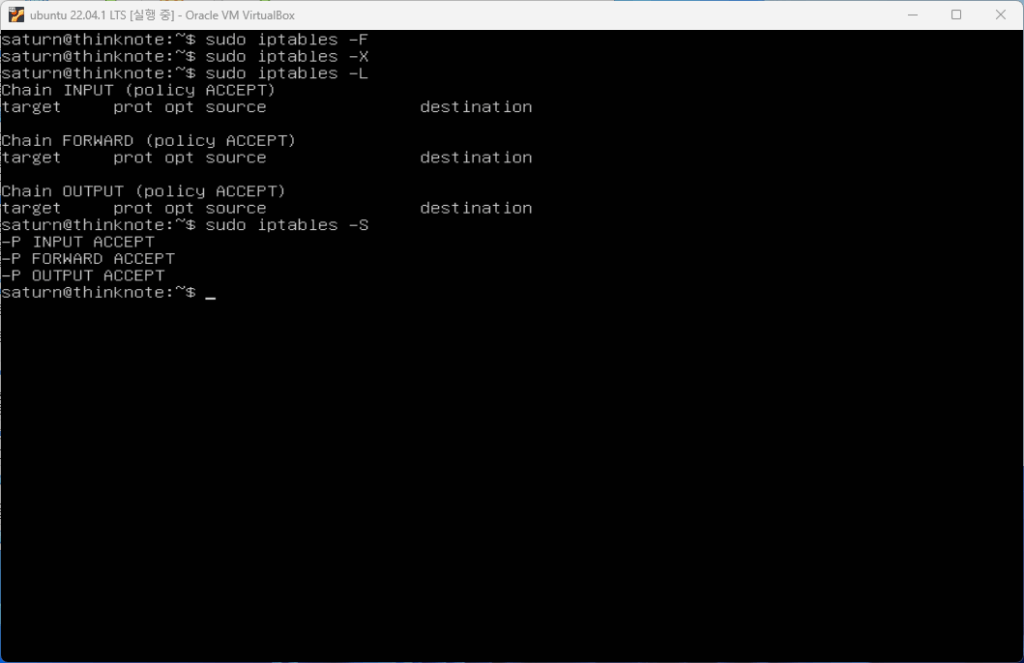
    The original tutorial shows how to remove existing rules with options such as -F and -X. The -F option flushes rules from chains, while -X deletes user-defined chains.

    This is useful in a learning environment or clean setup, but it must be used carefully on a remote server. If you remove rules and then apply a default drop policy without allowing SSH, you may lose access.

    3) Add loopback and local traffic rules

    Local loopback traffic should normally be allowed. The loopback interface is used by services on the same machine to communicate internally. Blocking it can break software that expects local connections to work.

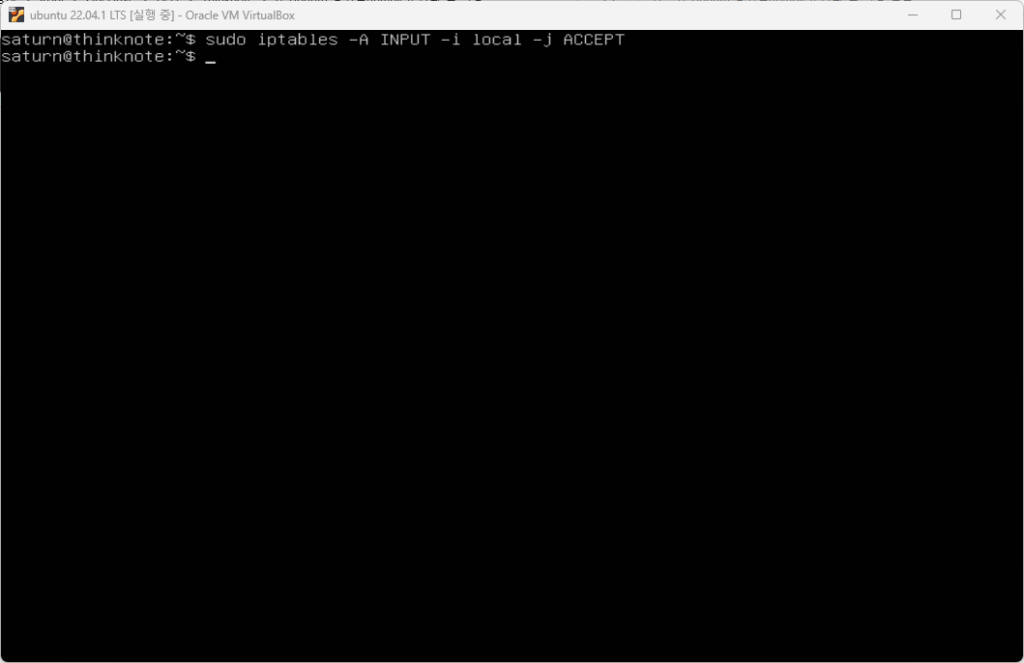
    iptables rules can be appended with -A, and interfaces can be specified with -i. This allows administrators to distinguish local loopback traffic from external network traffic.

    4) Add inbound traffic rules

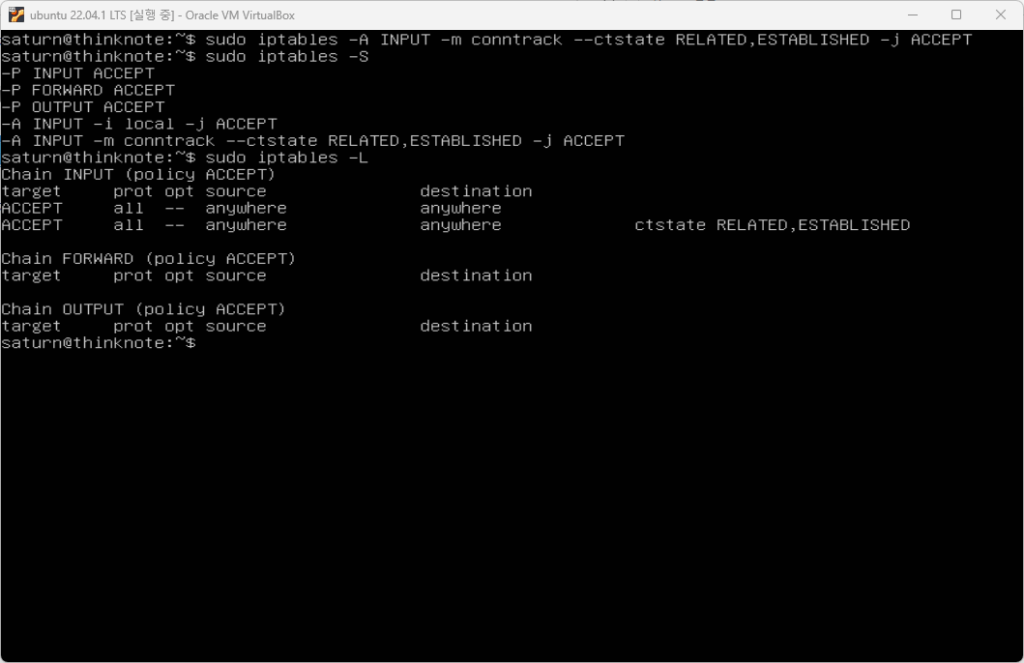
    To begin using iptables safely, add allowed inbound rules for required services. For example, a server may need SSH, HTTP, HTTPS, or application-specific ports. The original article also highlights connection states such as RELATED and ESTABLISHED.

    Allowing established connections means that replies to already-approved connections can continue. This is important because server communication is not only about new inbound requests; it also includes packets that belong to existing sessions.

    5) Save and restart rules

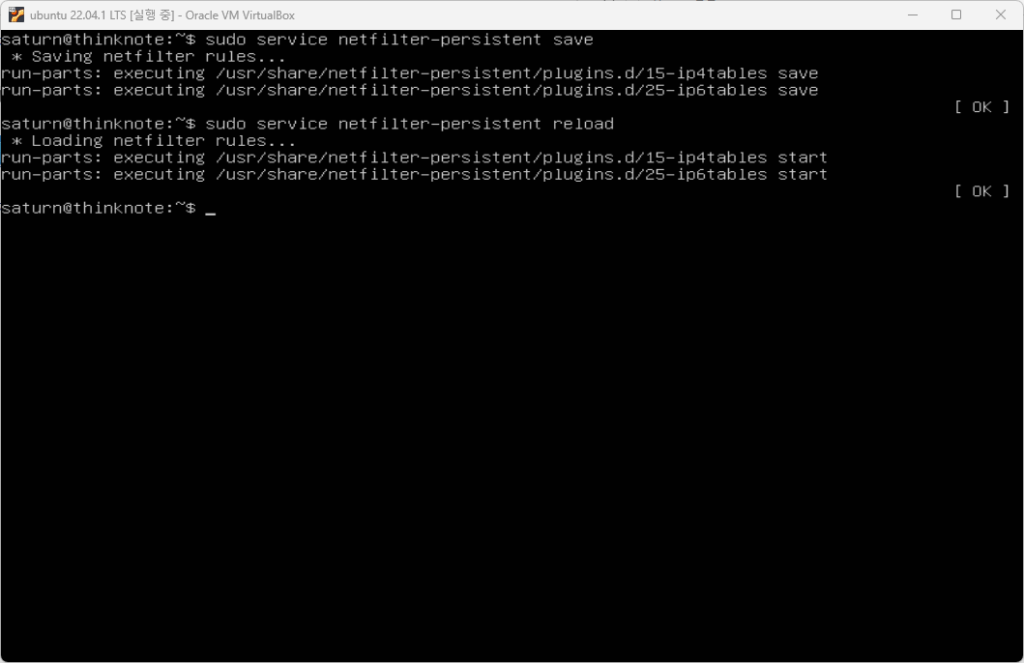
    Adding rules in a session does not automatically make them persistent after reboot. The original article explains the need to save changes and reload or restart related services. On Ubuntu systems, tools such as netfilter-persistent can be used to save, reload, restart, start, stop, or flush persistent rules.

    A good practice is to save rules only after confirming that SSH and required services still work. After saving, reboot or reload in a controlled way and verify the active rules again.

    3. Basic iptables Command Forms
    saving iptables rules
    saving iptables rules.

    The source article lists common command forms. Administrators use -A to append rules, -I to insert rules at a specific position, -R to replace rules, -D to delete rules, -L to list rules, -S to print rules, -F to flush chains, -N to create a chain, -X to delete a chain, -E to rename a chain, and -P to set a default policy.

    These options matter because rule order matters. A packet is checked against rules in sequence. If an early rule matches, later rules may not be evaluated in the way a beginner expects. This is why inserting, replacing, and listing rules are daily administration tasks.

    4. Common iptables Options and Rule Management
    iptables port management
    iptables port management.

    The original article includes command options such as append, check, delete, insert, replace, list, list-rules, flush, zero counters, new chain, delete chain, policy, protocol, source, destination, input interface, output interface, jump target, and match extensions.

    For practical server work, you should understand at least five ideas: what chain the rule belongs to, what protocol it matches, what source or destination it applies to, what port it affects, and what target action it takes. A target may accept, drop, reject, or jump to another chain.

    5. Ports, SSH, and Web Server Access

    The tutorial connects iptables to port usage. SSH commonly uses port 22 unless changed. Web servers commonly use port 80 for HTTP and 443 for HTTPS. Database and internal service ports should usually not be exposed publicly unless there is a specific reason and additional protection.

    A safe firewall mindset is minimal exposure. Open only what the server needs. Document why each port is open. Recheck rules after installing services such as Nginx, PHP, Redis, or database tools.

    Practical Safety Checklist

    Before applying iptables rules on a remote Ubuntu server, check the current rules, confirm SSH access, allow loopback traffic, allow established connections, open required service ports, apply rules gradually, save only after verification, and keep a recovery path available.

    iptables can look complex at first, but it becomes manageable when treated as a structured decision table for network traffic. The value of the original article is that it walks through the mindset and command categories needed for real server operation.

    Related Reading

    Continue with these related Thinknote English articles in the Server & Infrastructure cluster.

    FAQ

    What is this article about?

    This article is part of Thinknote’s English server and infrastructure archive. It focuses on practical Linux, Ubuntu, web-server, database, SSH, firewall, or hosting operations that readers can adapt to their own environment.

    How should I use this guide?

    Use it as a practical checklist and concept guide. Before applying commands on a live server, verify package names, OS versions, ports, and backup requirements for your own setup.

    Where can I read the original Korean article?

    The original Korean article is available here: Ubuntu iptables Firewall Management: Practical Setup and Commands.
  • Ubuntu 방화벽 iptables 설정 및 관리

    Ubuntu 방화벽 iptables 설정 및 관리

    1.  iptables 방화벽 이해 및 설치

    여기서는 Ubuntu 방화벽 iptables 설정 및 관리에 대해 이야기 합니다. 방화벽 관리의 대부분은 네트워크에 트래픽 제한을 적용할 개별 규칙 및 정책을 결정하는 것입니다. 

    Ubuntu는 기본 방화벽으로 ufw를 제공하고 있으나 iptables을 사용하면 규칙이 적용되는 구조적 프레임워크를 상세하게 관리할 수 있습니다.

    우선 ufw 방화벽 사용을 중지하고 iptables 패키지를 활용하여 방화벽을 구성하는 방법으로 진행됩니다. iptables은 합리적인 기본값을 제공하고 확장성을 장려하는 프레임워크를 설정하는 데 중점을 두고 있습니다.

    2. Iptables 설정(초기)

    방화벽은 두 가지 방법 중 하나로 구성할 수 있습니다. 기본 규칙을 설정하여 특정 규칙으로 원치 않는 트래픽을 허용한 다음 차단하거나 규칙을 사용하여 허용된 트래픽을 정의하고 다른 모든 것을 차단할 수 있습니다. 후자는 클라우드 서버에 액세스하려고 시도해서는 안 되는 연결을 반응적으로 거부하지 않고 선제적으로 트래픽을 차단할 수 있으므로 종종 권장되는 접근 방식입니다.

    1) iptables 현재 규칙 확인

    Ubuntu 서버는 어떠한 제한도 적용되지 않지만 나중에 참조할 수 있도록 현재 iptables 규칙을 확인합니다. 리스트 확인은 -L 옵션 또는 -S옵션으로 확인할 수 있습니다. -L 옵션은 체인에 대한 규칙의 리스트화 하여 보여주는 반면 -S 옵션은 체인을 출력합니다.

    출력하면 input, forward, output의 세가지 체인 목록이 출력됩니다. 체인 이름은 각 목록의 규칙이 적용될 트래픽을 나타내며, 입력은 클라우드 서버로 들어오는 모든 연결입니다. 출력은 외부로 나가는 모든 트래픽이며 통과하는 모든 트래픽에 대한 연결입니다. 또한 트래픽이 특정 규칙과 일치하지 않는 경우 트래픽 처리 방법을 결정하는 정책 설정이 있으며 기본적 설정은 허용입니다.

    • PREROUTING: 패킷들은 라우팅 결정이 만들어지기 전에 이 체인에 포함됩니다..
    • INPUT: 패킷이 로컬상에서 전달될 경우 체인의 규칙을 따릅니다.
    • FORWARD: 라우팅되고 로컬 전달이 아닌 모든 패킷들은 전달됩니다.
    • OUTPUT: 서버에서 보내진 패킷들의 경우 체인의 규칙을 따릅니다.
    • POSTROUTING: 라우팅 결정이 만들어졌을 때, 패킷들은 하드웨어에 보내지기 전에 이 체인에 들어옵니다.
    sudo iptables -L
    sudo iptables -S
    iptables 설정
    [Step 1] 현재 설정 확인

    Read in English

    2) 모든 규칙 삭제

    현재 설정된 모든 규칙을 삭제합니다. -F 옵션은 모든 체인에 포함되어 있는 규칙을 삭제합니다. -X 옵션은 사용자 정의된 체인을 모두 삭제합니다.

    -F 옵션과 -X 옵션으로 모든 체인을 삭제합니다. 모든 규칙을 삭제하고 체인에 연결된 규칙이 있는지 -L 옵션과 -S 옵션으로 확인합니다. 초기 설치 후 명령어를 실행했다면 설정된 규칙이 없기 때문에 출력은 동일합니다.

    sudo iptables -F
    sudo iptables -X
    sudo iptables -L
    sudo iptables -S
    iptables 설정
    [Step 2] 모든 체인 삭제

    3) 로컬 체인 추가

    로컬 네트워크에 접속이 가능하도록 체인을 추가합니다. 체인을 추가 할때는 -A 옵션을 사용합니다. -i 옵션은 네트워크 인터페이스 이름을 지정하는 옵션입니다.

    sudo iptables -A INPUT -i lo -j ACCEPT
    iptables 설정
    [Step 3] 로컬 연결 추가

    4) 인바운드 트래픽 규칙 추가

    iptables 사용을 시작하려면 먼저 필요한 서비스에 대해 허용된 인바운드 트래픽에 대한 규칙을 추가해야 합니다. iptables는 연결 상태를 추적할 수 있으므로 아래 명령을 사용하여 설정된 연결을 계속할 수 있습니다. related, established 패킷의 접속을 허용하는 규칙을 추가하며 이는 필요한 서비스에 대해 허용하도록 설정된 연결입니다.

    sudo iptables -A INPUT -m conntrack --ctstate RELATED,ESTABLISHED -j ACCEPT
    iptables 설정
    [Step 4] 서비스 연결 허용

    5) 규칙 저장 및 재시작

    체인을 추가했다고 바로 반영되는 것은 아닙니다. reload 명령어를 사용해서 저장된 체인이 반영되도록 해야 합니다. 하지만 reload 명령어만 사용하면 재시작 된 이후에는 추가된 체인이 사라지게 됩니다. 그래서 변경한 체인을 저장하고 재시작해야 합니다.

    저장은 service+netfilter-persistent+save 명령어로 실행합니다. netfilter-persistent 명령은 flush, force-reload, reload, restart, save, start ,stop의 실행 명령어로 구성되어 있습니다.

    변경된 체인을 저장하고 반영합니다.

    sudo service netfilter-persistent save
    sudo service netfilter-persistent reload
    iptables 설정
    [Step 5] 설정 저장 및 재시작

    3. Iptables 설정(사용법)

    • iptables – [ACD] 체인 규칙 사양 [옵션]
    • iptables -I 체인 [규칙 번호] 규칙 사양 [옵션]
    • iptables -R 체인 규칙 번호 규칙 사양 [옵션]
    • iptables -D 체인 규칙 번호 [옵션]
    • iptables -[LS] [체인 [규칙 번호]] [옵션]
    • iptables – [FZ] [체인] [옵션]
    • iptables -[NX] 체인
    • iptables -E 이전 체인 이름 새 체인 이름
    • iptables -P 체인 타겟 [옵션]
    • iptables -h 도움말 출력

    5. Iptables 설정(명령어)

    • –append -A chain      :  체인에 추가
    • –check -C chain          :  체인의 규칙 존재 여부 확인
    • –delete -D chain        :  일치하는 체인 규칙 삭제
    • –delete  -D chain rulenum : 체인의 룰 번호로 삭제  
    • –insert  -I chain [rulenum]  :  규칙 번호로 체인에 삽입 (기본값 1 = 첫 번째)
    • –replace -R chain rulenum : 체인에서 규칙 규칙 번호(1 = 첫 번째) 바꾸기
    • –list -L [chain [rulenum]] : 체인 또는 모든 체인의 규칙 나열
    • –list-rules -S [chain [rulenum]] :  체인 또는 모든 체인에서 규칙 인쇄
    • –flush -F [chain] : 체인의 모든 규칙 또는 모든 체인 삭제
    • –zero -Z [chain [rulenum]] : 체인 또는 모든 체인의 제로 카운터
    • –new -N chain : 새 사용자 정의 체인 만들기
    • –delete-chain -X [chain] : 사용자 정의 체인 삭제
    • –policy  -P chain target : 체인에서 대상으로 정책 변경
    • –rename-chain -E old-chain new-chain : 체인 이름 변경(참조 이동)

    6. Iptables 명령어(옵션)

    • –ipv4  -4  :  없음(ip6tables-restore에서 라인이 무시됨)
    • –ipv6  -6  :  오류(iptables-restore에서 라인이 무시됨)
    • –protocol  -p proto  : 프로토콜 번호 또는 이름으로, 예. `tcp’
    • –source  -s : address[/mask][…]   소스 사양
    • –destination  -d : address[/mask][…]   대상 지정
    • –in-interface  -i : 입력 name[+]  네트워크 인터페이스 name ([+] for wildcard)
    •  –jump  -j : 대상, 규칙의 대상(대상 확장 프로그램을 로드할 수 있음)
    • –goto  -g :   체인, 리턴 없이 체인으로 점프
    • –match  -m : 일치 확장 일치(확장 프로그램을 로드할 수 있음)
    • –numeric  -n : 주소 및 포트의 숫자 출력
    • –out-interface  -o : 출력 name[+]  네트워크 인터페이스 name ([+] for wildcard)
    • –table  -t : 테이블, 조작할 테이블 (default: `filter’)
    • –verbose  -v : 자세한 정보 표시 모드
    • –wait  -w [seconds] : 포기하기 전에 xtables 잠금을 획득하기 위한 최대 대기 시간
    • –wait-interval -W [usecs] :xtables 잠금을 획득하기 위한 대기 시간 기본값은 1초
    • –line-numbers : 나열할 때 줄 번호 인쇄
    • –exact  -x : 숫자 확장(정확한 값 표시)
    • –fragment  -f : 두 번째 또는 추가 조각만 일치
    • –modprobe=<command>  : 이 명령을 사용하여 모듈을 삽입
    • –set-counters PKTS BYTES :  삽입/추가 중에 카운터 설정
    • –version   -V : 패키지 버전 출력

    7. Iptables 포트 활용

    1) openssh 포트


    함께 읽으면 좋은 글

  • Ubuntu 방화벽 iptables 설치 및 활성화

    방화벽은 서버 보안에서 중요한 단계로 iptables 설치 및 활성화를 다룹니다. 방화벽 관리의 대부분은 네트워크에 트래픽 제한을 적용할 개별 규칙 및 정책을 결정하는 것입니다. 

    1.  iptables 방화벽 이해 및 사전 준비

    Ubuntu는 기본 방화벽으로 ufw를 제공하고 있으나 iptables을 사용하면 규칙이 적용되는 구조적 프레임워크를 상세하게 관리할 수 있습니다.

    우선 ufw 방화벽 사용을 중지하고 iptables 패키지를 활용하여 방화벽을 구성하는 방법으로 진행됩니다. iptables은 합리적인 기본값을 제공하고 확장성을 장려하는 프레임워크를 설정하는 데 중점을 두고 있습니다.

     1) 사전 준비

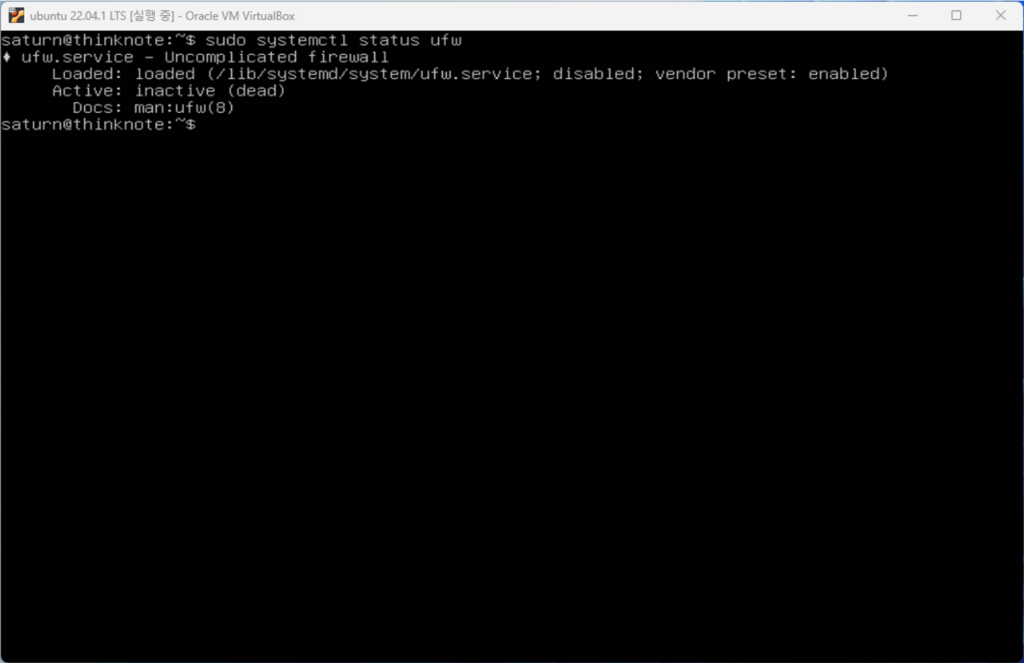
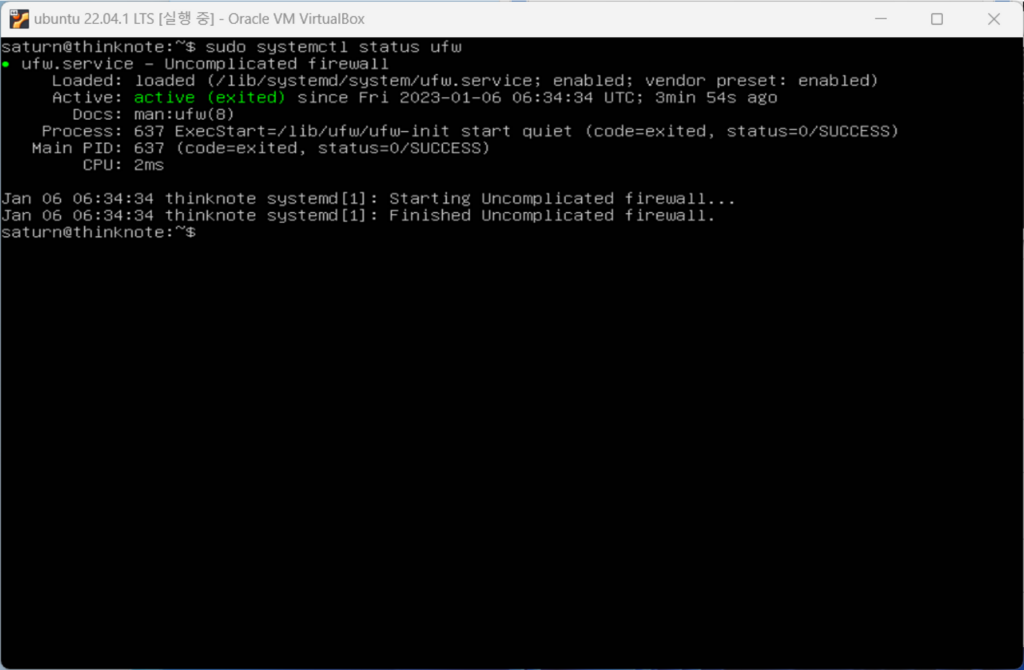
    ufw 방화벽 상태를 확인하고 방화벽을 중지합니다. Ubuntu 설치부터 함께 따라왔다면 ufw 방화벽을 active(활성화) 되어 있습니다. 이때 sudo ufw status 명령을 입력하면 inactive(비활성화)로  나옵니다. iptables을 설치하는데 ufw 방화벽을 비활성화하지 않는다면 충돌이 발생합니다. 서비스를 관리하는 명령어는 systemctl 또는 [서비스명.service]의 형태로 관리할 수 있습니다.

    2) ufw 상태 확인

    sudo systemctl status ufw
    [Step1] ufw 상태 확인

    Read in English

    3) ufw 중지 및 비활성화

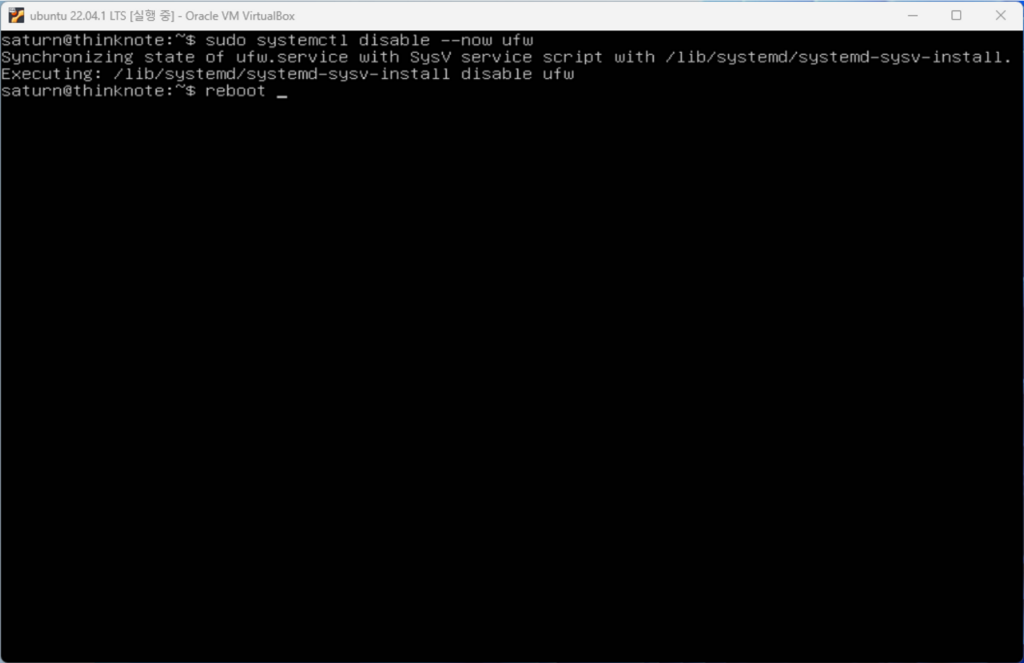
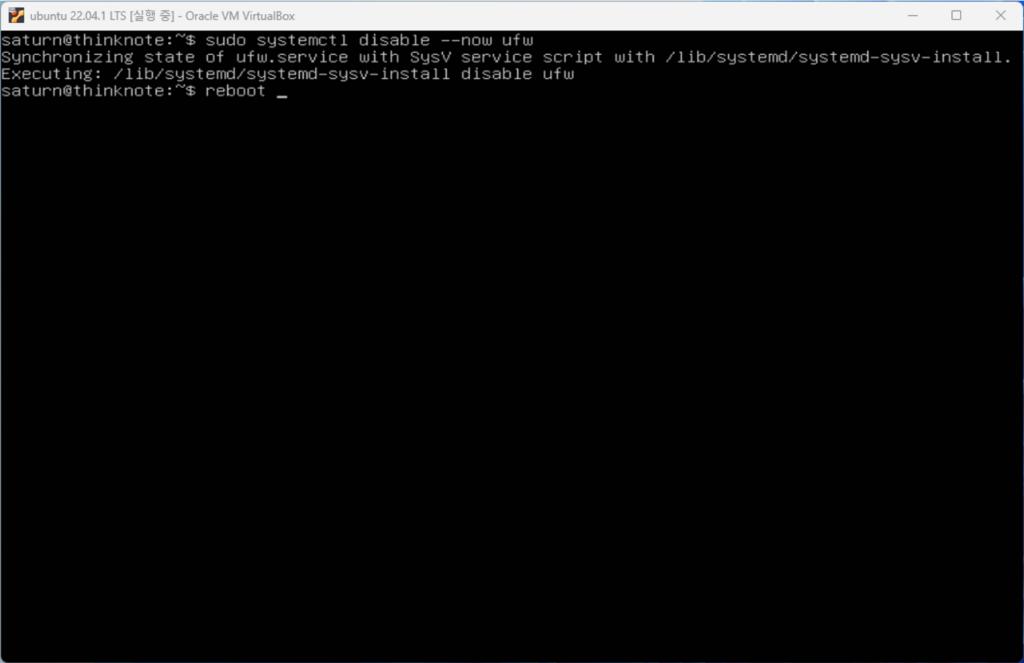
    서비스를 중지는 stop 명령어를 활용할 수 있지만 stop은 시작 활성화에 영향을 미치지 않습니다. 반면 disable 명령은 시작 시 서비스를 비활성화시키며 –now 명령어를 추가면 즉시 반영됩니다. 아래 명령어로 ufw 서비스를 비활성화하고 reboot 명령으로 재시작 합니다.

    sudo systemctl disable --now ufw
    reboot
    [Step2] ufw 비활성화
    sudo systemctl status ufw
    [Step3] ufw 상태 확인

    2.  iptables 설치 및 활성화 문제 확인

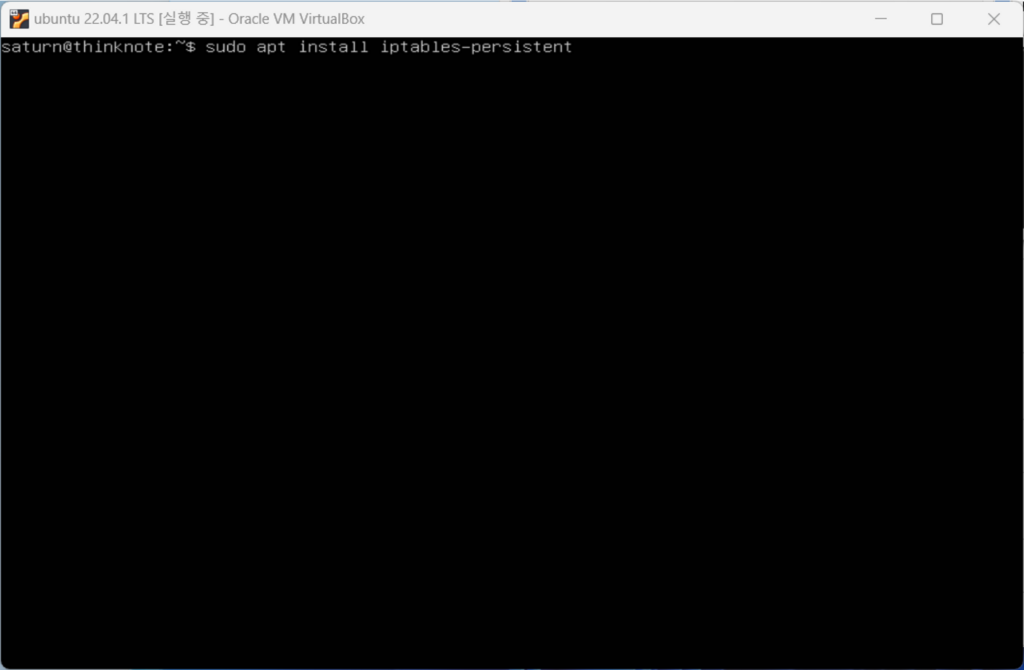
    1) iptables 설치(iptables-persistent)

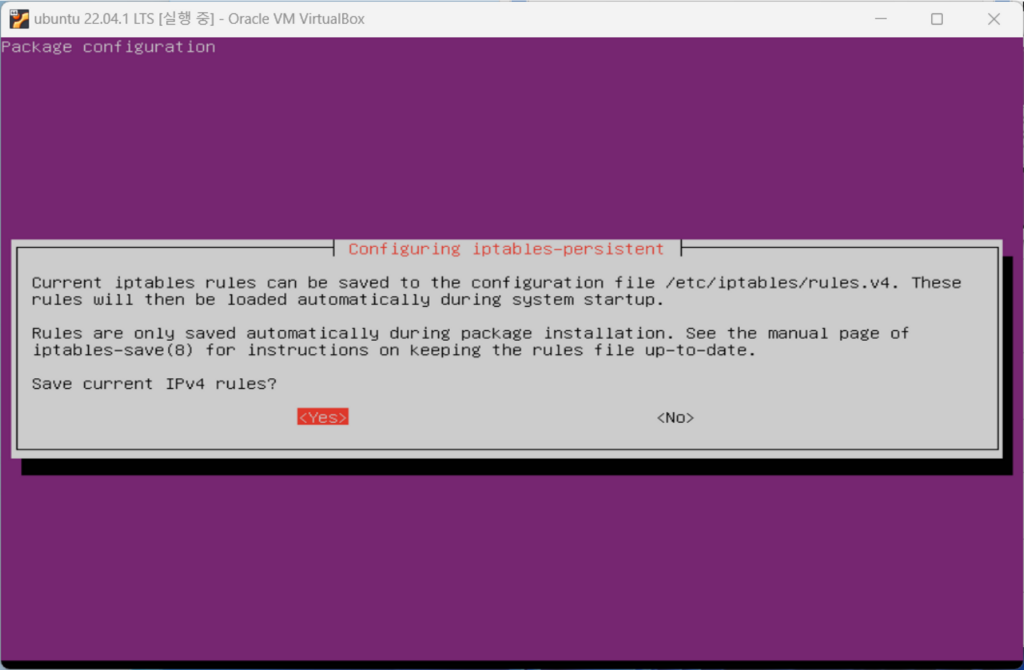
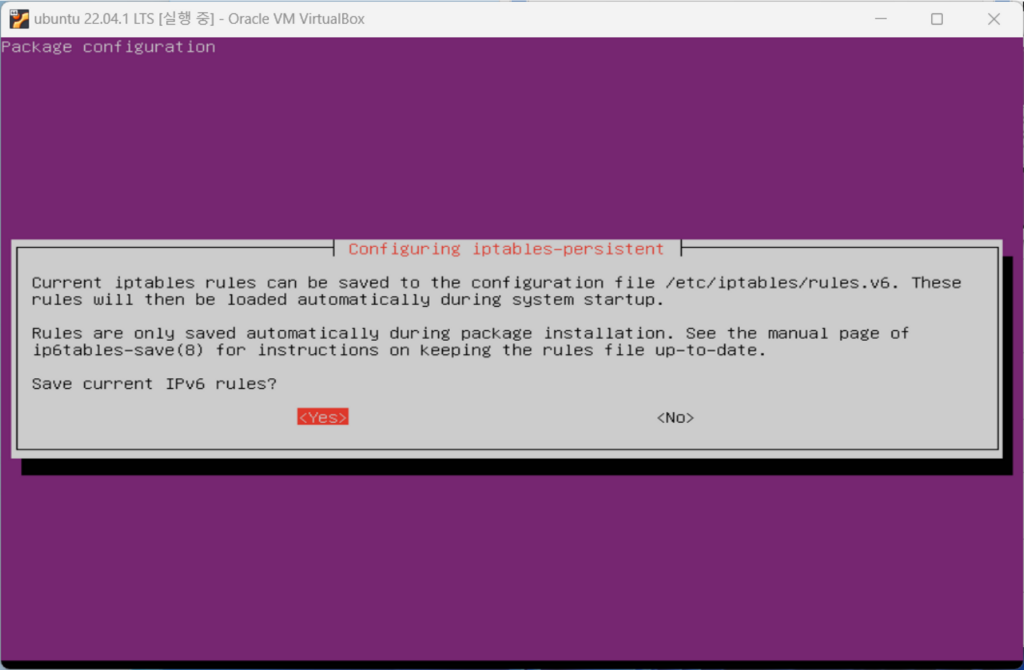
    ufw를 중지했다면 iptables 패키지를 설치합니다. Iptables 설치 후 규칙 세트를 저장하고 부팅 시 자동으로 적용되도록 할 수 있습니다.

    sudo apt install iptables-persistent
    [Step4] Y를 입력하여 계속 진행
    [Step5] IPv4 rules에 대해 YES 선택 후 Enter
    [Step6] IPv6 rules에 대해 YES 선택 후 Enter

    2) iptables 시작 시 활성화(enable)

    • Iptables 상태 확인
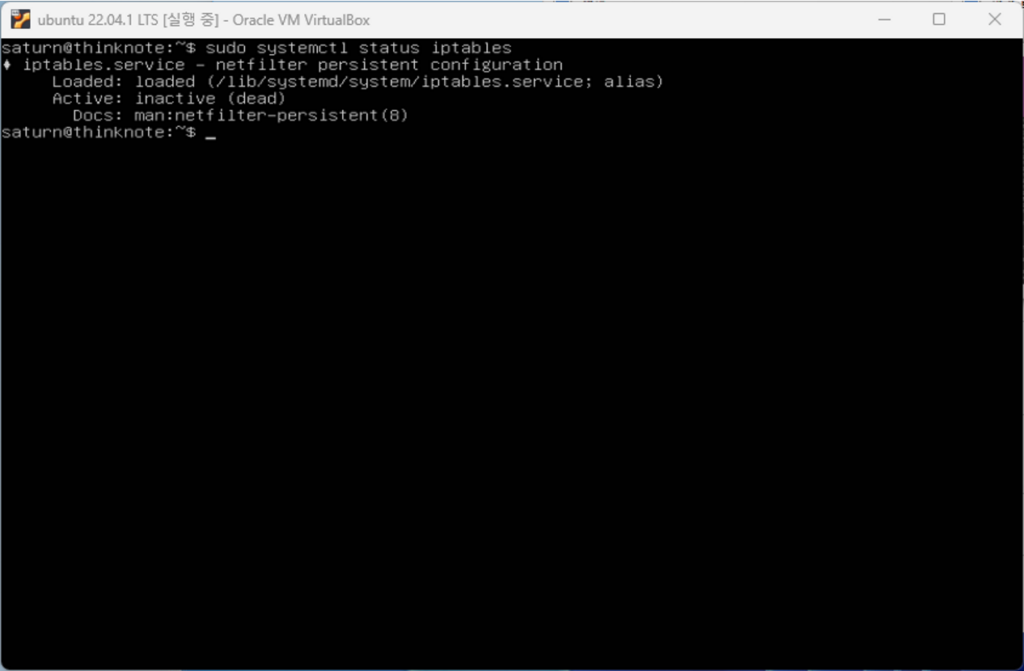
    sudo systemctl status iptables
    [Step7] iptables 상태 확인
    • Iptables 상태 시작 시 활성화
    sudo systemctl enable iptables
    reboot
    [Step8] iptables 활성화 명령어 및 재시작

    3) iptables 활성화 문제 확인(시작 시 자동 활성화 안됨)

    • Iptables 상태 확인

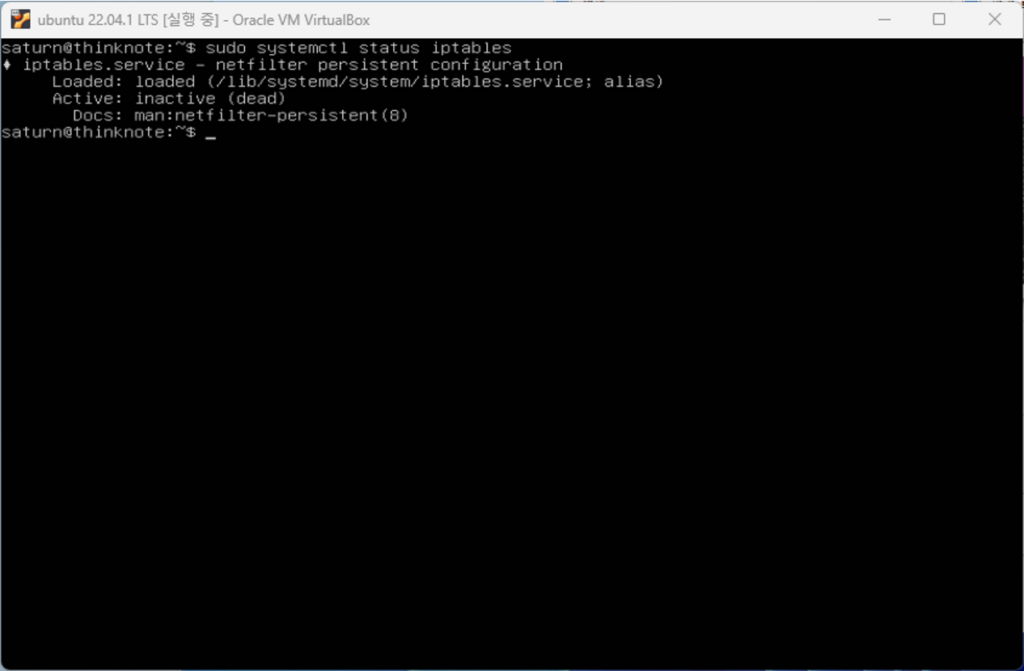
    ubuntu 20에서는 정상적으로 활성화되지만 ubuntu 22에서는 활성화가 안되어 있습니다. iptables의 상태를 확인하면 별칭(alias)이 등록되어 있지 않기 때문에 별칭을 등록해야 합니다.

    sudo systemctl status iptables
    [Step9] iptables 상태 확인

    3.  iptables 별칭 등록 및 시작 시 활성화

    1) Iptables 시작 활성화를 위한 별칭(alias) 등록

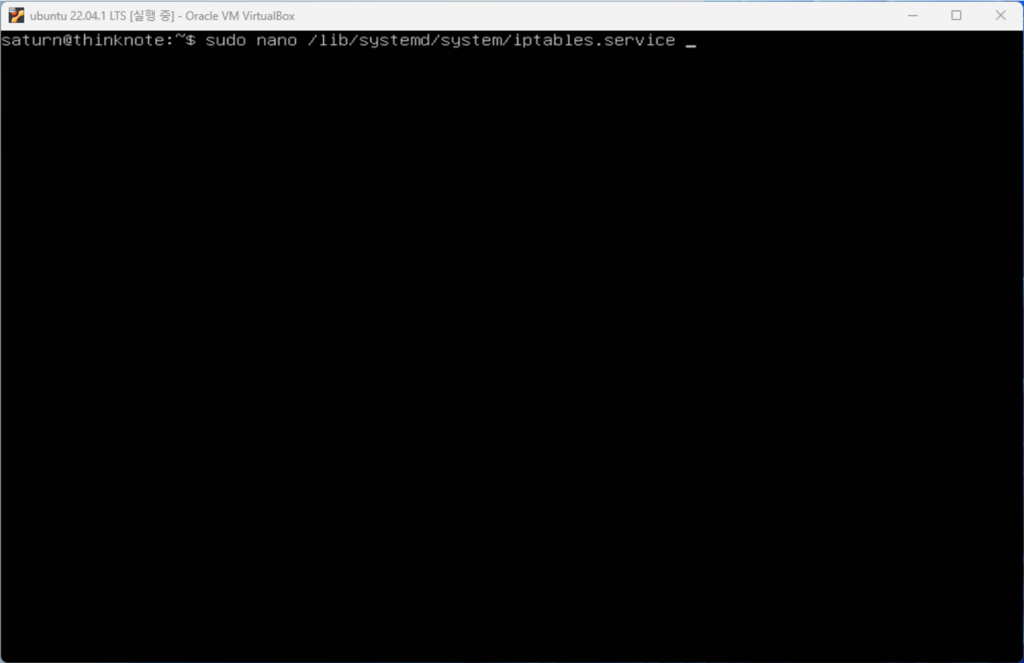
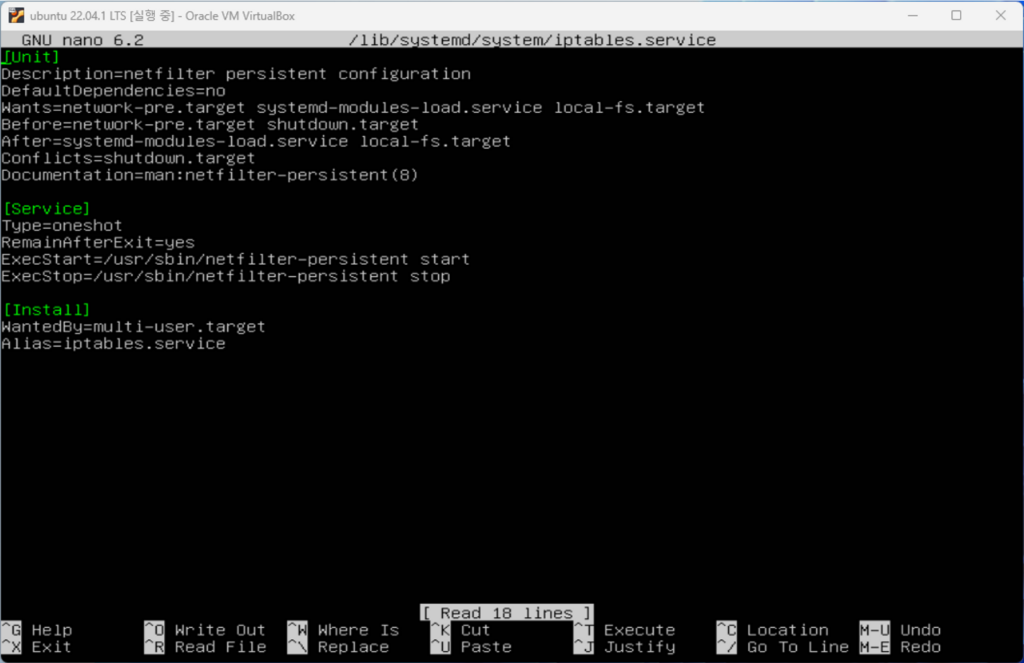
    iptables.service의 위치는 상태에서 확인이 가능하고 nano 편집기로 파일을 불러옵니다. vi 편집기를 사용해도 무방합니다. 파일 아래쪽 [install] 하단에 별칭을 등록해 줍니다. 여기서는 Alias=iptables.service로 등록합니다.

    sudo nano /lib/systemd/system/iptables.service
    [Step10] iptables 서비스 alias 등록
    [Step11] 편집기를 활용하여 내용 추가(Alias=iptables.service)

    Iptables를 비활성화 후 다시 활성화를 진행합니다. 이때 –now 명령을 추가하면 활성화와 함께 서비스가 함께 실행됩니다.

    sudo systemctl disable iptables
    sudo systemctl enable iptables

    2) 재시작 후 서비스 활성화 확인

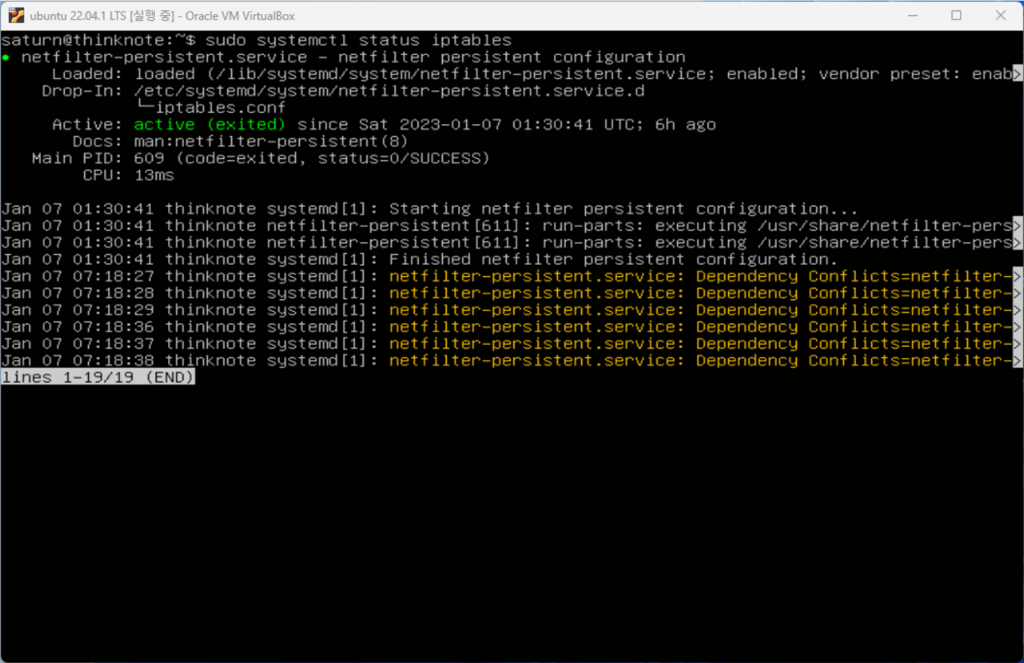
    서버를 재시작하여 서비스가 시작 시 활성화 되는지 확인합니다. 아래 이미지처럼 netfilter-persistent.service와 dependency 충돌이 발생하면 netfilter-persistent.service를 재시작합니다. systemctl 명령어로 iptables 서비스가 정상적으로 활성화 된 것을 확인할 수 있습니다.

    reboot
    sudo systemctl status iptables
    sudo systemctl restart netfilter-persistent.service
    [Step12] 재시작 후 iptables 자동 활성화 확인

    3.  iptables 모든 연결 차단

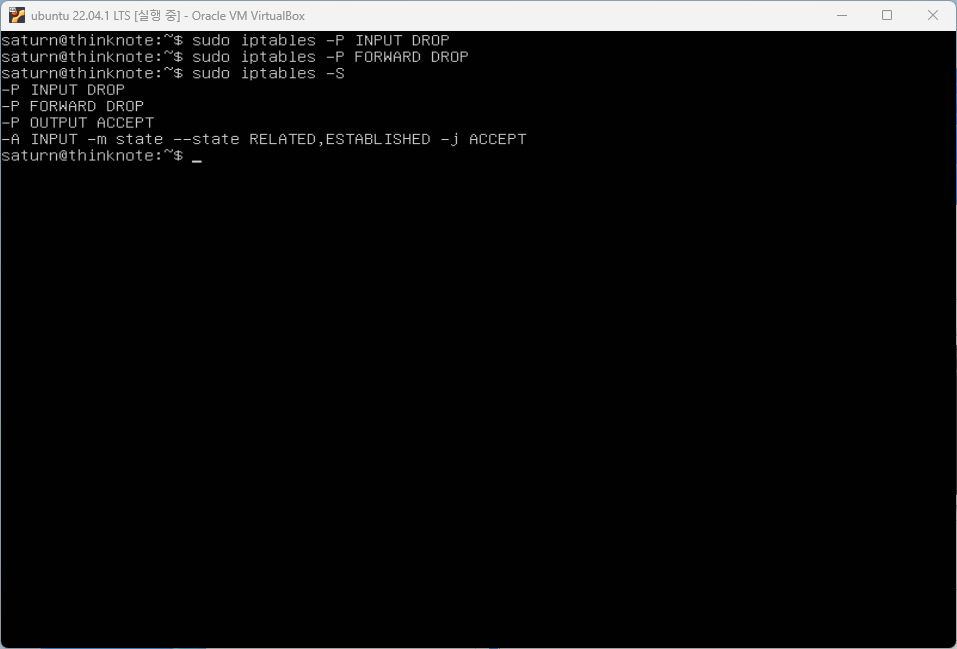
    앞의 설정은 INPUT, FORWARD, OUTPUT가 모두 허용된 설정입니다. INPUT, FORWARD는 모두 닫아 주도록 하겠습니다. 구성을 출력하면 INPUT, FORWARD가 닫힘으로 표시되어 있습니다. 앞으로 서비스를 추가하면 관련 서비스에 대한 포트만 오픈하여 실행되도록 하겠습니다.

    sudo iptables -P INPUT DROP
    sudo iptables -P FORWARD DROP
    sudo iptables -S
    [Step13] INPUT, FORWARD DROP

    변경된 설정을 저장하고 reload 합니다. reload는 재시작하지 않고 규칙을 적용하기 위한 명령입니다. 다음 코드를 실행하지 않으면 변경한 정보가 ubuntu 재시작시 적용되지 않습니다.

    sudo netfilter-persistent save
    sudo netfilter-persistent reload

    함께 읽으면 좋은 글