
1. HTTPS setting environment
Let’s Encrypt and Cloudflare can be used together to establish HTTPS connections
Original Korean article: Free HTTPS setup (Let’s Encrypt, Cloudflare)
1) Let’s Encrypt
Let’s Encrypt is a certification authority that issues SSL/TLS certificates for free. Let’s Encrypt on Ubuntu systems allows you to provide secure HTTPS connections to your web servers.
- Free: Let’s Encrypt is a public project that is free to use. So, you can get an SSL/TLS certificate without any cost issues.
- Automation: Let’s Encrypt automates the certificate issuance and renewal process to make it easier to use. This generally means that you can issue and renew certificates by simply typing a single command line.
- Security: Let’s Encrypt enhances security by providing encrypted HTTPS connections for all connections. This helps keep your data and personal information safe.
2) Cloudflare.com
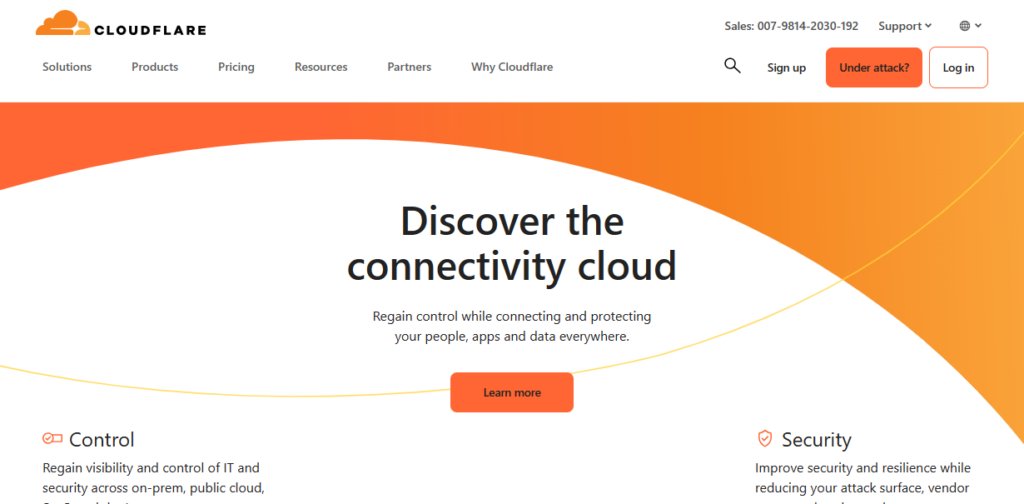
Cloudflare is a company that provides web security and performance optimization services. The company routes traffic through a global network to improve the speed, security and availability of websites, and protect against malicious activity. It has features to compress and optimize web content.
Cloudflare’s main features can be seen like this:
- CDN (Content Delivery Network): Helps users access your website faster through Cloudflare’s global network.
- Web Firewall: Provides a firewall to protect against malicious activities such as DDoS attacks, SQL injections, etc.
- SSL/TLS Encryption: Securely transmit your website using SSL/TLS certificates.
- Performance optimization: We use techniques such as caching, image optimization, and JavaScript minimization to improve your website’s loading speed.
Advantages of Cloudflare
- High Availability: Cloudflare distributes traffic across a global network, increasing the availability of your website.
- Enhanced security: Provides a powerful web firewall to protect against DDoS attacks and other malicious activities.
- Improve performance: We use caching and optimization techniques to improve the loading speed of your website.
2. Install and configure Let’s Encrypy package
1) Install Let’s Encrypt
Install Certbot: Certbot is the official client for Let’s Encrypt and is a tool for issuing and managing certificates.
Install Certbot with the following command:
sudo apt update
sudo apt install certbot
The python3-certbot-dns-cloudflare package provides the ability to automatically add and manage domain records to Cloudflare’s (DNS provider) DNS servers using Certbot’s DNS-01 domain validation method and operates in the following order:
- Certbot asks you to add a specific TXT record to Cloudflare DNS servers to verify that you own the domain.
- The python3-certbot-dns-cloudflare package uses the Cloudflare API to log in with an authenticated user account.
- The package adds a TXT record to the Cloudflare DNS server based on the authentication request information received from Certbot.
- Certbot verifies that the record is reflected in Cloudflare DNS servers.
- When authentication is successfully completed, Certbot issues an SSL/TLS certificate and saves it to the path specified by the user.
Run the following code to install python3-certbot-dns-cloudflare.
sudo apt install python3-certbot-dns-cloudflare2) Generate Cloudflare API key
- Log in to your Cloudflare account and go to “My Profile”.
- Go to the “API Tokens” section and click the “Create Token” button.
- In the “Use Template” section, select the “Edit Zone DNS” template.
- After selecting access to the Zone, click the “Continue to Summary” button.
- Name the token and store the generated token value in a safe place.
3) Save API Token
Create the /root/.secrets/certbot directory.
Create the /root/.secrets/certbot/cloudflare.ini file.
sudo mkdir /root/.secrets/certbot
sudo nano /root/.secrets/certbot/cloudflare.ini
Enter the token confirmed by cloudflare in cloudflare.ini.
dns_cloudflare_email = cloudflareexample_example_example
dns_cloudflare_api_key = YOUR_CLOUDFLARE_API_TOKEN- You will need to change example.com to your own domain.
- /root/.secrets/certbot/cloudflare.ini should be created with the following content:
Change the permissions of created folders and files.
sudo chmod 0700 /root/.secrets/certbot
sudo chmod 0400 /root/.secrets/certbot/cloudflare.ini
3. Certificate issuance
1) Certificate issuing code
Enter the domain for which you want to issue a certificate. If you are authenticating a subdomain here, enter the subdomain.
sudo certbot certonly --dns-cloudflare --preferred-challenges dns-01 --dns-cloudflare-propagation-seconds 20 --dns-cloudflare-credentials /root/.secrets/certbot/cloudflare.ini -d example.comEnter email address (used for urgent renewal and security notices) (Enter ‘c’ to cancel): Enter your email address (c to cancel)
2) Code description
The above code is a command that uses Certbot to generate a certificate for the example.com domain.
- certbot : Runs the Certbot tool.
- certonly: Only generates a certificate and does not connect to the web server. (Only performs certificate issuance)
- –dns-cloudflare : Issue a certificate via domain verification against Cloudflare DNS.
- –preferred-challenges dns-01: Uses dns-01, one of the DNS-based domain resolution methods.
- –dns-cloudflare-propagation-seconds 20 : Number of seconds to wait for Cloudflare DNS updates to complete. Here it is set to 20 seconds.
- –dns-cloudflare-credentials /root/.secrets/certbot/certbot-cloudflare.ini : Path to the file containing credentials to access the Cloudflare API. Here we use the /root/.secrets/certbot/cloudflare.ini file.
- -d example.com : The domain name to issue the certificate to, here example.com is used.
2) Confirmation of issuance
The issued certificate is created in the domain folder under /etc/letsencrypt/live.
A total of 4 files (cert.pem, chain.pem, fullchain.pem, privkey.pem) are created.
4. Additional study material
Here are links to official documentation and references from Let’s Encrypt and Certbot.
- Let’s Encrypt official documentation: https://letsencrypt.org/docs/
- Certbot official documentation: https://certbot.eff.org/docs/
- Certbot GitHub page: https://github.com/certbot/certbot
- Electronic Frontier Foundation (EFF) Certbot repository: https://github.com/efforg/certbot
- Certbot User Forum: https://community.letsencrypt.org/c/help/certbot/
- Certbot User Guide: https://certbot.eff.org/instructions
Thinknote
Good article to read together
- Install PHP 8 (ubuntu)
- Install Nginx web server (Centos 8)
- Install Nginx web server (ubuntu)
- Setting up Nginx + Php8
- Install memory caching APCu, Redis, Memcached
Related Reading
Continue with these related Thinknote English articles in the Server & Infrastructure cluster.
- Nextcloud installation and settings
- Install memory caching APCu, Redis, Memcached
- Install OpenSSL
- Installing and managing MariaDB (MySQL)
- Setting up Nginx + Php8
- Install PHP 8 (ubuntu)
FAQ
What is this article about?
This article is part of Thinknote’s English server and infrastructure archive. It focuses on practical Linux, Ubuntu, web-server, database, SSH, firewall, or hosting operations that readers can adapt to their own environment.
How should I use this guide?
Use it as a practical checklist and concept guide. Before applying commands on a live server, verify package names, OS versions, ports, and backup requirements for your own setup.
Where can I read the original Korean article?
The original Korean article is available here: Original Korean article.