
Some presentations change their charts when you click a year. Others open detailed explanations when you select an item. Instead of advancing through slides, they show information on one screen in response to questions. These are HTML slides. Think of them as small, interactive web pages used for presentations.
Aker’s video shows how to draft slides with ChatGPT and Claude, revise the content, and add motion graphics. The priority is not cramming in effects. A usable result requires accurate information, saved edits, and reliable operation in the actual presentation environment.
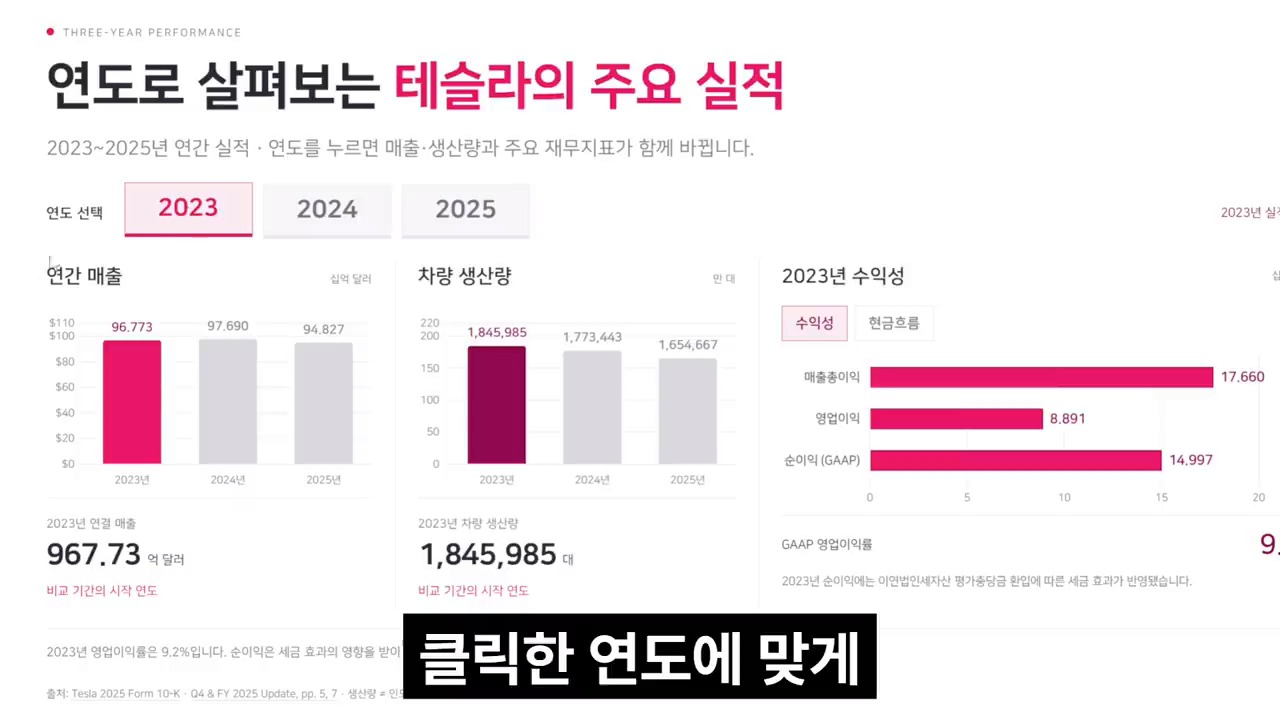
When are HTML slides useful?
HTML slides use HTML to structure content, CSS to define its appearance, and JavaScript to connect clicks with on-screen changes. Charts, text, and images can change together based on the presenter’s selection. Detailed panels can also open over the main content.
Consider them for meetings focused on customer-selected specifications, reports comparing performance by year or field, or training that changes sequence with questions. However, required submission formats such as PPTX or PDF take priority. Creating an HTML file does not automatically produce a submission-ready PPTX.
The Tesla material in the video demonstrates functionality. This is not a company analysis comparing the displayed financial figures or vehicle specifications against official sources. Avoid copying those numbers directly into work materials.
Separate source materials, design references, and operating requirements before starting
The video gathers source materials and design references in a folder, then connects it to AI. Distinguish their roles when preparing your materials.
- Source materials: Files used to verify the actual content, such as reports, tables, and explanatory documents. Clearly identify each figure’s year, unit, and source.
- Design references: Guidelines for colors, layout, and emphasis. Keep them separate so reference-screen text and figures are not mistaken for factual source material.
- Fonts and images: Check the usage and distribution terms for your chosen fonts and images. Appearing in free search results does not imply permission for every use.
- Presentation requirements: Decide the aspect ratio, internet access, audience devices, submission format, and scope of information that may be disclosed in advance.
The video description provides the original master prompt and reference links. The examples below are not verbatim copies. They are revised requests with additional saving, review, and distribution requirements.
ChatGPT and Claude have different interfaces
The video uses Sites in ChatGPT Work and Claude’s working-folder connection. Its model names and reasoning settings reflect choices made at the time. That combination is not necessarily available to every account or always the best option.
OpenAI’s official Sites guidance says sites can be created in Work on the web, or in Work or Codex in the desktop app. There is no need to assume that making HTML slides always requires installing a desktop app. However, directly using a specific folder on your PC differs from attaching materials on the web.
Claude’s official Cowork guidance also distinguishes working environments and conditions for local file access. Connecting a folder does not mean all AI processing stays on your PC. Before supplying sensitive materials, check the limits allowed by your service and organization.
Also, a freely available prompt is not the same as a service you can run for free. Check your account’s current terms for available features and usage limits.
Step 1: Structure the content before adding effects
Start by defining the presentation’s purpose and each slide’s message. Requesting every animation and linked interaction at once makes problems harder to diagnose.
The following sample request is for an education program briefing. It assumes no actual case or performance figures from any particular institution.
Create an HTML presentation for an education program briefing using the attached source materials.
The audience consists of practitioners encountering this information for the first time. Use around 7 slides.

First propose each slide's key message and supporting evidence, then implement it.
Include each figure's original year, unit, and source. Do not invent missing values.
Use the design references only as guidelines for colors and layout.

Make the body text easy to read. Avoid excessive breaks within Korean words.
Make the key information understandable even without using interactions.
List dependencies on external fonts, libraries, and images, along with the files required to run the presentation.
Review the draft for overlapping slide messages, overcrowded slides, and missing sources or units. Fixing these issues comes before making inaccurate material move impressively.
Step 2: Distinguish on-screen editing from saving files
The video demonstrates an editing mode that lets you click text and change it directly. Requesting this feature reduces the need to issue a chat instruction for every wording change.
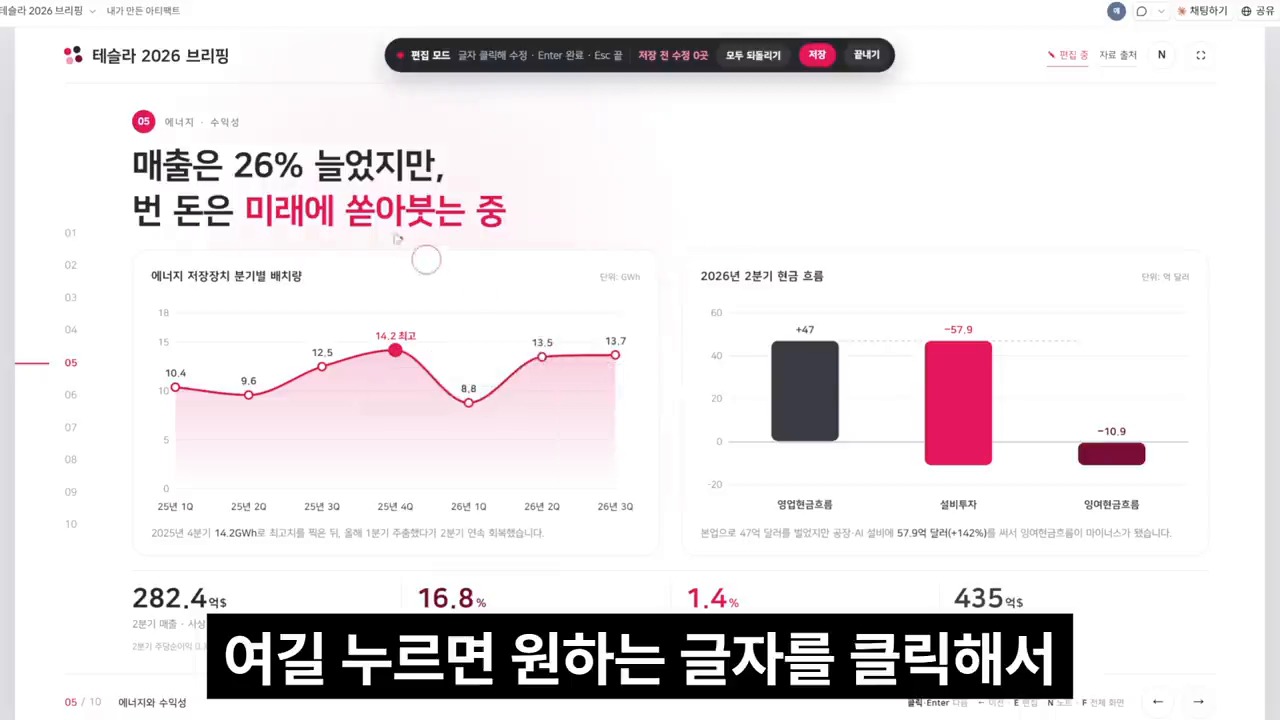
However, changing text in the browser differs from saving it to the original HTML file. MDN’s contenteditable documentation covers the attribute that makes elements editable. Adding that attribute alone does not create a file-saving feature.
When requesting an editing mode, specify how changes should be saved as well.
Add an editing mode that lets me change text directly.

Distinguish the content being edited from the file to be distributed.
After editing, let me export the final HTML with all changes included.
Provide a procedure for checking that the text remains changed after reopening the exported file.
Hide editing buttons and input areas in presentation mode.
Saving to the browser’s localStorage is not the same as exporting a file. MDN explains that behavior in a file: environment, where files are opened directly, can vary between browsers. Check for yourself whether edits remain when you move the same file to another PC.
The check is simple. Edit the text, save or export the final version, close the window, and reopen that file. Also check that the distribution includes all required reference images and videos.
Step 3: Define selections, changes, and evidence together
The video’s linked effects change related information when a year or lever is selected. What matters is not the lever itself, but which selection changes which data and explanation.
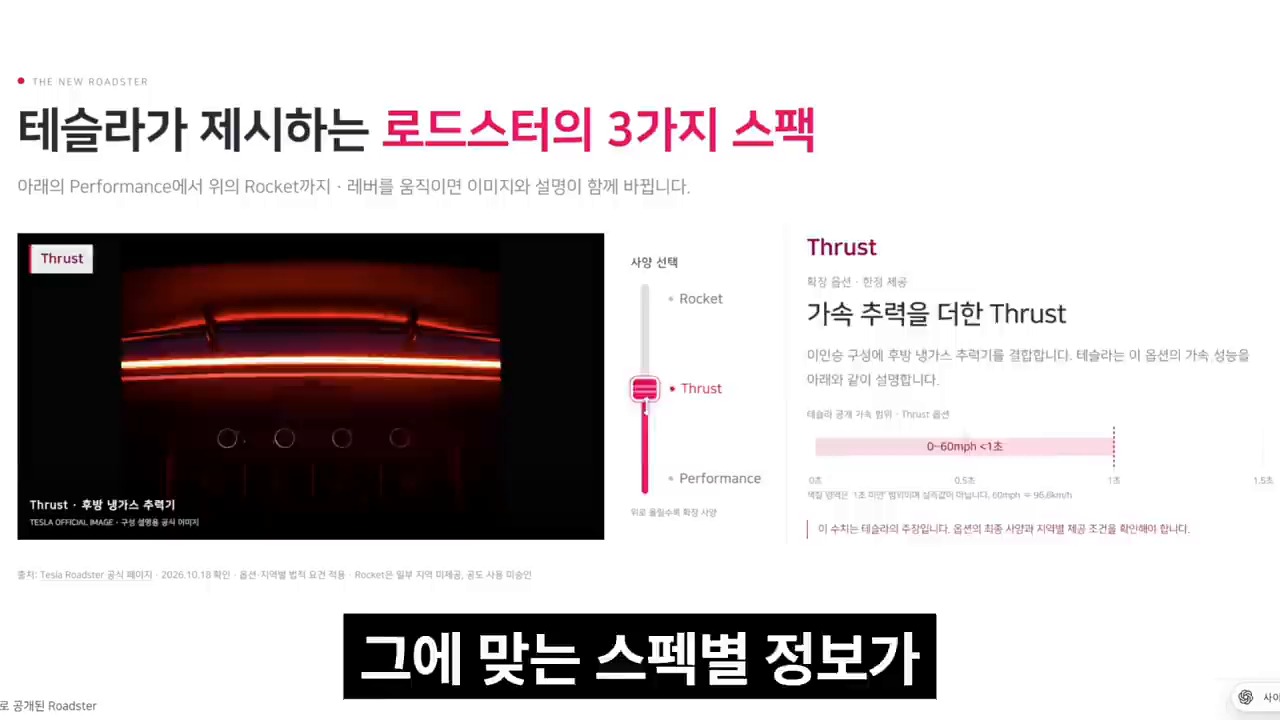
You can request behavior and review requirements together, as follows.
When a year from the source materials is selected, update the chart, summary text, and units together on the same slide.
Clearly show the selected year. Mark values without supporting data as requiring verification.
Do not arbitrarily change chart axes or comparison baselines.

Allow selection using a keyboard and touch as well as a mouse.
Keep the data and key explanations readable when motion is disabled.
Animated numbers also need review. Check that their final values match the source materials and that chart axes do not exaggerate small differences. Animation options in tools such as Chart.js control presentation; they do not guarantee data accuracy.
The same applies to detail panels. Define which item opens what, how it closes, and whether closing it restores the original context. If important information appears only on hover, test its usability on touch devices and with presentation controls.
For motion graphics, distinguish HTML animations from video files
The video shows a workflow of providing a reference video, specifying a topic and duration, and adding the resulting motion graphics to slides.
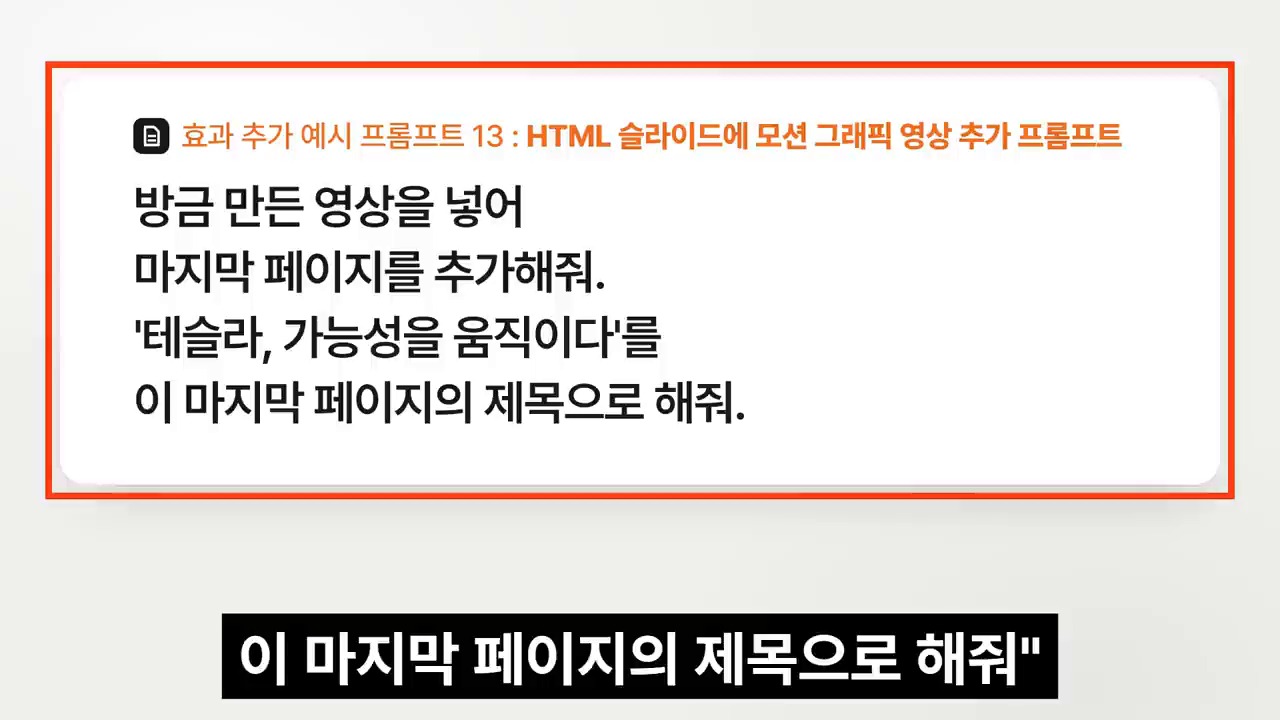
First decide the output format. Distinguish an animated scene running in a browser from an MP4 playable in other programs. A moving code preview is not the same as an actual video file.
The following request also specifies the output format.
Create a short animated scene summarizing the presentation's key message.
Use the reference video only for transitions and rhythm. Do not directly copy its distinctive images, logos, or audio.

First state whether the output is an HTML animation or a video file.
If providing an MP4, include the file and its playback requirements.
Place it on the presentation's final slide and provide play and pause buttons.
If autoplay is blocked, allow playback to start with a click.
Browser autoplay policies may block media, particularly media with sound. MDN also explains restrictions on audible media and how user interaction affects playback. Providing manual playback controls is safer than assuming the page will automatically play sound when opened.
What reliable fonts and offline operation actually require
HTML can open on many devices, but environmental differences do not disappear automatically. If web fonts, external images, or chart libraries load from the internet, losing connectivity may change the result.
For offline use, bundle the required assets and check whether you may embed and distribute the fonts. Specify fallback fonts for cases where the chosen font fails to load. Finally, disconnect the actual presentation PC from the network and test the file.
Do not assume confidential materials are safe simply because the output is a local HTML file. Check for remaining external scripts and requests, and inspect the included data. Separately review what you supply during generation and what communicates externally when the finished file runs.
Open shared links with another account before presenting
The video shows two access methods: opening files directly and using shared links. Test either method under the actual recipient’s conditions.
Claude’s current official guidance distinguishes access requirements by how Artifacts are created and shared. New Artifacts and legacy artifacts have different publishing methods. Login requirements and organization settings also matter. Not every shared link is a page anyone can open without an account just by knowing its address.
Before presenting, test with another account or an incognito window, not just your own logged-in browser. For internal materials, use approved transfer and storage methods rather than creating public links.
Six checks before your final presentation
- Content: Do numbers, years, units, and sources match the source materials?
- Saving: Do edits remain when you reopen the final exported file?
- Controls: Are key functions accessible by clicking, keyboard, and touch?
- Operation: Do fonts, charts, and videos work on the actual presentation PC under its network conditions?
- Sharing: Does the recipient have the necessary permissions, and is any information unnecessarily public?
- Submission: If PDF or PPTX is required, have you reviewed a separate deliverable in that format?
The advantage of HTML slides is less about movement than adjusting the depth of an explanation to the questions asked. Presentations are fundamentally about communication. Choose the features needed to convey your message instead of adding every effect.
Related reading
- How to Use Claude for PowerPoint: Make AI Slides with Your Company Template
- AI Web Design Workflow: ChatGPT Mockups and Claude Design
- Cognitive Debt in AI Coding: Understanding and Verification Before Deliverables
References
- Aker, HTML slide and motion graphics production video and original prompt
- OpenAI, guidance on creating and sharing ChatGPT Sites
- Anthropic, Cowork environments and local file access
- Anthropic, guidance on sharing and publishing Artifacts
- MDN, contenteditable for editing on-screen elements
- MDN, localStorage and behavior with file URLs
- MDN, media autoplay policies
- Chart.js, chart animation settings
- Noonnu, finding fonts and checking individual usage terms
Images in this article quote explanatory and demonstration scenes from Aker’s video for commentary. The video’s workflow, official documentation requirements, and the practical requests supplemented here are distinguished from one another. Official guidance was checked as of November 1, 2026. This was not an experiment independently recreating the same slides to compare tool performance.
FAQ
Do I need to learn coding to make HTML slides?
You can describe the structure and behavior to AI and request a draft. You still need to check the output’s data, saving, sharing, and operating requirements. Starting with a static draft and adding one feature at a time makes review easier.
Does HTML guarantee reliable fonts and operation without internet access?
No. Check external font, image, and library dependencies. Include the required assets, then open the file offline in the actual environment. Also check font embedding and distribution terms.
Does changing text on screen also save it to the original file?
That depends on how editing is implemented. Distinguish on-screen changes, browser storage, and exporting updated HTML. Verify the result by reopening the final file after saving.
Can HTML slides completely replace PowerPoint?
Choose based on the situation. They are worth considering for interactive meetings. However, if an institution or customer requires PPTX or PDF, you need a separate deliverable in that format and a review.