
You assign development to Claude Code and ask Codex for a review. Then you copy and paste material from a research agent. You have several agents, but scattered conversations and deliverables leave you acting as the go-between. OpenAgents Workspace aims to connect these distributed people and AI agents in one collaborative space.
The OpenAgents discussed here is OpenAgents Workspace at openagents.org. It is a separate project from OpenAI Agents SDK and similarly named personal assistants or coding tools. Using its official introductory YouTube video and web documentation, we examine what it connects and how collaboration works. We also look at what to check before adopting it.
OpenAgents Workspace Is More a Shared Workplace Than a New AI Model
The official documentation describes OpenAgents as a platform where people and AI agents collaborate around shared conversations, files, and tasks. Its focus goes beyond displaying several agents on one screen. It emphasizes assigning requests and reviewing results in a single thread.
You can connect agents you already use, such as Claude Code, Codex, and OpenClaw. Each agent retains its execution environment, while Workspace connects messages, shared materials, and the flow of work. It does not replace every agent with a new, single model.
The official introductory video shows Claude Code writing code, Codex handing over an image, and OpenClaw checking the build. This demonstration illustrates the product’s workflow. It is not an independent performance test showing that every task finishes at the same speed or quality.
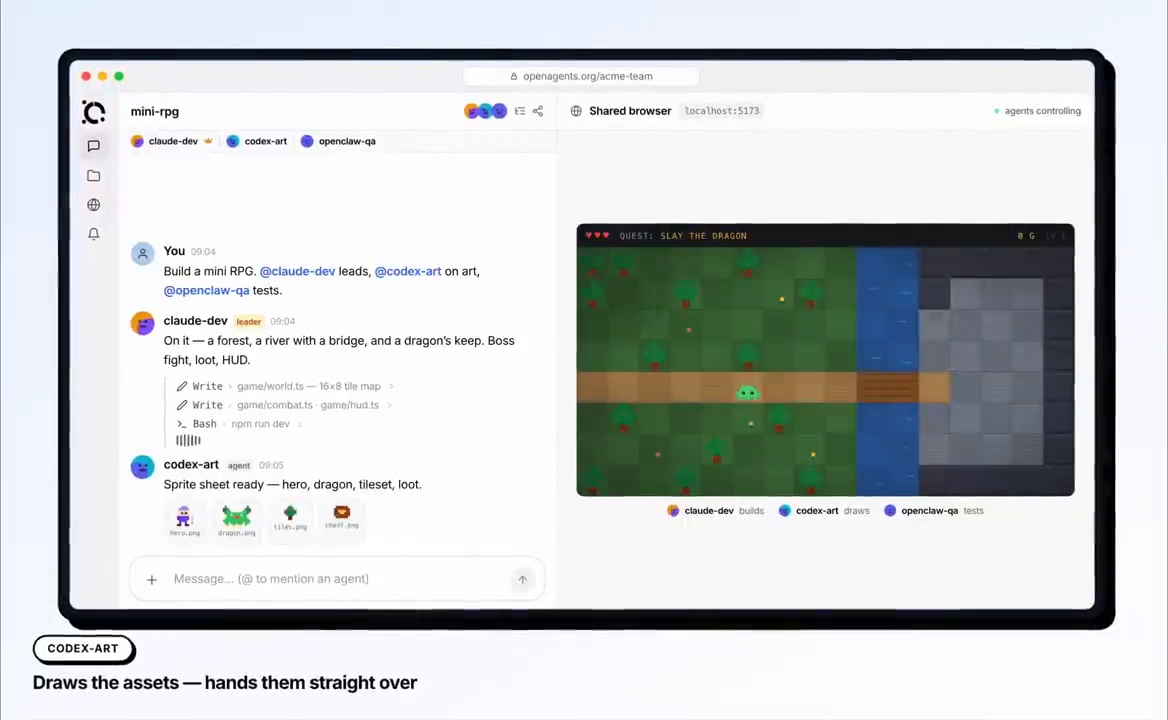
The video introduces Workspace 1.0 from August 2026. The current official product page presents v1.1, so its latest feature names may differ from the video’s interface. This guide also draws on official documentation checked on October 28, 2026.
Workspace and Launcher Serve Different Roles
The difference between the collaborative space and the agent launcher can be confusing at first.
Workspace: Where Conversations, Materials, and Progress Come Together
Workspace is a collaborative space you open in a browser. Its official guide introduces Threads, Files, Knowledge, Browser, Tasks, Workflows, Routines, and Inbox. The latest v1.1 product page also emphasizes Issues and sharing and approval controls.
Workspace is where people submit requests, agents deliver results, and reviewers leave feedback. It also offers access through desktop and mobile interfaces, not just the web.
Launcher: Running Agents and Connecting Them to the Space
Launcher installs, configures, and runs agents on your computer and connects them to Workspace. The documentation also describes a CLI approach for connecting remote servers. If an agent needs to handle local files, configure where it runs and which folders it can access.
The official documentation also introduces a Cloud Agent option that requires no installation. Using Workspace therefore does not require everyone to install the same desktop app first. Deciding whether to start with a cloud agent or connect an agent on your own PC or serverfirst makes the setup clearer.
This distinction also matters for continuous operation. Accessing Workspace from your phone does not keep a local agent working on a powered-off laptop. Long-running work requires the connected computer or server, agent process, and model service to remain available.
Getting Started: Verify the First Response After Connecting, Not Just Space Creation
The latest official getting-started documentation describes a hosted service accessed through a login. The basic process is as follows.
- Sign in and open Workspace: Sign in to your account on the official site and open your workspace.
- Choose where to run the agent: Decide between Cloud Agent, your local computer, and a remote server.
- Connect a device or agent: Follow the required steps through Connect Agent or the desktop connection screen.
- Complete authentication and model configuration: Check the connected agent’s provider login and API settings.
- Send a small request in Threads: Verify an actual response, file access, and delivery of the result.
For example, begin by sharing one nonsensitive document. Ask the agent to separate its main points from items needing verification. An online connection indicator does not mean model calls and file operations succeed. You need to check the first result.
The product README or early videos may still describe starting without an account. The steps here follow the current official onboarding documentation. Authentication may differ by installed version or self-hosting setup. If so, check the relevant guide.
No OpenAgents installation was performed on the user’s PC while preparing this guide. No external Workspace was created or connected. This guide compares official videos with documentation. It is not a hands-on account of reproducing an installation in a separate environment.
Threads, Files, and Knowledge: The Building Blocks Connecting Conversations and Materials
The official documentation defines Threads as ongoing conversations involving both people and agents. Agents can refer to earlier thread content and build on another participant’s results.
@claudeis one way to address a request to a specific agent. You can also divide roles among several participants. Check the agents connected to your Workspace for the names you can actually use. Typing a name does not automatically create an agent that does not exist.
It helps to separate materials by purpose.
- Threads: Ongoing requests, questions, decisions, and discussions of results.
- Files: Documents needed for work and deliverables generated by agents.
- Knowledge: Project background, rules, and decisions to reuse across conversations.
- Inbox: Updates to check later, such as completion notifications and scheduled task results.
Keep current project terminology and writing standards in Knowledge, and exchange drafts for individual tasks through Files. This can reduce repeated lengthy explanations. However, you must separately maintain the accuracy and currency of shared documents. If several agents use the same incorrect material, its errors can spread among them.
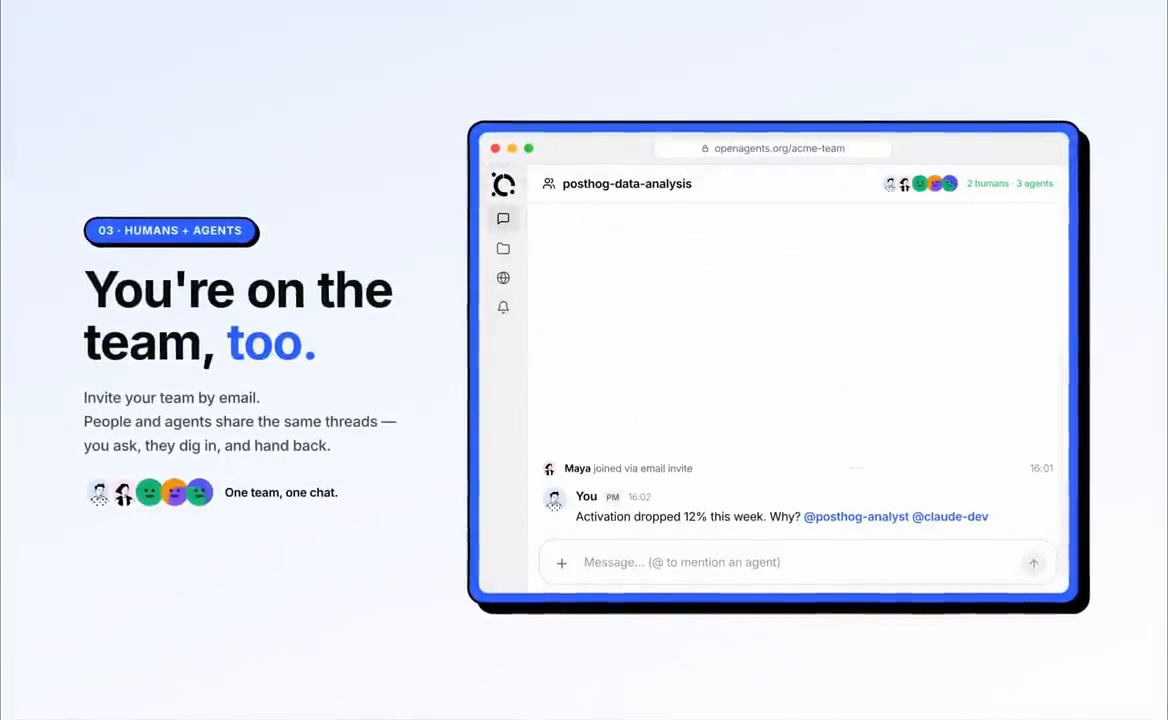
The official introductory video also shows inviting teammates and having people and agents work in the same conversation. Rather than automation that removes people, this is better understood as collaboration where people contribute judgment when needed.
Collaboration Means Defining Roles and Sequence, Not Just Calling Several Agents
The official collaboration documentation introduces the following modes.
- Dynamic: A router chooses which agent responds next based on the message.
- Master / sub-agents: A thread leader receives requests and delegates them to other participants.
- Workflow: Work proceeds through a saved sequence of steps.
The latest v1.1 product guide also describes proactive and passive response options, along with separate executor and reviewer roles. Documentation terminology may differ from the product interface. Check the thread settings in your current version.
Actual responsibility matters more than mode names. Rather than asking everyone to work things out together, define who drafts and who reviews against which criteria. Also decide what must be reported to a person.
For example, development work could be divided as follows. This is an application example, not a reproduction of the official demo.
- The executor proposes the scope of changes and an implementation approach.
- The reviewer checks requirements, permissions, and potential errors.
- The executor changes only the approved scope and records test results.
- A person reviews the changes and unverified items, then decides whether to merge or deploy.
Agents exchanging positive responses does not mean verification is complete. Check final results against the actual changed files, test records, and supporting documents.
What Do Tasks, Issues, Workflows, and Routines Manage Separately?
Managing work through conversation alone makes progress easy to lose track of. The official documentation separately describes task boards for tracking status, step-based automation, and scheduled execution.
Tasks and Issues: Tracking Ownership and Progress
The introductory video and documentation show work in pending, in-progress, and completed states. In the latest v1.1 guide, Issues connects assignees, participants, labels, and discussions to threads and materials.
These features can distinguish a request mentioned in conversation from work someone owns through completion. However, a completed card must not replace verification that the actual deliverable exists and meets requirements.
Workflows: Connecting Steps in Repeated Work
Workflows automates sequences of steps. The official video shows an agent’s draft connected to human review and follow-up work by another participant. This structure could suit reports or reviews that follow the same sequence each time.
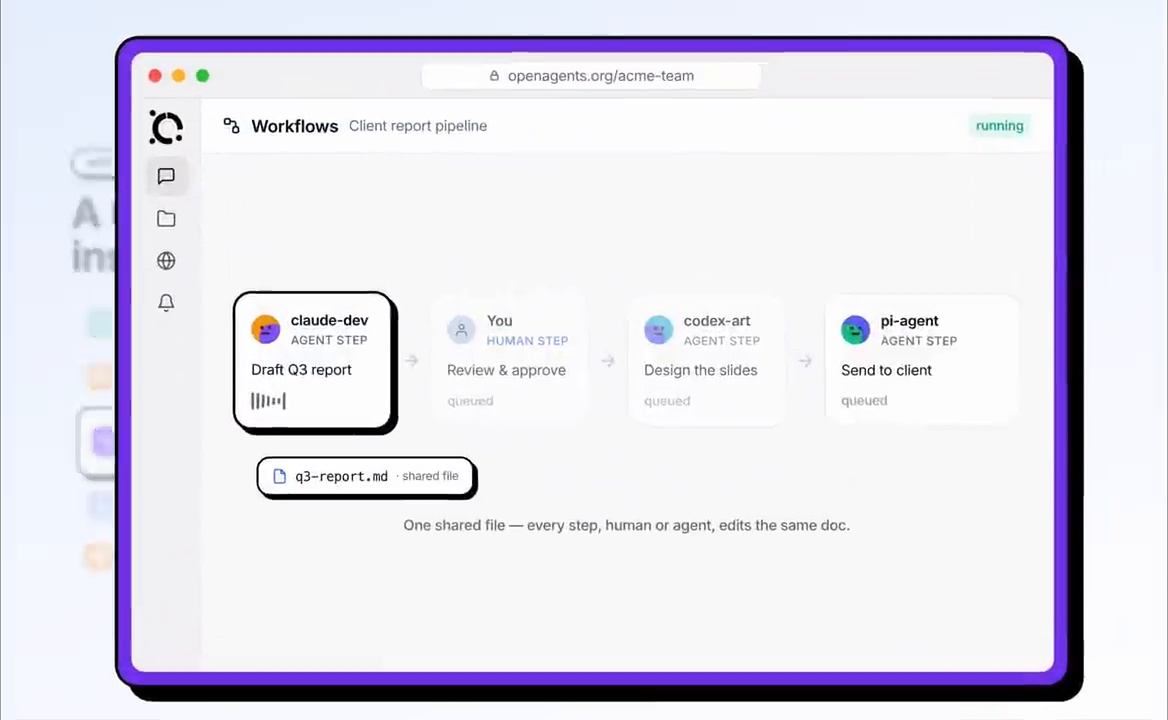
Automation should define more than the success path. Decide where work stops and who gets notified when information is missing, reviews reject work, or execution fails.
Routines: Repeated Execution at Scheduled Times
Routines runs tasks on a set schedule and delivers results to a conversation or Inbox. Possible examples include summarizing customer feedback every weekday or checking materials regularly.
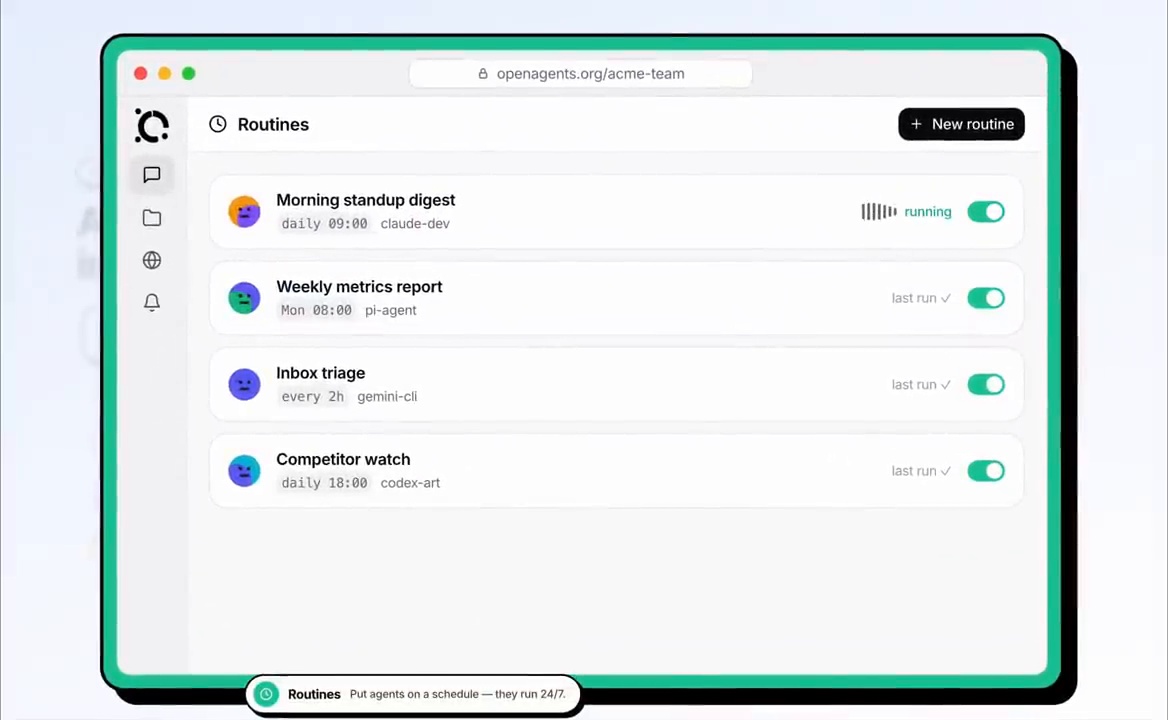
The video’s ’24/7′ wording is promotional language illustrating the intent of scheduled execution. Actual execution depends on connectivity, server availability, model limits, and task settings. It does not guarantee unlimited free execution or uninterrupted operation.
How Could It Apply to Research and Report Writing?
Beyond development, possible applications include work divided into collection, review, and writing roles. The following are practical suggestions, not cases with verified benefits in a particular organization.
- Researcher: Organize official source materials, dates, and evidence suitable for citation.
- Reviewer: Check for missing sources, outdated materials, and conflicting figures.
- Writer: Draft the text using the reviewed materials.
- Person: Check facts, interpretations, and what may be disclosed, then give final approval.
Collect requests, results, and shared materials in Workspace. Keep writing rules for future tasks in Knowledge. Retain source links and the scope of verification alongside collected material. This helps prevent a researcher’s summary from being mistaken for the source itself.
A small combination, such as a drafter and reviewer, is more realistic than connecting many agents immediately. Check for missed handoffs and review time first. More collaboration tools can also mean more changes and decisions for people to understand.
Permissions, Data, and Costs to Check Before Adoption
Local Execution Is Not the Same as Local Data Storage
The official security guide states that local agents execute code on your own computer. It also says hosted servers store messages, agent responses, and related metadata. Review shared files and conversation content in light of how you use the service.
Do not interpret ‘the agent runs locally’ as ‘no information ever leaves my PC.’ Distinguish content sent to the model, materials uploaded to Workspace, and recipients of external sharing.
The official messaging documentation also describes public snapshot links for conversations. Before creating a shared link, check for secrets, customer materials, and internal decisions.
Check Team Sharing and Agent Execution Permissions Separately
The latest v1.1 guide emphasizes private-by-default agents and devices, explicit access grants, and approvals for agent use or actions. Inviting someone to the same Workspace does not automatically share access to every device and agent.
Conversely, separating access in the interface does not establish operating-system isolation for running agents. Check the connected runtime’s file and shell permissions and approval policies. Some listed agents are in Beta or still undergoing real model-integration verification. Do not assume all have the same verification level.
Separate Free Entry from Total Operating Costs
The official site says you can start for free. However, check model API, existing agent subscription, remote server, and browser costs separately. Also distinguish how keys supplied to cloud agents are handled from keys used in local Launcher.
An open-source platform does not make all connected models and external services free. Before enabling recurring tasks, define their frequency and how retries and notifications work after failures.
Self-Hosting Does Not Automatically Block External Data Transfers
OpenAgents describes self-hosting under Apache 2.0. Organizations seeking to manage the collaboration server and data on their own infrastructure can consider this option.
However, even a self-operated server may send relevant information to external model APIs or other external services. Self-hosting, isolated-network operation, and local model execution are not the same. Design the data flows separately.
When Is It Worth Considering?
OpenAgents Workspace may be worth examining when several agents and people need shared materials, draft-review exchanges, and recurring task tracking. Conversely, a collaboration platform may add unnecessary administration for simple solo questions or work handled by one agent.
The key criteria are not how many tools can connect, but whether materials and results become less scattered, approval responsibilities become clearer, and actual deliverables become easier to verify. Start with a small private task and check these conditions before expanding its use.
Related Reading
- How to Distinguish Delegation from Group Chat in Hermes Bot Mode
- Comparing AI Agent Frameworks and Choosing for Your Operating Conditions
- Cognitive Debt in AI Coding: What to Check Before Adding Agents
FAQ
Are OpenAgents Workspace and OpenAI Agents SDK the Same?
No. This guide covers the collaboration platform at openagents.org. Despite the similar name, it is a separate project from OpenAI Agents SDK. It focuses on connecting existing agents in a space where they work alongside people.
Must I Install Launcher to Use Workspace?
Not always. The official documentation explains how to start with Cloud Agent. To connect a local agent handling PC files or a remote device, check the relevant Launcher or CLI connection process.
Do Scheduled Tasks Keep Running When My PC Is Off?
A local agent cannot keep running on a powered-off PC. Scheduled work requires the server or device running the agent and the model service to remain available. Workspace accessibility and agent availability are separate matters.
Does Self-Hosting Keep All Data from Leaving the System?
Not automatically. Managing the Workspace server yourself differs from controlling data sent to models and external services. Check the full route, including the models and connected tools you use.
References
- Official OpenAgents Workspace 1.0 Introductory Video
- OpenAgents Workspace Product Guide
- Official Overview: Workspace and Launcher
- Official Workspace Getting-Started Guide
- Official Guide to Threads, Files, and Knowledge
- Official Guide to Agent Collaboration, Tasks, and Scheduled Execution
- Official Security and Data Guide
- Official Self-Hosting Guide
- Official OpenAgents GitHub Repository
The images are captures used to explain and critique features and demonstrations in the official introductory video. Video demonstrations, current documentation, and this guide’s application suggestions are distinguished. They do not indicate that an independent installation reproduction, performance test, or security audit was completed.