
If you are installing Claude Code on Windows for the first time, starting from PowerShell is the simplest path. The essentials are three steps: first confirm that you are in PowerShell, run the official installation command, then finish login and a launch test with the `claude` command.
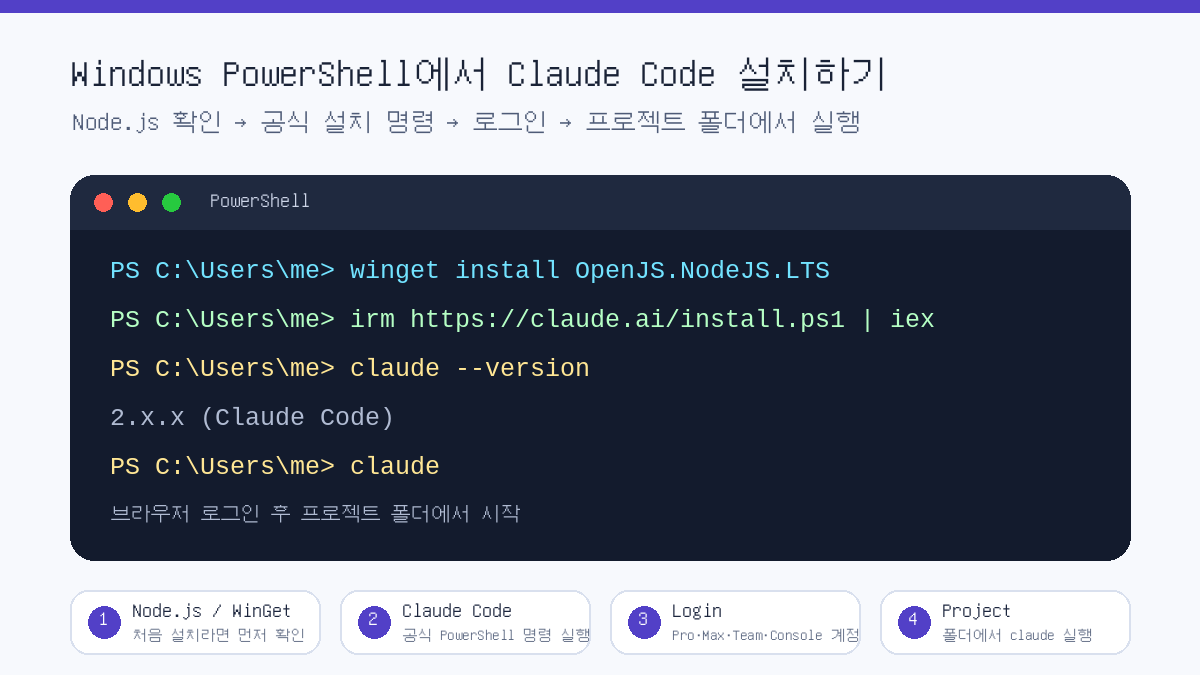
This article is based on Windows PowerShell. Commands may differ in CMD, and WSL, macOS and Linux installation methods use separate commands.
First Check: Are You in PowerShell or CMD?
The most common mistake is running PowerShell commands in CMD, or CMD commands in PowerShell. If the prompt starts with PS C:\, you are in PowerShell. If you only see C:\, it is likely CMD.
Step 1: Check Whether You Need Node.js
According to Anthropic’s official documentation, Claude Code can be used on Windows 10 1809 or later, or Windows Server 2019 or later. Installation methods broadly include the official native installation and npm installation. For beginners, it is easier to use the official PowerShell installation command first. The npm method can be used as an alternative in an environment with Node.js 22 or later.
node --version
npm --version
If the commands above show version numbers, Node.js and npm are installed. If not, you can install Node.js LTS with WinGet as shown below. However, if you use the official native installation command, you do not necessarily have to install Node.js first.
winget install OpenJS.NodeJS.LTSStep 2: Install Claude Code in PowerShell
In Windows PowerShell, use Anthropic’s official quick installation command. Open PowerShell and run the command below.
irm https://claude.ai/install.ps1 | iexIf you are concerned about security, you can view the installation script before executing it directly. Even in this case, it is important to develop the habit of confirming that the source is the official domain.
irm https://claude.ai/install.ps1Step 3: Verify the Installation
When installation is complete, open a new PowerShell window and check the version. The official documentation says that a normal installation displays Claude Code together with a version number.
claude --versionFor a more detailed check, run the diagnostic command. This command does not start a session; it checks installation status and configuration issues in read-only mode.
claude doctorStep 4: Sign In and Start Your First Session
Claude Code cannot be used with only the free Claude.ai plan. According to the official documentation, it requires a Pro, Max, Team, Enterprise or Console account. After installation, running the command below opens the browser login flow.
claudeIf you want to use API-based billing, you can choose Console account authentication. Advanced users who already use API key environment variables may have a different authentication method, but the principle is that key values should never be written directly into a blog post or code repository.
claude auth login --console
claude auth status --text
Step 5: Run It from a Project Folder
Claude Code is not a tool that simply opens a chatbot. It is a coding agent that reads the code and files in the current folder, modifies them when necessary, and runs commands. So it is best to move into the project folder you want to work on before running it.
cd C:\Users\me\Workspace\my-project
claude
On first launch, you may see a prompt asking whether you trust the folder. Approve only projects you created yourself or repositories you can trust. For unfamiliar folders, downloaded archives or code of unclear origin, it is safer to inspect the contents first.
Alternative: Installing with npm
If you already use Node.js 22 or later, global npm installation is also possible. According to the official documentation, the npm package downloads and links the native binary for each platform.
npm install -g @anthropic-ai/claude-code
claude --versionCommon Errors and Fixes
Recommended Commands for the First Run
After installation, it is better to start with a small request asking Claude Code to explain the current project rather than immediately assigning a large task. This lets you see how Claude Code reads the repository structure.
claude

# Enter inside Claude Code
Briefly explain this project structure.
If there are runnable test or build commands, tell me those too.
Related Articles
- The essence of AI coding is not the model, but the harness
- 15 frontend basics vibe-coding beginners must know
- Build a one-person AI secretary with Claude coworking
- What is the OpenHuman AI agent?
FAQ
What is the command to install Claude Code in Windows PowerShell?
The official quick installation command is irm https://claude.ai/install.ps1 | iex. It must be run in PowerShell, and CMD requires different commands.
Is Node.js required to install Claude Code?
If you use the official native installation, you do not have to install Node.js first. However, installing with npm requires an environment with Node.js 22 or later.
Can Claude Code be used with a free Claude account?
According to the official documentation, Claude Code requires a Pro, Max, Team, Enterprise or Console account. It cannot be used with only the free Claude.ai plan.
What command should I check first after installation?
Check the version with claude --version, and if there is a problem, inspect the installation status with claude doctor.
Why should I run it from a project folder?
Claude Code works based on the files and code structure in the current folder. Move to the desired project folder and run claude to reduce the chance of reading the wrong folder.
References
- Anthropic, Claude Code Quickstart
- Anthropic, Claude Code Advanced setup
- Anthropic, Claude Code CLI reference
- Anthropic, Claude Code product introduction
In short, on Windows you can open PowerShell, run the official installation command, and then check in the order claude --version, claude doctor and claude. What matters more than installation itself is execution location and permissions. Start in a trusted project folder, and never leave API keys or account information directly in code.
Original Korean Article
This article is a full-fidelity English translation draft of the original Korean post: Claude Code PowerShell installation Korean article on Thinknote.