
If you use Claude only as a “chatbot that answers questions,” you will hit its limits quickly. The story changes when you build a structure that reads your email, organizes your tasks, checks your schedule and the weather, and reports to you every morning. Based on the flow of the Soso AI Beginner Notes video, this article explains how to connect Claude Cowork with Gmail, Notion, and PlayMCP to create a one-person AI secretary workflow.
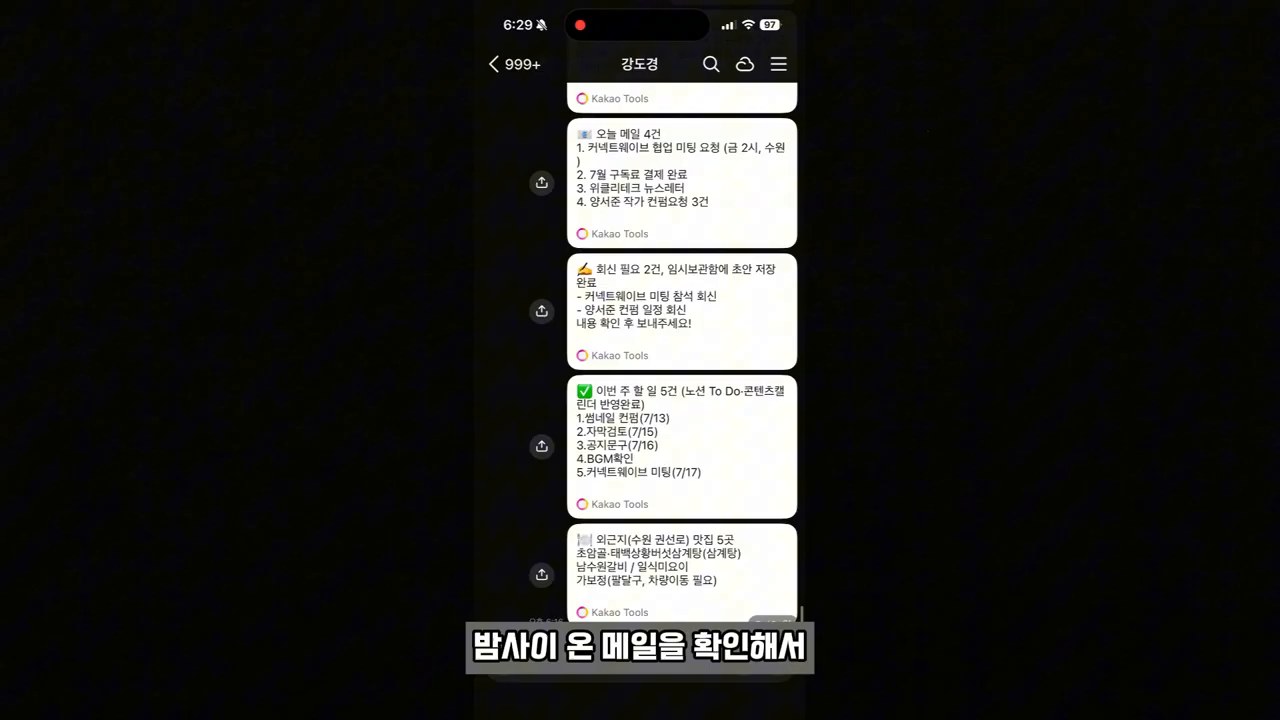
The key is not the prompt, but the flow of recurring work
The most important part of the video is not “one great prompt.” It is the full workflow: reading email in Gmail, drafting replies, organizing tasks in Notion, then connecting weather and KakaoTalk briefings through PlayMCP.
That difference matters. With one-off questions, a human has to explain the situation again every time. A work flow, on the other hand, can run at the same time each day, by the same standards, in the same output format once it has been designed. This is where the difference appears between people who use AI for work and people who build work systems with AI.
Step 1: Connect Gmail in the Claude desktop app
First, open the custom menu in the Claude desktop app and choose Connectors. In the video, after connecting the Gmail connector, the user asks Claude Cowork in collaboration mode: “Tell me about the four most recent emails.”
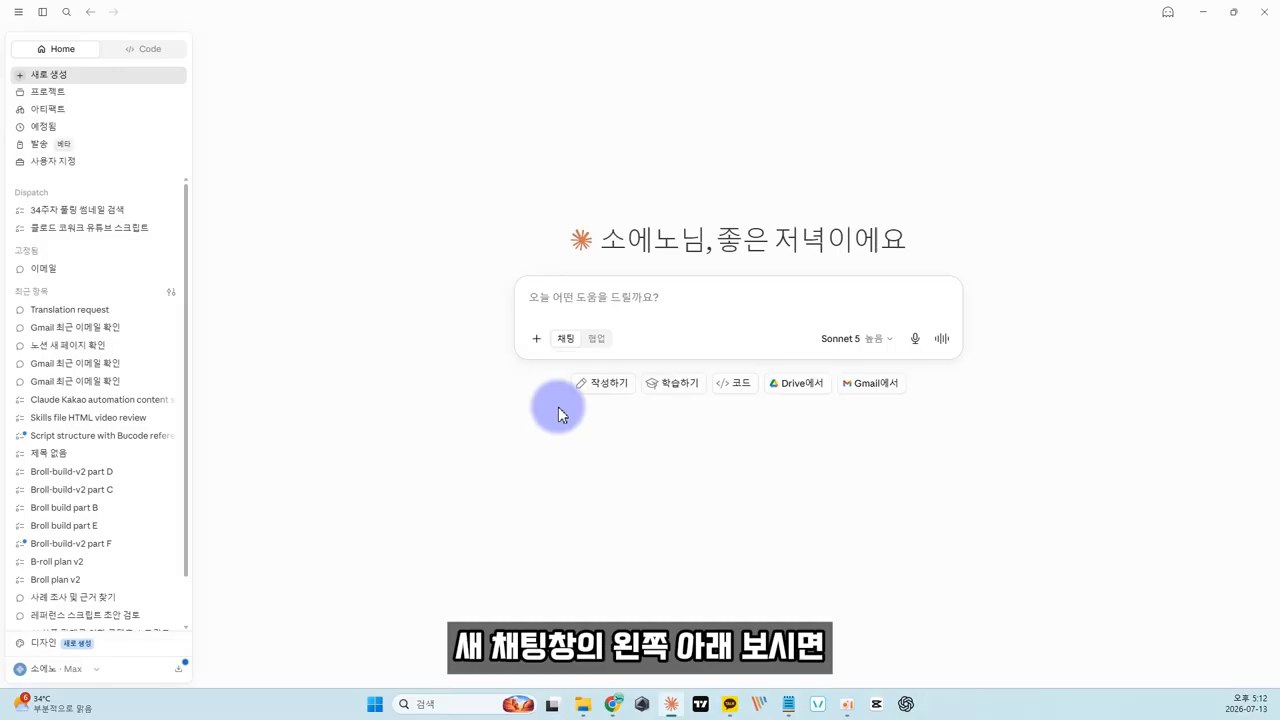
Two useful capabilities become obvious right away.
- It can summarize recent emails so you can quickly understand what needs attention today.
- For messages that need replies, it can create draft responses so the user only has to review and send them.
However, email contains a lot of sensitive information. At first, try connecting test emails or low-importance messages. It is also safer to create a separate work folder that Claude can access and keep important documents out of that folder.
Step 2: Automatically organize tasks in Notion
Checking email alone does not make an assistant. The assistant has to pull the work hidden inside those emails and move it into an actual task list. In the video, after connecting the Notion connector, the user asks: “Create this week’s work schedule as a to-do list page in my Notion.”
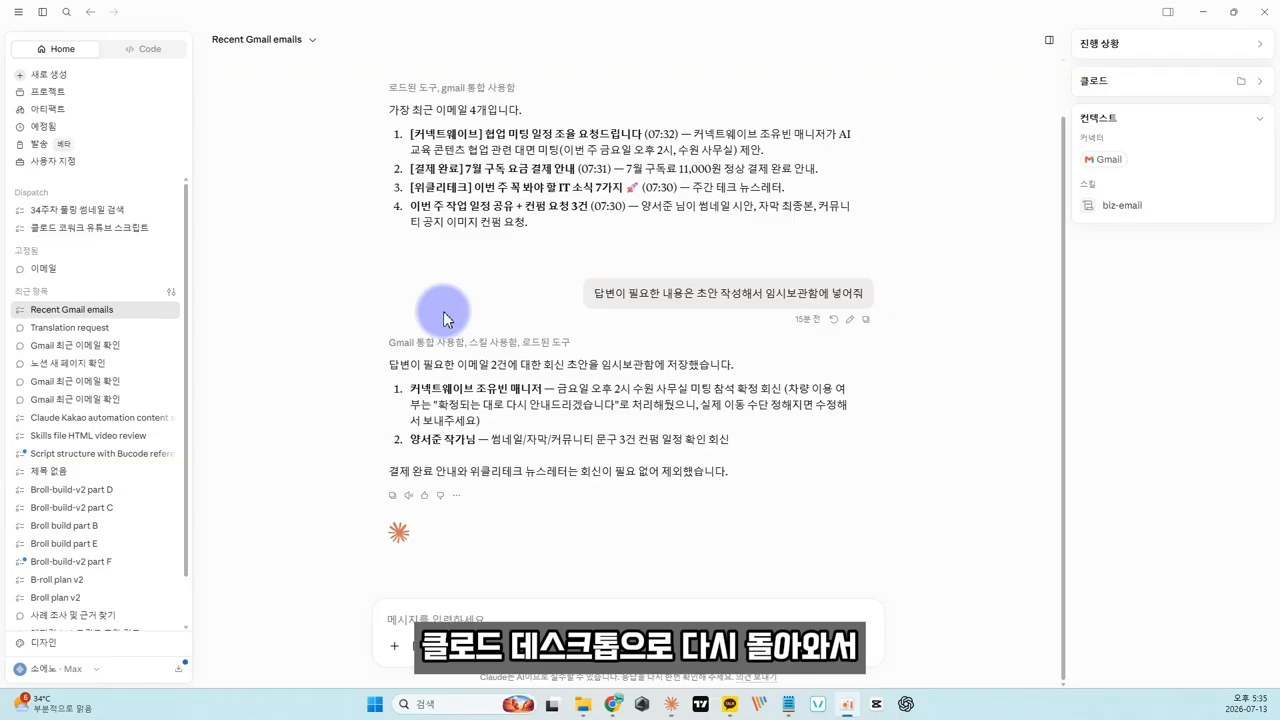
The advantage of this step is that the inbox and the task list stay connected. Usually, things get missed when we read email, make a separate note, and then move it again into Notion or a to-do app. If Claude reads and structures the email content, the human only has to decide priority and whether to act.
You do not need to build a complicated dashboard from the beginning. Simple fields like the ones below are enough.
- Task name
- Related email or requester
- Deadline
- Priority
- Status
- Next action
Step 3: Add KakaoTalk, weather, and map information with PlayMCP
If Gmail and Notion organize work information, PlayMCP expands the connection to external tools. In the video, the user adds KakaoTalk’s chat with myself, KakaoMap, and weather tools to the PlayMCP toolbox, then connects them with Claude.
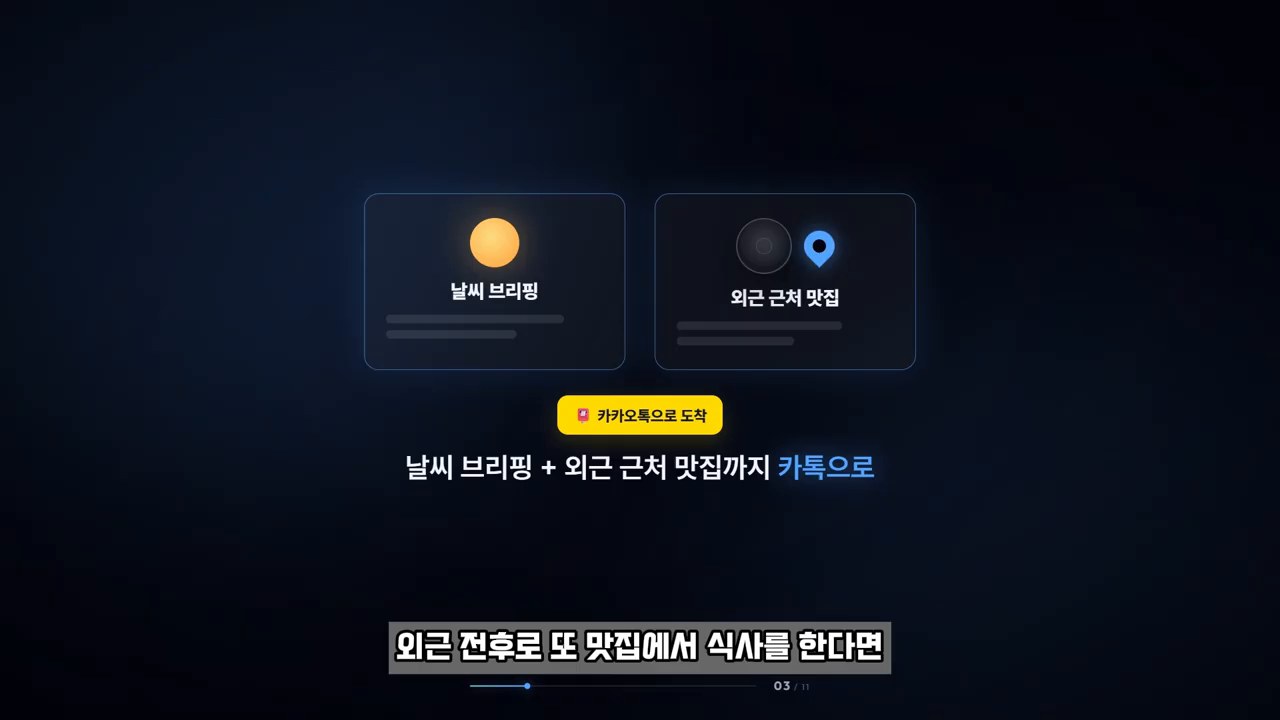
With this connection, the briefing becomes much more practical for daily life. For example, you can ask: “Check today’s weather forecast, find five good restaurants near the off-site work location mentioned in Gmail, and send them to me on KakaoTalk.” It becomes not just a work summary, but actual decision-making material for starting the day.
There is also something to be careful about here. Map, weather, and messenger tools are connected to permissions for external services. You must check which account is logged in, which permissions are granted to each tool, and where any automatic messages will be sent.
Step 4: Run it every morning with a skill and a scheduled task
The final exercise in the video is to create a daily briefing skill inside Claude and set it to run every day as a scheduled task. Once created, the skill remembers an order such as “check email → draft replies → update Notion → check weather and off-site information → report through KakaoTalk.”
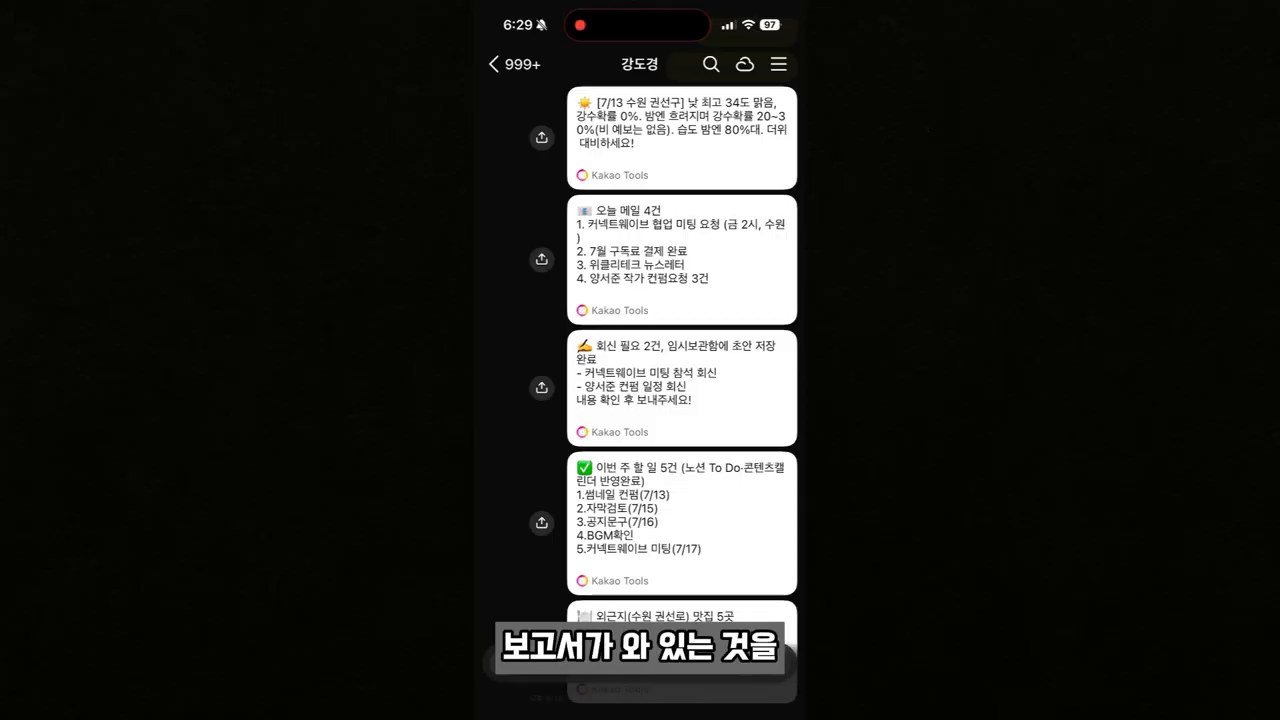
When a scheduled task is added, the user no longer has to type the prompt every time. While you are getting ready for work in the morning, AI can prepare the day’s materials first.
At this point, skipping approval or enabling automatic execution is convenient, but it also increases risk. Start by testing with manual runs, check that no wrong emails are sent and no sensitive information is exposed, and only then raise the level of automation.
Checklist before you follow along
Before applying this workflow directly, organize the following four points first.
- Decide which work repeats every day. High-frequency tasks such as checking email, organizing schedules, drafting reports, and responding to customers are good candidates.
- Separate the accounts and data ranges that AI may access. Instead of opening your entire personal mailbox immediately, define a test scope first.
- Choose one channel where you will receive the output. Decide whether you will check it in KakaoTalk, Notion, or email so the flow stays simple.
- Run at least three manual tests before enabling automatic execution. Check summary quality, omissions, permissions, and message recipients.
Who this method fits, and who should wait
This method works well for people who have a lot of recurring work and move between several tools. If you check email every day, have meetings or off-site work, and already use a task management tool such as Notion, you can see the benefits quickly.
On the other hand, if concepts such as Claude desktop, Notion, and MCP still feel unfamiliar, it is better not to connect everything at once. Start by connecting only Claude and Gmail and testing email summaries and reply drafts. Then add Notion, and finally add PlayMCP and scheduled tasks. That is the safer order.
Recommended reading
- In the age of agentic AI, what must companies and individuals change to survive?
- In the AI era, what you need to learn before prompts is “your own language”
- Obsidian deep research automation: How to use NotebookLM and Tavily together
- The essence of AI coding is not the model, but the harness
Frequently asked questions
How is Claude Cowork different from regular chat?
Regular chat is conversation-centered. Cowork, or collaboration mode, is closer to building a workflow that uses specific folders, files, connectors, and tools together. In the video as well, the user designates a work folder through the collaboration button in a new chat, then continues with email and file work.
Is it safe to connect Gmail and Notion?
The scope of permissions and your usage habits matter more than the tool itself. Do not automate every email and document from the beginning. Start with a test folder and low-risk work. For automatic sending features in particular, it is safer to keep a manual review step.
Is PlayMCP required?
To connect tools outside Claude’s basic connectors, such as KakaoTalk, KakaoMap, and weather, you may need an external tool-connection layer like PlayMCP. If you only want email summaries and Notion organization, you can start without PlayMCP.
Can I turn on automatic execution every morning right away?
It is not recommended. First, check the results with manual execution and confirm that sensitive information is not exposed and messages are not sent to the wrong chat room. After that, it is safer to add a scheduled task and automate it.
Is this article a direct transcript of the original video?
No. It is based on the practice flow of the original video, but it reduces the promotional latter section and reorganizes the setup order and cautions from the perspective of practical work automation.
References
- Soso AI Beginner Notes, Master Claude Cowork in 15 minutes
- Claude Connectors
- Claude Gmail Connector
- Claude Notion Connector
- Claude Help Center, Schedule recurring tasks in Claude Cowork
- Official PlayMCP page
- Kakao press release on the PlayMCP toolbox feature
Original Korean article: Claude Cowork one-person AI secretary workflow
Image source: Captured images used in this article are stills from the original YouTube video. They are used for review, commentary, and educational explanation, and copyright remains with the original rights holders and the channel.