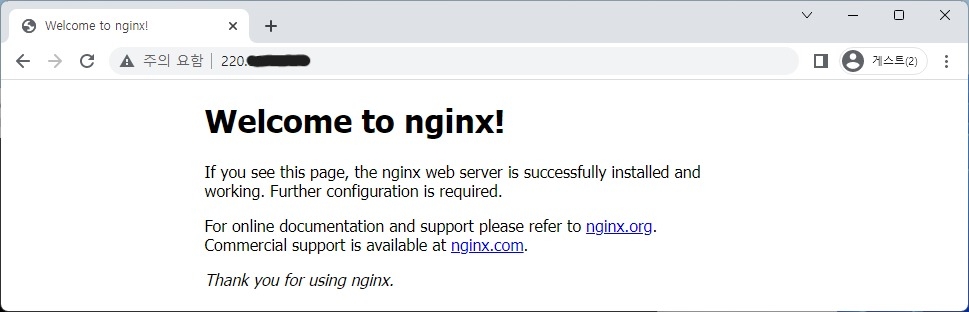

[태그:] Web Server

  • How to Install CentOS 8: Download and Basic Server Setup Guide

    How to Install CentOS 8: Download and Basic Server Setup Guide

    Advantages of Linux

    Linux is an operating system like Windows. Linux has a modular design and has various distribution versions. Linux has many advantages, the biggest advantage of which is that it is an open source operating system that anyone can use for free. If you have an old PC or laptop lying dormant at home, you can build an excellent server to run as a web server.

    Original Korean article: How to Install CentOS 8: Download and Basic Server Setup Guide

    Linux type

    There are several different distributions of Linux, and the number reaches hundreds. Android developed by Google is also a Linux distribution. Representative distributions include CentoOS, Debian, Fedora, and Ubuntu.

    • Ubuntu is the most widely used desktop operating system following Windows and Mac OS and was developed based on the Debian distribution.
    • Centos is primarily used in enterprise and web servers and is developed based on Red Hat Enterprise Distro, a free enterprise-level operating system.
    Linux/Distribution - Namu Wiki
    Linux/Distribution – Namu Wiki

    CentOS Linux, developed based on Red Hat Enterprise Linux (RHEL), ended support in 2021 and was changed to CentOS Stream. CentOS Stream can be viewed as RHEL's upstream (development) operating system.
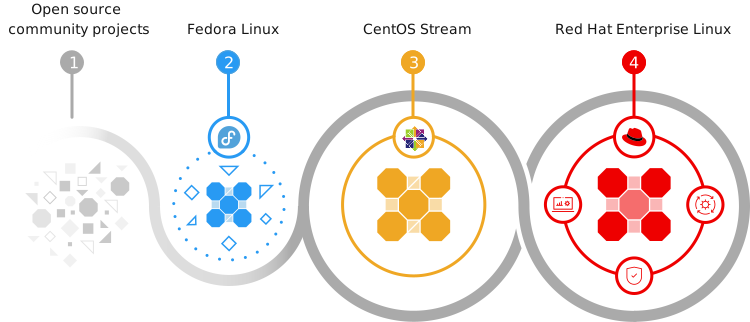
    centos stream
    centos stream

    Download Centos 8

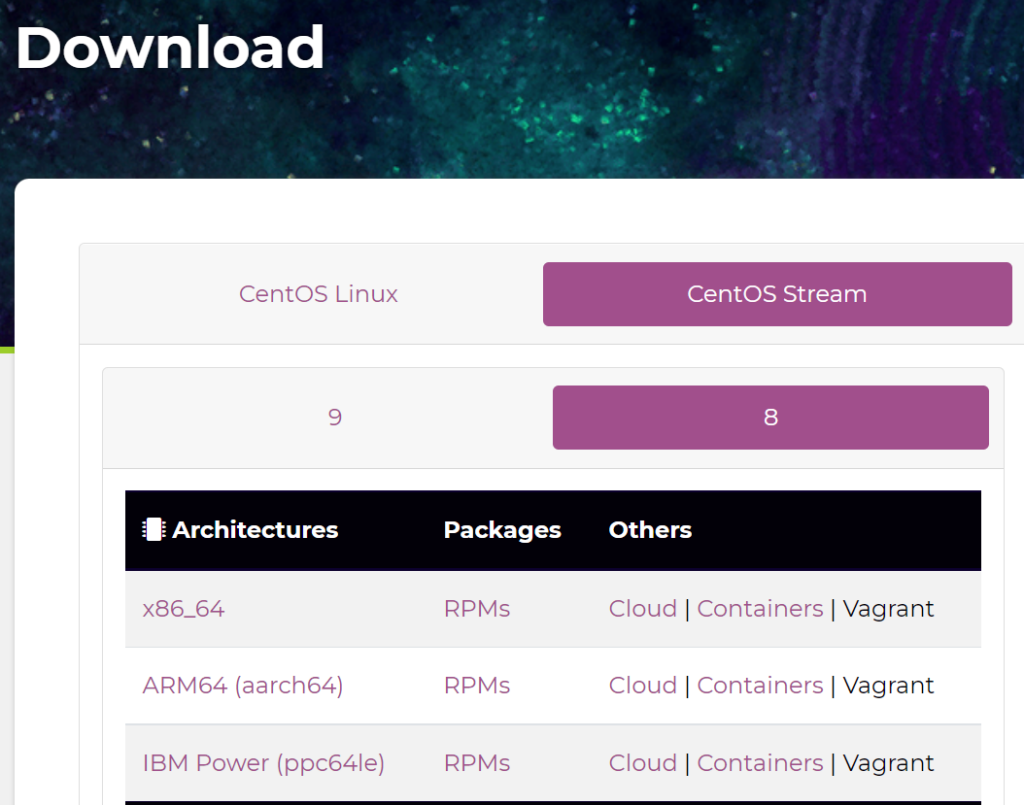
    When you access the Centos download page, it is divided into two categories: Centos Linux and CentOS Stream. https://www.centos.org/download/
    centos download
    centos download

    So the download link is different for Architectures. The difference lies in the technology used to manufacture the processor, with smartphone systems using ARM technology and computers using x86 technology. To install on a PC, download x86_64 of CentOS 8 Stream.

    Creating a boot disk with Refus

    Create a boot disk using the downloaded USB.
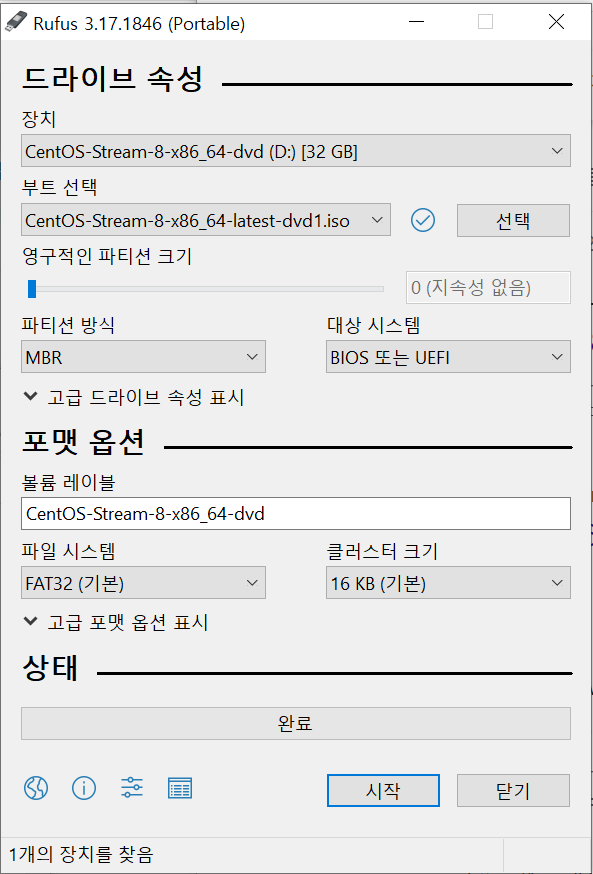
    refus centos
    refus centos

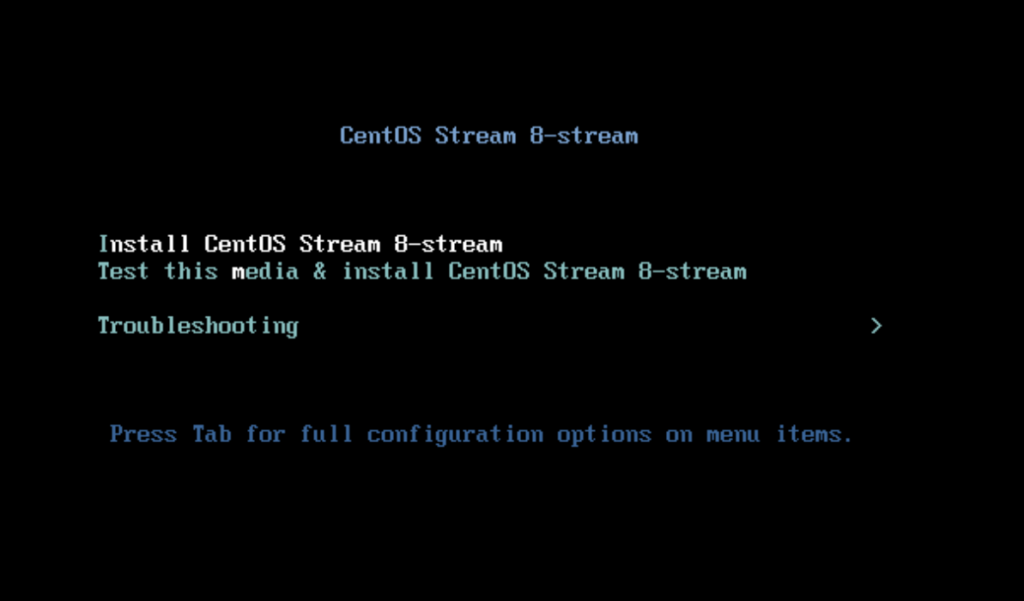
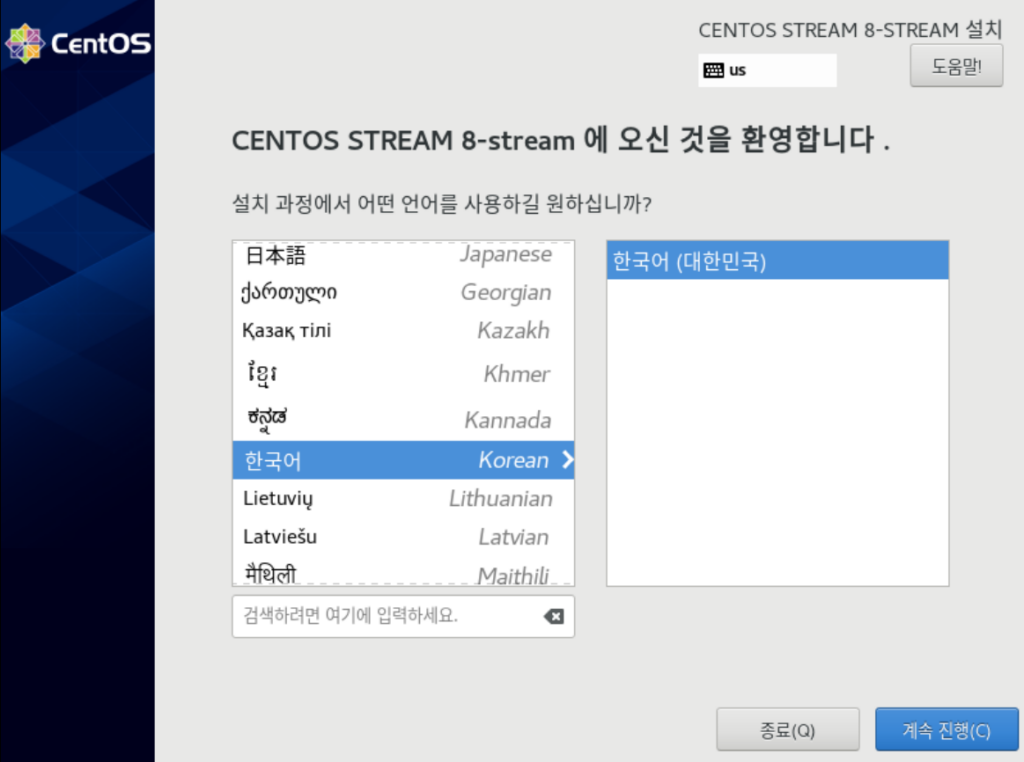
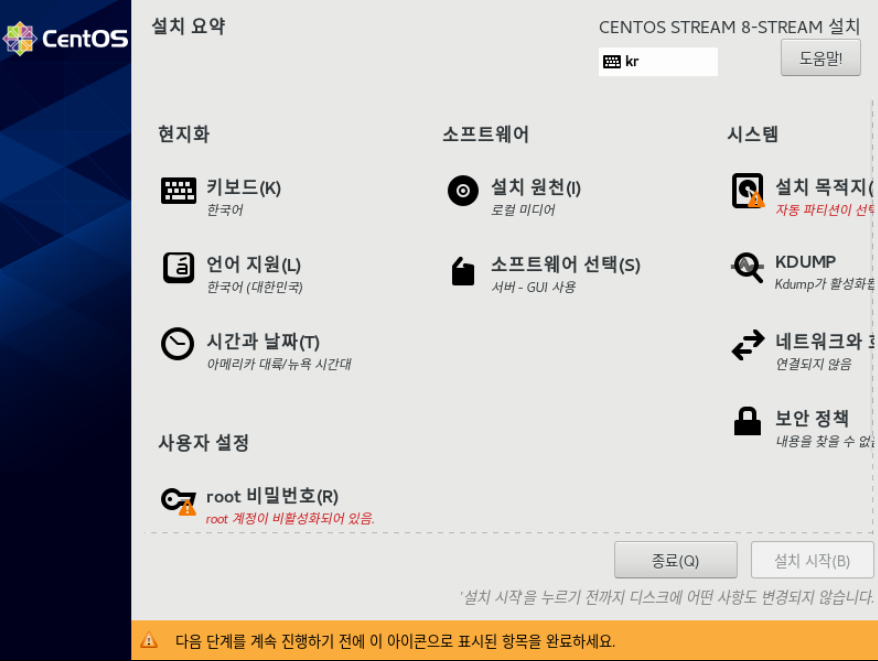
    Start Centos installation

    centos
    centos
    centos
    centos
    centos
    centos
    • When setting up a partition in disk settings, you can set the disk capacity according to the mount location or automatically create a partition.
    • /: root directory, the highest level directory in Linux
    • /home: This is the general user directory of the system. When the administrator creates a user, it is created under this directory.
    • /var: Directories that must be divided include spooling files (spool), mail files (mail), and log files (log).
    • SWAP: A virtual memory function that allows you to use more memory than the actual memory of the system installing Linux. Usually set to twice the installed memory.

    Software selection selects the second server and no additional software.
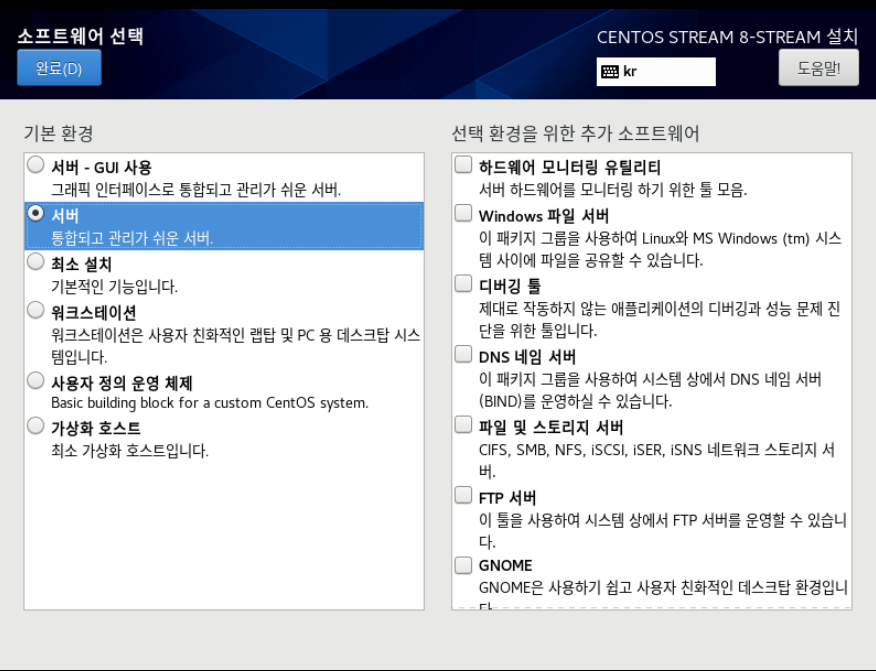
    centos
    centos

    When creating a user, check ‘Set this user as an administrator’ to allow root access.
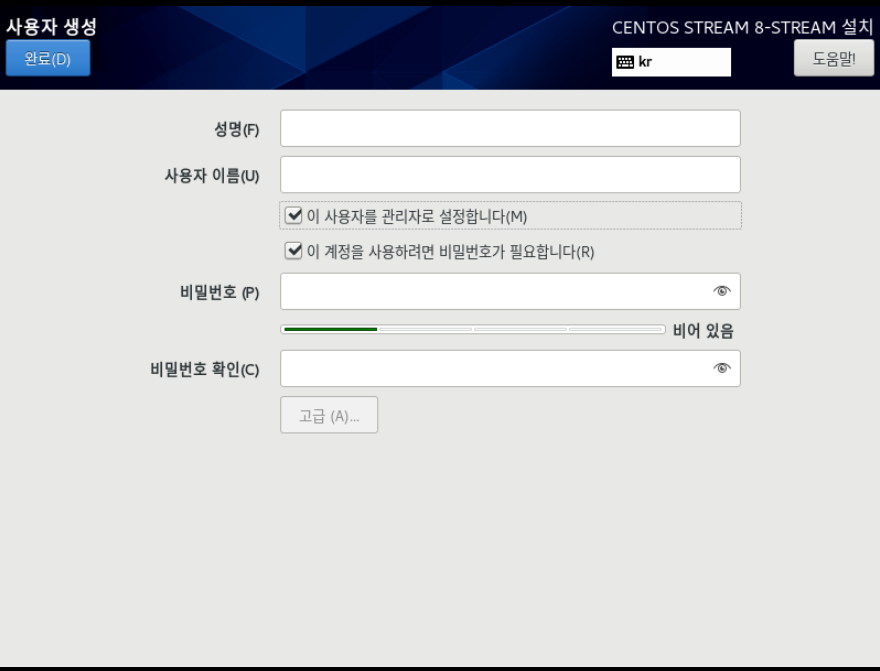
    centos
    centos

    When the installation preparations are complete, the ‘Start Installation’ button becomes activated and clicking it starts the installation.
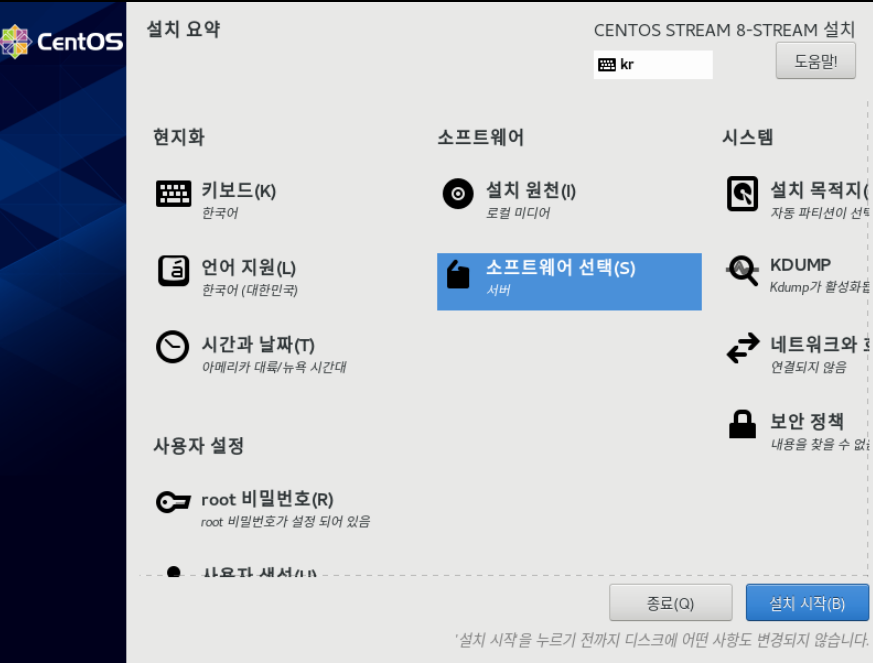
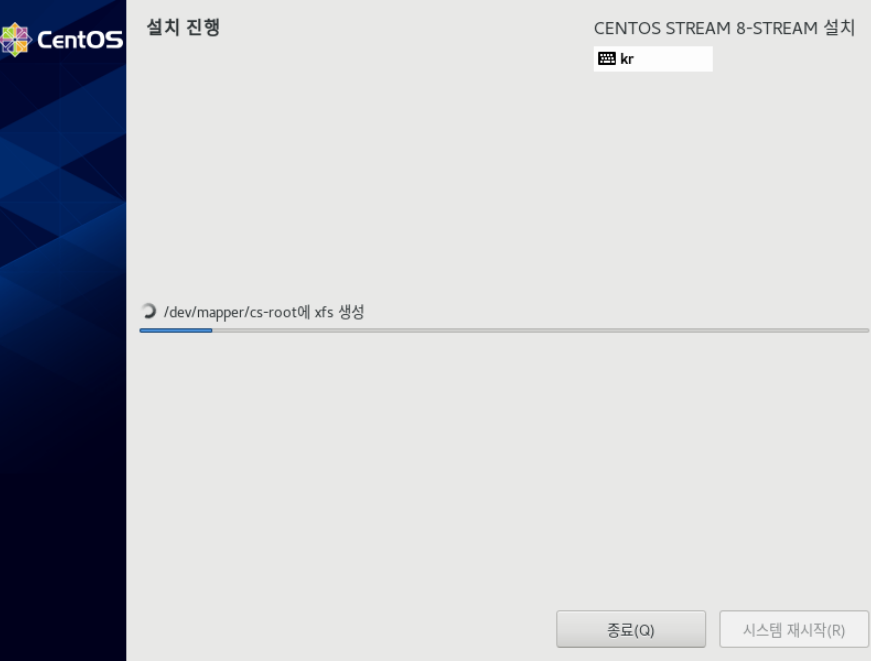
    centos
    centos
    centos
    centos

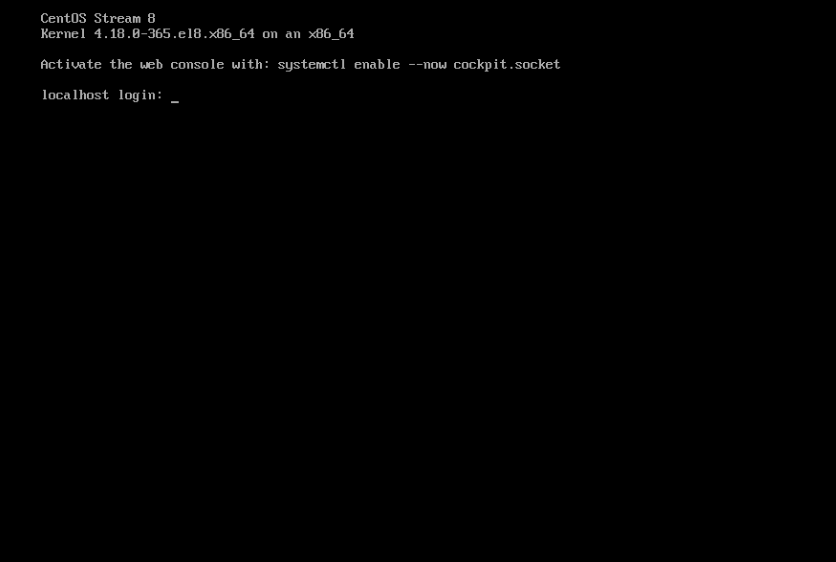
    Just enter the ID/PW registered as a user.
    centos
    centos

    Next post

    Good article to read together

    • Activate Centos 8 RHEL & REMI Repository
    • Install Nginx web server (Centos 8)
    • firewall settings
    • Linux user management useradd usermod userdel
    • Linux administrator tool – enable cockpit

    Related Reading

    FAQ

    What is this article about?

    This article is an English translation and global-reader adaptation of the Korean post “How to Install CentOS 8: Download and Basic Server Setup Guide.” It preserves the original article’s main explanation, examples, and practical context.

    Why is it translated into English?

    The English version helps global readers access Thinknote articles through English search keywords while keeping the Korean source available as the original reference.

    Where can I read the original Korean version?

    You can read the original Korean article here: https://www.thinknote.co.kr/centos-8-install-download/

  • Linux administrator tool – enable cockpit

    Linux administrator tool – enable cockpit

    Red Hat supports cockpit as a server management tool to improve administrator's management efficiency. cockpit provides a user-friendly interface and is also supported on CentOS.

    Original Korean article: Linux administrator tool – enable cockpit

    cockpit function

    • Cockpit is modular and can be expanded by installing additional modules.
    • You can additionally set up multiple servers in one cockpit dashboard.
    • cockpit uses a socket method and does not use memory during use.
    • Cockpit can be accessed by a user with sudoer privileges, but cannot be accessed by root privileges.

    Activate cockpit

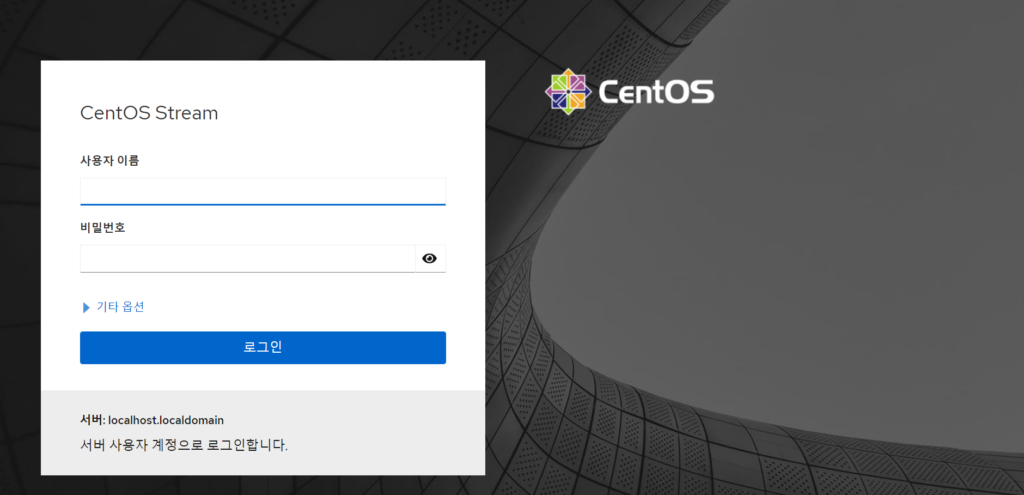
    The installation and connection methods are very simple. When you reboot after installing CentOS 8, the cockpit activation command is displayed at the top of the login page.

    After logging in, enter the following code in the terminal.

    centos cockpit
    centos cockpit
    sudo systemctl enable --now cockpit.socket

    After activation, reboot.

    sudo reboot

    cockpit access

    When you reboot, the connection link is initially displayed at the top.

    centos cockpit
    centos cockpit

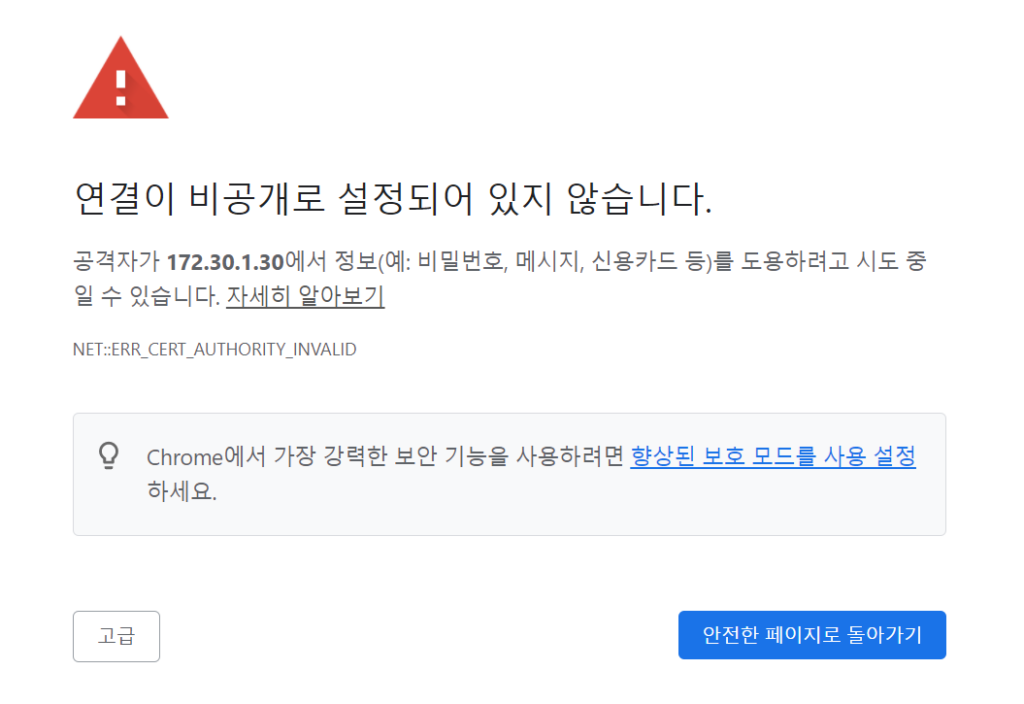
    Access https://localhost:9090/ or https://[ip]:9090/ in a web browser. It is displayed as private, but you can click Advanced, move to ‘Not Secure’, and access it.

    centos cockpit
    centos cockpit
    centos cockpit
    centos cockpit

    Good article to read together

    • Linux user management useradd usermod userdel
    • Activate Centos 8 RHEL & REMI Repository
    • Install OpenSSL
    • Installing and managing MariaDB (MySQL)
    • Install Ubuntu 22.04.1 (VirtualBox)

    Related Reading

    FAQ

    What is this article about?

    This article is an English translation and global-reader adaptation of the Korean post “Linux administrator tool – enable cockpit.” It preserves the original article’s main explanation, examples, and practical context.

    Why is it translated into English?

    The English version helps global readers access Thinknote articles through English search keywords while keeping the Korean source available as the original reference.

    Where can I read the original Korean version?

    You can read the original Korean article here: https://www.thinknote.co.kr/linux-cockpit-admin-tool/

    Practical Notes for Global Readers

    This English draft keeps the original Korean article as its source while adding a short practical reading guide for international readers who may not share the same local context. The main topic is Linux administrator tool – enable cockpit.

    How to Use This Guide

    Read the steps in order first, then adapt names, paths, package versions, policy details, or local service conditions to your own environment. Older server and software articles may describe a specific Ubuntu, CentOS, PHP, Nginx, or Linux administration context, so verify current package names before applying commands on a production system.

    Before You Apply the Steps

    Back up configuration files, confirm your server access method, and test changes in a safe environment whenever possible. If the article discusses policy, travel, finance, or market information, use it as contextual analysis and check the latest official source before making a final decision.

    Why This Translation Exists

    The purpose of this English version is to make Thinknote’s Korean archive accessible to global search readers while preserving the original article’s practical intent and source link.

  • Linux user management useradd usermod userdel

    Linux user management useradd usermod userdel

    Linux is managed by groups and users. User accounts can be created/edited/deleted. Information about user accounts is stored in /etc/passwd.

    Original Korean article: Linux user management useradd usermod userdel

    Check user list

    sudo cat /etc/passwd

    Add user and register password

    You can register a user with the adduser command.

    • -m or –create-home: Add the new user’s home directory. -s or –shell: The shell can be set differently for each user. -u or –uid: Specifies a specific user ID (UID). -c or –comment : GECOS field
    sudo adduser [example]

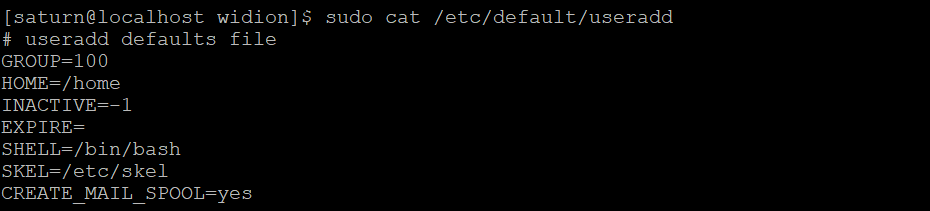
    User default settings can be checked in /etc/defaults/useradd.

    sudo cat /etc/default/useradd
    useradd default
    useradd default
    • Register the user’s password with the passwd [user name] command. Existing users can change their password.
    sudo passwd [example]
    Article image 2
    Article image 2

    Edit user information

    For existing user accounts, you can change the user name, change the shell, or lock or unlock the account.

    • -c or –comment: Modify GECOS field -d or –home: Modify home directory information -e or –expiredate: Set account expiration -l (lowercase L) or –login: Modify username
    • -L or –lock: Lock user account
    • -U or –unlock : Unlock user
    sudo usermod [option] [example]

    Delete user

    Unnecessary user accounts can be deleted with the userdel command.

    • -f or –force: Delete account even when user is logged in -r or –remove: Delete account including mail and home directory
    sudo userdel [example]

    Good article to read together

    • Linux administrator tool – enable cockpit
    • Activate Centos 8 RHEL & REMI Repository
    • Install OpenSSL
    • Installing and managing MariaDB (MySQL)
    • Install Ubuntu 22.04.1 (VirtualBox)

    Related Reading

    FAQ

    What is this article about?

    This article is an English translation and global-reader adaptation of the Korean post “Linux user management useradd usermod userdel.” It preserves the original article’s main explanation, examples, and practical context.

    Why is it translated into English?

    The English version helps global readers access Thinknote articles through English search keywords while keeping the Korean source available as the original reference.

    Where can I read the original Korean version?

    You can read the original Korean article here: https://www.thinknote.co.kr/linux-user-management-useradd-usermod-userdel/

    Practical Notes for Global Readers

    This English draft keeps the original Korean article as its source while adding a short practical reading guide for international readers who may not share the same local context. The main topic is Linux user management useradd usermod userdel.

    How to Use This Guide

    Read the steps in order first, then adapt names, paths, package versions, policy details, or local service conditions to your own environment. Older server and software articles may describe a specific Ubuntu, CentOS, PHP, Nginx, or Linux administration context, so verify current package names before applying commands on a production system.

    Before You Apply the Steps

    Back up configuration files, confirm your server access method, and test changes in a safe environment whenever possible. If the article discusses policy, travel, finance, or market information, use it as contextual analysis and check the latest official source before making a final decision.

    Why This Translation Exists

    The purpose of this English version is to make Thinknote’s Korean archive accessible to global search readers while preserving the original article’s practical intent and source link.

  • Activate Centos 8 RHEL & REMI Repository

    Activate Centos 8 RHEL & REMI Repository

    Activate Centos 8 RHEL & REMI Repository

    Original Korean article: Activate Centos 8 RHEL & REMI Repository

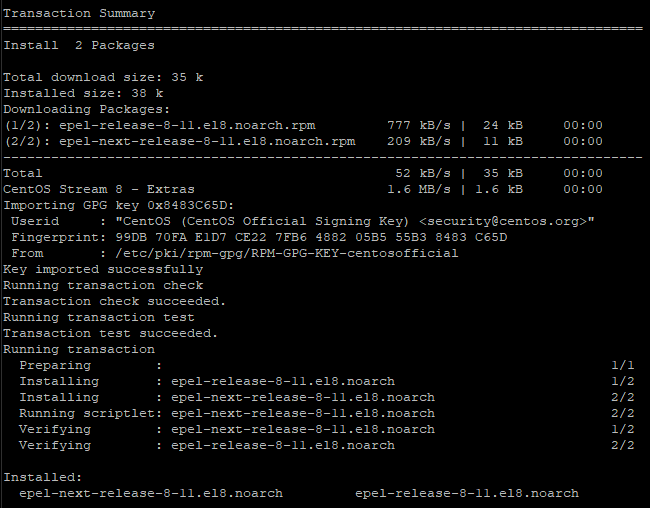
    RHEL stands for an additional package for Enterprise Linux and provides a repository that can be used on Centos 8 servers. To use the RHEL repository, you must be connected to the Internet and have root or sudo administrator privileges.

    RHEL 8 includes new features that accelerate application development, including installation, coding, tool selection, and configuration. Configuring to use the RHEL Repository on CentOS 8 is very simple, and during installation, REMI, which includes the PHP package to be used on the web server, is also installed. REMI is a free and stable dnf(yum) repository centered on the PHP stack and includes packages for the latest version of PHP.

    Activate RHEL

    sudo dnf search epel
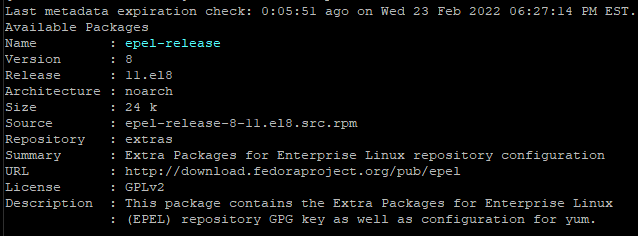
    sudo dnf info epel-release
    Centos 8 RHEL & REMI Repository
    Centos 8 RHEL & REMI Repository
    sudo dnf -y install epel-release
    Centos 8 RHEL & REMI Repository
    Centos 8 RHEL & REMI Repository
    sudo dnf update

    Activate REMI

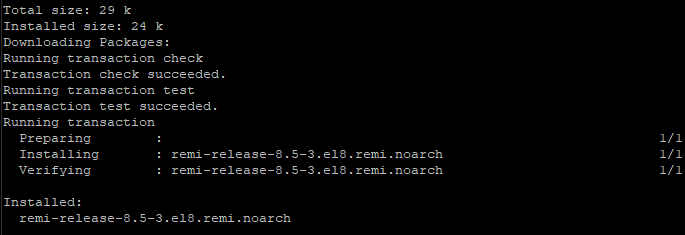
    You can install the REMI repository by running the following command.

    sudo dnf -y install https://rpms.remirepo.net/enterprise/remi-release-8.rpm
    Article image 3
    Article image 3
    sudo dnf update

    previous post

    Good article to read together

    • Linux administrator tool – enable cockpit
    • Linux user management useradd usermod userdel
    • Install OpenSSL
    • Installing and managing MariaDB (MySQL)
    • Install Ubuntu 22.04.1 (VirtualBox)

    Related Reading

    FAQ

    What is this article about?

    This article is an English translation and global-reader adaptation of the Korean post “Activate Centos 8 RHEL & REMI Repository.” It preserves the original article’s main explanation, examples, and practical context.

    Why is it translated into English?

    The English version helps global readers access Thinknote articles through English search keywords while keeping the Korean source available as the original reference.

    Where can I read the original Korean version?

    You can read the original Korean article here: https://www.thinknote.co.kr/centos-8-rhel-remi-repository/

    Practical Notes for Global Readers

    This English draft keeps the original Korean article as its source while adding a short practical reading guide for international readers who may not share the same local context. The main topic is Activate Centos 8 RHEL & REMI Repository.

    How to Use This Guide

    Read the steps in order first, then adapt names, paths, package versions, policy details, or local service conditions to your own environment. Older server and software articles may describe a specific Ubuntu, CentOS, PHP, Nginx, or Linux administration context, so verify current package names before applying commands on a production system.

    Before You Apply the Steps

    Back up configuration files, confirm your server access method, and test changes in a safe environment whenever possible. If the article discusses policy, travel, finance, or market information, use it as contextual analysis and check the latest official source before making a final decision.

    Why This Translation Exists

    The purpose of this English version is to make Thinknote’s Korean archive accessible to global search readers while preserving the original article’s practical intent and source link.

  • firewall settings

    firewall settings

    1. Understanding and updating firewall

    firewalld is a firewall management tool provided by default in the CentOS operating system. firewalld supports both IPv4 and IPv6 networks, operates as defined in the profile area, and is highly reliable.

    Original Korean article: firewall settings

    • block: Connect only networks started within the system and reject all other connections
    • dmz: Allows connections only from allowed ports and provides connections to incoming ports.
    • drop: Block all incoming connections and only allow outgoing network connections
    • public: Do not trust other servers or computers on the network and allow only necessary ports and services
    • trusted: Allow connections to all zones
    • home: Connects to a trusted PC on the local network and allows only selected TCP/IP ports

    You can use friewall to allow or block traffic. Centos 8 provides a custom-based firewall with a dynamic interface.

    A firewall forms a barrier between the system and external sources, preventing external damage from spreading and damaging valuable internal data. Therefore, you must use a firewall and you should not stop it just because the service is not working well.

    sudo firewall-cmd --get-zones
    centos firewall
    centos firewall
    sudo firewall-cmd --version
    centos firewall
    centos firewall

    firewall settings

    sudo systemctl status firewall
    sudo systemctl start firewall
    sudo systemctl stop firewall
    sudo systemctl restart firewall
    sudo systemctl enable firewall
    sudo systemctl disable firewall
    sudo firewall-cmd --reload
    /etc/firewalld/firewalld.conf

    firewall firewall port settings

    sudo firewall-cmd --list-all
    sudo firewall-cmd --list-services

    OR

    sudo firewall-cmd --list-services --zone=public
    sudo firewall-cmd --remove-service=cockpit --permanent
    sudo firewall-cmd --remove-service=dhcpv6-client --permanent

    You can specify the port directly, but you can also use the service name to operate it.

    sudo firewall-cmd --get-services
    sudo firewall-cmd --get-services | grep [example example : http or mysql]

    Service port information can be checked through the xml file in the link below.

    sudo ls -l /usr/lib/firewalld/services/
    sudo cat /usr/lib/firewalld/services/ssh.xml

    The following is the command to permanently add an http port to the public zone. If you delete –permanent and enter it, it will be added temporarily and will disappear after rebooting. If you register a service and port, it must be reloaded.

    sudo firewall-cmd --zone=public --add-service=http --permanent

    OR

    sudo firewall-cmd --zone=public --add-port=80/tcp --permanent
    centos firewall
    centos firewall
    sudo firewall-cmd --reload

    The following is the command to permanently delete the http port in the public zone. If you delete –permanent and then enter it, it will be temporarily deleted and will remain after rebooting. If you delete a service or port, it must be reloaded.

    sudo firewall-cmd --zone=public --remove-service=http --permanent

    OR

    sudo firewall-cmd --zone=public --remove-port=80/tcp --permanent
    centos firewall
    centos firewall
    sudo firewall-cmd --reload

    The firewall can be updated through git. https://firewalld.org/

    Good article to read together

    • Install Nginx web server (Centos 8)
    • Install Centos 8
    • Activate Centos 8 RHEL & REMI Repository
    • Install and enable Ubuntu firewall iptables
    • Ubuntu firewall iptables setup and management

    Related Reading

    FAQ

    What is this article about?

    This article is an English translation and global-reader adaptation of the Korean post “firewall settings.” It preserves the original article’s main explanation, examples, and practical context.

    Why is it translated into English?

    The English version helps global readers access Thinknote articles through English search keywords while keeping the Korean source available as the original reference.

    Where can I read the original Korean version?

    You can read the original Korean article here: https://www.thinknote.co.kr/firewall-port-settings/

  • Install Nginx web server (Centos 8)

    Install Nginx web server (Centos 8)

    1. Linux Nginx web server vs apache web server

    Web servers installed on Linux are divided into Nginx web servers and Apache web servers, and have the following differences.

    Original Korean article: Install Nginx web server (Centos 8)

    • Apache is an open source HTTP server, while Nginx is an open source, high-performance asynchronous web server and reverse proxy server.
    • While the development and evolution of Apache HTTP Server is managed and maintained by a global user community (Apache Software Foundation), Nginx is maintained and maintained by the company of the same name, founded in 2011.
    • While Apache provides various multiprocessing modules to handle client requests and web traffic, Nginx is designed to handle multiple client requests simultaneously with minimal hardware resources.
    • In Apache, a single thread is associated with one connection, but in Nginx, a single thread can handle multiple connections. This process consumes less memory and improves performance.
    • While Apache HTTP Server has a non-scalable, multi-threaded architecture, Nginx follows an asynchronous event-based approach to handling multiple client requests.
    • The Apache server serves static content using traditional methods and handles dynamic content natively within the web server itself. Nginx, on the other hand, cannot handle dynamic content internally and relies on external processes to do so.

    In other words, Apache has a relative advantage in terms of security and stability, and nginx has a relative advantage in terms of efficiency and speed. Activate and install Centos 8 RHEL & REMI Repository.

    2. Install nginx web server

    1) Update

    sudo dnf update

    2) Search nginx and check version

    sudo dnf list install nginx
    nginx web server
    nginx web server

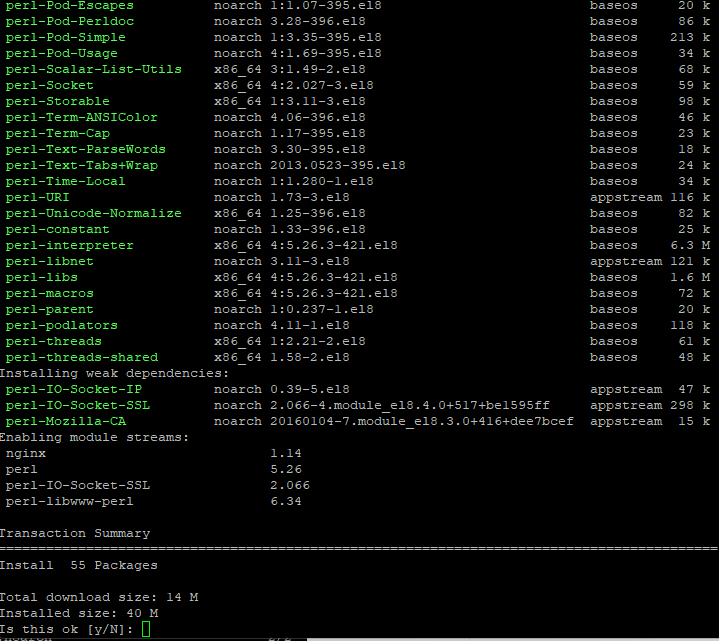
    3) Install nginx

    sudo dnf install -y nginx.x86_64
    nginx web server
    nginx web server

    4) Check nginx status

    sudo systemctl status nginx
    nginx web server
    nginx web server

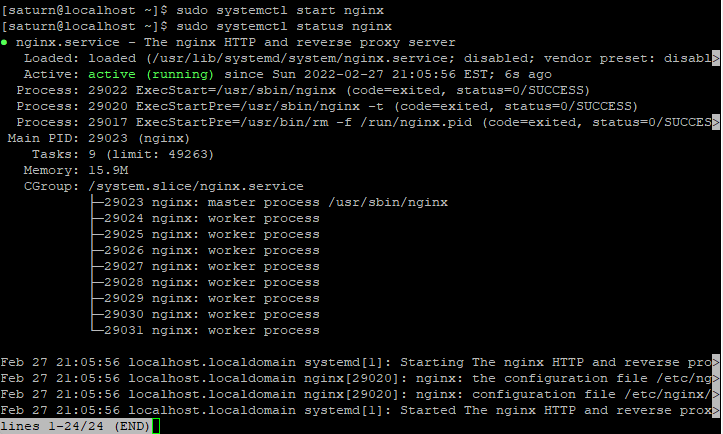
    5) Start nginx

    Press Ctrl+c to exit and start nginx.

    sudo systemctl start nginx
    nginx web server
    nginx web server

    Enable it to run automatically when booting. If you do not execute the following command, it will run in a dead state rather than a running state when booting.

    sudo systemctl enable nginx

    3. firewall Firewall settings

    1) Check firewall status

    sudo firewall-cmd --state

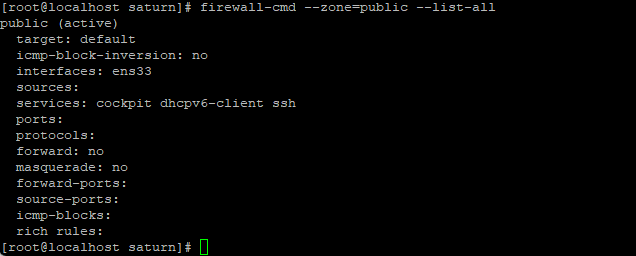
    2) Check firewall list

    sudo firewall-cmd --zone=public --list-all
    nginx web server
    nginx web server

    3) Add http(80) port

    sudo firewall-cmd --permanent --zone=public --add-port=80/tcp

    4) Update firewall

    sudo firewall-cmd --reload

    If you check with the following command, you can see that the 80/tcp item in ports has been added.

    sudo firewall-cmd --state
    nginx web server
    nginx web server

    If you want to delete a port, you can use the following command to delete an open port.

    firewall-cmd --permanent --zone=public --remove-port=80/tcp

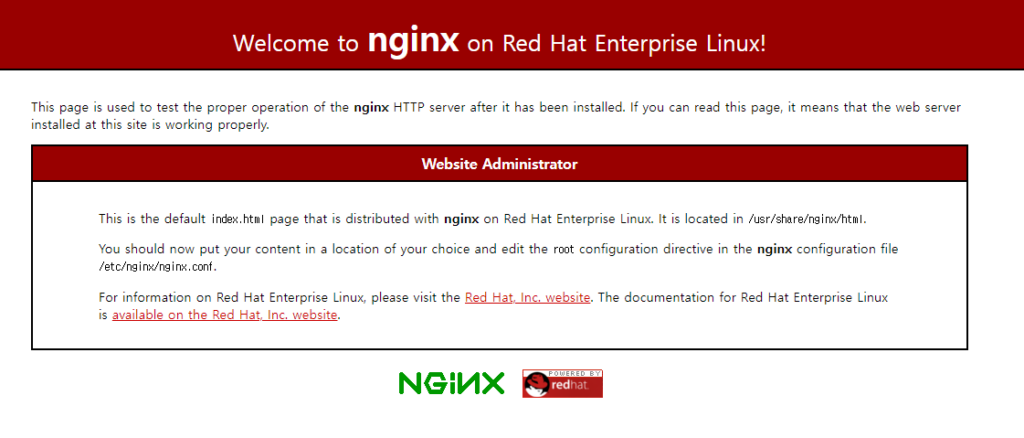
    5) Check web access

    Enter the IP address in a web browser and the following screen will appear.

    nginx web server
    nginx web server

    If an error occurs in the web browser, check the status of nginx to see if it is operating normally. Next, check whether the firewall is working and port 80 is open.

    Good article to read together

    • Install Nginx web server (ubuntu)
    • firewall settings
    • Install PHP 8 (ubuntu)
    • Free HTTPS setup (Let’s Encrypt, Cloudflare)
    • Install Centos 8

    Related Reading

    FAQ

    What is this article about?

    This article is an English translation and global-reader adaptation of the Korean post “Install Nginx web server (Centos 8).” It preserves the original article’s main explanation, examples, and practical context.

    Why is it translated into English?

    The English version helps global readers access Thinknote articles through English search keywords while keeping the Korean source available as the original reference.

    Where can I read the original Korean version?

    You can read the original Korean article here: https://www.thinknote.co.kr/nginx-web-server-install-centos8/

  • VirtualBox Virtual Box virtual machine download and installation

    VirtualBox Virtual Box virtual machine download and installation

    1. What is a Virtual Machine?

    VirtualBox is a virtual machine that anyone can use as free software. A virtual machine () is a virtual environment with its own CPU, memory, network interfaces, and storage created on a physical hardware system. A physical machine equipped with a hypervisor, such as a Kernel-Based Virtual Machine (KVM), is called a host machine, host computer, host operating system, or simply host.

    Original Korean article: VirtualBox Virtual Box virtual machine download and installation

    The hypervisor can easily relocate computing resources such as CPU, memory, and storage between existing guests or to new virtual machines. Virtual machines are not suitable for use in resource-intensive 3D, graphics, or physics engines.

    Virtual machines can install various operating systems such as MacOS, Linux, and Windows, and each operating system is configured similarly to the physical environment.

    1) Virtual machine type

    A virtual machine has various software depending on the operating system of the host PC. The following virtual machine software is available for free. Here, we will build a virtual environment using VirtualBox software.

    • Virtualization Manager
    • VM Monitor
    • VMware Fusion (Mac)
    • Parallels
    • VMware Workstation Player
    • Hyper-V
    • VirtualBox
    • QEMU
    • Gnome Boxes
    • Red Hat Virtualization

    2. Understanding VirtualBox

    1) VirtualBox Features

    VirtualBox is free software and anyone can use it. VirtualBox was originally created by Innotek GmbH, which was acquired by Sun Microsystems in 2008 and by Oracle in 2010.

    VirtualBox is the best software for developers who need to develop in a variety of virtual environments for enterprise visualization and home use. VirtualBox is an open source hypervisor for x86 computers and is one of the best VM software that supports creation and management of virtual machines.

    VirtualBox can install and run Windows, Linux, BSD and other OS. A notable aspect of VirtualBox is its ability to transfer virtual machines from one host to another.

    2) VirtualBox virtualization

    Users of VirtualBox can load multiple guest OSs on a single host operating system (host OS). Each guest can be started, paused, and stopped independently within its own virtual machine.

    Users can configure each virtual machine independently and run it in either software-based virtualization or hardware-assisted virtualization, if supported by the underlying host hardware.

    The host OS and guest OS and applications can communicate with each other through several mechanisms, including a common clipboard and virtualized network functions. Guest virtual machines can also communicate if they are configured to communicate directly with each other.

    3) VirtualBox features

    • You can resize the window.
    • Supports multiple screen resolutions.
    • Windows 10 supports drag and drop functionality.
    • It gives you the flexibility to run any application on your PC.
    • You can run multiple guest windows simultaneously on the same computer.
    • Seamless mode allows you to run macOS and Windows applications side by side.
    • Supports Linux, Mac, Windows, Solaris, and OpenSolaris platforms.

    4) Virtualization supported OS

    • Windows 7 or higher
    • Windows Server 2012 or later
    • linux distribution
    • macOS versions 10.13 High Sierra through 10.15 Catalina (Intel-based Macs only)
    • Oracle Solaris

    5) VirtualBox Link

    https://www.virtualbox.org/

    3. Install VirtualBox

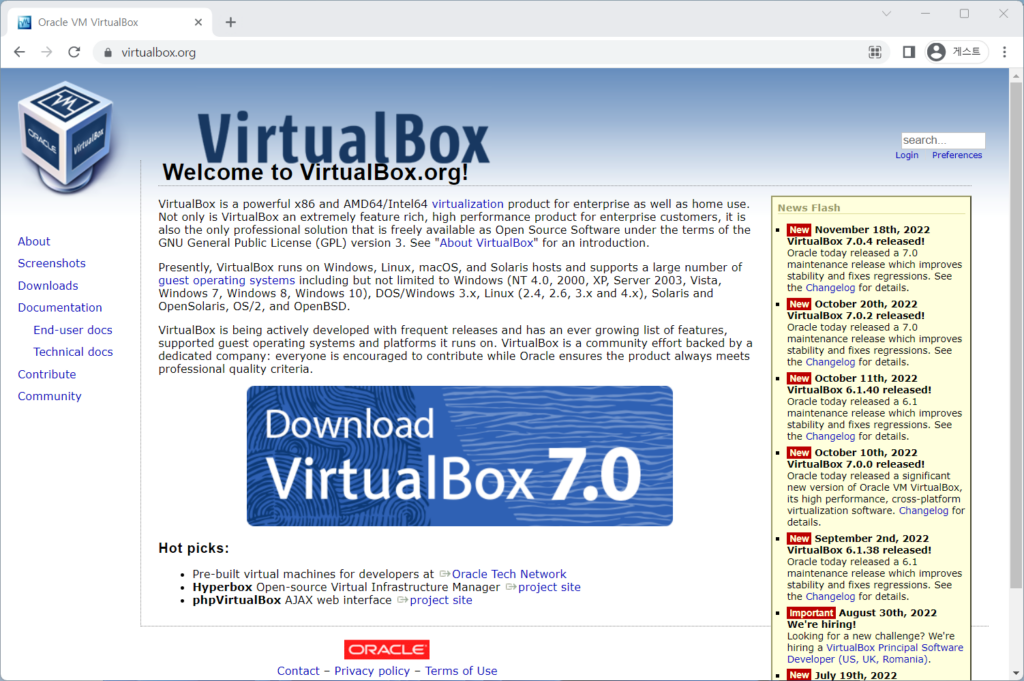
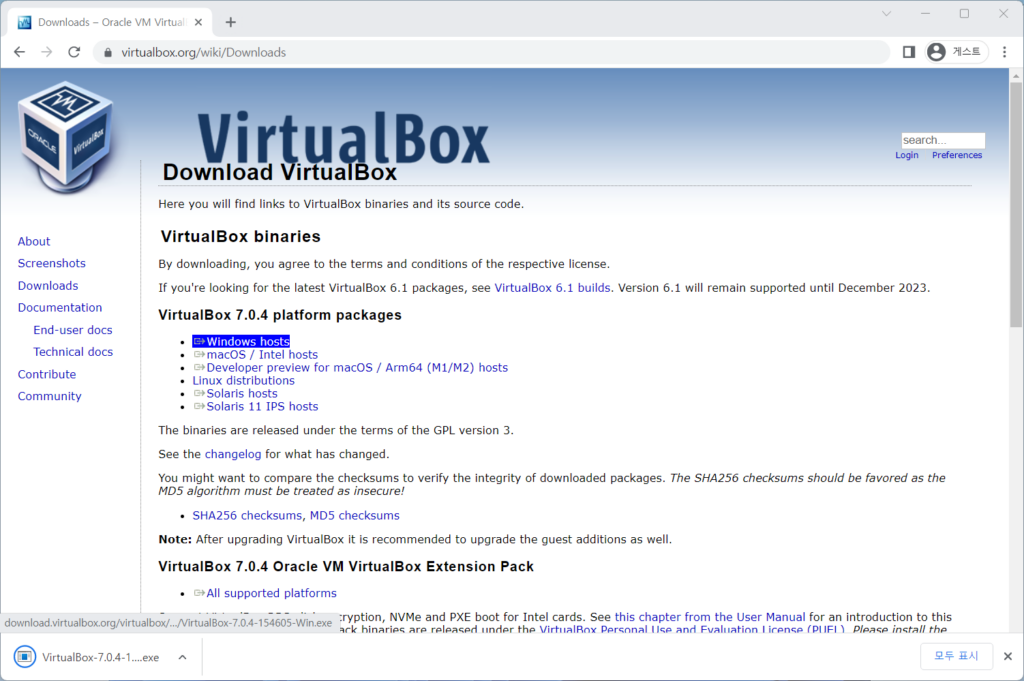
    1) Download VirtualBox

    Virtualbox Download
    Virtualbox Download
    Virtualbox Download
    Virtualbox Download

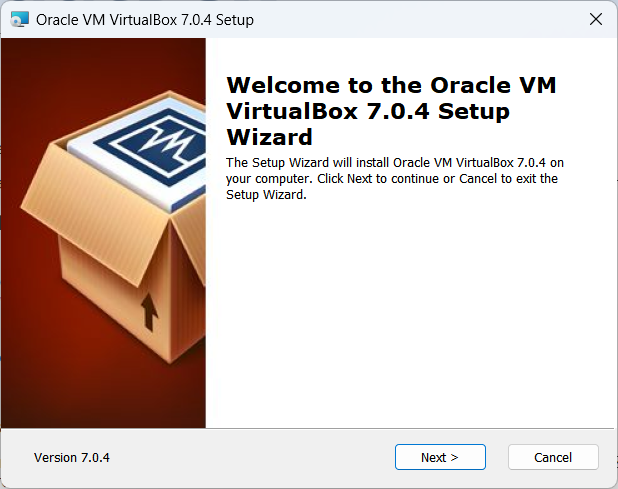
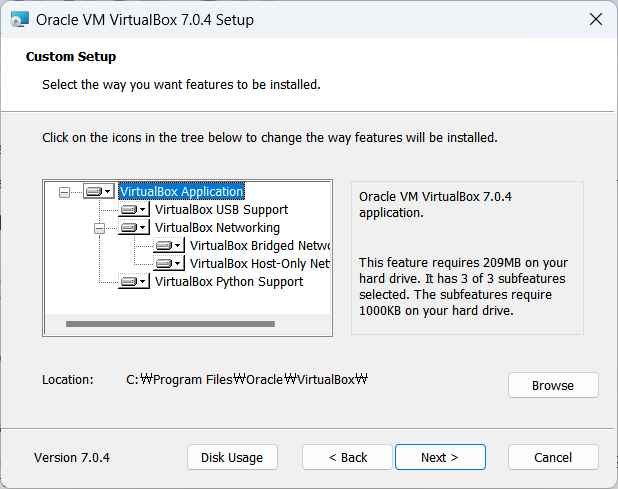
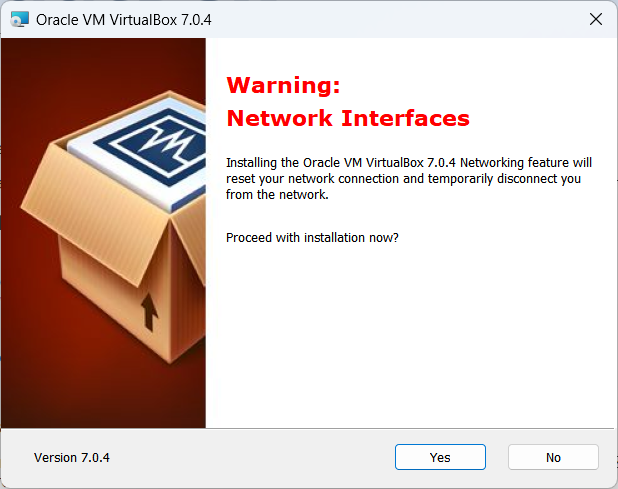
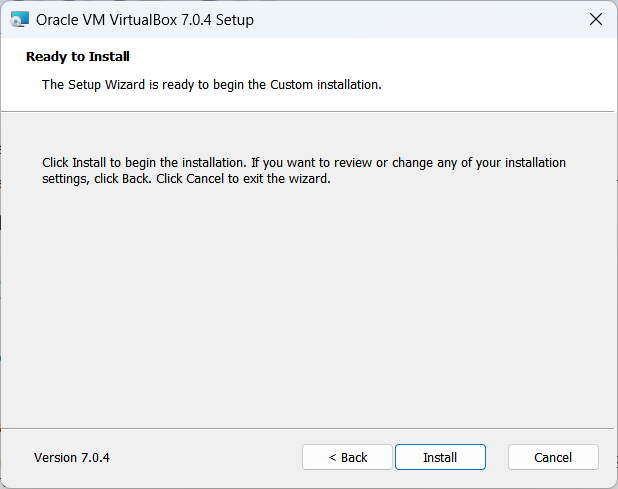
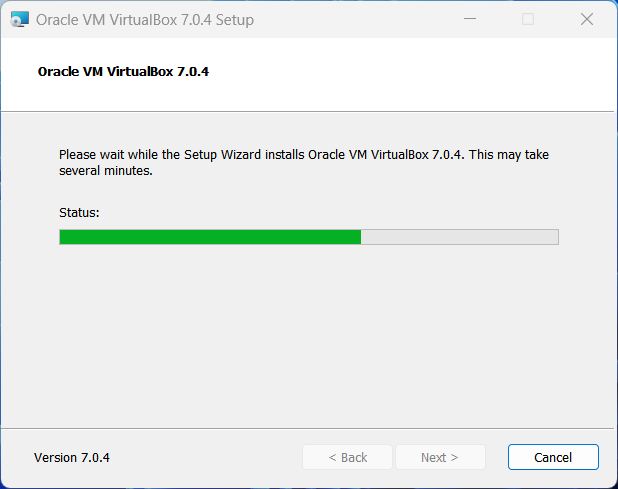
    2) Install VirtualBox (install Windows hosts)

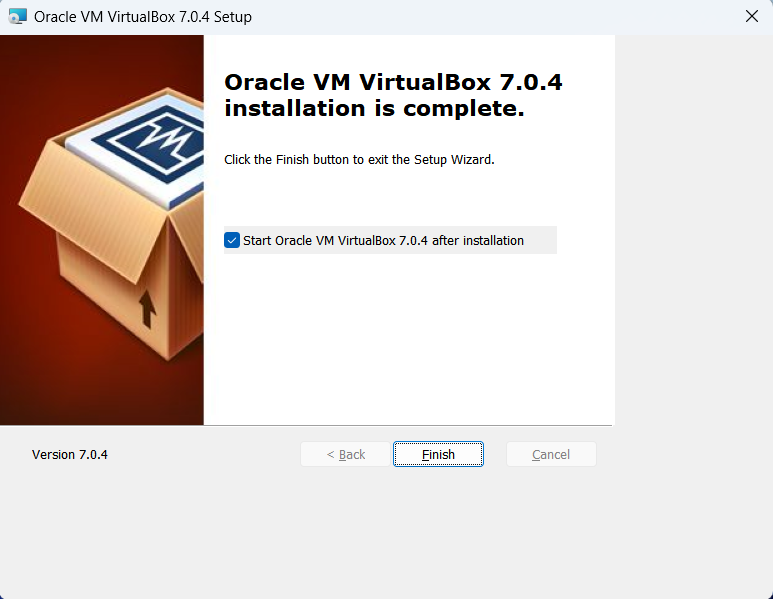
    Virtualbox Setup
    Virtualbox Setup
    Virtualbox Setup
    Virtualbox Setup
    Virtualbox Setup
    Virtualbox Setup
    Virtualbox Setup
    Virtualbox Setup
    Virtualbox Setup
    Virtualbox Setup
    Virtualbox Setup
    Virtualbox Setup
    Virtualbox Setup
    Virtualbox Setup

    3) Run VirtualBox Manager

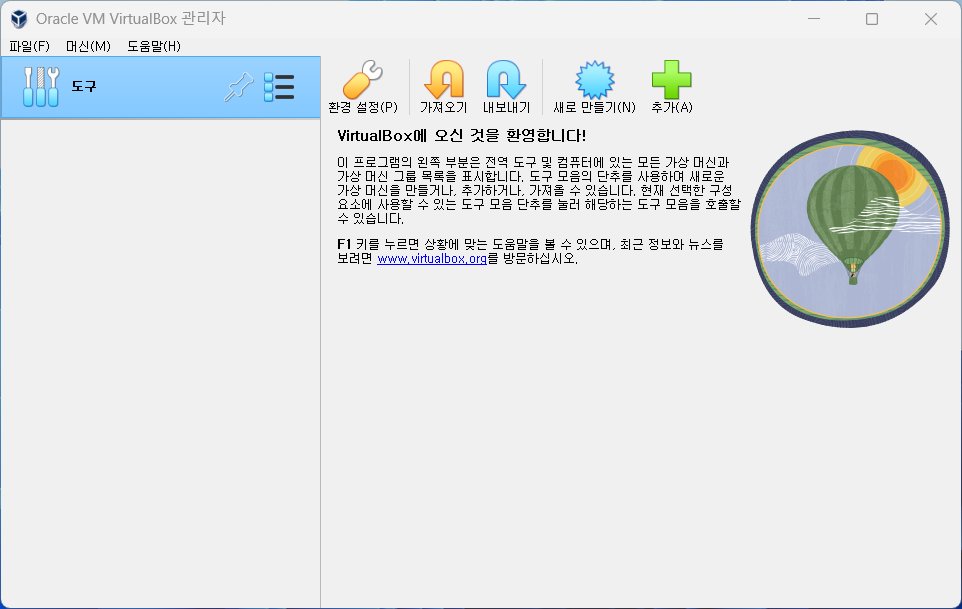
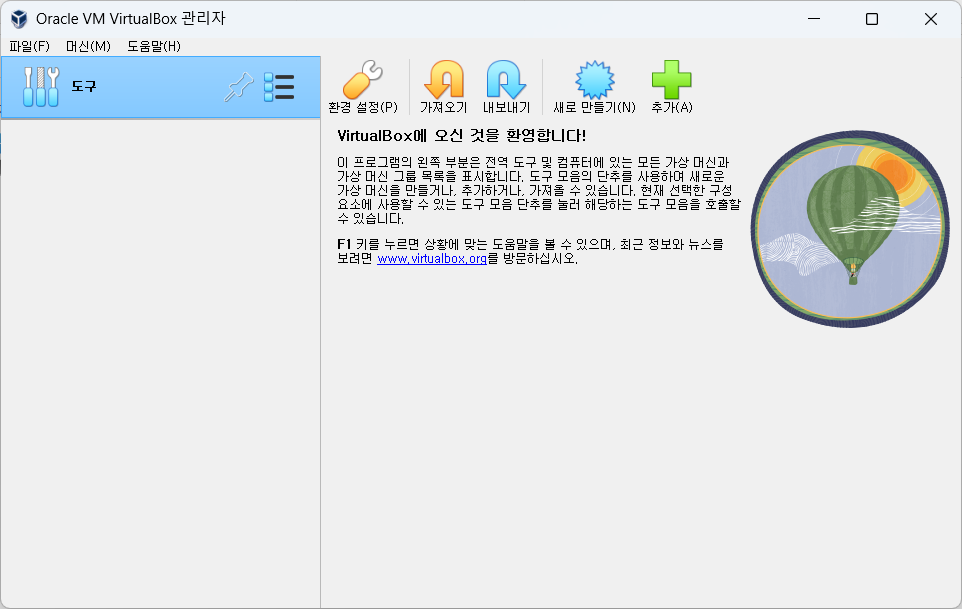
    VirtualBox VirtualBox execute
    VirtualBox VirtualBox execute
    Article image 11
    Article image 11
    Article image 12
    Article image 12
    Article image 13
    Article image 13
    Article image 14
    Article image 14
    Article image 15
    Article image 15
    Article image 16
    Article image 16

    Good article to read together

    • Install Ubuntu 22.04.1 (VirtualBox)
    • Install OpenSSL
    • Installing and managing MariaDB (MySQL)
    • Activate Centos 8 RHEL & REMI Repository
    • Linux administrator tool – enable cockpit

    Related Reading

    FAQ

    What is this article about?

    This article is an English translation and global-reader adaptation of the Korean post “VirtualBox Virtual Box virtual machine download and installation.” It preserves the original article’s main explanation, examples, and practical context.

    Why is it translated into English?

    The English version helps global readers access Thinknote articles through English search keywords while keeping the Korean source available as the original reference.

    Where can I read the original Korean version?

    You can read the original Korean article here: https://www.thinknote.co.kr/virtualbox-install-virtual-machine/

  • Install Ubuntu 22.04.1 (VirtualBox)

    Install Ubuntu 22.04.1 (VirtualBox)

    1. Run virtual PC (hereinafter referred to as Ubuntu Server)

    Ubuntu installation is carried out by running the configured virtual environment. Since Korean version cannot be installed during installation of Ubuntu 22.04 version, you must complete the installation and additionally install a Korean input method to use Korean language.

    Original Korean article: Install Ubuntu 22.04.1 (VirtualBox)

    If you have not set up VirtualBox first, click the link below to set up VirtualBox before proceeding.

    Download Ubuntu and set up Ubuntu (Virtualbox)

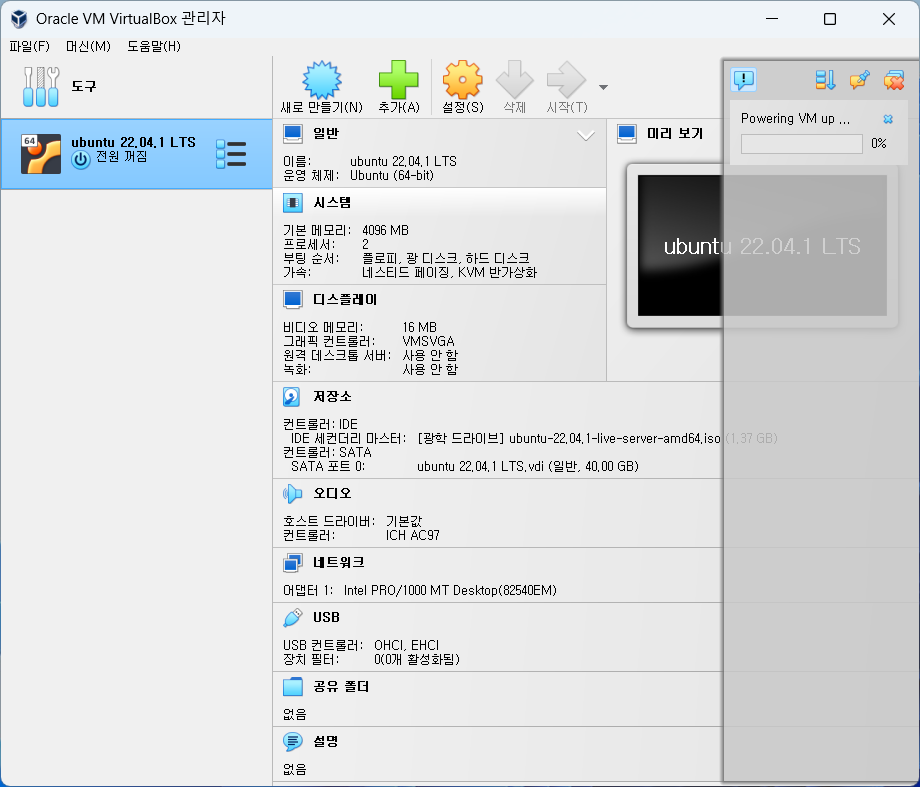
    • Run VirtualBox Manager and click Start in the top menu.
    install ubuntu
    install ubuntu
    install ubuntu
    install ubuntu

    2. Install Ubuntu

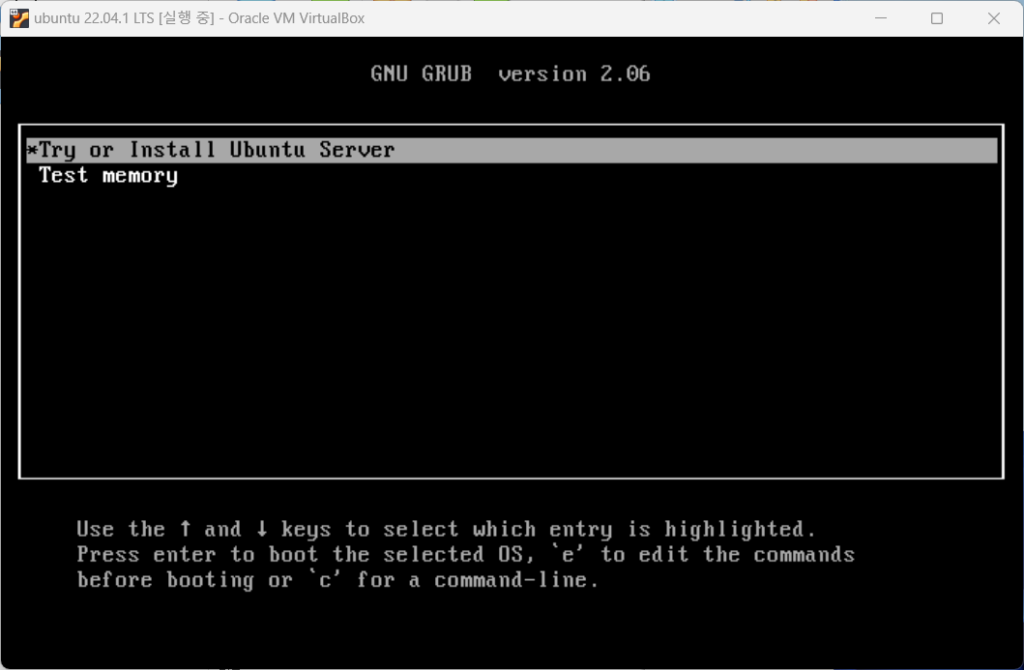
    • The ubuntu iso image mounted on the IDE controller is loaded and takes you to the installation screen.
    install ubuntu
    install ubuntu
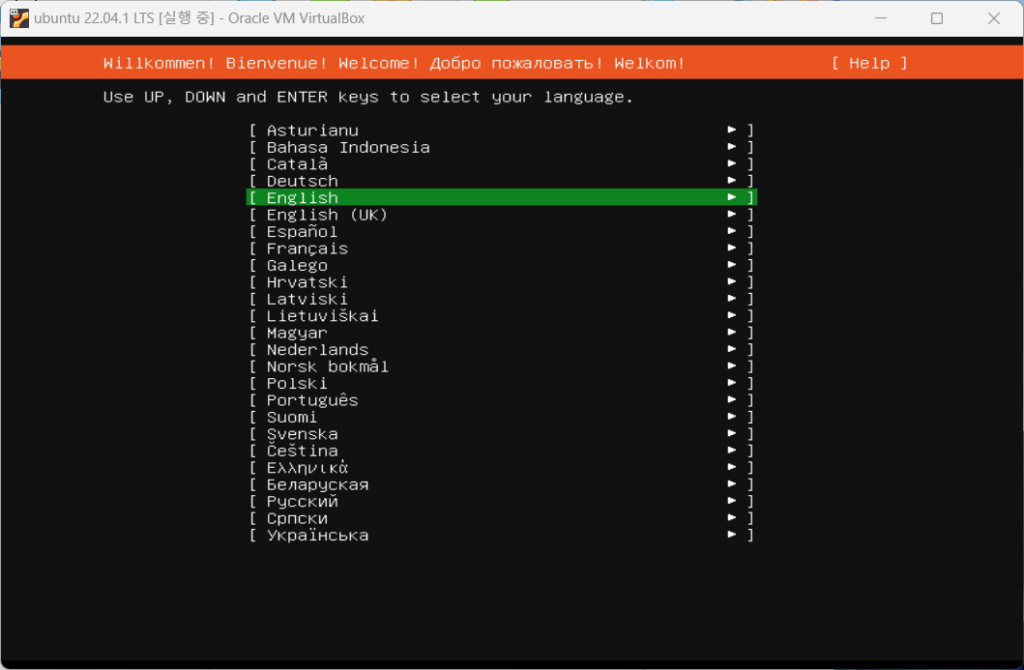
    • There is no Korean in the language settings, so I installed it in English.
    install ubuntu
    install ubuntu
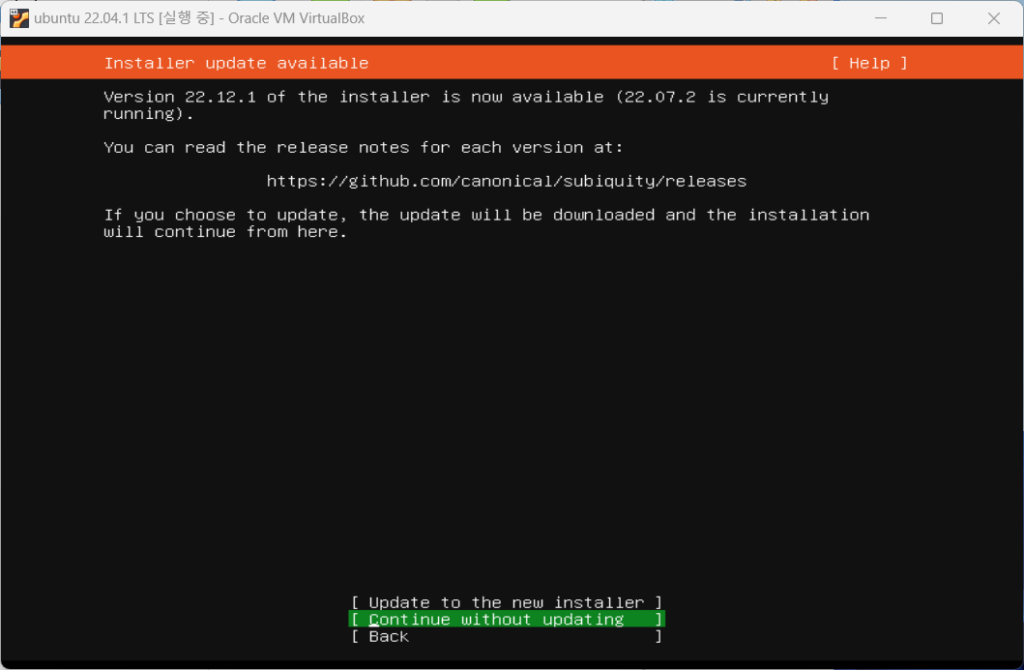
    • The Installer continues without updates.
    install ubuntu
    install ubuntu
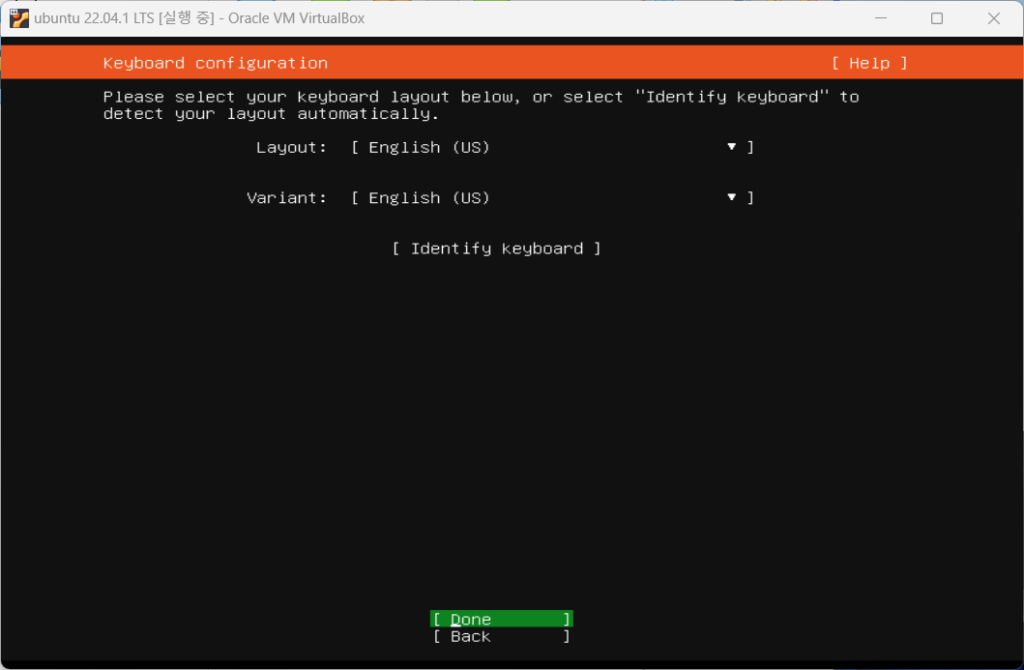
    • Select English as the keyboard language and click Done.
    install ubuntu
    install ubuntu
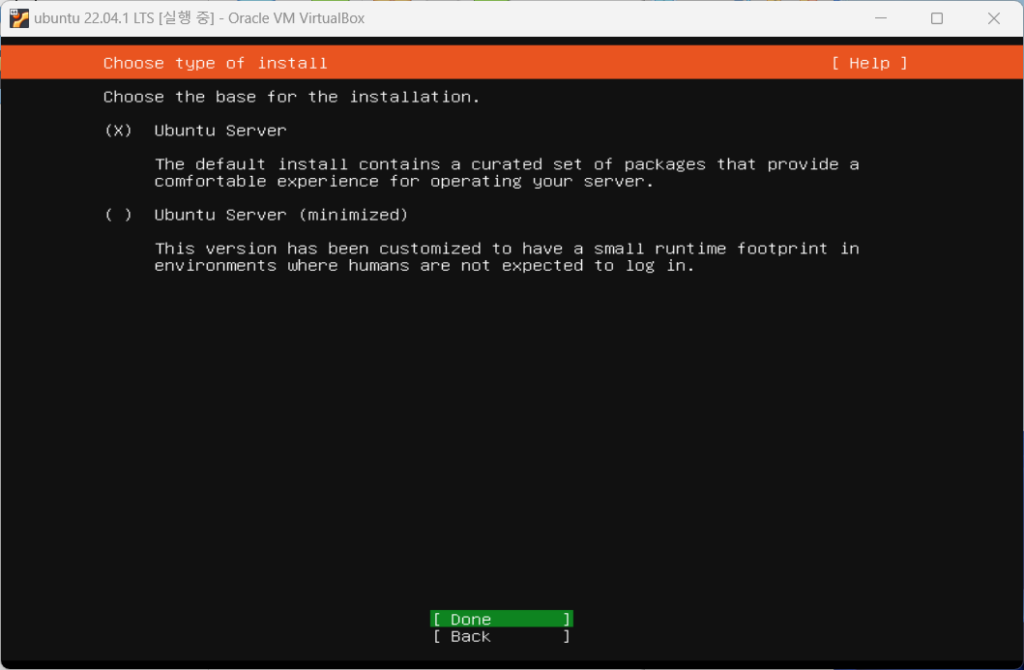
    • Select Ubuntu Server as the Ubuntu installation type and click Finish.
    install ubuntu
    install ubuntu
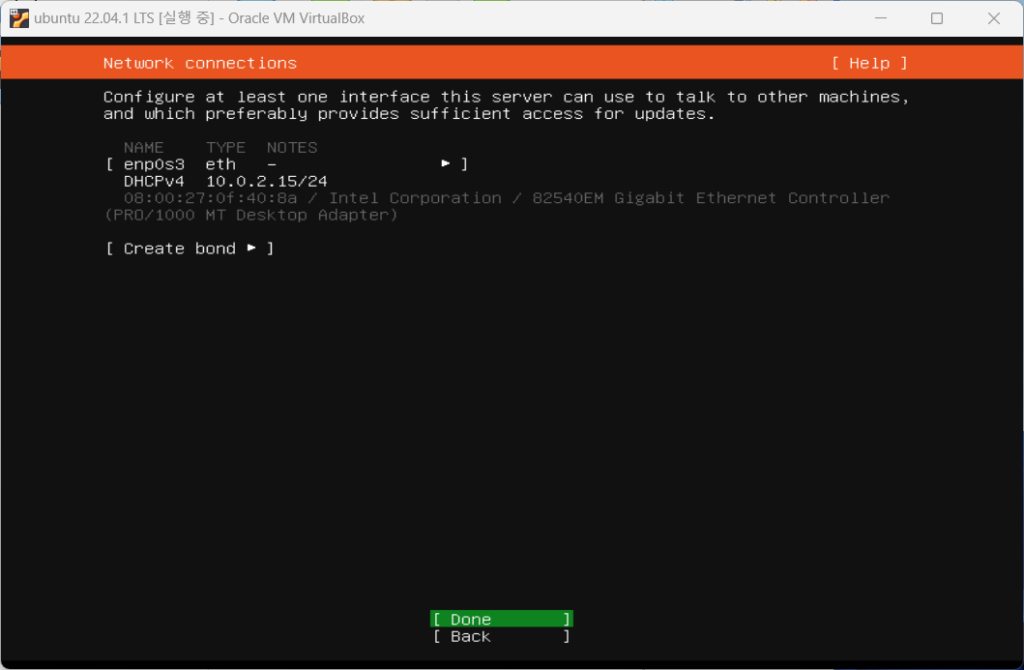
    • Network settings are set to default settings. The IP address set automatically is the address assigned by Virtualbox.
    install ubuntu
    install ubuntu
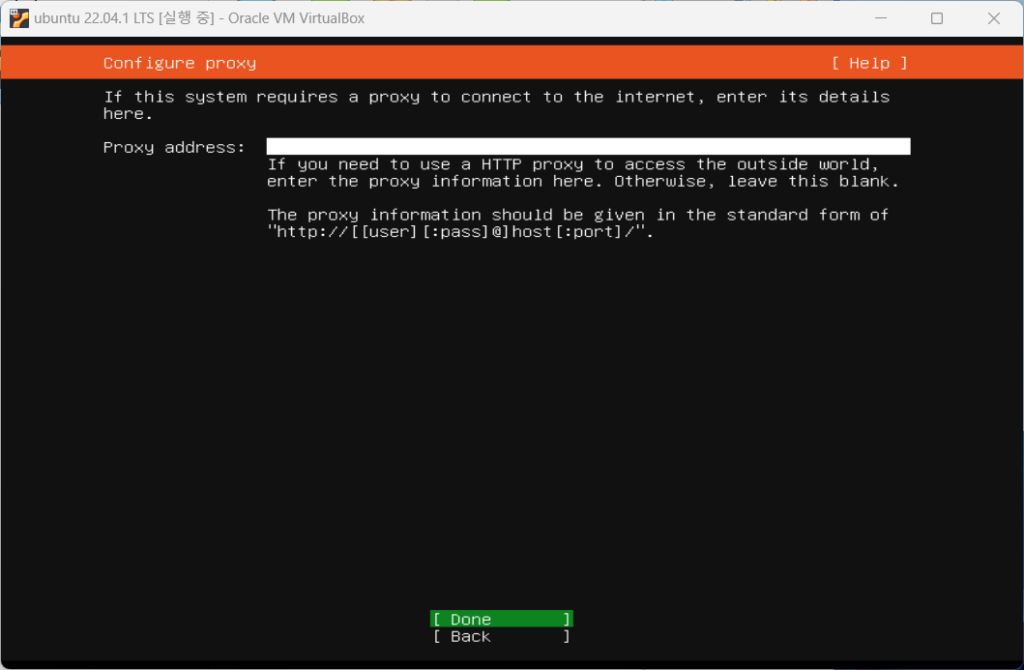
    • Click Done without entering the proxy address for proxy settings.
    install ubuntu
    install ubuntu
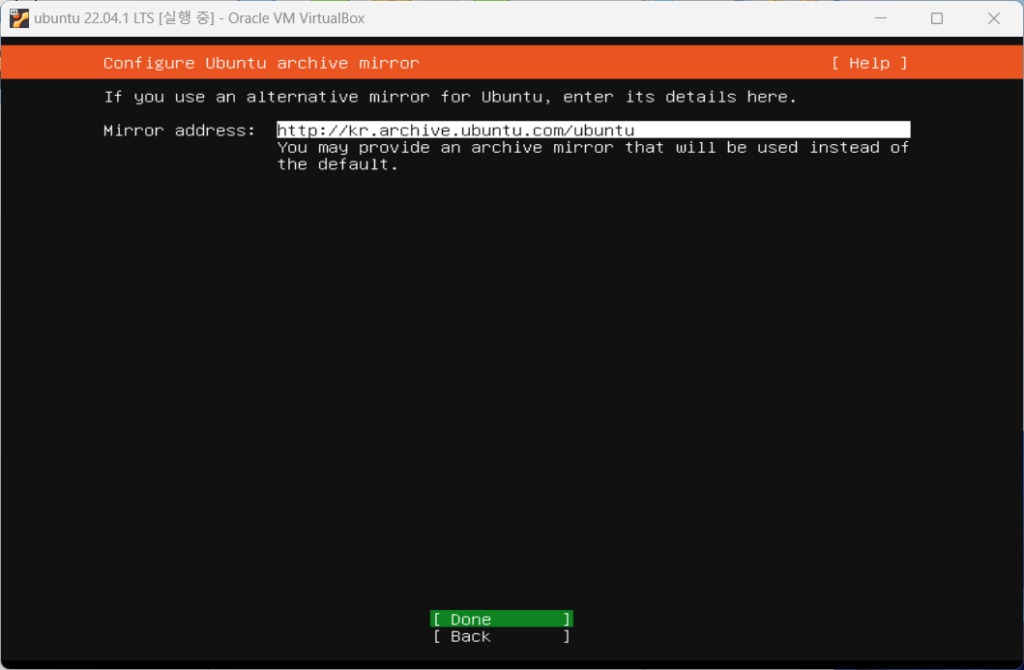
    • For Ubuntu archive mirror, select the default settings and click Done.
    install ubuntu
    install ubuntu
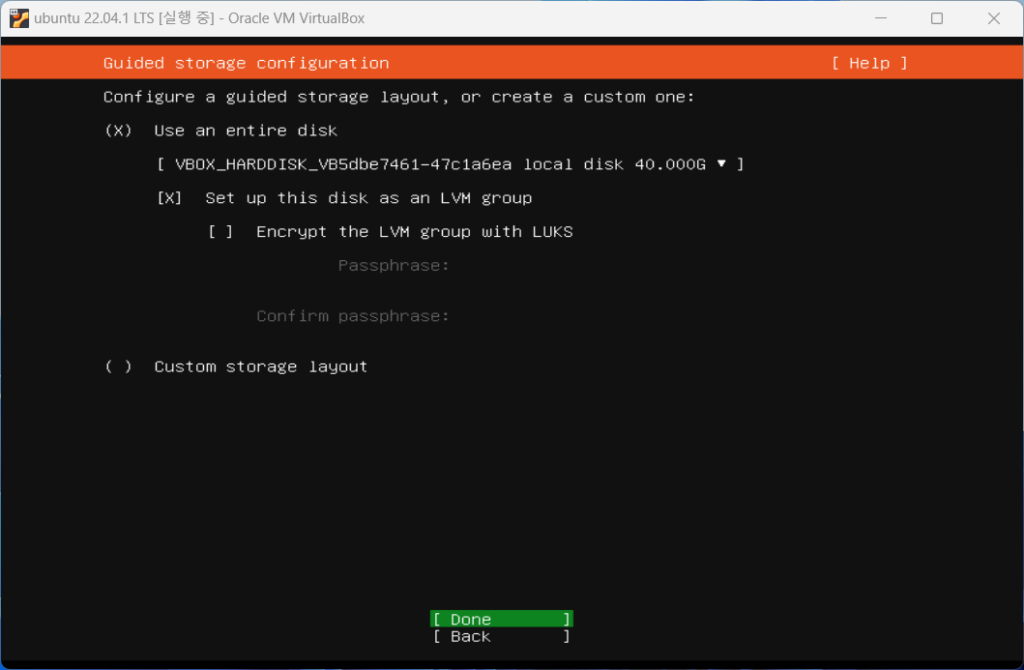
    • Depending on your configuration, you can set the storage settings to a custom storage layout, but since we are using a new disk, select the default settings and click Finish.
    install ubuntu
    install ubuntu
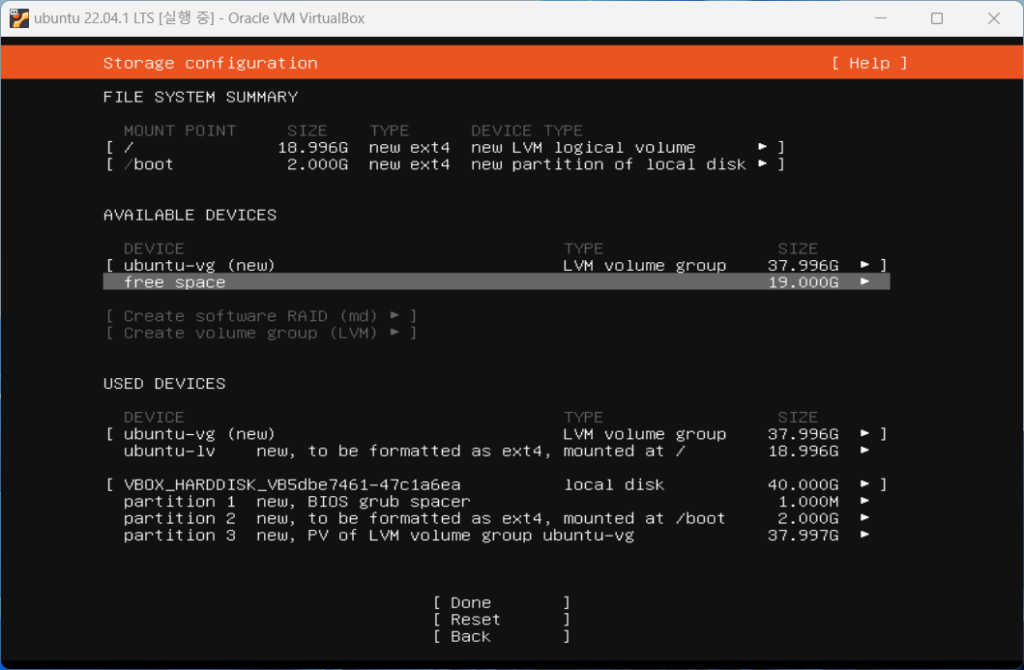
    • The default partitions are shown, and you can see that the root partition and boot partition consist of 20G, and there is 20G of free space.
    install ubuntu
    install ubuntu
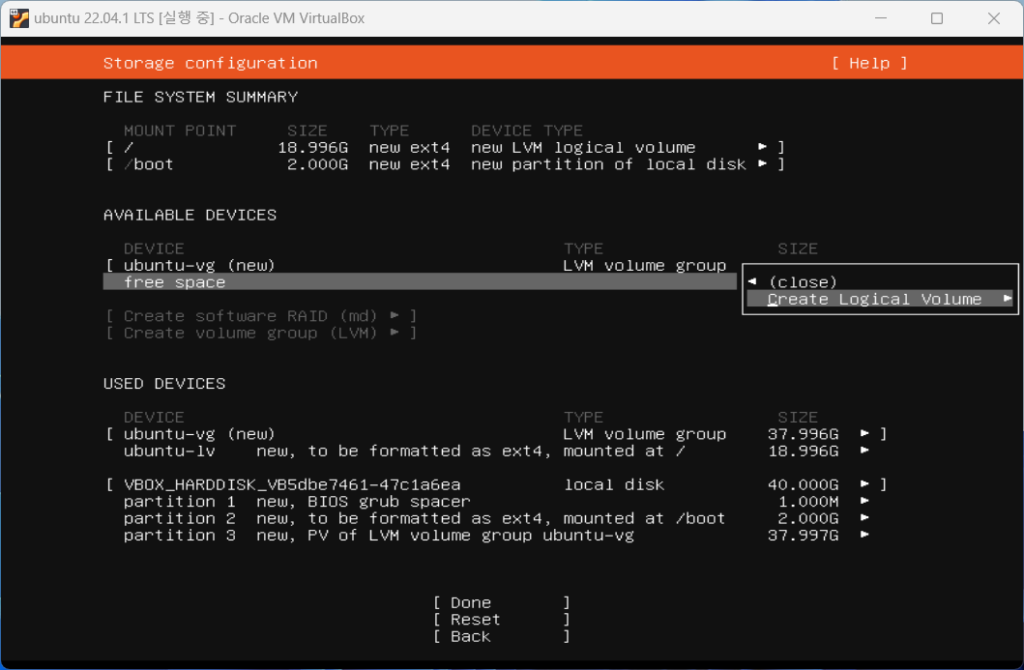
    • Select Create Logical Volume to configure the unallocated space into the /home directory.
    install ubuntu
    install ubuntu
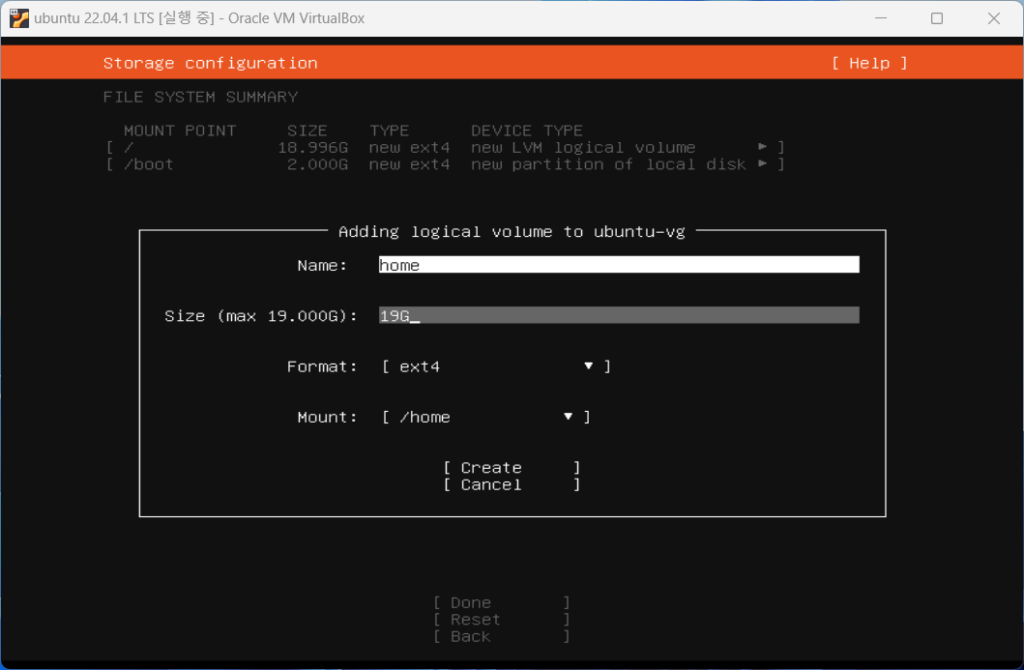
    • Write name as home and allocate maximum space as shown below. If left blank, maximum space will be automatically allocated. Select ext4 as the Format and /home as the Mount and click Create.
    install ubuntu
    install ubuntu
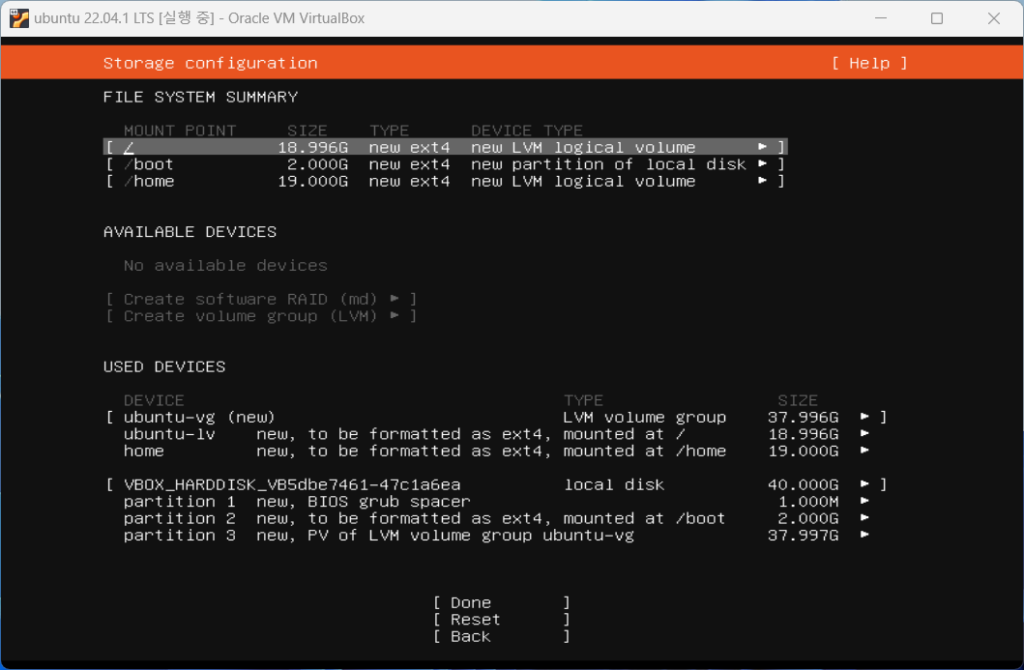
    • You can see that the /home directory has been added in the partition configuration information. Click Done.
    install ubuntu
    install ubuntu
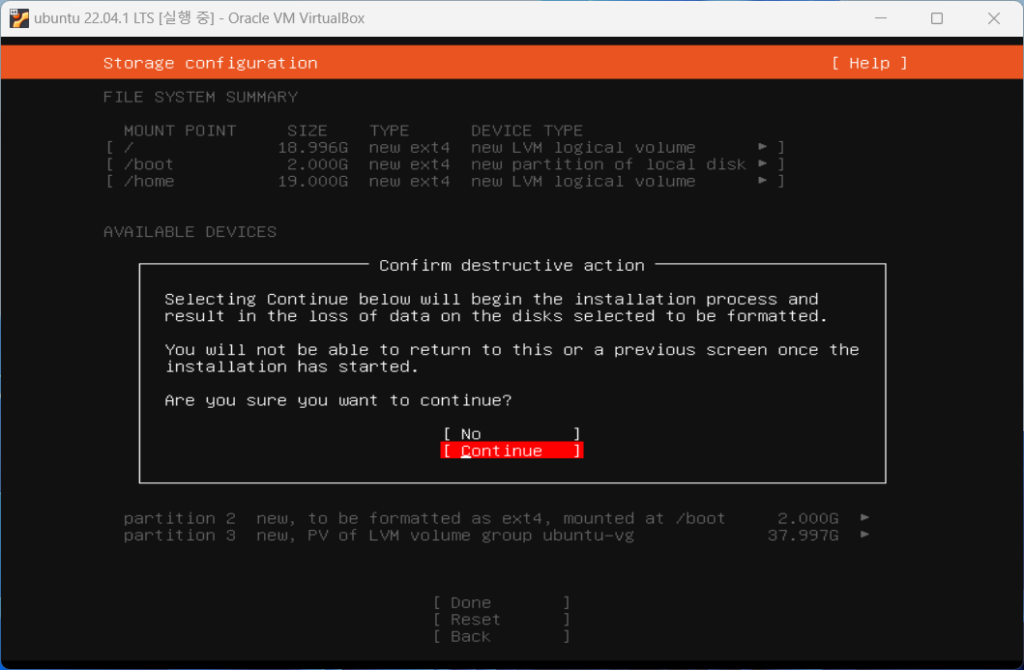
    • In the confirmation window, select and click Continue.
    install ubuntu
    install ubuntu
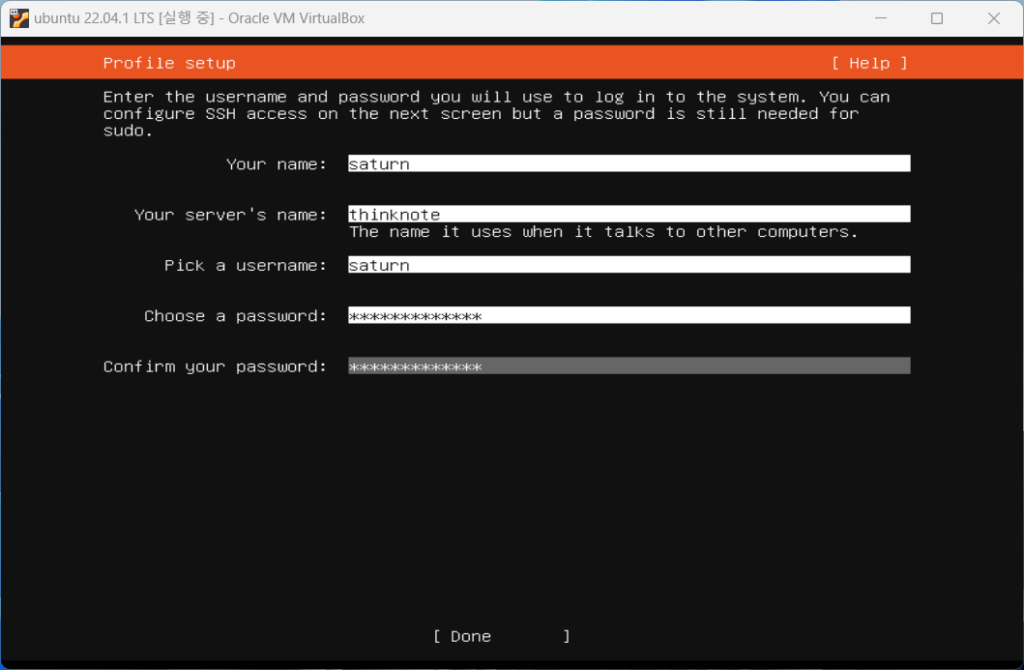
    • Enter the name of Ubuntu and the server name. Additionally, enter your username and password. The user name and password entered here will be used as the login ID and password.
    install ubuntu
    install ubuntu
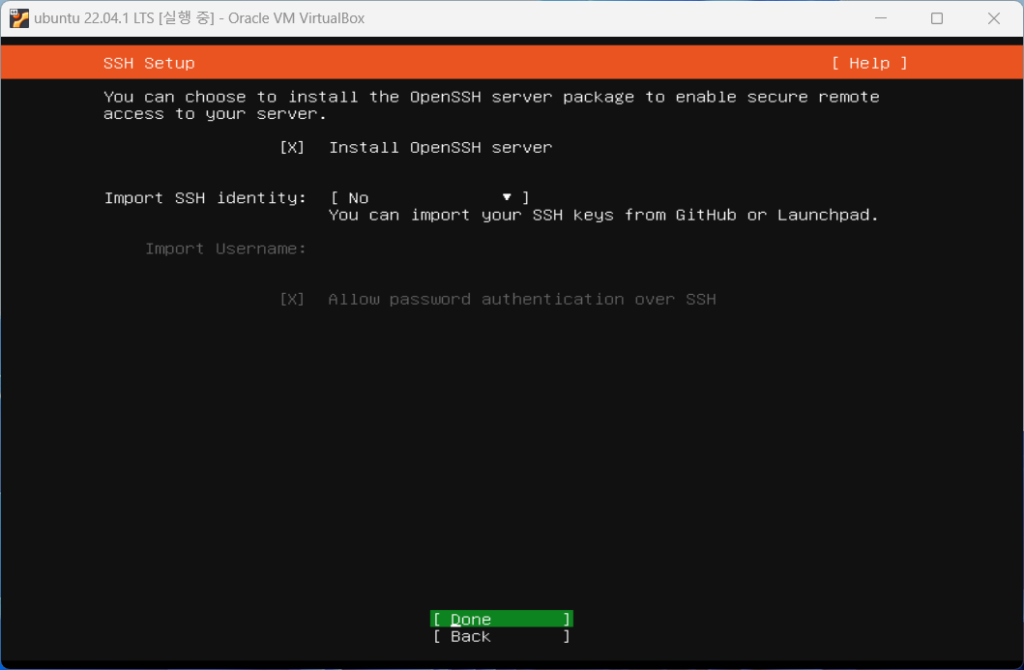
    • OpenSSH Server is a package for external connection using the SSH program. To connect to the terminal, select OpenSSH server and click Done.
    install ubuntu
    install ubuntu
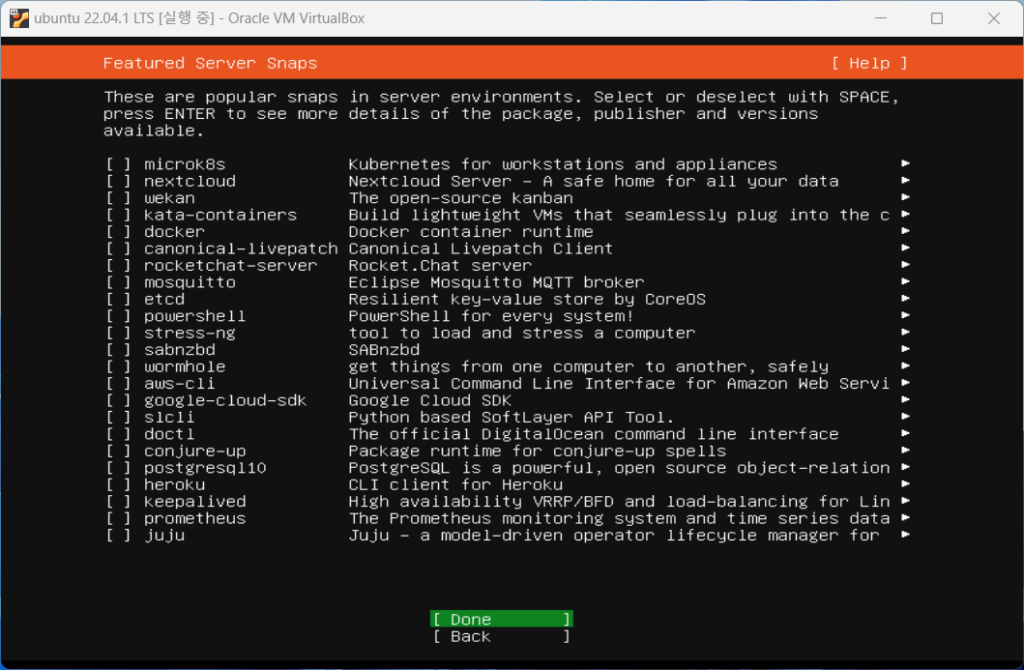
    • Select the Server Snaps you want to further configure. Click Done without installing here.
    install ubuntu
    install ubuntu
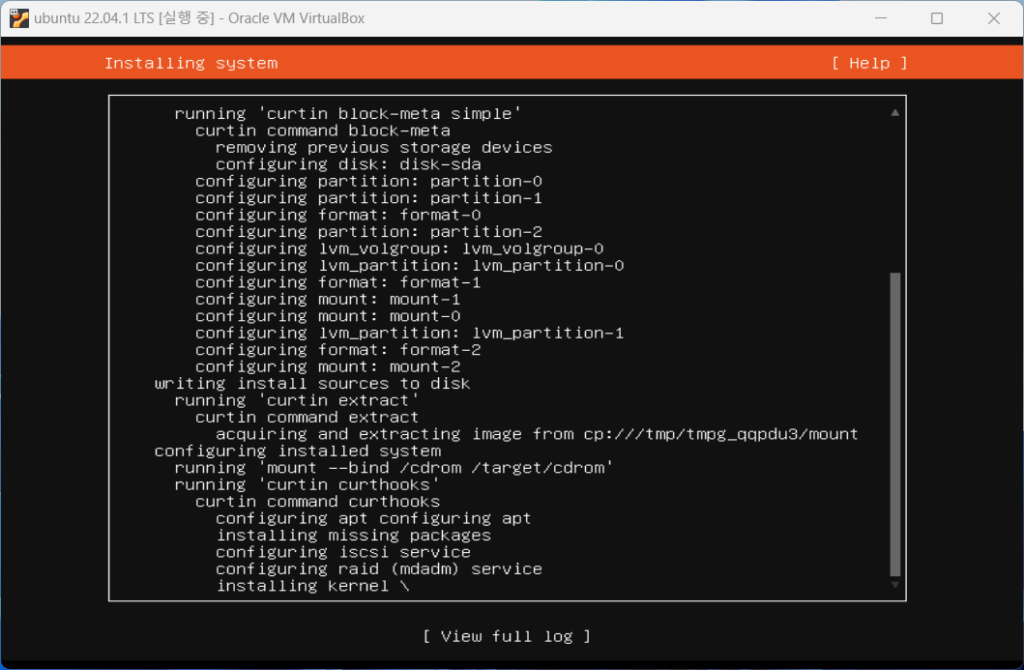
    • Installation will begin, and if you want to see the installation details, click view full log.
    install ubuntu
    install ubuntu
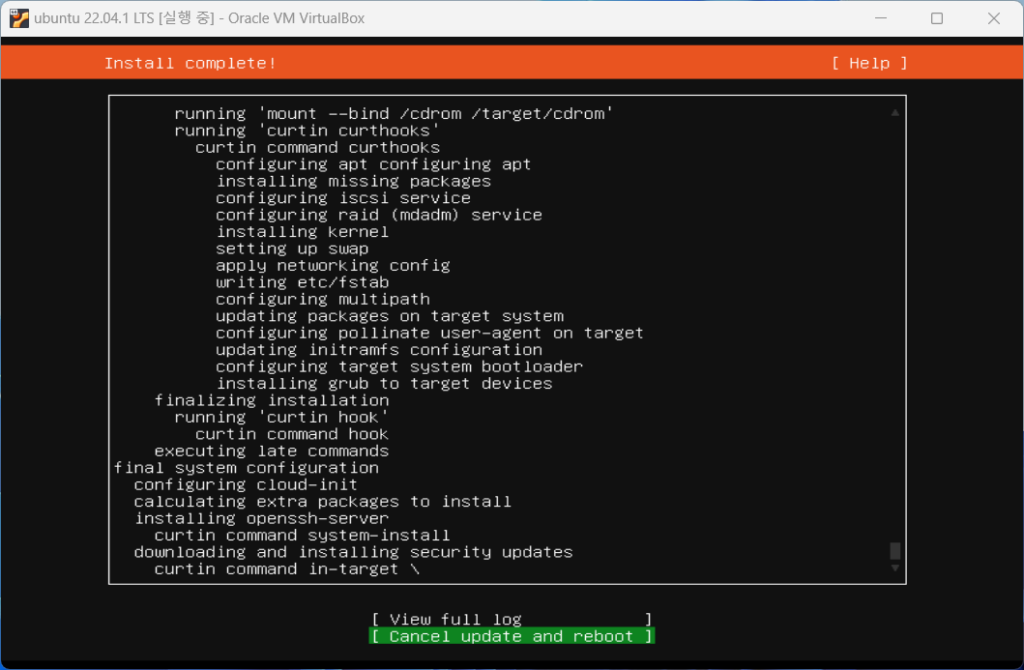
    • Once the installation is complete, you will see the Cancel update and reboot menu, click on it to restart the server.
    install ubuntu
    install ubuntu
    • When the restart is complete and the login terminal appears, log in with the username and password you entered in [Step 15].
    install ubuntu
    install ubuntu
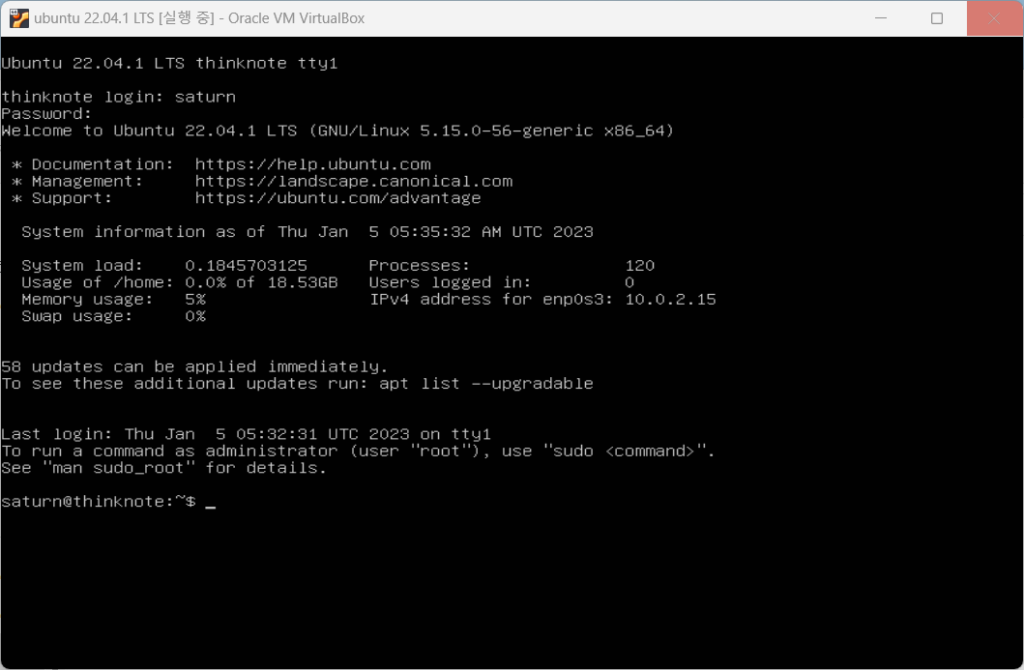
    • Once login is complete, enter ‘username@hostname:~’ terminal and a command line will appear and installation is complete.

    Good article to read together

    • VirtualBox Virtual Box virtual machine download and installation
    • Install OpenSSL
    • Installing and managing MariaDB (MySQL)
    • Activate Centos 8 RHEL & REMI Repository
    • Linux administrator tool – enable cockpit

    Related Reading

    FAQ

    What is this article about?

    This article is an English translation and global-reader adaptation of the Korean post “Install Ubuntu 22.04.1 (VirtualBox).” It preserves the original article’s main explanation, examples, and practical context.

    Why is it translated into English?

    The English version helps global readers access Thinknote articles through English search keywords while keeping the Korean source available as the original reference.

    Where can I read the original Korean version?

    You can read the original Korean article here: https://www.thinknote.co.kr/ubuntu-2204-install-virtualbox/

  • Download Ubuntu and set up Ubuntu (virtualbox)

    Download Ubuntu and set up Ubuntu (virtualbox)

    1. Ubuntu introduction and download

    1) What is Ubuntu?

    Ubuntu setup is done with Ubuntu 22.04.1 LTS version. Ubuntu is an open source operating system for Linux distributions designed and engineered to be the backbone of the Internet. Ubuntu Server provides economic and technical scalability for public or private data centers. Especially if you want to deploy an OpenStack cloud, Kubernetes cluster, or 50,000-node render farm, Ubuntu Server offers the best value scaling performance available. Ubuntu installation is done with version 22.04.1 LTS.

    Original Korean article: Download Ubuntu and set up Ubuntu (virtualbox)

    Ubuntu has several editions that can run on different types of systems, including core, server, and desktop. Each edition is available for personal computers, servers, supercomputers, cloud computing, and more.

    Ubuntu is an operating system that appeals to users as it is a free, open source solution that is secure and easy to use. It is also user-friendly, customizable, and offers improved security within the OS.

    2) Differences between Ubuntu Server and Desktop

    Ubuntu Server Edition and Ubuntu Desktop Edition use the same apt repositories, so you can easily install server applications on the Desktop Edition just as you would on the Server Edition.

    One major difference is that the graphical environment used in Desktop Edition is not installed for the server. This includes the graphics server itself, graphics utilities and applications, and various user support services required by desktop users.

    3) Ubuntu installation system requirements

    Ubuntu Server Edition provides a common, minimalist foundation for a variety of server applications such as file/print services, web hosting, email hosting, and more. Ubuntu Server Edition versions support four 64-bit architectures.

    • amd64 (Intel/AMD 64-bit)
    • arm64 (64-bit ARM)
    • ppc64el (POWER8 and POWER9)
    • s390x (IBM Z and LinuxONE)
    • CPU: 1 GHz or higher
    • RAM: 1GB or more
    • Disk: 2.5 GB minimum

    4) Preparing to install Ubuntu

    Before installing Ubuntu Server Edition, make sure all data on your system is backed up. If this is not your first time installing an operating system on your computer, you may need to repartition your disk to make room for Ubuntu.

    Whenever you partition a disk, you should be prepared to lose all the contents of the disk if you make a mistake or encounter problems while partitioning. The programs used for installation are very reliable and most have been around for many years, but they also perform destructive actions.

    5) Download Ubuntu

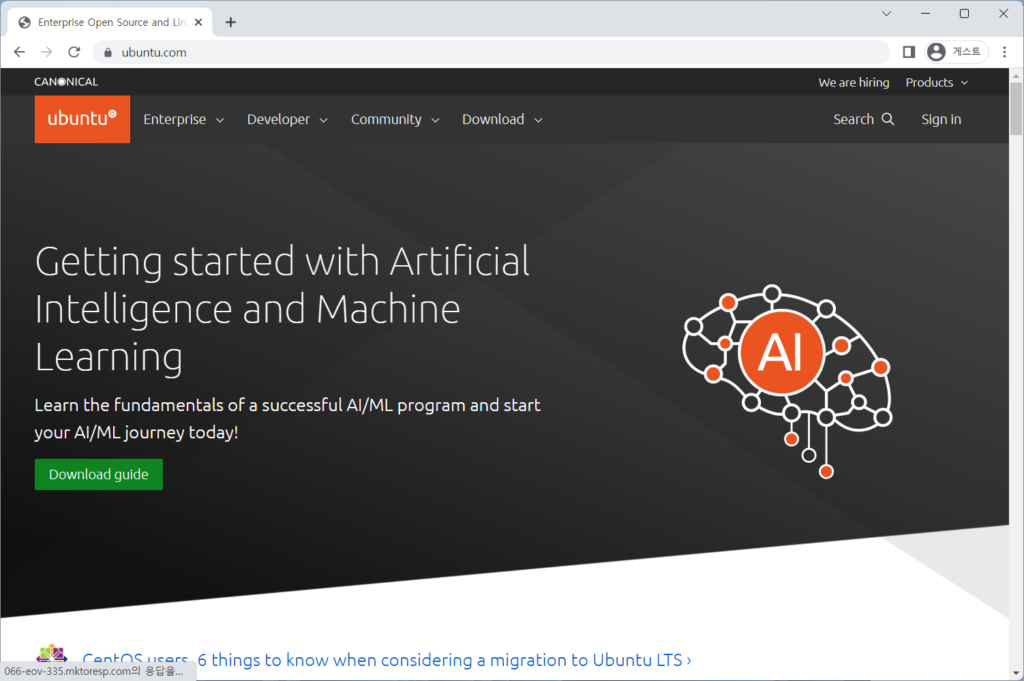
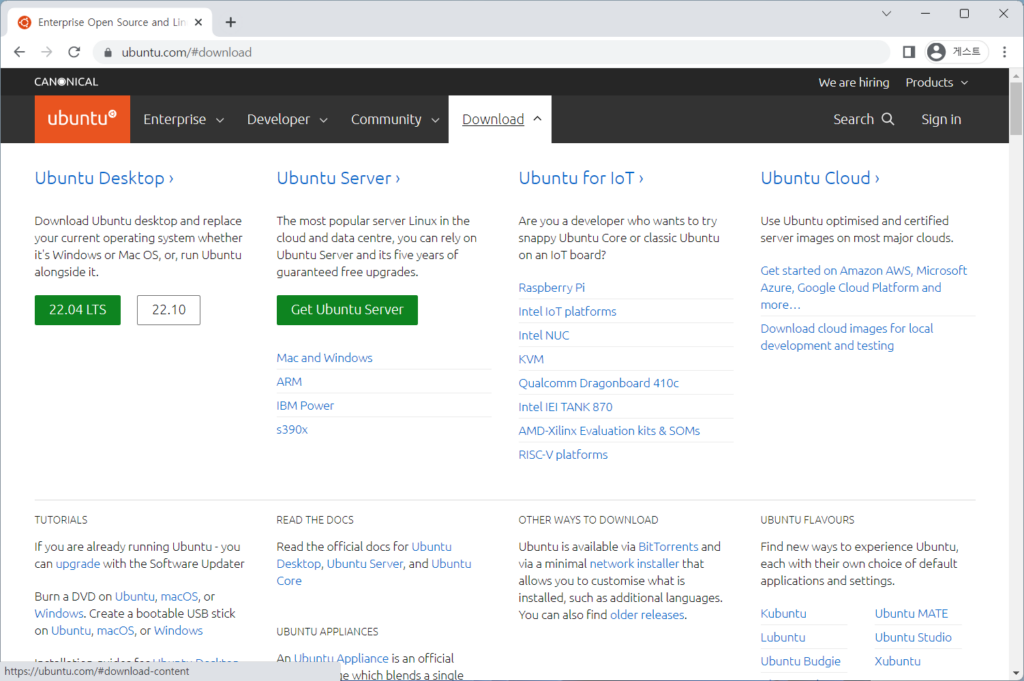
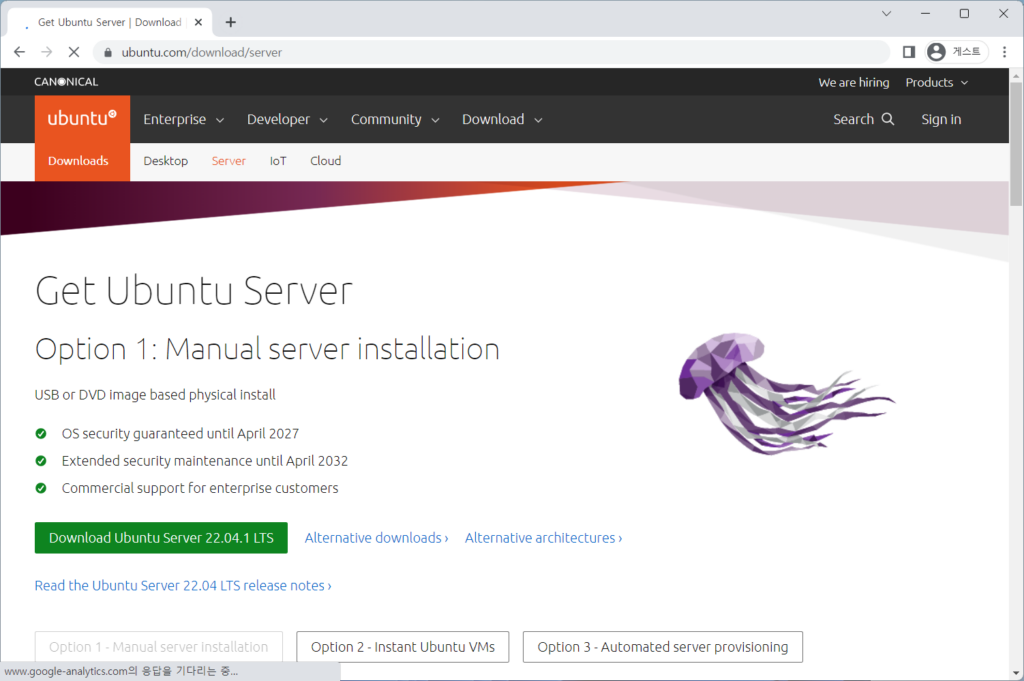
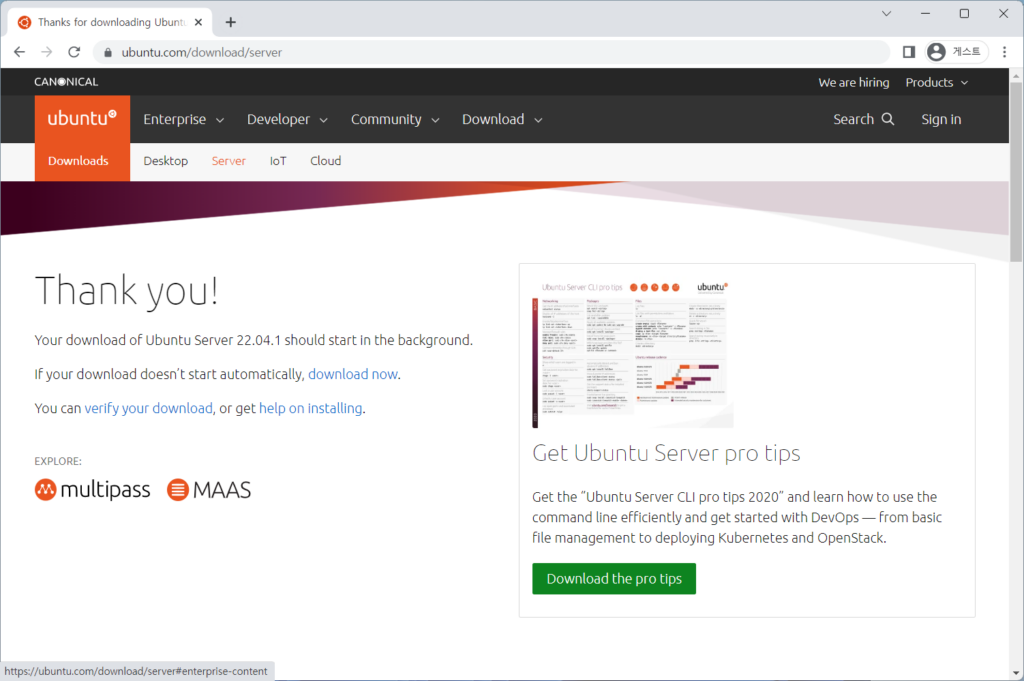
    Download link: https://ubuntu.com/

    Download and install Ubuntu, set up virtual machine Ubuntu
    Download and install Ubuntu, set up virtual machine Ubuntu
    Download and install Ubuntu, set up virtual machine Ubuntu
    Download and install Ubuntu, set up virtual machine Ubuntu
    Download and install Ubuntu, set up virtual machine Ubuntu
    Download and install Ubuntu, set up virtual machine Ubuntu
    Download and install Ubuntu, set up virtual machine Ubuntu
    Download and install Ubuntu, set up virtual machine Ubuntu

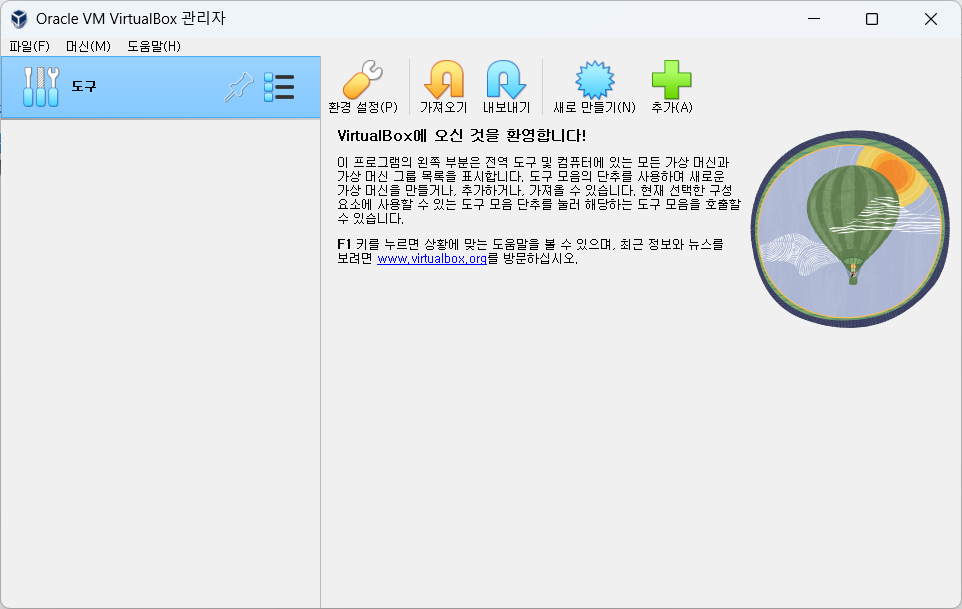
    2. Set up virtual machine ubuntu in Virtualbox

    1) Ubuntu settings

    You can configure the virtual machine Ubuntu at an appropriate level according to the specifications of your host computer.

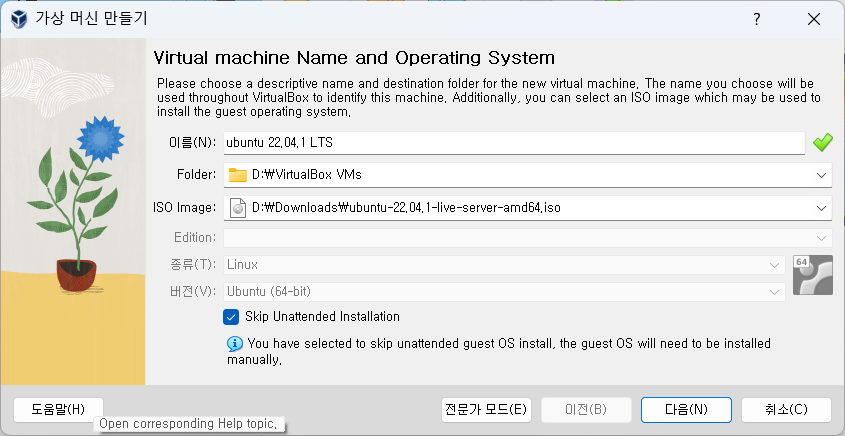
    virtual machine ubuntu settings
    virtual machine ubuntu settings

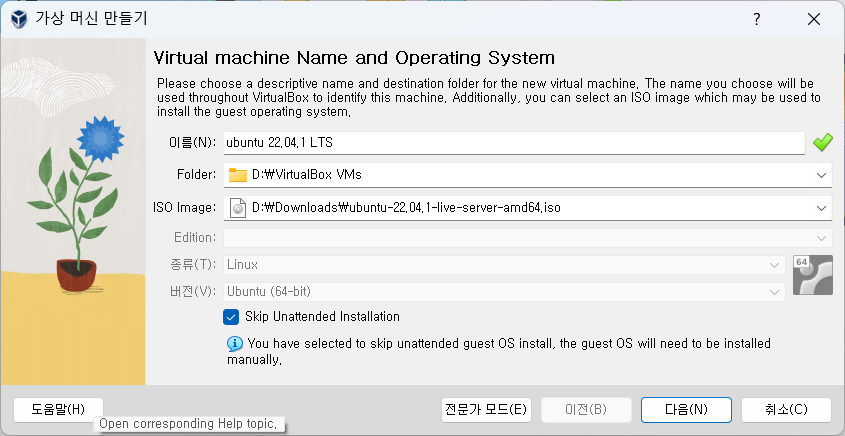
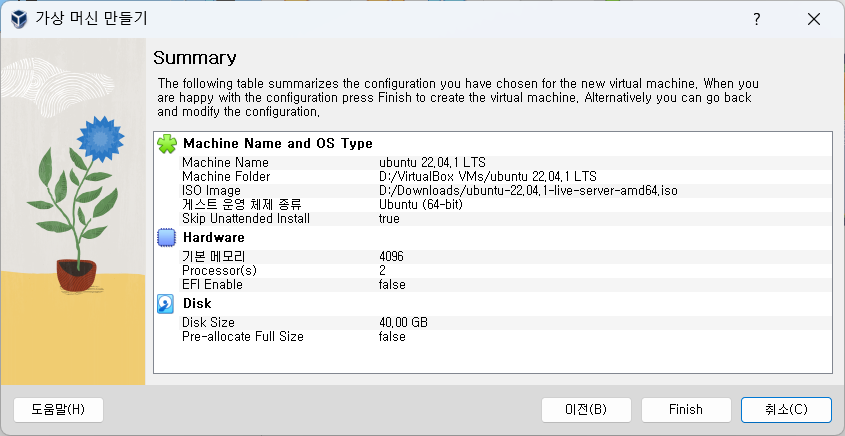
    Select the name of the virtual machine, the storage folder, and the downloaded ubuntu iso image.

    virtual machine ubuntu settings
    virtual machine ubuntu settings

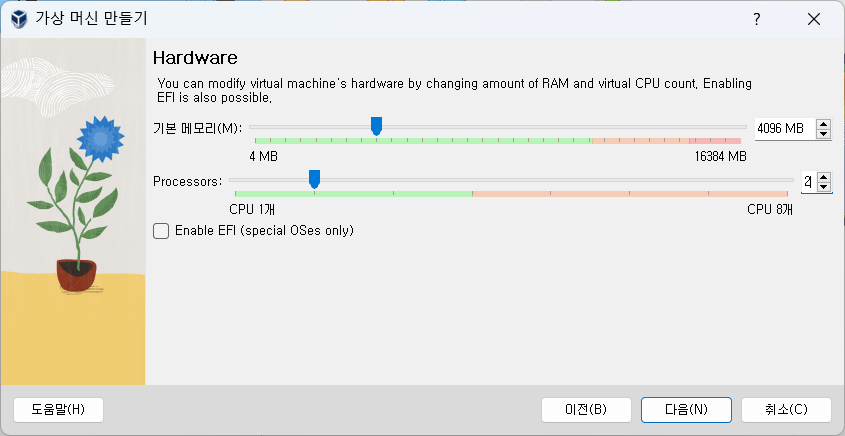
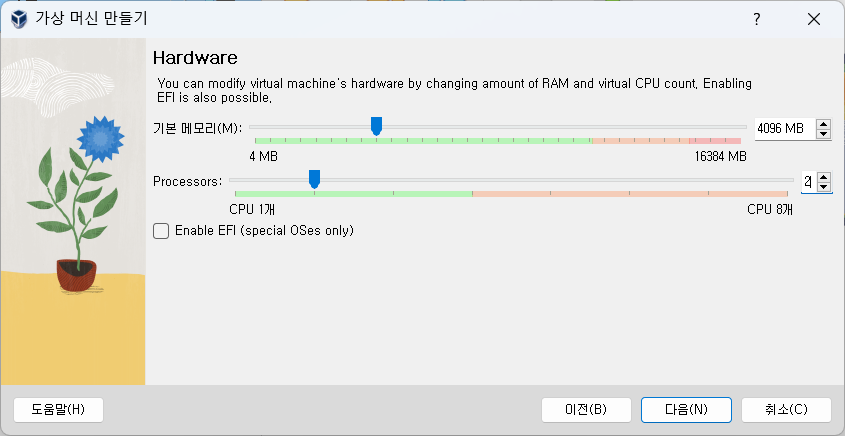
    Set the default memory and number of Processors to be used by the virtual machine, taking into account the host computer specifications.

    virtual machine ubuntu settings
    virtual machine ubuntu settings

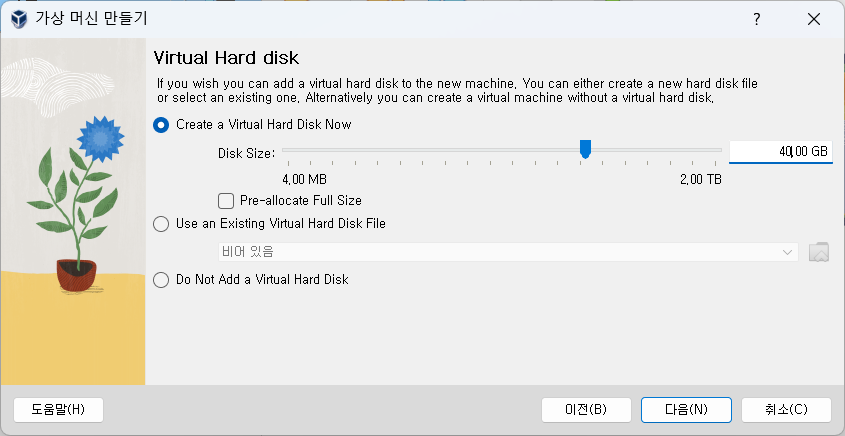
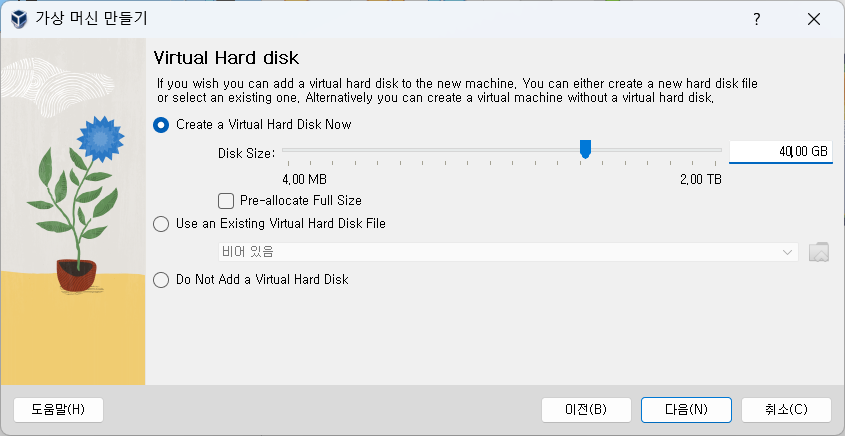
    Although you can use an existing virtual disk, we are creating a virtual disk here.

    virtual machine ubuntu settings
    virtual machine ubuntu settings
    virtual machine ubuntu settings
    virtual machine ubuntu settings

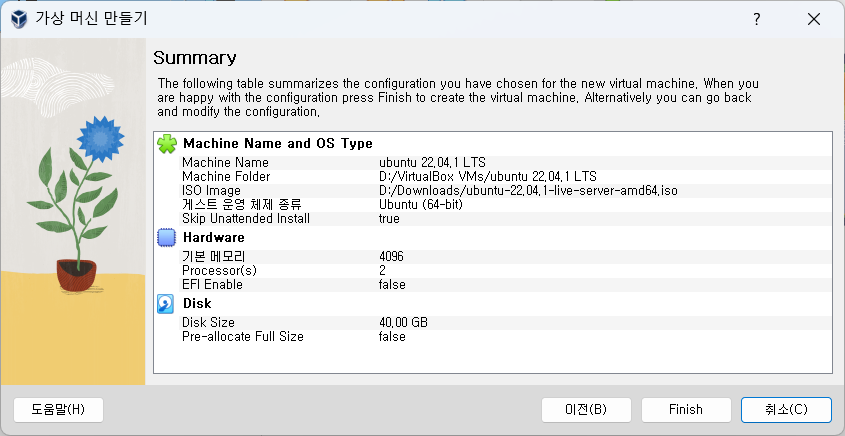
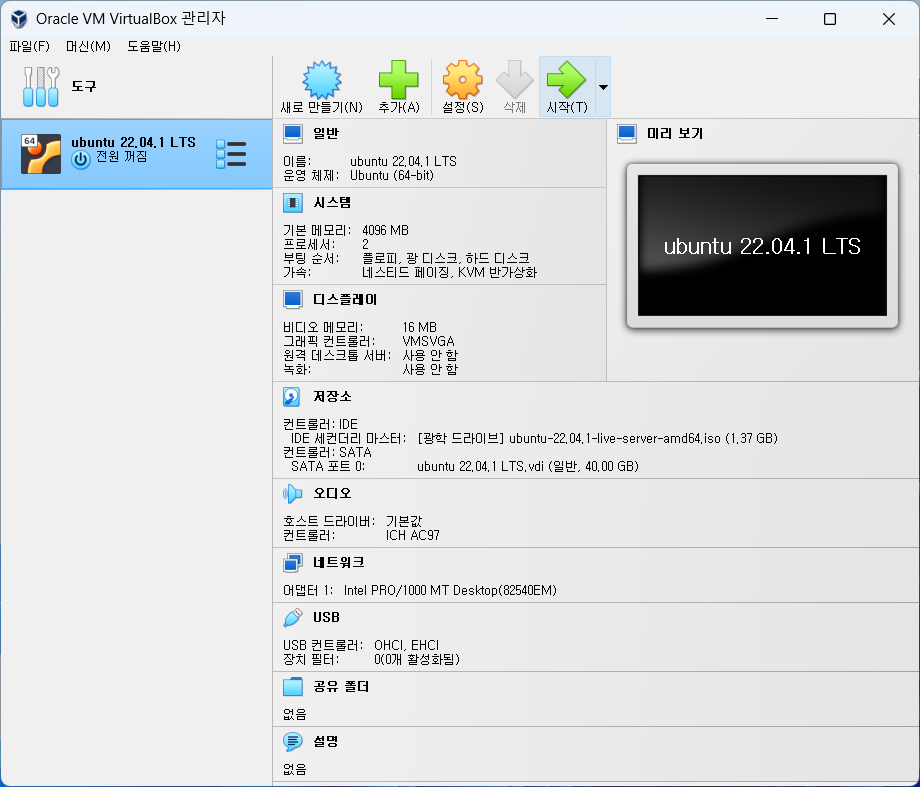
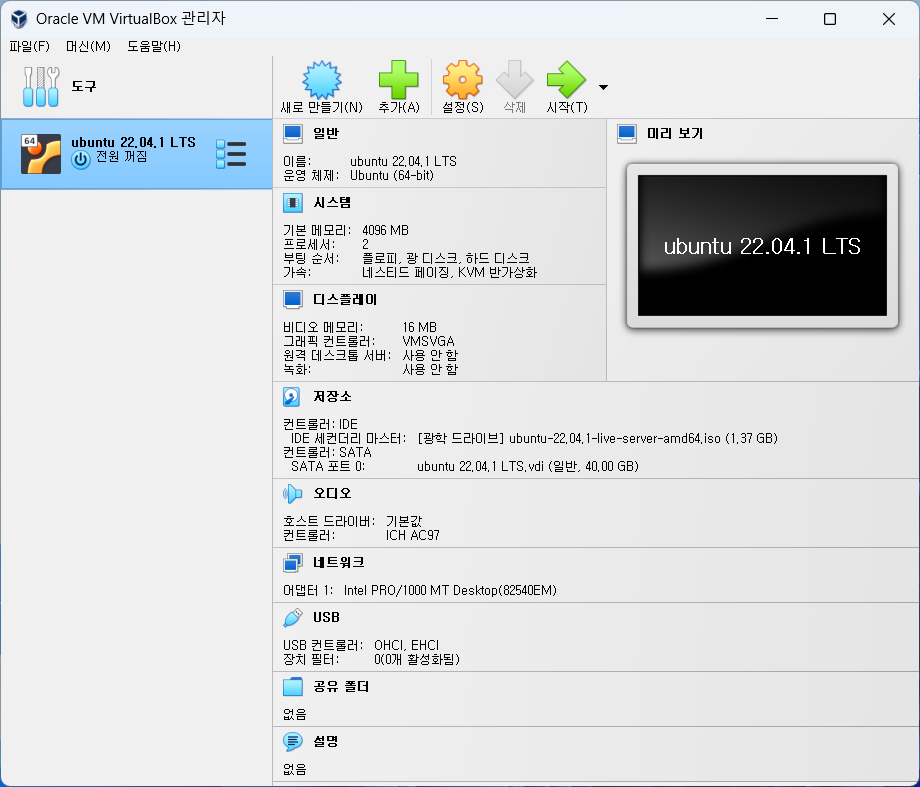
    Once setup is complete, you can check your virtual PC's hardware configuration in the VirtualBox admin menu.

    virtual machine ubuntu settings
    virtual machine ubuntu settings

    Good article to read together

    • VirtualBox Virtual Box virtual machine download and installation
    • Install Ubuntu 22.04.1 (VirtualBox)
    • Setting up and connecting Ubuntu SSH ports
    • ubuntu update and upgrade
    • Install and enable Ubuntu firewall iptables

    Related Reading

    FAQ

    What is this article about?

    This article is an English translation and global-reader adaptation of the Korean post “Download Ubuntu and set up Ubuntu (virtualbox).” It preserves the original article’s main explanation, examples, and practical context.

    Why is it translated into English?

    The English version helps global readers access Thinknote articles through English search keywords while keeping the Korean source available as the original reference.

    Where can I read the original Korean version?

    You can read the original Korean article here: https://www.thinknote.co.kr/ubuntu-download-virtualbox-setup/

  • ubuntu update and upgrade

    ubuntu update and upgrade

    1. Update and Upgrade

    To keep Ubuntu up to date, use the update or upgrade command. Update and upgrade may be the same, but there is a difference. The update command does not change the package to the latest version, but instead retrieves information about the latest version available on the system.

    Original Korean article: ubuntu update and upgrade

    That is, it does not download or install any packages. You must use the upgrade command to download and install the package. The system operates on a database of available packages.

    The database does not contain packages, only the package's metadata (version, repositories, dependencies, etc.). So without updating the database the system won't know whether there is a newer package available or not.

    Update and upgrade are administrative commands and must be executed with root privileges. sudo allows you to run commands as Ubuntu root. So I log in as root or use sudo for both commands.

    1) apt update

    Get updated metadata from a package with the apt update command. Your local package cache will be updated and you will see which packages are available for upgrade.

    apt update: Updates the package cache (knows which package versions can be installed or upgraded)

    • package update
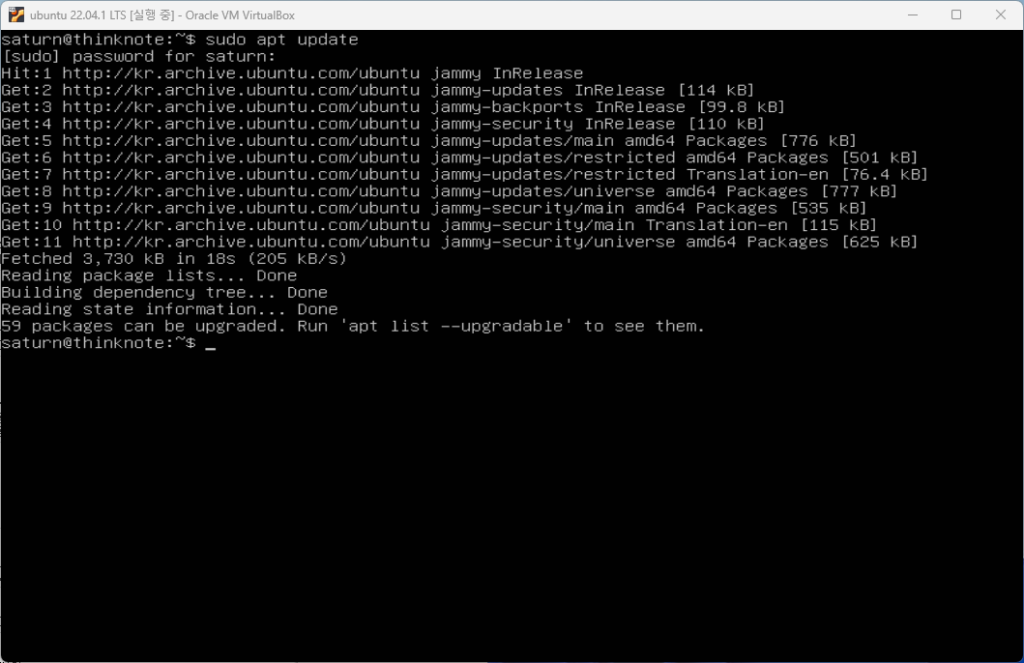
    sudo apt update

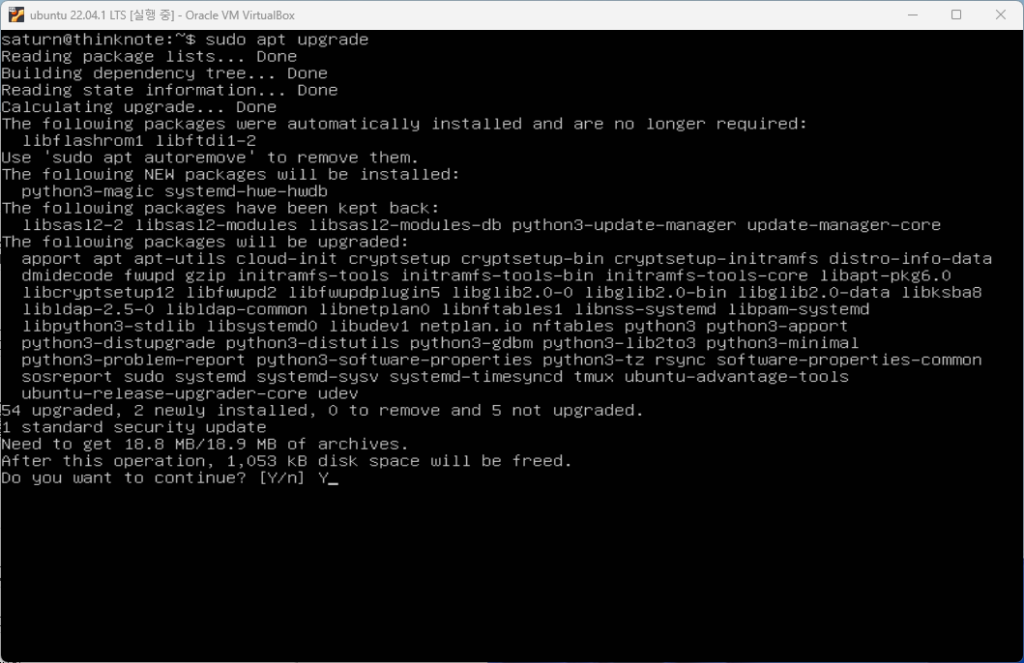
    You can use the apt and apt-get commands to update the package cache. The two commands are the same, but the difference is that the apt command displays the number of upgradeable packages. Here it shows that there are 59 upgradeable packages.

    sudo apt update
    sudo apt update

    2) apt upgrade

    You can upgrade all (upgradable) packages with sudo apt upgrade. You can press Enter or Y to proceed with the upgrade, or press N to cancel.

    apt upgrade: Upgrade a package to a new version

    • View package upgrade list
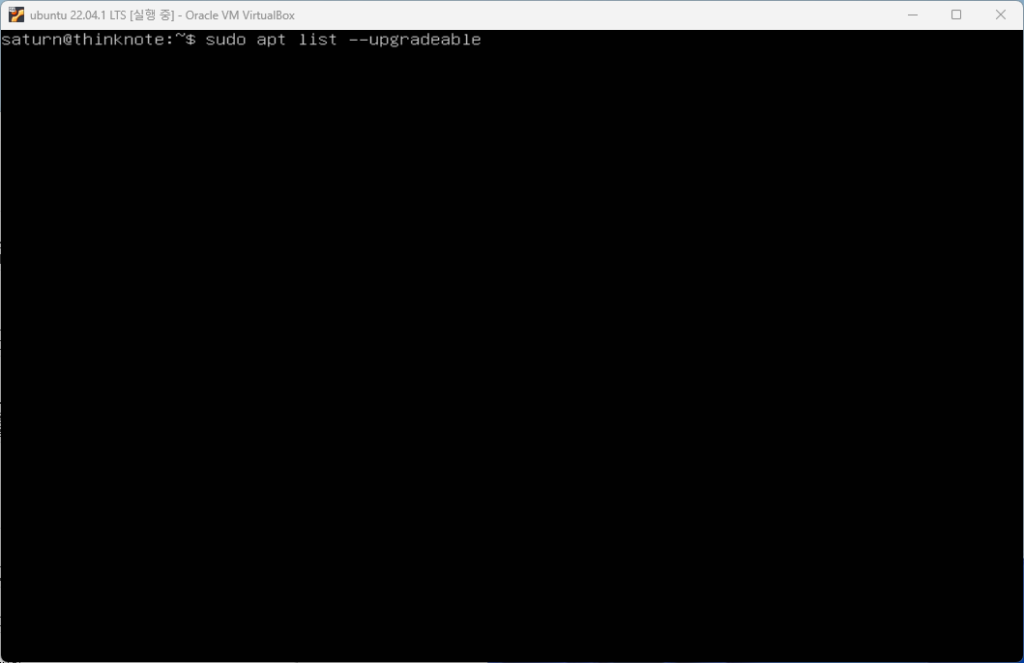
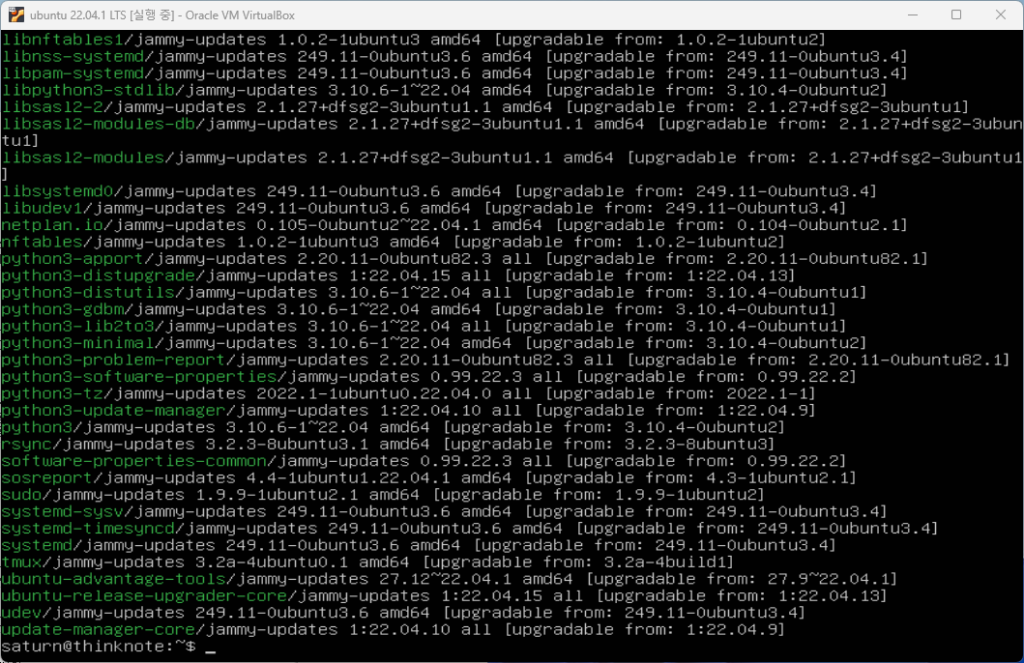
    sudo apt list --upgradeable

    You can upgrade the entire package with the sudo get upgrade command, but before that, you can check the list of packages that can be upgraded.

    sudo apt list --upgradeable
    sudo apt list –upgradeable
    sudo apt upgrade
    sudo apt upgrade
    • package upgrade
    sudo apt upgrade

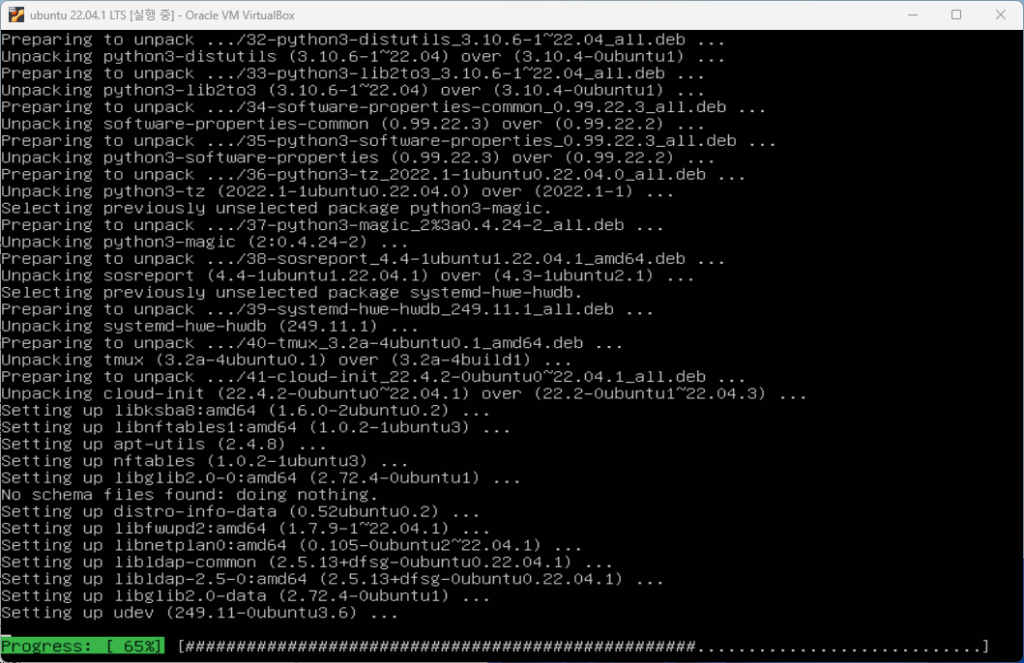
    Before the upgrade begins, you will be asked whether you want to continue. Type Y to proceed with the upgrade, n to cancel, and then press enter. Here, type Y to proceed with the upgrade and proceed.

    sudo apt upgrade
    sudo apt upgrade
    sudo apt upgrade
    sudo apt upgrade

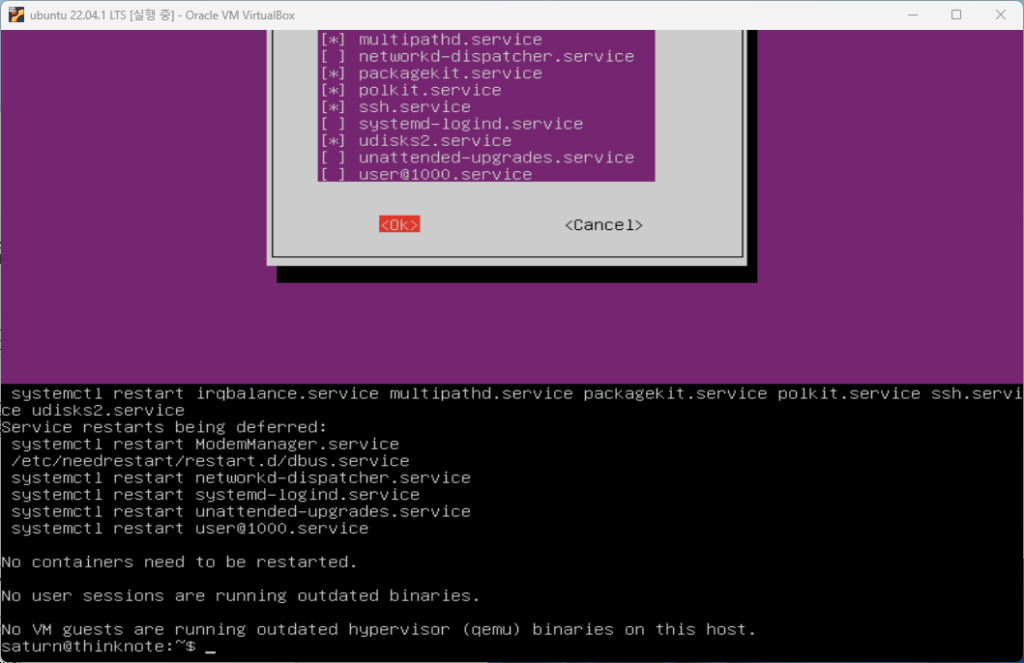
    When the upgrade is complete, a window will appear asking you to restart the service. Here we select OK and continue. When the upgrade is complete, you can check the restarted services.

    sudo apt upgrade
    sudo apt upgrade

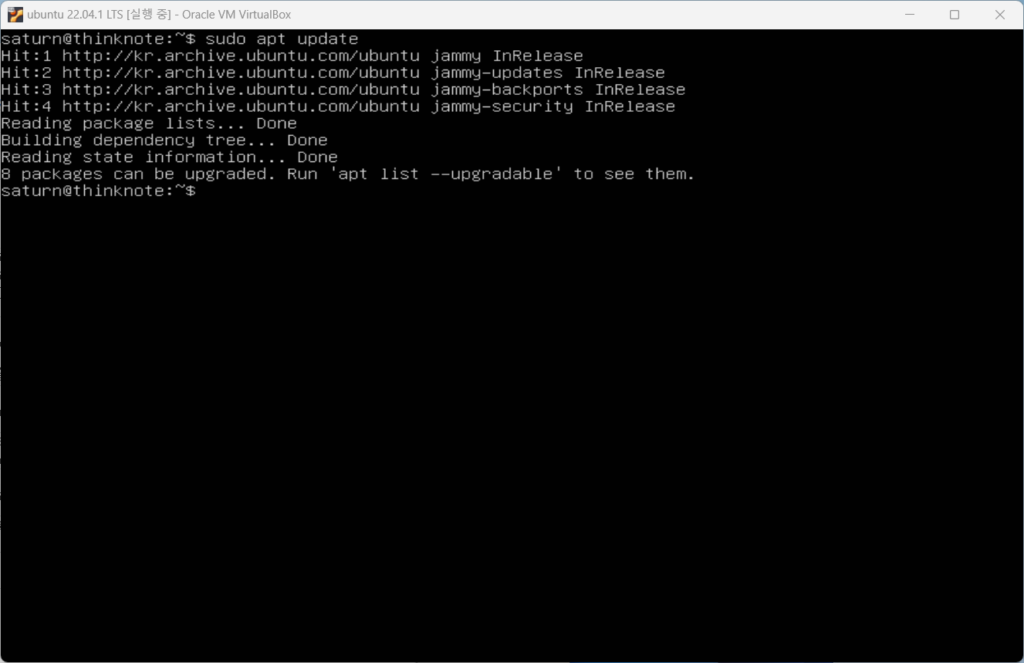
    If you re-enter the sudo apt update command, you can see that there are no upgradeable packages.

    sudo apt upgrade
    sudo apt upgrade

    Good article to read together

    • VirtualBox Virtual Box virtual machine download and installation
    • Download Ubuntu and set up Ubuntu (virtualbox)
    • Install Ubuntu 22.04.1 (VirtualBox)
    • Install and enable Ubuntu firewall iptables
    • Ubuntu firewall iptables setup and management

    Related Reading

    FAQ

    What is this article about?

    This article is an English translation and global-reader adaptation of the Korean post “ubuntu update and upgrade.” It preserves the original article’s main explanation, examples, and practical context.

    Why is it translated into English?

    The English version helps global readers access Thinknote articles through English search keywords while keeping the Korean source available as the original reference.

    Where can I read the original Korean version?

    You can read the original Korean article here: https://www.thinknote.co.kr/ubuntu-update-upgrade/

  • Install and enable Ubuntu firewall iptables

    Firewall covers installing and activating iptables as an important step in server security. A large part of firewall management involves determining the individual rules and policies that will apply traffic restrictions to your network.

    Original Korean article: Install and enable Ubuntu firewall iptables

    1. Understanding iptables firewall and preparing in advance

    Ubuntu provides ufw as a default firewall, but iptables allows detailed management of the structural framework to which rules are applied.

    First, stop using the ufw firewall and configure the firewall using the iptables package. iptables focuses on establishing a framework that provides reasonable defaults and encourages extensibility.

    1) Advance preparation

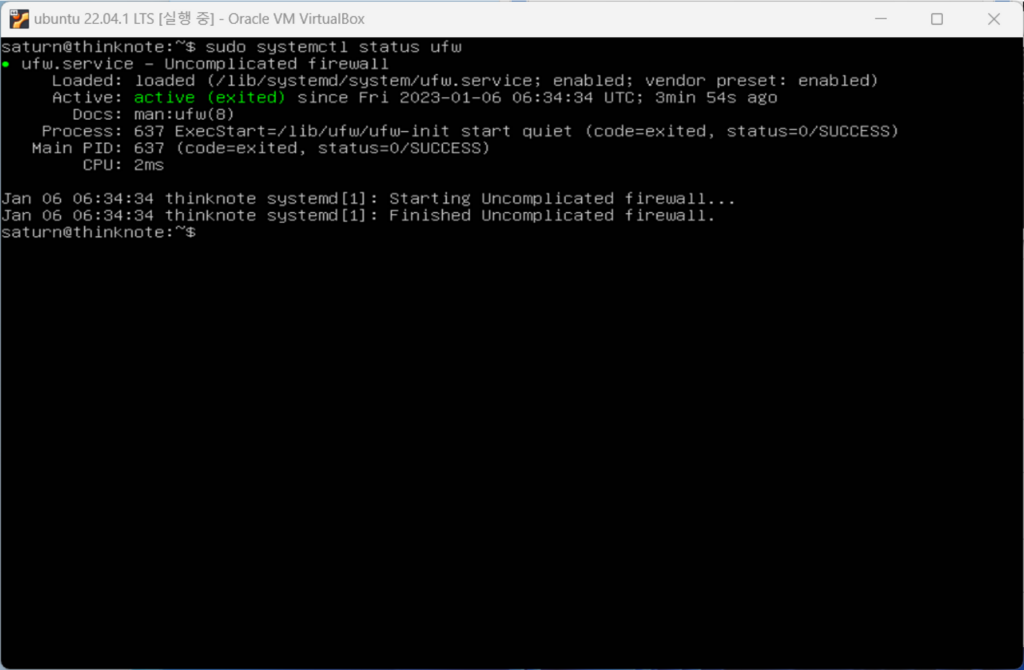
    Check the ufw firewall status and stop the firewall. If you followed along with the Ubuntu installation, the ufw firewall is active. At this time, if you enter the sudo ufw status command, it will display inactive. If you install iptables and do not disable the ufw firewall, a conflict will occur. Commands for managing services can be managed in the form of systemctl or [service name.service].

    2) Check ufw status

    sudo systemctl status ufw
    Article image 1
    Article image 1

    3) stop and disable ufw

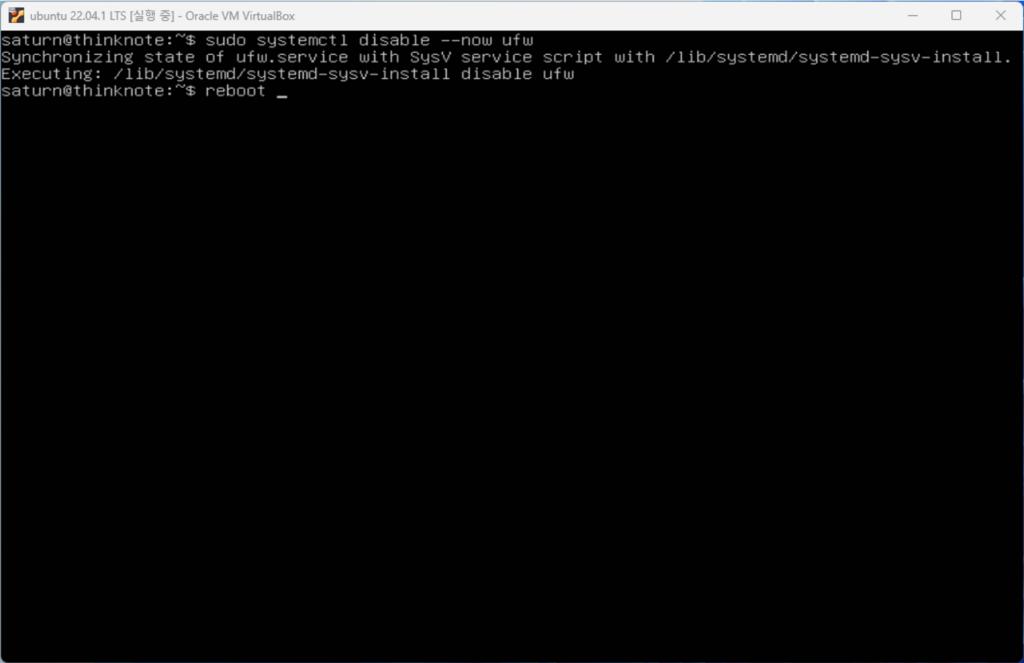
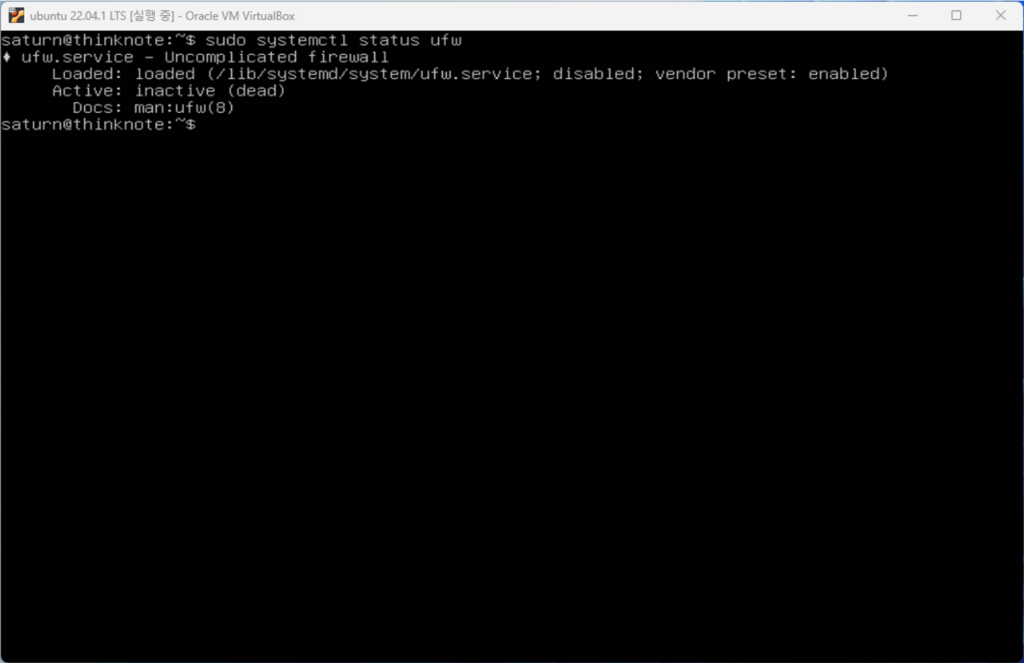
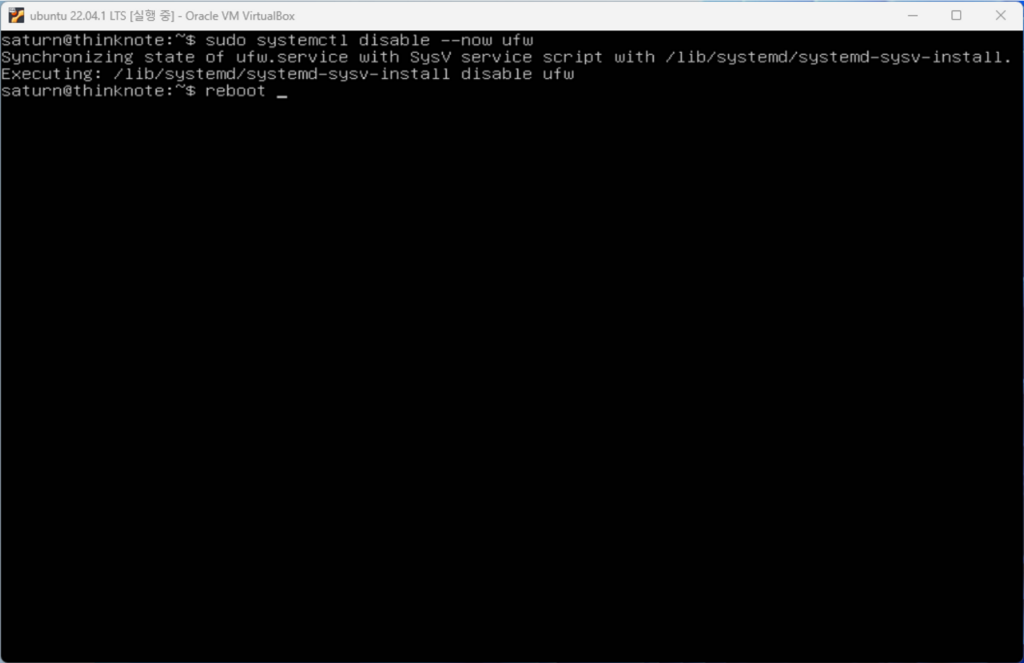
    You can utilize the stop command to stop a service, but stop does not affect startup activation. On the other hand, the disable command disables the service at startup, and adding the –now command takes effect immediately. Disable the ufw service with the command below and restart it with the reboot command.

    sudo systemctl disable --now ufw
    reboot
    Article image 2
    Article image 2
    sudo systemctl status ufw
    Article image 3
    Article image 3

    2. Check for iptables installation and activation issues

    1) Install iptables (iptables-persistent)

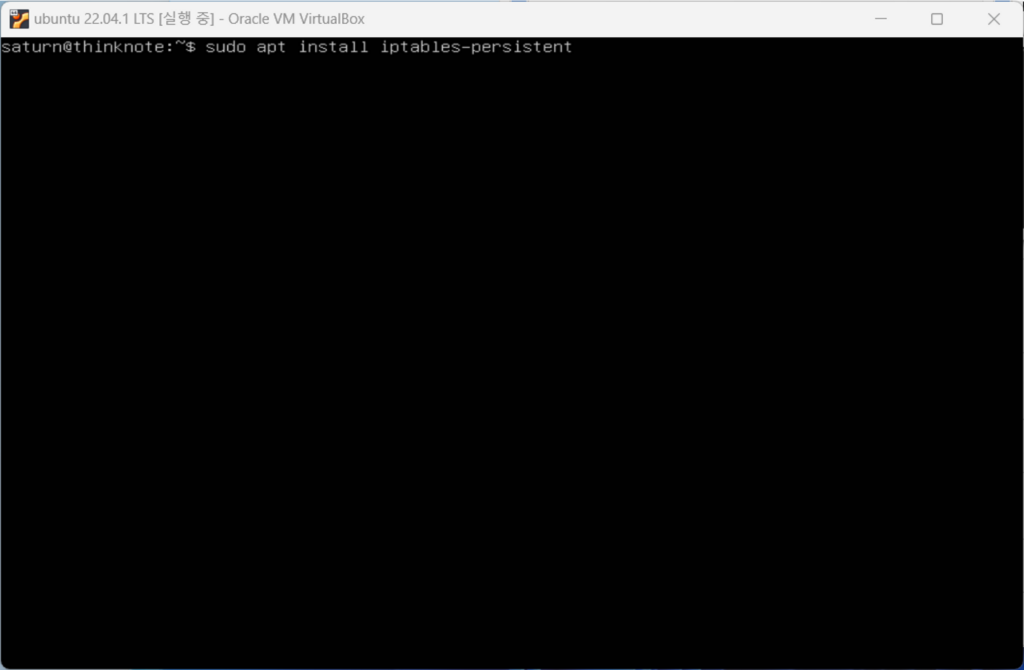
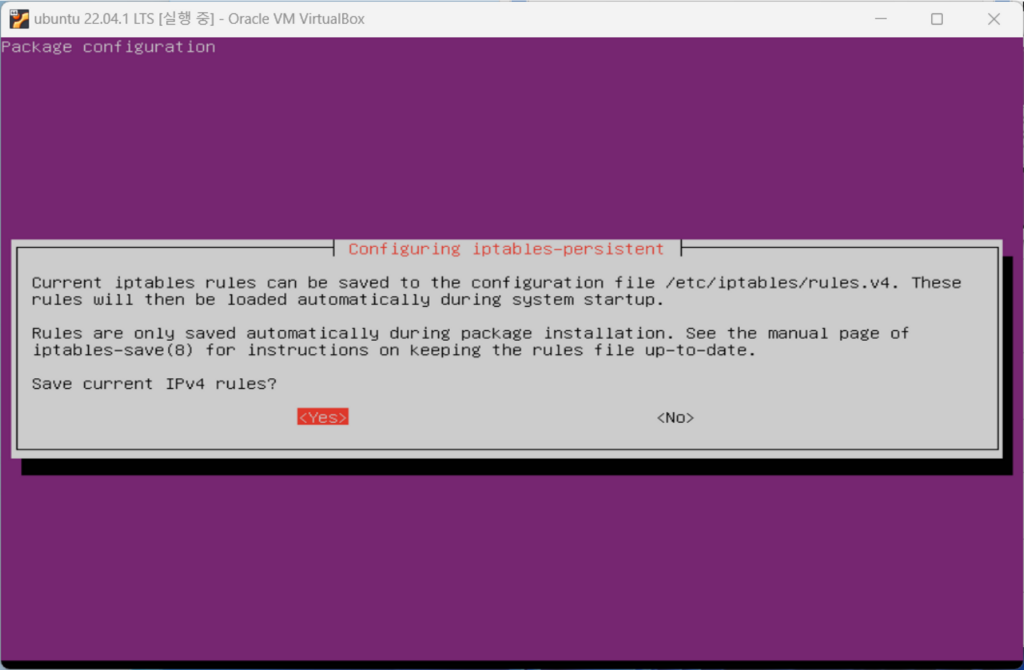
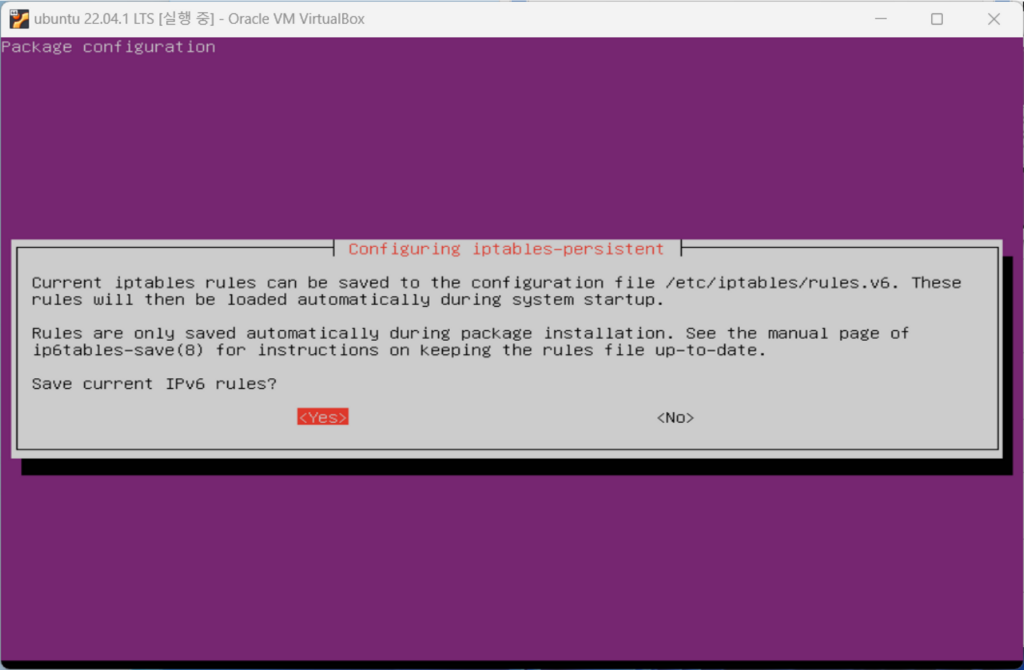
    If you have stopped ufw, install the iptables package. After installing Iptables, you can save your rule sets and have them automatically applied at boot.

    sudo apt install iptables-persistent
    Article image 4
    Article image 4
    Article image 5
    Article image 5
    Article image 6
    Article image 6

    2) Enable iptables when starting

    • Check IPtables status
    sudo systemctl status iptables
    Article image 7
    Article image 7
    • Iptables status active on startup
    sudo systemctl enable iptables
    reboot
    Article image 8
    Article image 8

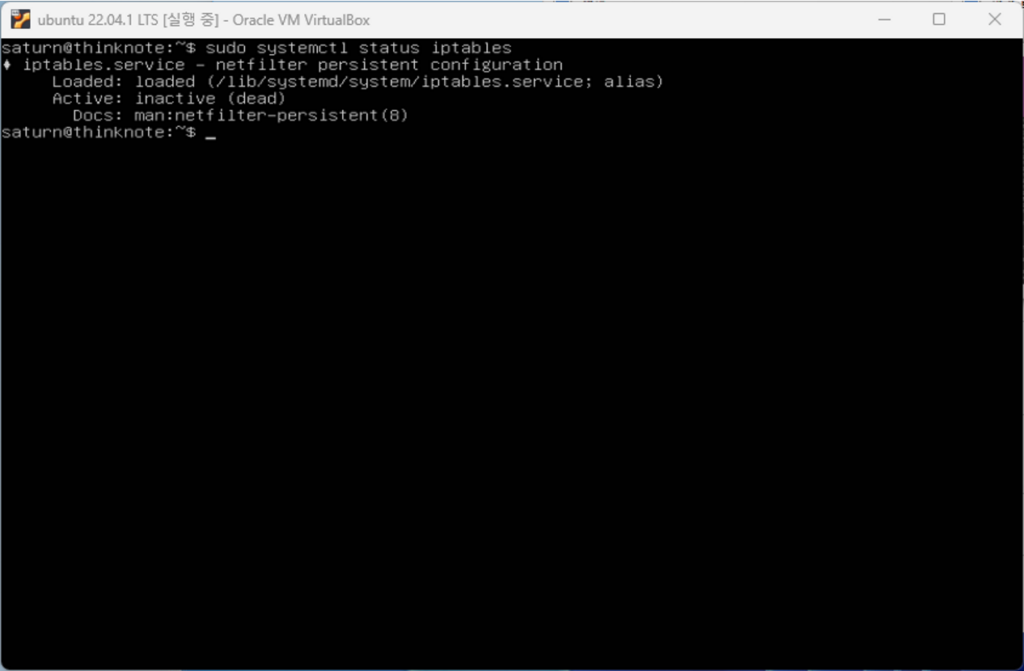
    3) Check iptables activation issue (not automatically activated on startup)

    • Check IPtables status

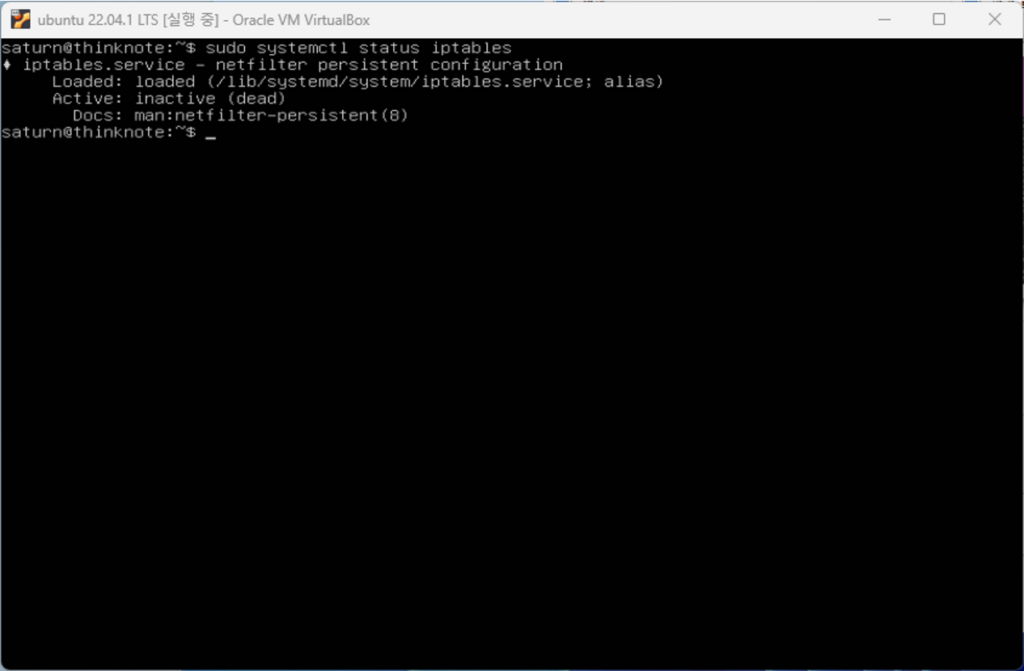
    It is activated normally in Ubuntu 20, but is not activated in Ubuntu 22. If you check the status of iptables, the alias is not registered, so you need to register the alias.

    sudo systemctl status iptables
    Article image 9
    Article image 9

    3. Register an iptables alias and activate it at startup

    1) Register an alias to activate Iptables startup

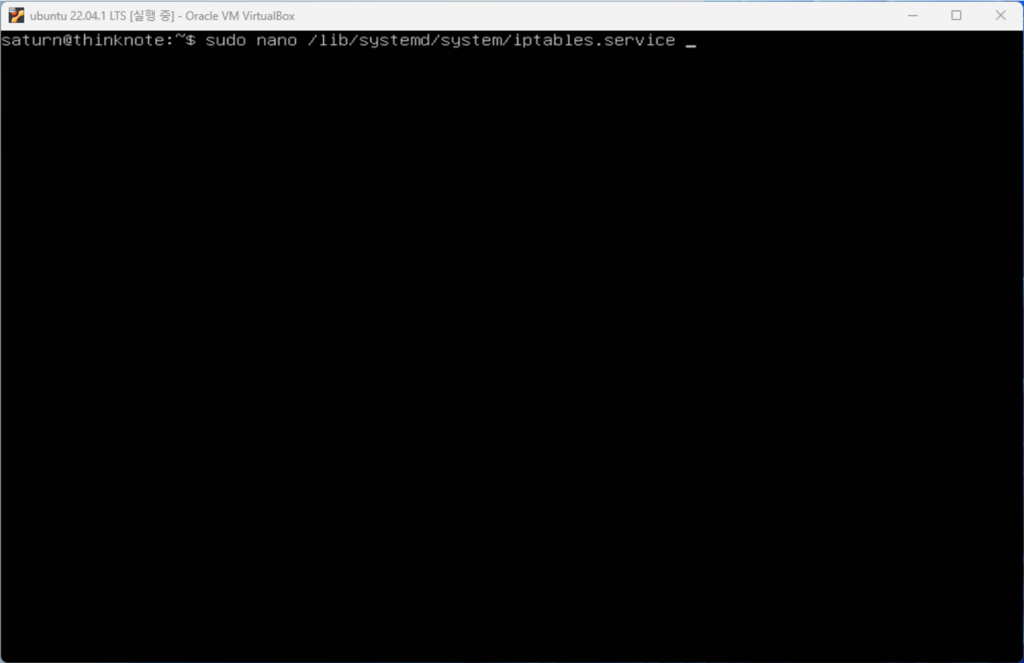
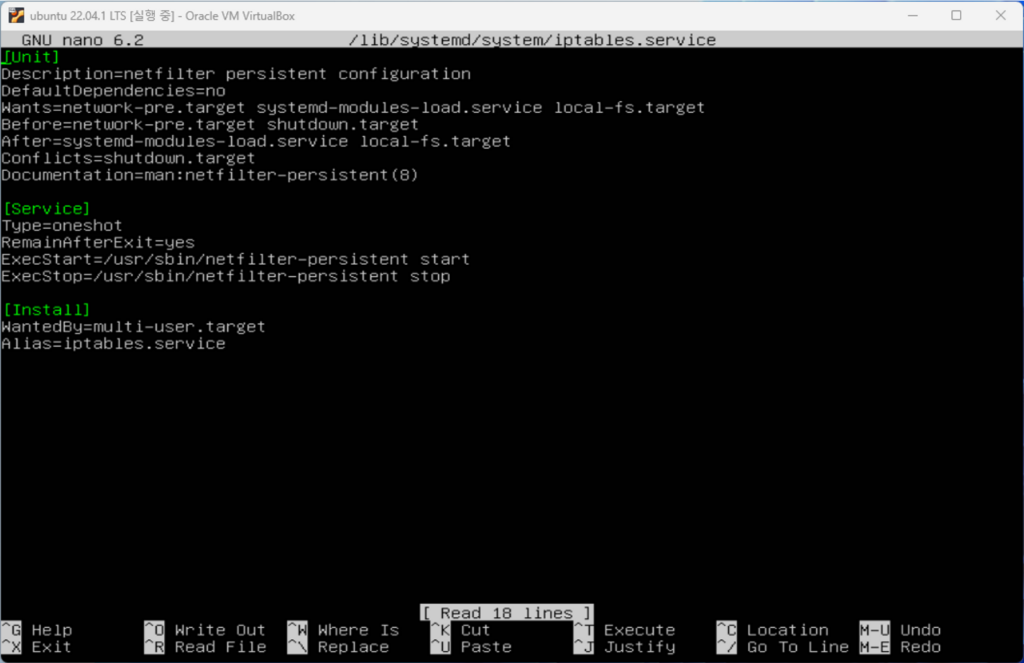
    You can check the location of iptables.service in the status and load the file with the nano editor. You can also use the vi editor. Register the alias under [install] at the bottom of the file. Here, register as Alias=iptables.service.

    sudo nano /lib/systemd/system/iptables.service
    Article image 10
    Article image 10
    Article image 11
    Article image 11

    Disable Iptables and then re-enable it. At this time, if you add the –now command, the service will run together with activation.

    sudo systemctl disable iptables
    sudo systemctl enable iptables

    2) Check service activation after restart

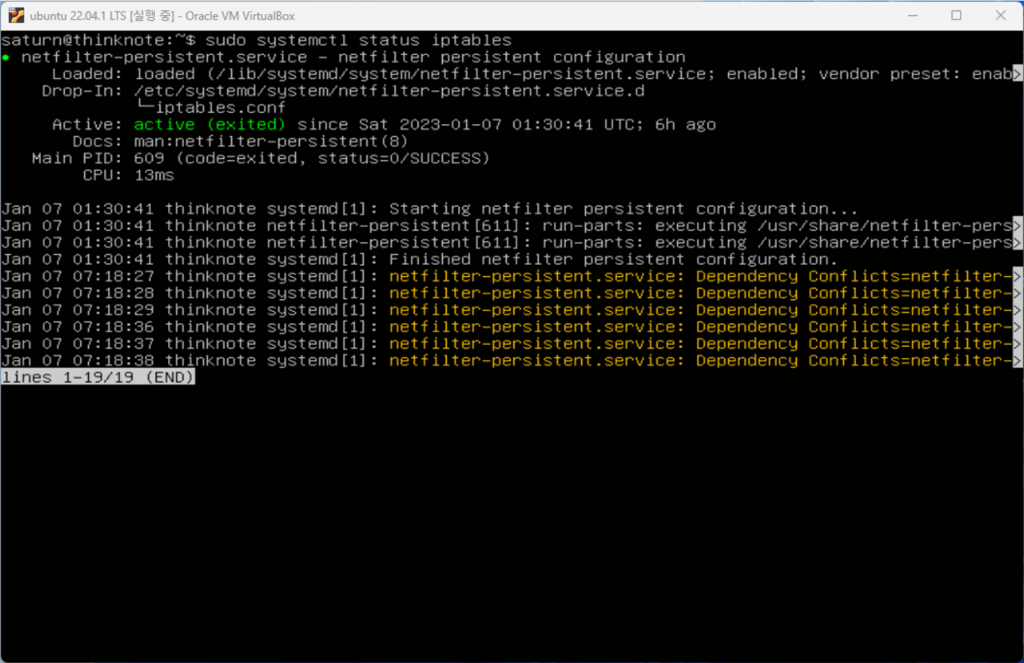
    Restart the server to see if the service is enabled at startup. As shown in the image below, if a dependency conflict occurs with netfilter-persistent.service, restart netfilter-persistent.service. You can check that the iptables service is properly activated using the systemctl command.

    reboot
    sudo systemctl status iptables
    sudo systemctl restart netfilter-persistent.service
    Article image 12
    Article image 12

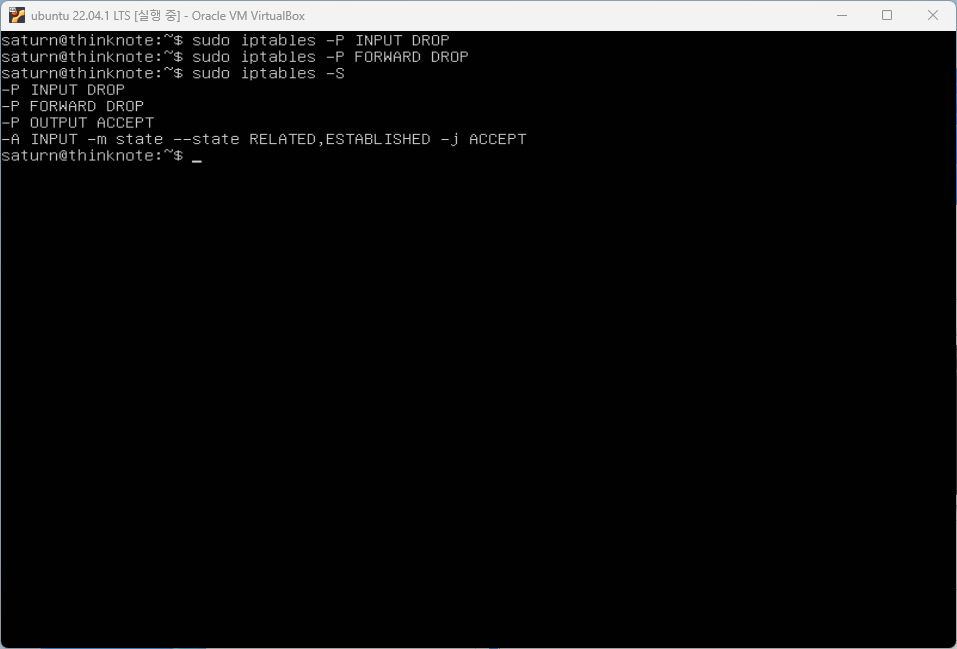
    3. iptables block all connections

    The previous setting is a setting where INPUT, FORWARD, and OUTPUT are all allowed. I will close all INPUT and FORWARD. When I output the configuration, INPUT and FORWARD are marked as closed. If services are added in the future, only the ports for the relevant services will be opened and run.

    sudo iptables -P INPUT DROP
    sudo iptables -P FORWARD DROP
    sudo iptables -S
    Article image 13
    Article image 13

    Save the changed settings and reload. reload is a command to apply rules without restarting. Any changes you make will not take effect when Ubuntu restarts unless you run the following code.

    sudo netfilter-persistent save
    sudo netfilter-persistent reload

    Good article to read together

    • Ubuntu firewall iptables setup and management
    • Install Nginx web server (ubuntu)
    • Linux administrator tool – enable cockpit
    • Activate Centos 8 RHEL & REMI Repository
    • Install Nginx web server (Centos 8)

    Related Reading

    FAQ

    What is this article about?

    This article is an English translation and global-reader adaptation of the Korean post “Install and enable Ubuntu firewall iptables.” It preserves the original article’s main explanation, examples, and practical context.

    Why is it translated into English?

    The English version helps global readers access Thinknote articles through English search keywords while keeping the Korean source available as the original reference.

    Where can I read the original Korean version?

    You can read the original Korean article here: https://www.thinknote.co.kr/ubuntu-iptables-firewall-install/

  • Install Nginx web server (ubuntu)

    Install Nginx web server (ubuntu)

    1. Nginx web server Vs Apache web server

    Here we proceed with installing the Nginx web server. Web servers installed on Linux are divided into Nginx web servers and Apache web servers, and have the following differences. Apache is an open source HTTP server, while Nginx is an open source, high-performance asynchronous web server and reverse proxy server.

    Original Korean article: Install Nginx web server (ubuntu)

    While the development and evolution of Apache HTTP Server is managed and maintained by a worldwide user community (Apache Software Foundation), Nginx is maintained and maintained by the company of the same name, founded in 2011.

    While Apache provides various multiprocessing modules to handle client requests and web traffic, Nginx is designed to handle multiple client requests simultaneously with minimal hardware resources.

    In Apache, a single thread is associated with one connection, but in Nginx, a single thread can handle multiple connections. This process consumes less memory and improves performance.

    While Apache HTTP Server has a non-scalable multi-threaded architecture, Nginx follows an asynchronous event-based approach for handling multiple client requests.

    The Apache server serves static content using traditional methods and handles dynamic content natively within the web server itself. Nginx, on the other hand, cannot handle dynamic content internally and relies on external processes to do so.

    2. Install Nginx web server

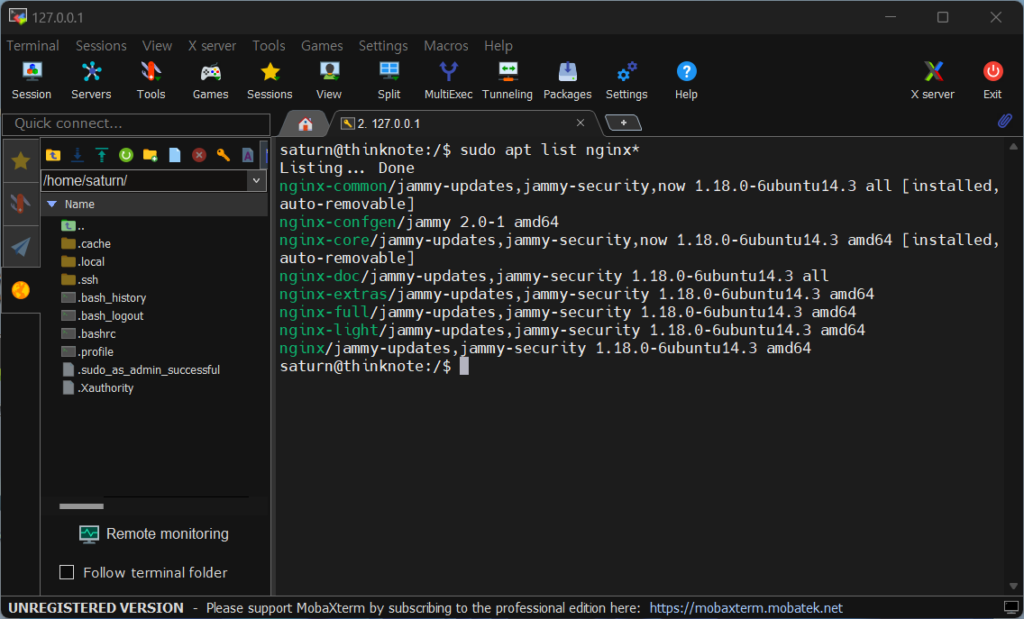
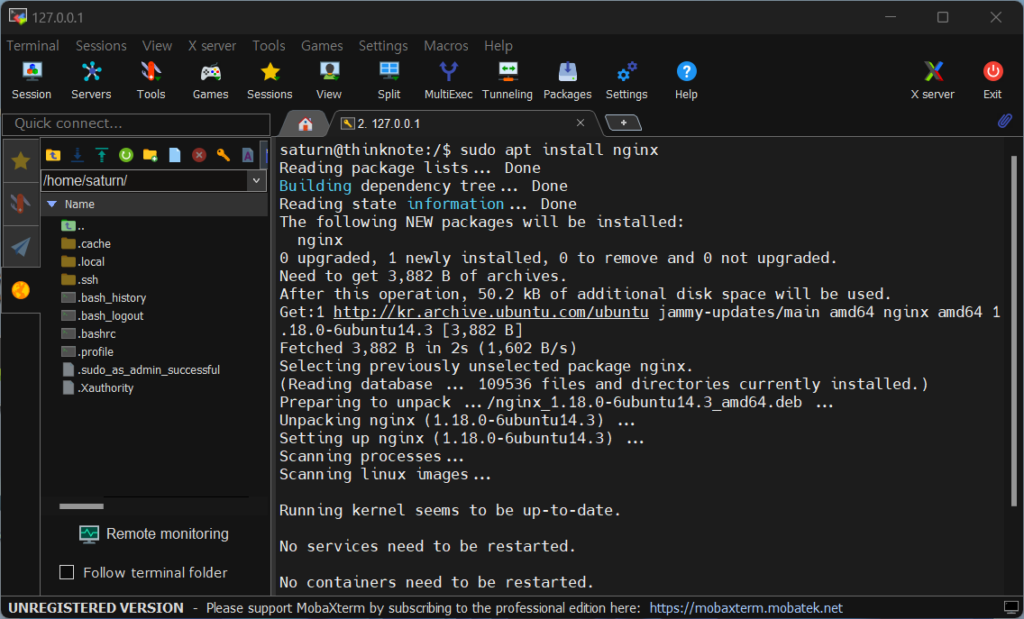
    Update package information with apt update and apt upgrade. Check packages related to nginx with the list option. Install the nginx web server using the nginx installation command.

    • This command displays nginx-related package information.
    sudo apt list nginx*
    nginx ubuntu
    nginx ubuntu
    • Run the command to install nginx.
    sudo apt install nginx
    nginx ubuntu
    nginx ubuntu
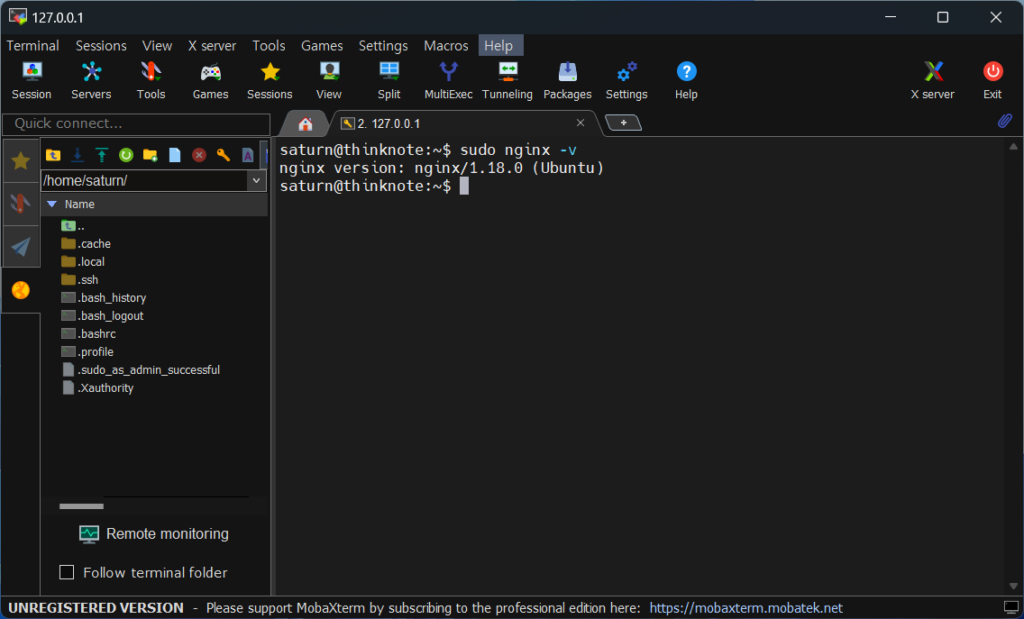
    • Check the version of nginx installed.
    sudo nginx -v
    nginx ubuntu
    nginx ubuntu
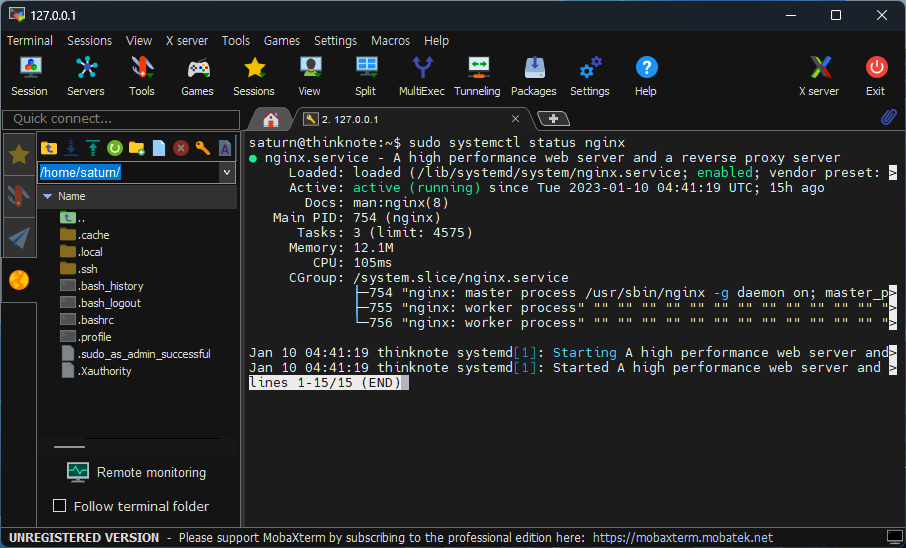
    • Check the status of the nginx service.
    sudo systemctl status nginx
    nginx ubuntu
    nginx ubuntu

    2. Port settings for external connection

    Even though the web server is installed, it does not mean that you can connect to it right away. The environment where Ubuntu is installed is composed of a virtual server on the host computer, and the Ubuntu server is provided with a firewall service using iptables.

    The first step is to open a port on your ubuntu server. If you need to understand iptables, you can check it out through the following article.
    Ubuntu firewall iptables configuration and management – ​​Thinknote

    1) Allow nginx http port

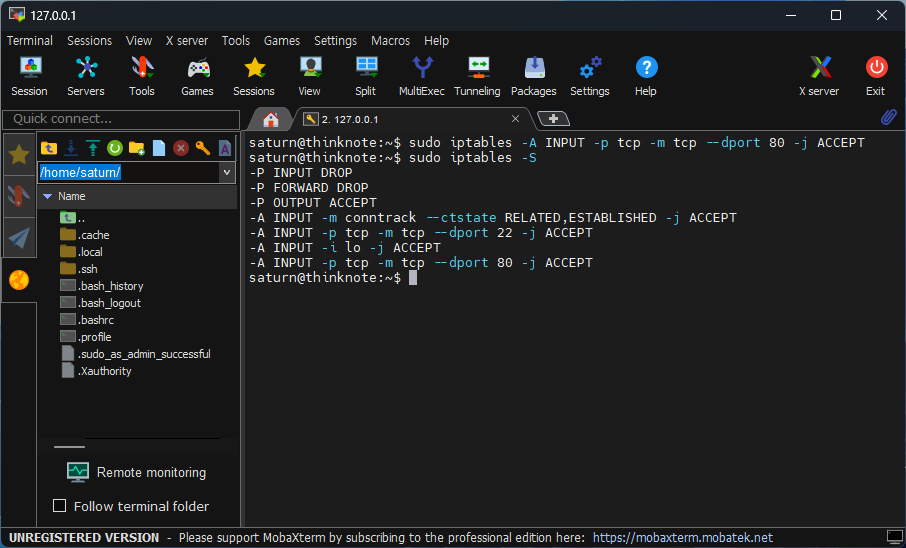
    The http port uses 80. Open iptables to use TCP port 80 and print out the rules to see if the chain is registered in iptables.

    • -A : Add to chain
    • -p tcp : protocol tcp
    • -m tcp: tcp match, extended match
    • –dport: Port number
    • — j : Jump to target
    • ACCEPT: Allow
    sudo iptables -A INPUT -p tcp -m tcp --dport 80 -j ACCEPT
    sudo iptables -S
    iptables
    iptables

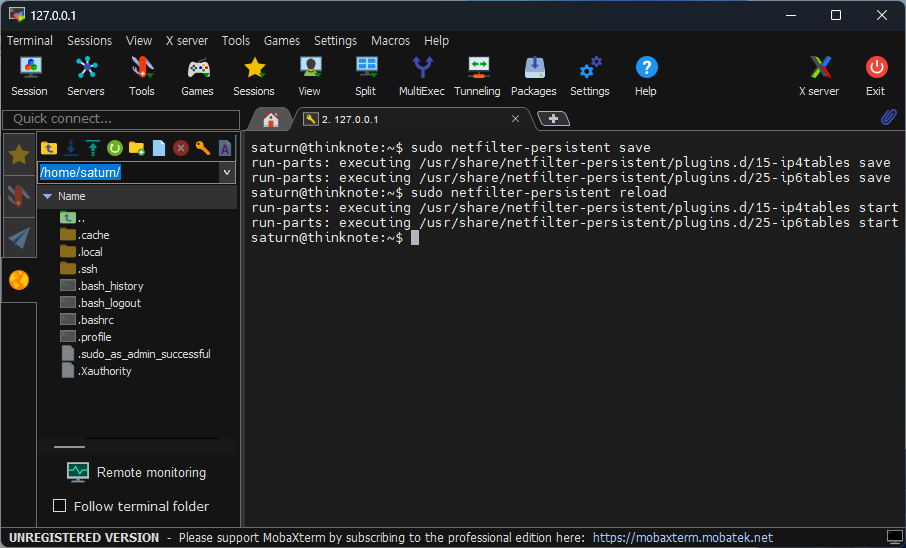
    Save the added rules and reload.

    sudo netfilter-persistent save
    sudo netfilter-persistent reload
    iptables
    iptables

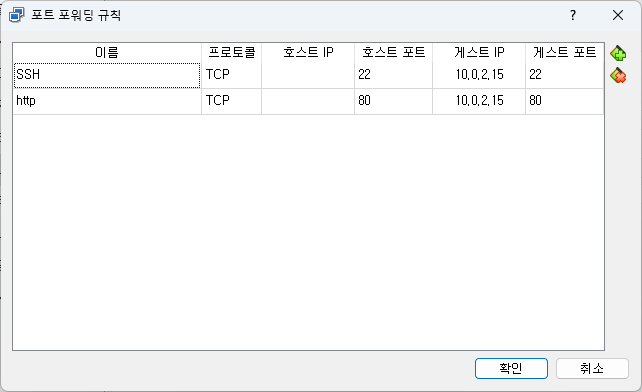
    2) Add VirtualBox port

    You must add a port to VirtualBox to be able to connect from the host computer's IP or localhost (127.0.0.1). And if you are using a router, you can connect from outside by using the router's DMZ function or the router's port forwarding function. This does not cover the router's DMZ settings.

    If you want to know the detailed procedures of VirtualBox, you can click the link below.

    Ubuntu SSH port settings and connection – Thinknote

    Add forwarding to port 80 as shown in the image below.

    virtualbox 80 port
    virtualbox 80 port

    3. Check Nginx web server connection

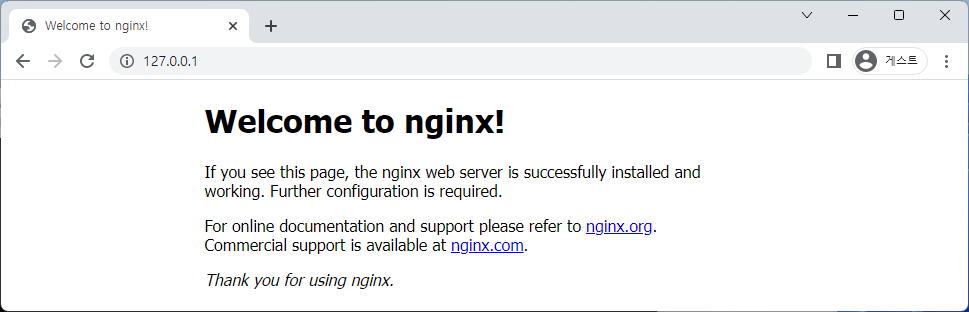
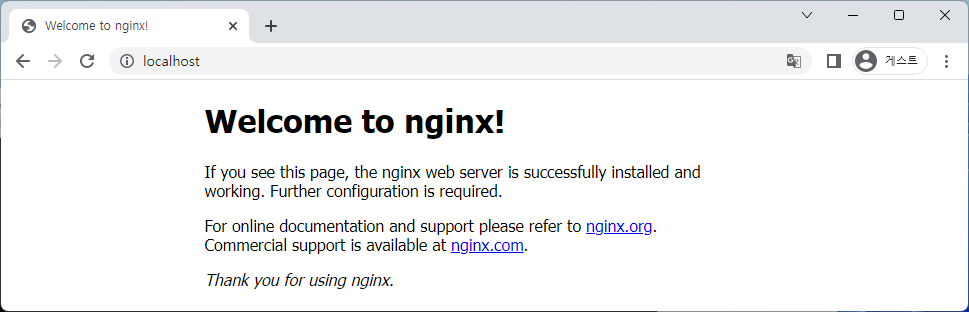
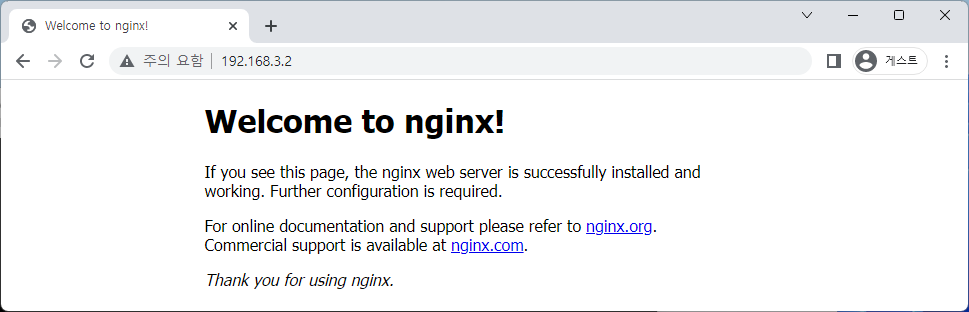
    Once the port opening is complete, connect to the nginx web server on the Ubuntu server through the host computer's Internet browser.

    • Connect to localhost (127.0.0.1)
    nginx
    nginx
    nginx
    nginx
    • Connect to the internal IP of the host computer
    nginx
    nginx
    • Connect to external IP
    nginx
    nginx

    Good article to read together

    • Install Nginx web server (Centos 8)
    • Install and enable Ubuntu firewall iptables
    • Ubuntu firewall iptables setup and management
    • Install PHP 8 (ubuntu)
    • Setting up Nginx + Php8

    Related Reading

    FAQ

    What is this article about?

    This article is an English translation and global-reader adaptation of the Korean post “Install Nginx web server (ubuntu).” It preserves the original article’s main explanation, examples, and practical context.

    Why is it translated into English?

    The English version helps global readers access Thinknote articles through English search keywords while keeping the Korean source available as the original reference.
    Where can I read the original Korean version?

    You can read the original Korean article here: https://www.thinknote.co.kr/nginx-web-server-install-ubuntu/