
Running several tasks simultaneously in Claude Code also means switching between terminals more often to check their status. It is hard to see at a glance which tasks are active, which need input, and whether subagents remain. Pixel Agents represents these states as characters in a small pixel office.
Nate Herk’s video demonstrates visually monitoring activity across multiple terminals and subagents. However, the video dates from February 2026. This guide distinguishes the video’s user experience from official repository guidance checked on October 27, 2026, covering current support, installation steps, status-display limits, and security precautions.
Pixel Agents Shows the Status of Work
Pixel Agents represents AI coding agents running in terminals as pixel characters. The official README describes characters moving or displaying indicators as agents write or read files, run commands, or await input or approval.
In the video, a main agent delegates research roles while an agent in another terminal handles separate work. The user checks which tasks are active in the office view, then returns to the relevant terminal.
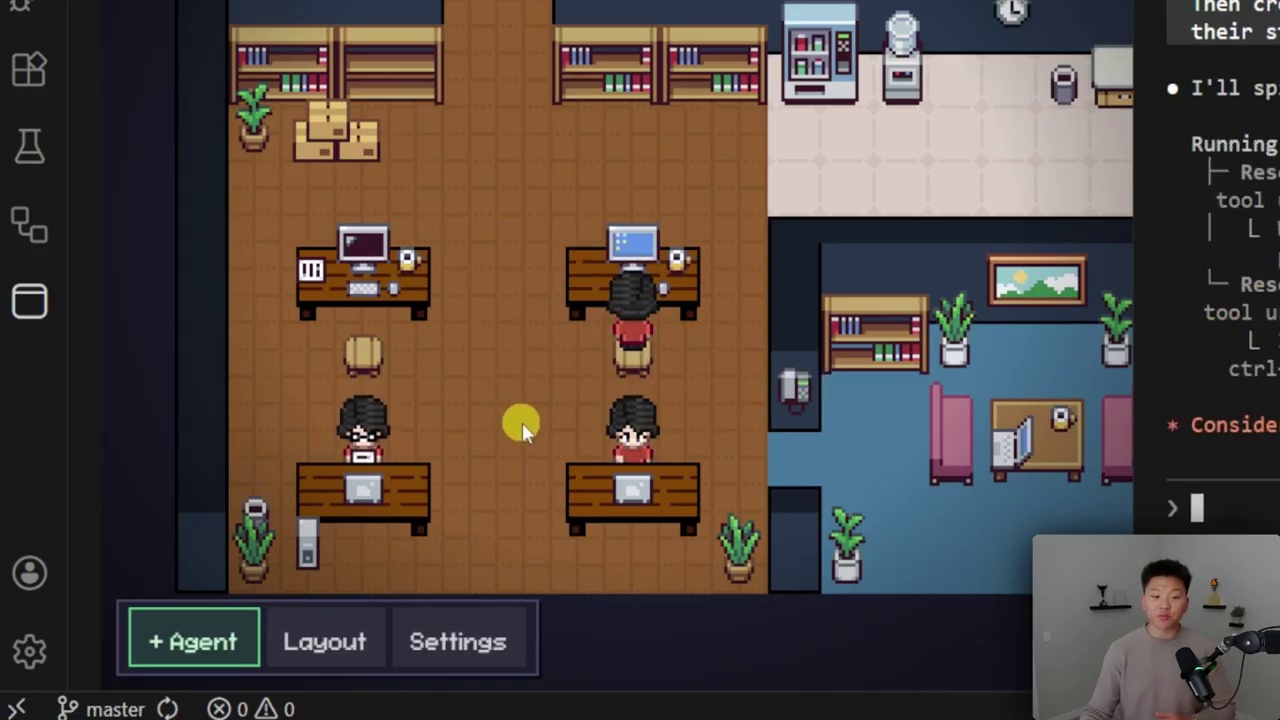
A moving character does not mean the result is correct. An activity indicator stopping also does not establish that a requested file is finished or that tests passed. The status screen is an entry point for finding what to inspect; actual output and logs determine completion.
The small office can highlight workload and intervention points. It is not a workflow diagram mapping data flows or every design decision. Later in the video, the creator also expresses interest in seeing more clearly what agents are building and deciding.
Differences Between the Video and Current Official Guidance
Installation requirements and features can change after a video introduces an early tool. Check these differences before treating this video’s instructions as current guidance.
- Operating systems: The video describes testing focused on Windows at the time. The current official README lists Windows, Linux, and macOS together in its requirements.
- Execution options: The documentation describes both a VS Code extension and a standalone CLI for viewing the office in a browser.
- Team display: The video says Agent Teams visualization is not yet available. The current README lists displays for subagents and persistent teammates as features.
- Activity detection: The video describes reading activity logs. Current documentation distinguishes the primary hook-event mechanism from a fallback that infers status from session transcripts.
This guidance reflects the official repository examined. Check the installed Marketplace version’s description and actual behavior to see whether every feature works identically in your Claude Code environment.
The repository’s goal of supporting multiple agents and editors does not mean every roadmap product is already available. The README presents Claude Code as the current reference implementation and distinguishes other integrations from the roadmap.
How to Get Started in VS Code
The current official README provides separate getting-started instructions for the VS Code extension and standalone CLI. In VS Code, first check your configured Claude Code CLI and the extension’s version requirements. The documentation examined requires VS Code 1.105.0 or later.
The basic process is as follows.
- In Marketplace, find publisher
pablodelucca‘s Pixel Agents, verify it, and install it. - Open your working folder and the Pixel Agents panel beside the terminal.
- In the current guide’s
+ Agent, choose a working directory and launch Claude Code. - Request a small private task. Check whether activity and waiting indicators match the actual terminal state.
- When needed, compare detailed status in Debug View with the original terminal.
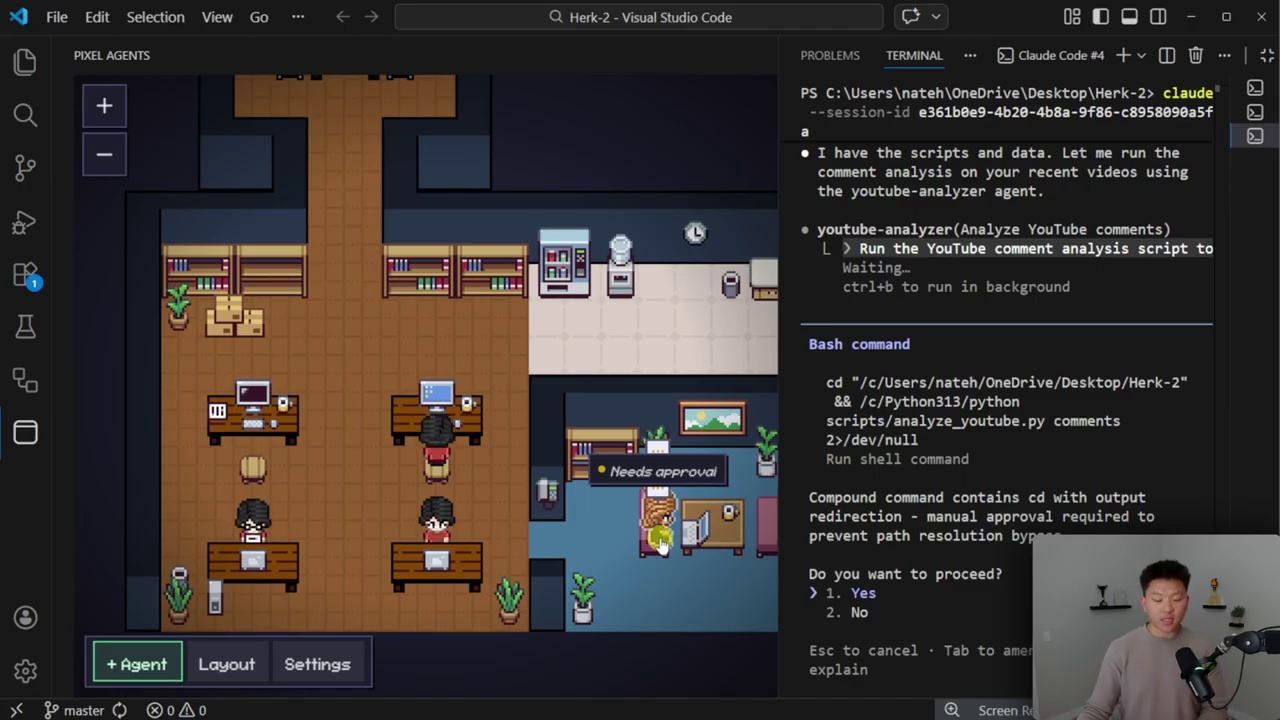
The video’s early interface shows that clicking + Agent opens a terminal immediately. The current README describes a directory-selection step. A screen differing from the video does not necessarily mean installation failed.
The presenter’s reported detection problem with spaces and periods in folder names should also be treated as experience from that environment. Do not assume it is a universal constraint across current versions or rename existing projects unconditionally. Check current documentation, detection scope, and connection status first.
This guide compares the video with documentation. The extension was not separately installed to reproduce the results, and the user’s development environment was not changed.
Office Layout and Debug View Serve Different Purposes
Pixel Agents has an editor for placing floors, walls, furniture, and other elements. This can add visual enjoyment and make the space for monitoring several tasks feel familiar. The current README also describes directory-linked zones, saved layouts, and external assets.
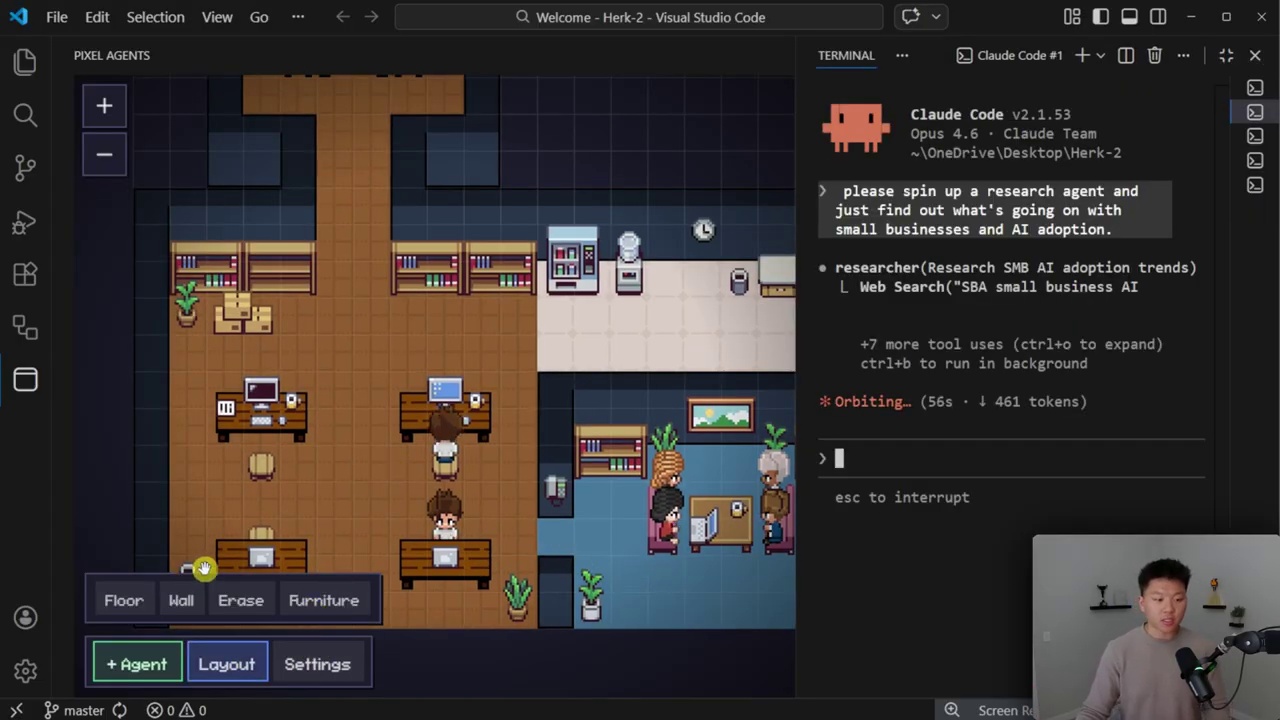
Moving a desk does not change the model or separate an agent’s file permissions. Distinguish visual layout from actual execution settings. Responsibility for dividing work lies in agent instructions and the execution structure.
Debug View, by contrast, is a place to inspect connection status and agent data. If an agent is missing onscreen, do not automatically resend the request. First check whether its session falls within detection scope and compare the latest displayed information.
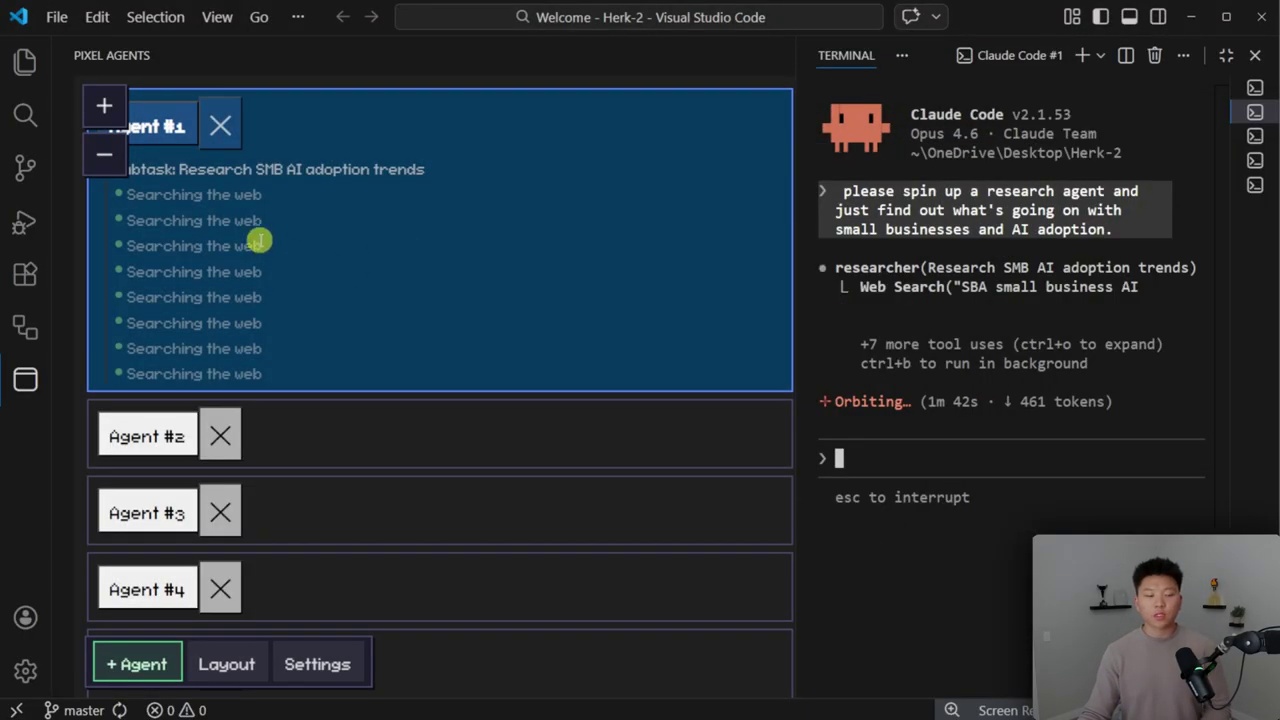
This visualization may be particularly useful with multiple terminals, easily missed approval requests, or long-running tasks alongside other work. However, compare it in your own work to determine whether it reduces checking time. The video alone cannot establish a numerical productivity improvement.
Distinguish Parallel Terminals, Subagents, and Agent Teams
Several characters sharing an office does not mean they all collaborate in the same way.
- Work across multiple terminals: Separate sessions handle separate requests. Displaying them together does not automatically share materials or context.
- Subagents: A parent agent delegates specific tasks. Check the scope of requests and how results are collected.
- Agent Teams: Current Pixel Agents documentation describes displaying teammates, roles, and lifecycles. Check the underlying tool’s features and settings for actual team coordination and permissions.
Do not directly equate character counts with employee numbers or independent verification counts. Several agents may receive the same incorrect materials and produce similar answers. More importantly, use the monitoring screen to locate and inspect each task’s terminal and deliverables.
Do Not Judge Security by a Cute Interface or Publisher Verification
The video creator says they checked network calls and suspicious behavior before installation and felt reassured. This reflects their review experience at the time. It is not an independent security audit covering every version and installation environment. Repository stars and publisher verification do not guarantee code or dependency safety either.
Given current features, describing the tool as merely reading logs without touching commands or settings is insufficient for judging security. The official README describes hook configuration, authenticated event delivery to a running server, and launching agents in terminals. Check which settings installation and use change, and what the tool can access.
The following items deserve particular attention.
- Source and version: Check the official repository, publisher, installed version, and changelog.
- Permission approval:
Skip Permissionsand similar permission-check bypass options should not be enabled for convenience. Also check the warning that an enabled setting may persist. - Detection scope: Consider whether you need a setting that also displays sessions from other workspaces.
- Record exposure: Check logs, prompts, filenames, and screenshots for customer materials or secrets.
- Basic verification: Even when an approval request appears onscreen, inspect the actual command and target files before deciding.
Visualization can alert you to pending approval. It does not judge the safety of the requested command for you. Avoid mechanically clicking approval buttons while watching several agents.
With the Standalone CLI, the Access URL Can Also Be Sensitive
The current official README also explains how to run the standalone CLI on Node.js 20 or later and view the office in a browser. This is an option to consider for terminals outside VS Code or remote work.
The important difference is the addition of a web server. The documentation says the default address uses local loopback. It warns that binding to all interfaces can expose the UI and WebSocket to the local network. Changing the address to enable outside access is not merely a convenience setting.
The token-bearing URL printed by the server can also grant access to hook configuration and terminal operations. Do not paste it into public chats, screenshots, or documents. An address looking local does not make it safe or suitable for public sharing.
Consider reducing functionality when you only need observation, for example through the documented option to disable terminals. However, enabling that option does not resolve every access-control or data-exposure issue.
The Best Use Is to Observe, Verify, and Intervene When Needed
Pixel Agents presents coding-agent activity through a familiar visual interface. Instead of constantly switching terminals, scan the status view. Use it as an entry point for returning to tasks needing approval or closer inspection.
Assess its usefulness on a small task with the following questions.
- Do onscreen active and waiting states match the actual terminal?
- Can you notice approval requests sooner?
- Can you easily inspect deliverables and test results for work that appears complete?
- Does the visual appeal help you check status, or does it distract from work?
Busy pixel characters matter less than what ran, what results remain, and whether human judgment is needed now. Visualization is a tool for finding where to verify, not a replacement for verification. That is the more appropriate way to view it.
Related Reading
- How to Distinguish Delegation from Group Chat in Hermes Bot Mode
- Comparing AI Agent Frameworks and Choosing for Your Operating Conditions
- Kim Kyung-il’s Approach to AI: Why Verification and Collaboration Matter More Than Speed
FAQ
Is Pixel Agents Only Available on Windows?
The video describes early testing focused on Windows, but the current official README lists Windows, Linux, and macOS. Separately check the requirements for your intended extension version and runtime environment.
Does a Character Stopping Mean the Task Is Complete?
Status indicators alone cannot establish completion or quality. Check the original terminal’s response, generated files, execution and test results, and unverified items.
Does It Currently Display Agent Teams?
The official README examined lists displays for subagents and Agent Teams teammates, roles, and lifecycles. Distinguish this from the video’s earlier statement that the feature was unsupported. Check the support provided by your installed version.
Can I Skip Security Review for an Extension from the Official Publisher?
No. Publisher identity and code safety are separate matters. Review versions, dependencies, configuration changes, file and log access, server exposure, and permission-bypass options for your environment.
References
- Nate Herk: Source Video on Visual Monitoring with Pixel Agents
- Official Pixel Agents GitHub Repository and README
- Pixel Agents VS Code Marketplace
- Official Pixel Agents Changelog
The images are captures used to explain and critique the source video’s user experience. The video’s descriptions, current repository feature guidance, and this guide’s application suggestions are distinguished. They do not indicate that independent execution reproduction or a security audit was completed.