
1. Understanding and features of PHP
1) Understanding PHP
The purpose of installing PHP 8 is to use WordPress in conjunction with the Nginx web server. In the future, we will also cover how to use PHP to manipulate some data and insert PHP code, but rather, we will explain it for the purpose of operating WordPress developed with PHP.
Original Korean article: Install PHP 8 (ubuntu)
PHP stands for Hypertext Preprocessor and is designed to implement dynamic web pages. You can create the desired web page by processing code written in PHP like an HTML file in the PHP engine. PHP is moving to version 8.x, and after 7.0, PHP code and HTML are written separately as separate files and are increasingly executed through php-fpm (PHP FastCGI Process Manager) rather than a web server.
Server-side open source software is often implemented in PHP. Representative programs based on PHP include WordPress, MediaWiki, and NextCloud. PHP has strengths in text and HTML processing, so it can apply a variety of things such as URL parsing, form processing, and regular expressions, and supports various databases.
Various programming languages such as Java and Python are widely used, but continuous development is underway based on the influence of open source.
2) PHP features
PHP has four characteristics: simplicity, efficiency, security, flexibility, and familiarity.
- PHP can perform system functions i.e. create, open, read, write and close files on the system.
- PHP can collect data from forms, i.e. files, save data to files, send data via email, and return data to the user.
- Add, delete and modify elements in the database via PHP.
- Access cookie variables and set cookies.
- PHP allows you to restrict users from accessing some pages on your website.
- You can encrypt your data.
3) Utilization of PHP
Tasks that would have required multiple Includes to be accessed in Java or C language are built-in functions, so they can be easily implemented with a small amount of code. Current PHP has evolved from a procedural form to a state where ‘object-oriented (class)’ programs can be written.
- PHP can generate dynamic page content.
- PHP can create, open, read, write, delete and close files on the server.
- PHP can collect form data.
- PHP can send and receive cookies.
- PHP can add, delete and modify data in the database.
- You can control user access using PHP.
- PHP can encrypt data
2. Install PHP 8
1) Preparation for PHP 8
Update and upgrade Ubuntu packages.
sudo apt update
sudo apt upgrade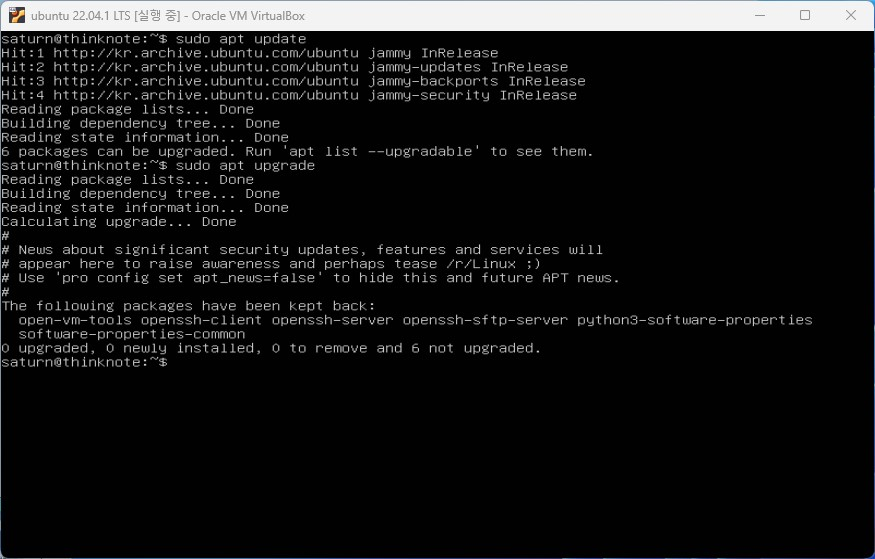
2) Check and install PHP 8 package
You can check items related to PHP with the apt list command. However, because there are so many PHP-related packages, I am hesitant about what to install. In particular, since PHP versions vary, a specific version may be required for the development environment of existing programs.
The core of the PHP installation is php-fpm. Depending on the PHP version, it exists for each version such as php7.x-fpm, php8.x-fpm, etc. We will cover how to install a specific version in another article.
Check the core packages of your PHP 8 installation with apt list *fpm. Here, php-fpm is version 8.1 and php-fpm is version 8.1.2. The latest version may be good, but it is also a good idea to avoid the most recent version because compatibility problems may occur.
sudo apt list *fpm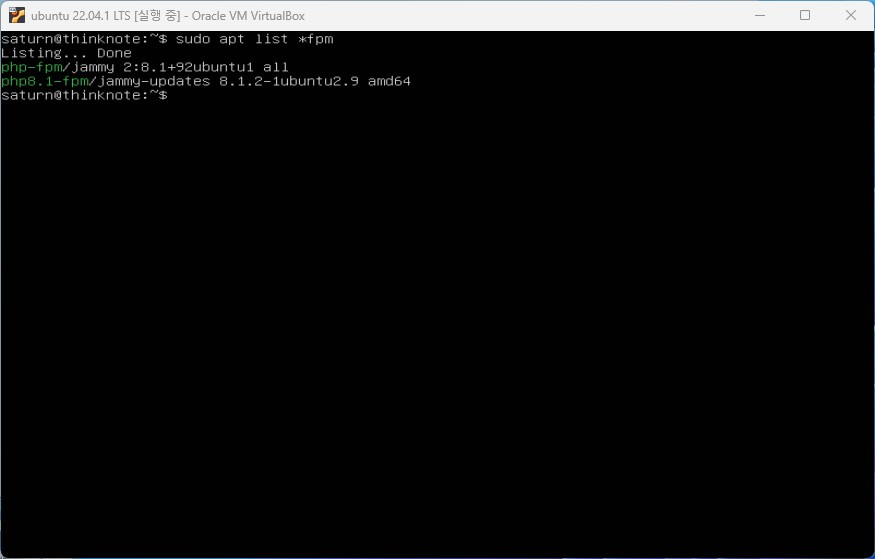
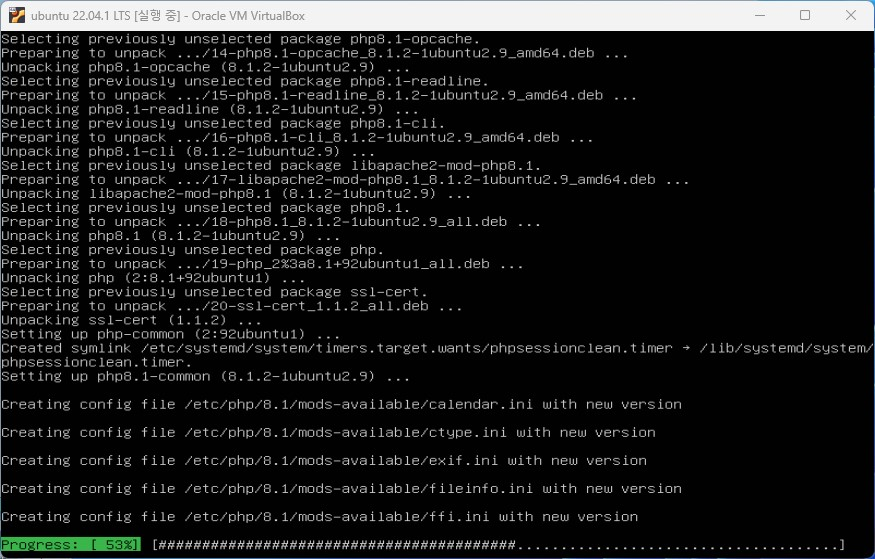
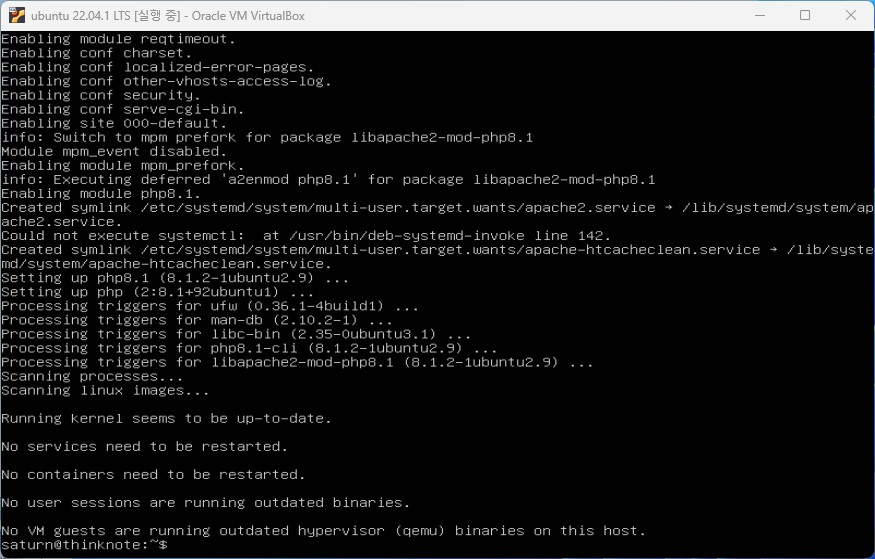
Here we install php.
sudo apt install php8.1-fpm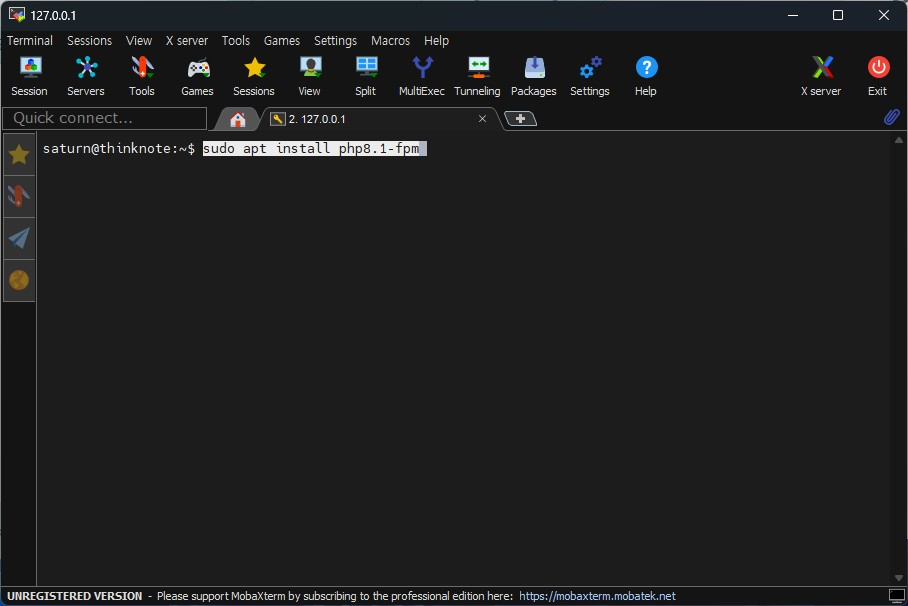
3) Check PHP 8 status
To check that the installation is complete and operating properly, run the sudo systemctl status php8.1-fpm command. If you previously installed a specific version, you can check it by writing the version in php.
sudo systemctl status php8.1-fpm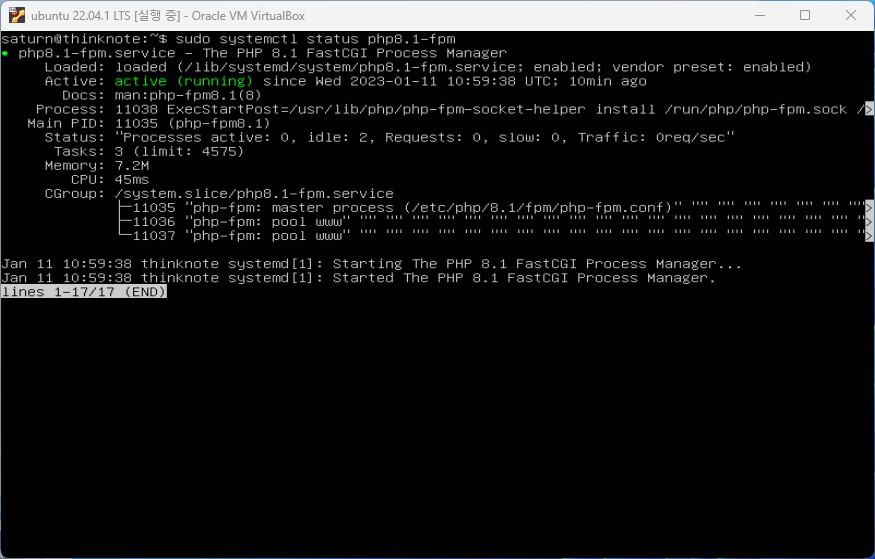
The service is running normally. Looking at the output, the service operates as php8.1-fpm.service and the conf file is /etc/php/8.1/fpm/php-fpm.conf.
4) Additional installation of php 8 package for WordPress
Some packages may not be needed right now. However, since it doesn’t really matter if you install it in advance, install all the basic packages.
sudo apt install php8.1-common php8.1-mysql php8.1-xml php8.1-xmlrpc php8.1-curl php8.1-gd php8.1-imagick php8.1-cli php8.1-dev php8.1-imap php8.1-mbstring php8.1-opcache php8.1-redis php8.1-soap php8.1-zip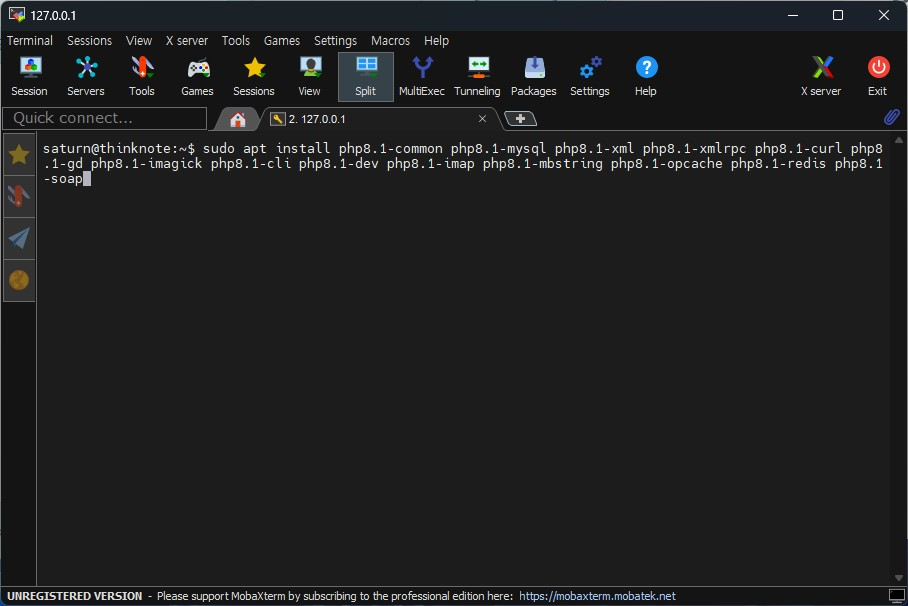
3. Connect Nginx and PHP 8
Installing the PHP package does not mean that the PHP file will be applied to the web server. Some files need to be modified so that nginx can serve PHP.
1 file exists and 3 files need to be modified.
- The /etc/nginx/nginx.conf file exists.
- Check and add fastcig_param in /etc/nginx/fastcgi_params
- Add and modify php script in /etc/nginx/sites-available/default setting
- default_type in /etc/nginx/nginx.conf
Fourth, if you do not fix it, there will be a problem where the php file will not run and be downloaded.
1) Check /etc/nginx/nginx.conf
If you followed the previous installation and steps, the nginx.conf file exists. If you don’t have it, just copy the following content and create a file. If you copy the contents below to create a file, you can skip step 4.
Create a file.
sudo nano /etc/nginx/nginx.confPaste the following code:
user www-data;
worker_processes auto;
pid /run/nginx.pid;
include /etc/nginx/modules-enabled/*.conf;

events {
        worker_connections 768;
        # multi_accept on;
}

http {
        ##
        # Basic Settings
        ##
        sendfile on;
        tcp_nopush on;
        types_hash_max_size 2048;
        # server_tokens off;
        # server_names_hash_bucket_size 64;
        # server_name_in_redirect off;
        include /etc/nginx/mime.types;
        #default_type application/octet-stream;
        default_type text/html;
        ##
        # SSL Settings
        ##
        ssl_protocols TLSv1 TLSv1.1 TLSv1.2 TLSv1.3; # Dropping SSLv3, ref: POODLE
        ssl_prefer_server_ciphers on;

        ##
        # Logging Settings
        ##
        access_log /var/log/nginx/access.log;
        error_log /var/log/nginx/error.log;

        ##
        # Gzip Settings
        ##
        gzip on;
        # gzip_vary on;
        # gzip_proxied any;
        # gzip_comp_level 6;
        # gzip_buffers 16 8k;
        # gzip_http_version 1.1;
        # gzip_types text/plain text/css application/json application/javascript text/xml application/xml application/xml+rss text/javascript;

        ##
        # Virtual Host Configs
        ##
        include /etc/nginx/conf.d/*.conf;
        include /etc/nginx/sites-enabled/*;
}

#mail {
#       # See sample authentication script at:
#       # http://wiki.nginx.org/ImapAuthenticateWithApachePhpScript
#
#       # auth_http localhost/auth.php;
#       # pop3_capabilities "TOP" "USER";
#       # imap_capabilities "IMAP4rev1" "UIDPLUS";
#
#       server {
#               listen     localhost:110;
#               protocol   pop3;
#               proxy      on;
#       }
#
#       server {
#               listen     localhost:143;
#               protocol   imap;
#               proxy      on;
#       }
#}
2) Check and add fastcig_param in /etc/nginx/fastcgi_params
Open /etc/nginx/fastcgi_param with an editor and add the following if it does not already exist:
sudo nano /etc/nginx/fastcgi_paramsAdd the following code to the first line:
fastcgi_param SCRIPT_FILENAME $document_root$fastcgi_script_name;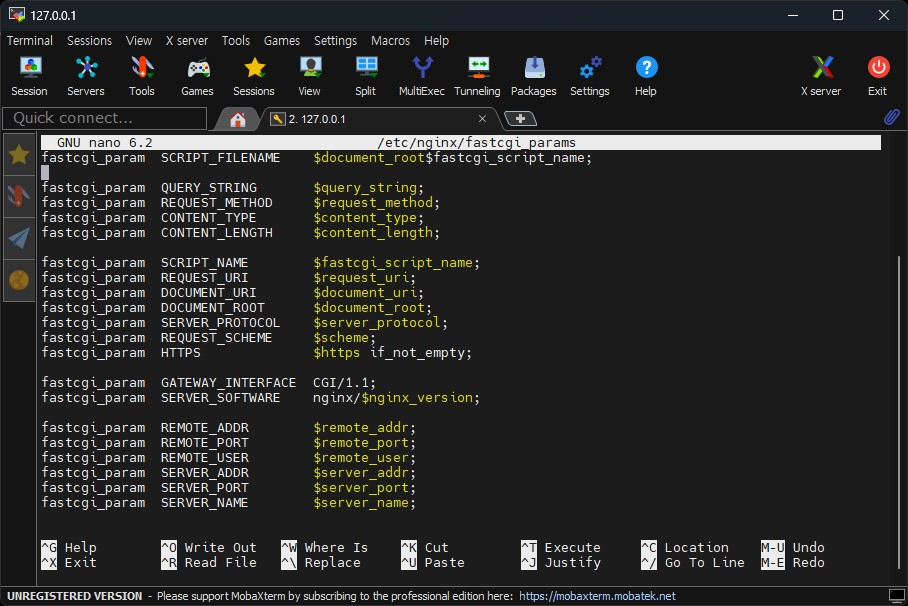
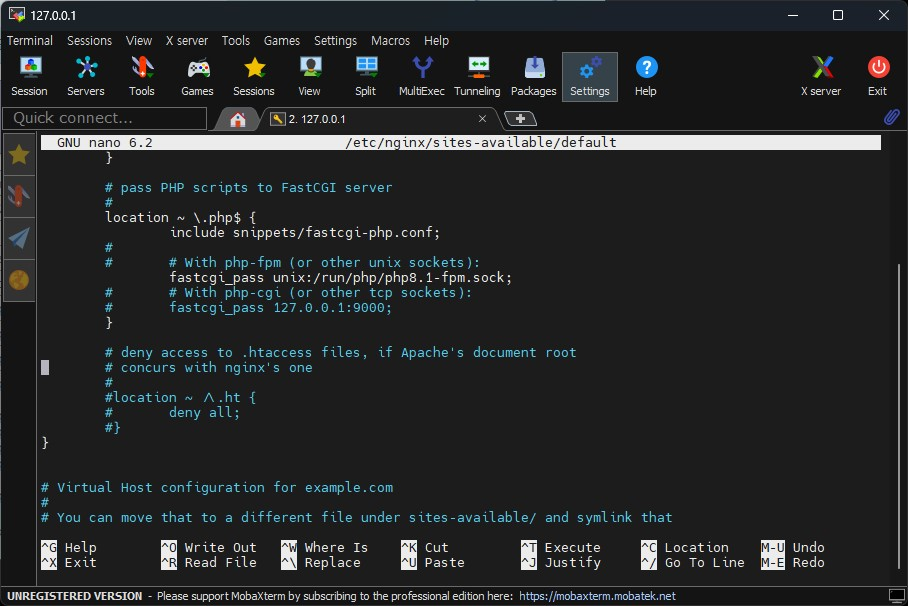
3) Add and modify php script in /etc/nginx/sites-available/default setting.
Run the default file with an editor and modify the location part as follows. Here, we modify it based on version 8.1. Simply find and change the following part of the existing file:
# pass PHP scripts to FastCGI server

location ~ \.php$ {
       include snippets/fastcgi-php.conf;

       # With php-fpm (or other unix sockets):
       fastcgi_pass unix:/run/php/php8.1-fpm.sock;
}
Restart both Nginx and PHP.
sudo systemctl restart nginx
sudo systemctl restart php8.1-fpm
4. Run PHP 8 and check
Create a file to check PHP information. The file is created in the web root.
sudo nano /var/www/html/info.phpCopy and paste the following content according to the PHP code rules.
<?php
phpinfo();
?>
Check the php information on the website with localhost/info.php or address/info.php.
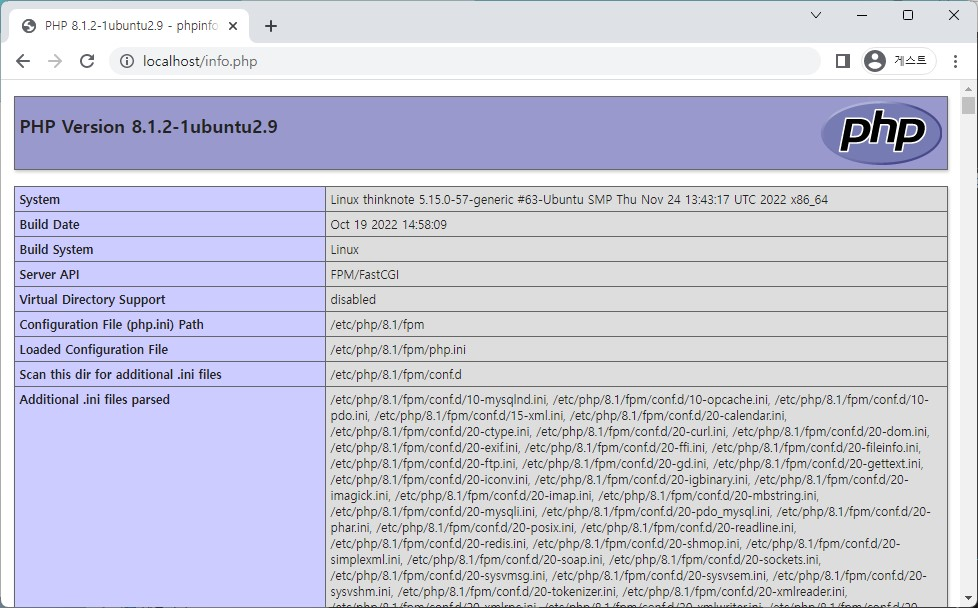
Please note that in order to install WordPress, you must modify the php.ini file. Executing the php file and modifying the php.ini file will be covered in the WordPress installation article.
Good article to read together
- Setting up Nginx + Php8
- Free HTTPS setup (Let’s Encrypt, Cloudflare)
- Install memory caching APCu, Redis, Memcached
- Install Nginx web server (Centos 8)
- Install Nginx web server (ubuntu)
Related Reading
Continue with these related Thinknote English articles in the Server & Infrastructure cluster.
- Nextcloud installation and settings
- Install memory caching APCu, Redis, Memcached
- Free HTTPS setup (Let’s Encrypt, Cloudflare)
- Install OpenSSL
- Installing and managing MariaDB (MySQL)
- Setting up Nginx + Php8
FAQ
What is this article about?
This article is part of Thinknote’s English server and infrastructure archive. It focuses on practical Linux, Ubuntu, web-server, database, SSH, firewall, or hosting operations that readers can adapt to their own environment.
How should I use this guide?
Use it as a practical checklist and concept guide. Before applying commands on a live server, verify package names, OS versions, ports, and backup requirements for your own setup.
Where can I read the original Korean article?
The original Korean article is available here: Original Korean article.