
1. Linux Nginx web server vs apache web server
Web servers installed on Linux are divided into Nginx web servers and Apache web servers, and have the following differences.
Original Korean article: Install Nginx web server (Centos 8)
- Apache is an open source HTTP server, while Nginx is an open source, high-performance asynchronous web server and reverse proxy server.
- While the development and evolution of Apache HTTP Server is managed and maintained by a global user community (Apache Software Foundation), Nginx is maintained and maintained by the company of the same name, founded in 2011.
- While Apache provides various multiprocessing modules to handle client requests and web traffic, Nginx is designed to handle multiple client requests simultaneously with minimal hardware resources.
- In Apache, a single thread is associated with one connection, but in Nginx, a single thread can handle multiple connections. This process consumes less memory and improves performance.
- While Apache HTTP Server has a non-scalable, multi-threaded architecture, Nginx follows an asynchronous event-based approach to handling multiple client requests.
- The Apache server serves static content using traditional methods and handles dynamic content natively within the web server itself. Nginx, on the other hand, cannot handle dynamic content internally and relies on external processes to do so.
In other words, Apache has a relative advantage in terms of security and stability, and nginx has a relative advantage in terms of efficiency and speed. Activate and install Centos 8 RHEL & REMI Repository.
2. Install nginx web server
1) Update
sudo dnf update2) Search nginx and check version
sudo dnf list install nginx
3) Install nginx
sudo dnf install -y nginx.x86_64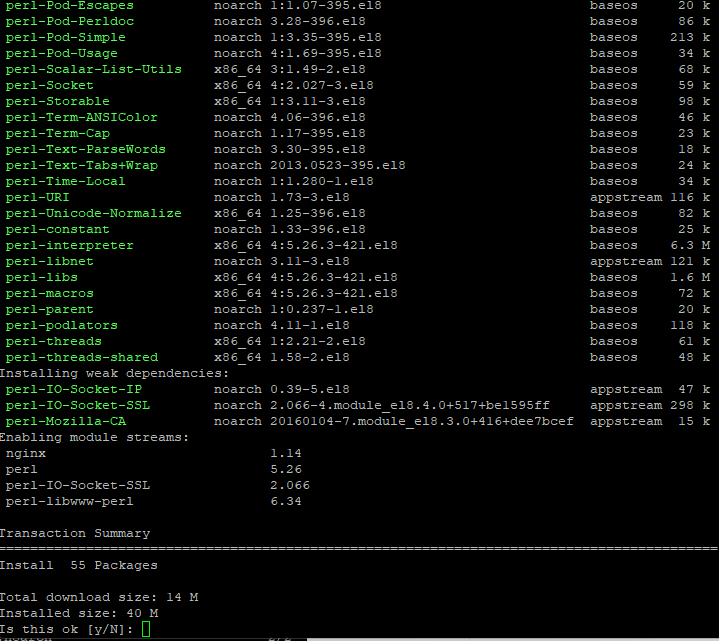
4) Check nginx status
sudo systemctl status nginx
5) Start nginx
Press Ctrl+c to exit and start nginx.
sudo systemctl start nginx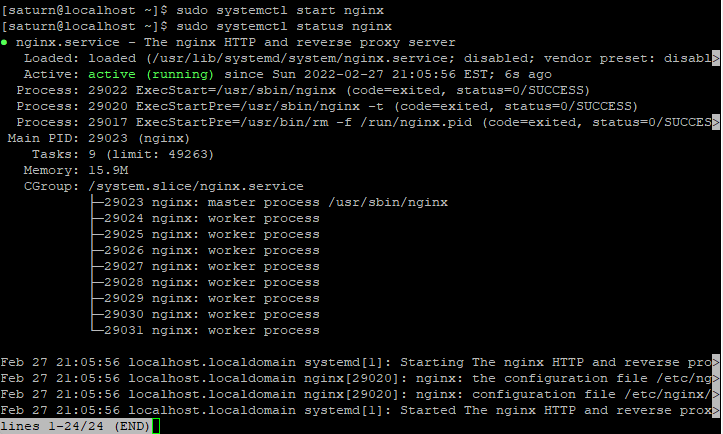
Enable it to run automatically when booting. If you do not execute the following command, it will run in a dead state rather than a running state when booting.
sudo systemctl enable nginx3. firewall Firewall settings
1) Check firewall status
sudo firewall-cmd --state2) Check firewall list
sudo firewall-cmd --zone=public --list-all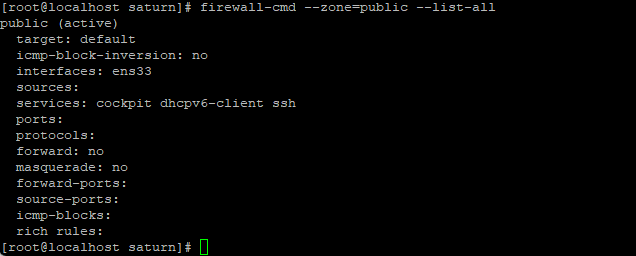
3) Add http(80) port
sudo firewall-cmd --permanent --zone=public --add-port=80/tcp4) Update firewall
sudo firewall-cmd --reloadIf you check with the following command, you can see that the 80/tcp item in ports has been added.
sudo firewall-cmd --state
If you want to delete a port, you can use the following command to delete an open port.
firewall-cmd --permanent --zone=public --remove-port=80/tcp5) Check web access
Enter the IP address in a web browser and the following screen will appear.
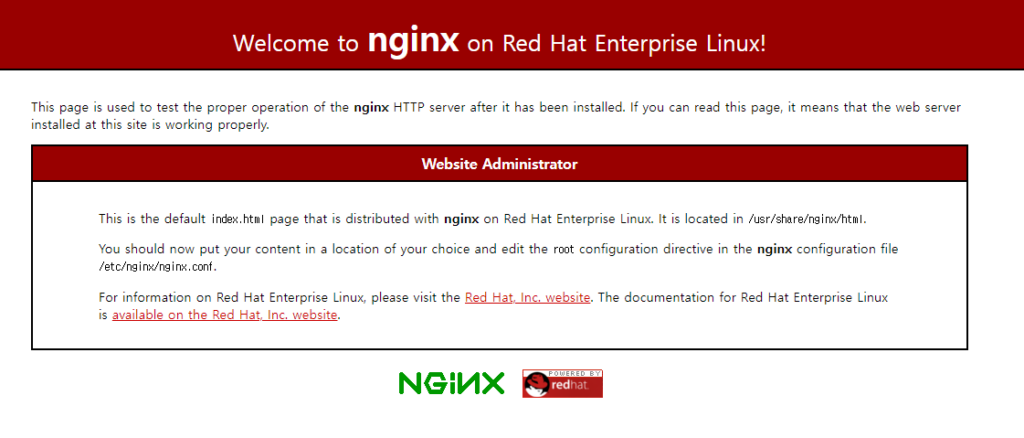
If an error occurs in the web browser, check the status of nginx to see if it is operating normally. Next, check whether the firewall is working and port 80 is open.
Good article to read together
- Install Nginx web server (ubuntu)
- firewall settings
- Install PHP 8 (ubuntu)
- Free HTTPS setup (Let’s Encrypt, Cloudflare)
- Install Centos 8
Related Reading
Continue with these related Thinknote English articles in the Server & Infrastructure cluster.
- Nextcloud installation and settings
- Install memory caching APCu, Redis, Memcached
- Free HTTPS setup (Let’s Encrypt, Cloudflare)
- Install OpenSSL
- Installing and managing MariaDB (MySQL)
- Setting up Nginx + Php8
FAQ
What is this article about?
This article is part of Thinknote’s English server and infrastructure archive. It focuses on practical Linux, Ubuntu, web-server, database, SSH, firewall, or hosting operations that readers can adapt to their own environment.
How should I use this guide?
Use it as a practical checklist and concept guide. Before applying commands on a live server, verify package names, OS versions, ports, and backup requirements for your own setup.
Where can I read the original Korean article?
The original Korean article is available here: Original Korean article.