
1. What is a Virtual Machine?
VirtualBox is a virtual machine that anyone can use as free software. A virtual machine () is a virtual environment with its own CPU, memory, network interfaces, and storage created on a physical hardware system. A physical machine equipped with a hypervisor, such as a Kernel-Based Virtual Machine (KVM), is called a host machine, host computer, host operating system, or simply host.
Original Korean article: VirtualBox Virtual Box virtual machine download and installation
The hypervisor can easily relocate computing resources such as CPU, memory, and storage between existing guests or to new virtual machines. Virtual machines are not suitable for use in resource-intensive 3D, graphics, or physics engines.
Virtual machines can install various operating systems such as MacOS, Linux, and Windows, and each operating system is configured similarly to the physical environment.
1) Virtual machine type
A virtual machine has various software depending on the operating system of the host PC. The following virtual machine software is available for free. Here, we will build a virtual environment using VirtualBox software.
- Virtualization Manager
- VM Monitor
- VMware Fusion (Mac)
- Parallels
- VMware Workstation Player
- Hyper-V
- VirtualBox
- QEMU
- Gnome Boxes
- Red Hat Virtualization
2. Understanding VirtualBox
1) VirtualBox Features
VirtualBox is free software and anyone can use it. VirtualBox was originally created by Innotek GmbH, which was acquired by Sun Microsystems in 2008 and by Oracle in 2010.
VirtualBox is the best software for developers who need to develop in a variety of virtual environments for enterprise visualization and home use. VirtualBox is an open source hypervisor for x86 computers and is one of the best VM software that supports creation and management of virtual machines.
VirtualBox can install and run Windows, Linux, BSD and other OS. A notable aspect of VirtualBox is its ability to transfer virtual machines from one host to another.
2) VirtualBox virtualization
Users of VirtualBox can load multiple guest OSs on a single host operating system (host OS). Each guest can be started, paused, and stopped independently within its own virtual machine.
Users can configure each virtual machine independently and run it in either software-based virtualization or hardware-assisted virtualization, if supported by the underlying host hardware.
The host OS and guest OS and applications can communicate with each other through several mechanisms, including a common clipboard and virtualized network functions. Guest virtual machines can also communicate if they are configured to communicate directly with each other.
3) VirtualBox features
- You can resize the window.
- Supports multiple screen resolutions.
- Windows 10 supports drag and drop functionality.
- It gives you the flexibility to run any application on your PC.
- You can run multiple guest windows simultaneously on the same computer.
- Seamless mode allows you to run macOS and Windows applications side by side.
- Supports Linux, Mac, Windows, Solaris, and OpenSolaris platforms.
4) Virtualization supported OS
- Windows 7 or higher
- Windows Server 2012 or later
- linux distribution
- macOS versions 10.13 High Sierra through 10.15 Catalina (Intel-based Macs only)
- Oracle Solaris
5) VirtualBox Link
https://www.virtualbox.org/
3. Install VirtualBox
1) Download VirtualBox
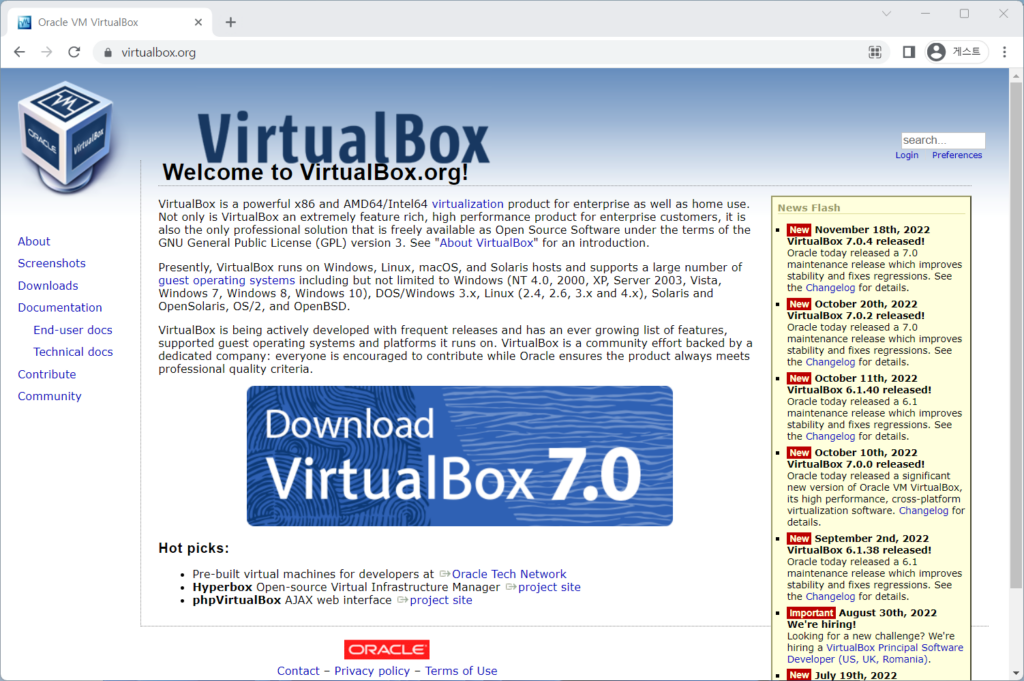
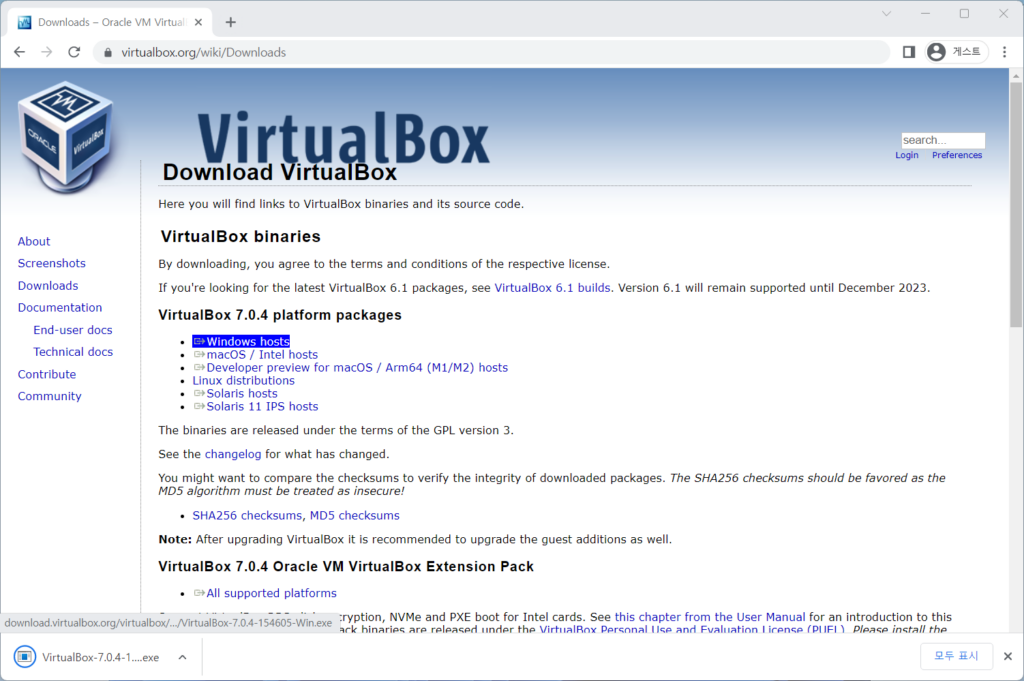
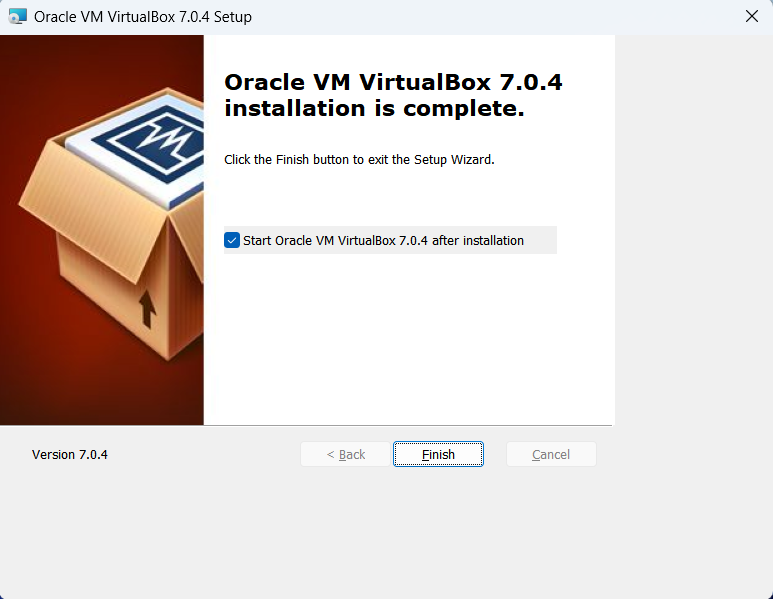
2) Install VirtualBox (install Windows hosts)
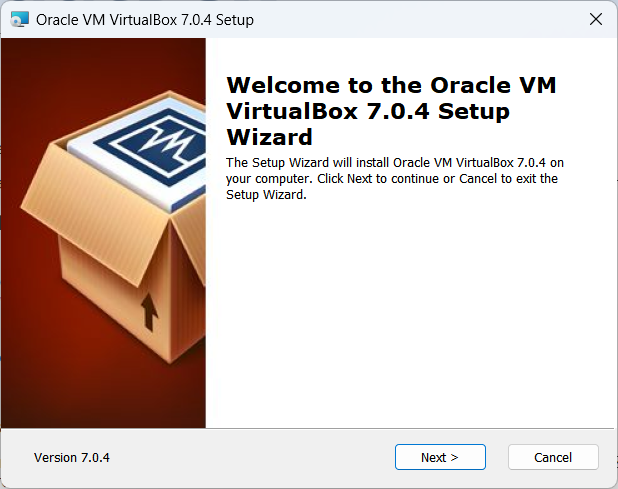
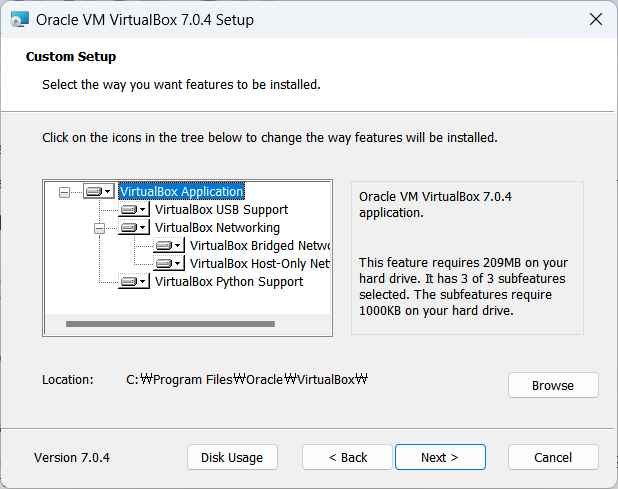
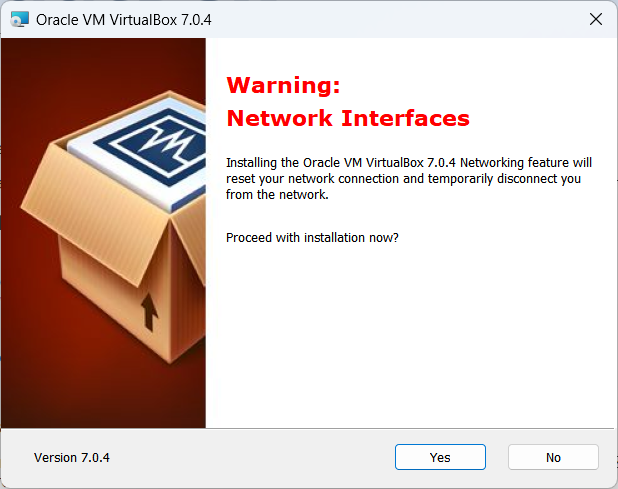
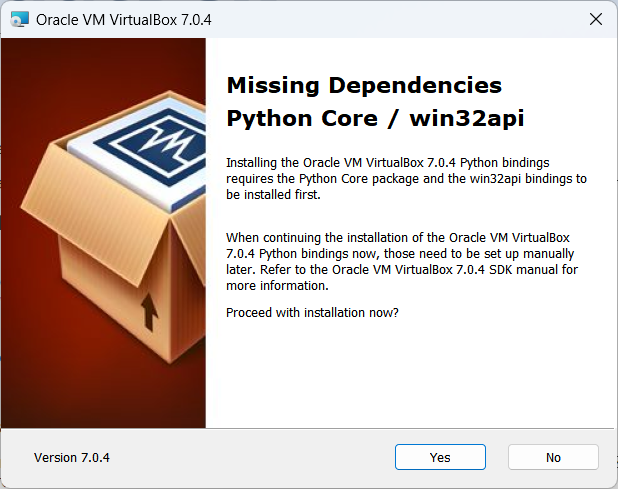
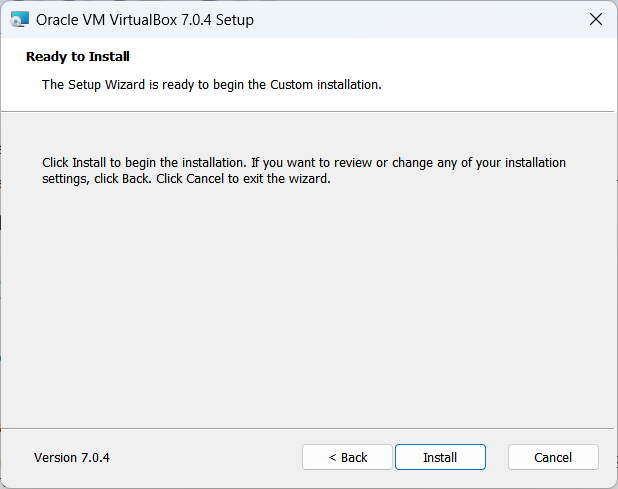
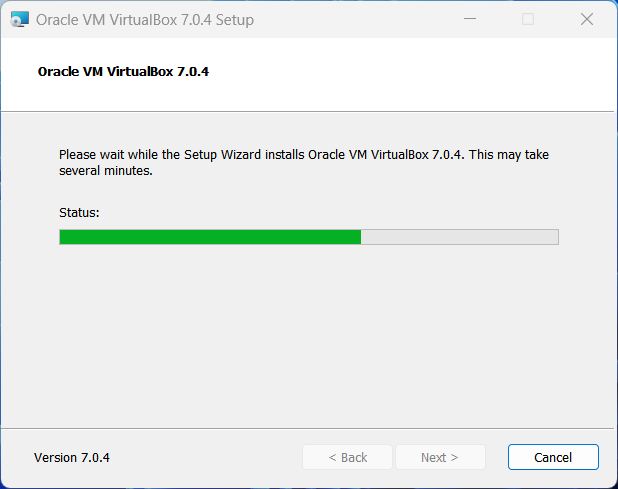
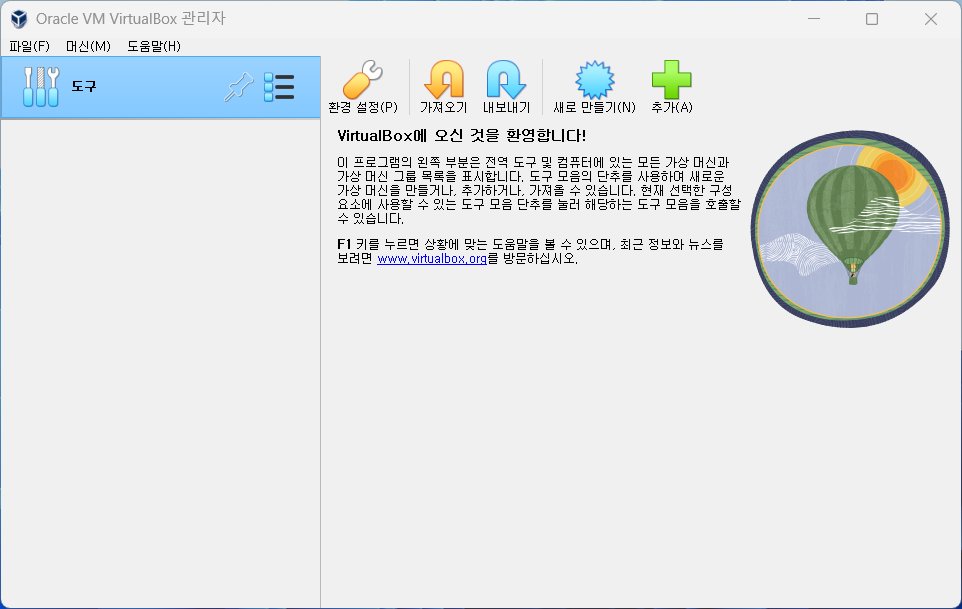
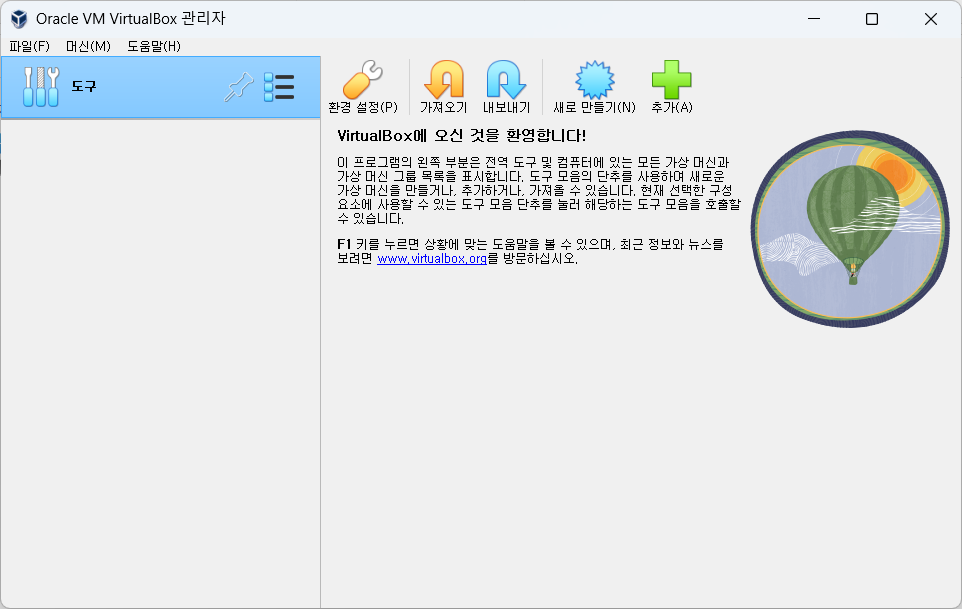
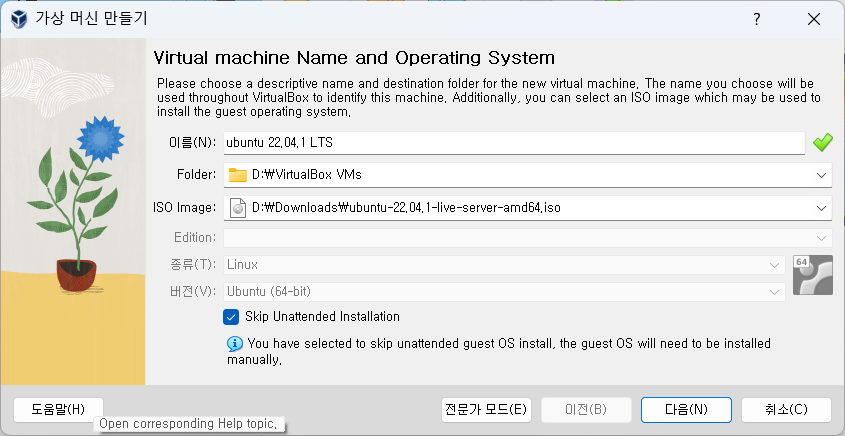
3) Run VirtualBox Manager
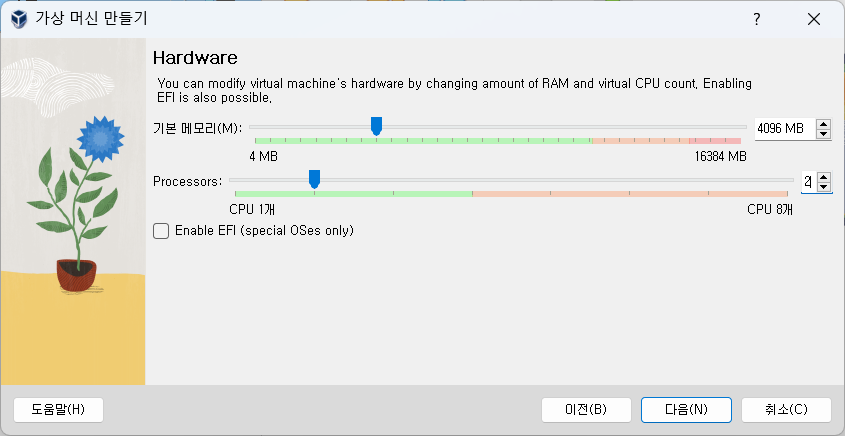
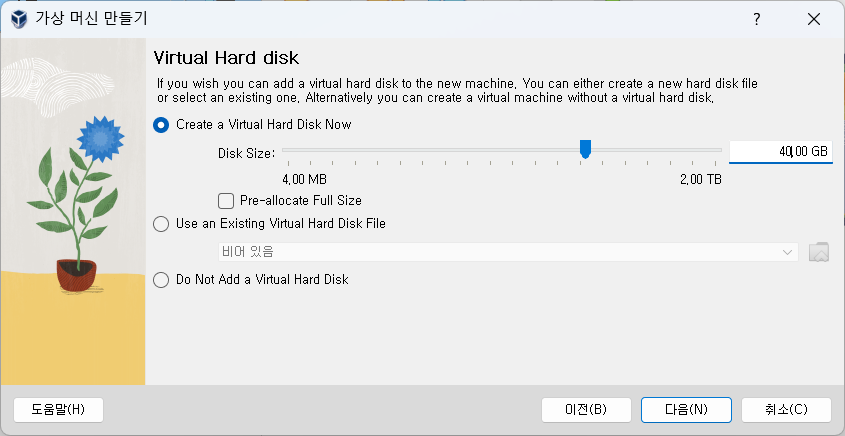
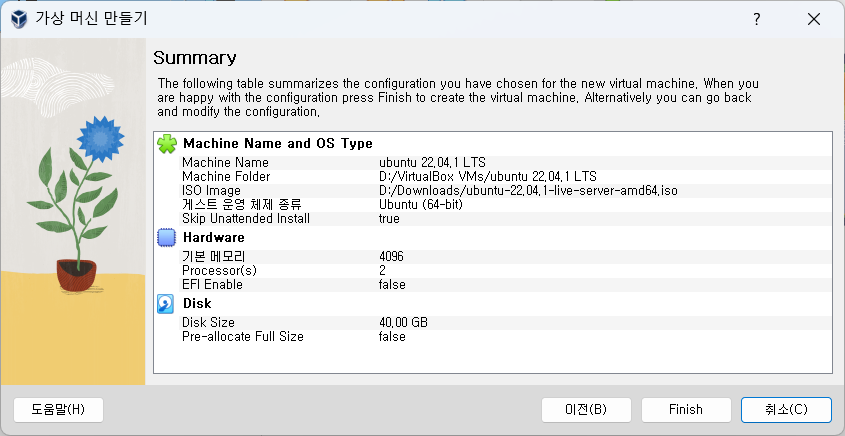
Good article to read together
- Install Ubuntu 22.04.1 (VirtualBox)
- Install OpenSSL
- Installing and managing MariaDB (MySQL)
- Activate Centos 8 RHEL & REMI Repository
- Linux administrator tool – enable cockpit
Related Reading
Continue with these related Thinknote English articles in the Server & Infrastructure cluster.
- Nextcloud installation and settings
- Install memory caching APCu, Redis, Memcached
- Free HTTPS setup (Let’s Encrypt, Cloudflare)
- Install OpenSSL
- Installing and managing MariaDB (MySQL)
- Setting up Nginx + Php8
FAQ
What is this article about?
This article is part of Thinknote’s English server and infrastructure archive. It focuses on practical Linux, Ubuntu, web-server, database, SSH, firewall, or hosting operations that readers can adapt to their own environment.
How should I use this guide?
Use it as a practical checklist and concept guide. Before applying commands on a live server, verify package names, OS versions, ports, and backup requirements for your own setup.
Where can I read the original Korean article?
The original Korean article is available here: Original Korean article.