
1. Ubuntu introduction and download
1) What is Ubuntu?
Ubuntu setup is done with Ubuntu 22.04.1 LTS version. Ubuntu is an open source operating system for Linux distributions designed and engineered to be the backbone of the Internet. Ubuntu Server provides economic and technical scalability for public or private data centers. Especially if you want to deploy an OpenStack cloud, Kubernetes cluster, or 50,000-node render farm, Ubuntu Server offers the best value scaling performance available. Ubuntu installation is done with version 22.04.1 LTS.
Original Korean article: Download Ubuntu and set up Ubuntu (virtualbox)
Ubuntu has several editions that can run on different types of systems, including core, server, and desktop. Each edition is available for personal computers, servers, supercomputers, cloud computing, and more.
Ubuntu is an operating system that appeals to users as it is a free, open source solution that is secure and easy to use. It is also user-friendly, customizable, and offers improved security within the OS.
2) Differences between Ubuntu Server and Desktop
Ubuntu Server Edition and Ubuntu Desktop Edition use the same apt repositories, so you can easily install server applications on the Desktop Edition just as you would on the Server Edition.
One major difference is that the graphical environment used in Desktop Edition is not installed for the server. This includes the graphics server itself, graphics utilities and applications, and various user support services required by desktop users.
3) Ubuntu installation system requirements
Ubuntu Server Edition provides a common, minimalist foundation for a variety of server applications such as file/print services, web hosting, email hosting, and more. Ubuntu Server Edition versions support four 64-bit architectures.
- amd64 (Intel/AMD 64-bit)
- arm64 (64-bit ARM)
- ppc64el (POWER8 and POWER9)
- s390x (IBM Z and LinuxONE)
- CPU: 1 GHz or higher
- RAM: 1GB or more
- Disk: 2.5 GB minimum
4) Preparing to install Ubuntu
Before installing Ubuntu Server Edition, make sure all data on your system is backed up. If this is not your first time installing an operating system on your computer, you may need to repartition your disk to make room for Ubuntu.
Whenever you partition a disk, you should be prepared to lose all the contents of the disk if you make a mistake or encounter problems while partitioning. The programs used for installation are very reliable and most have been around for many years, but they also perform destructive actions.
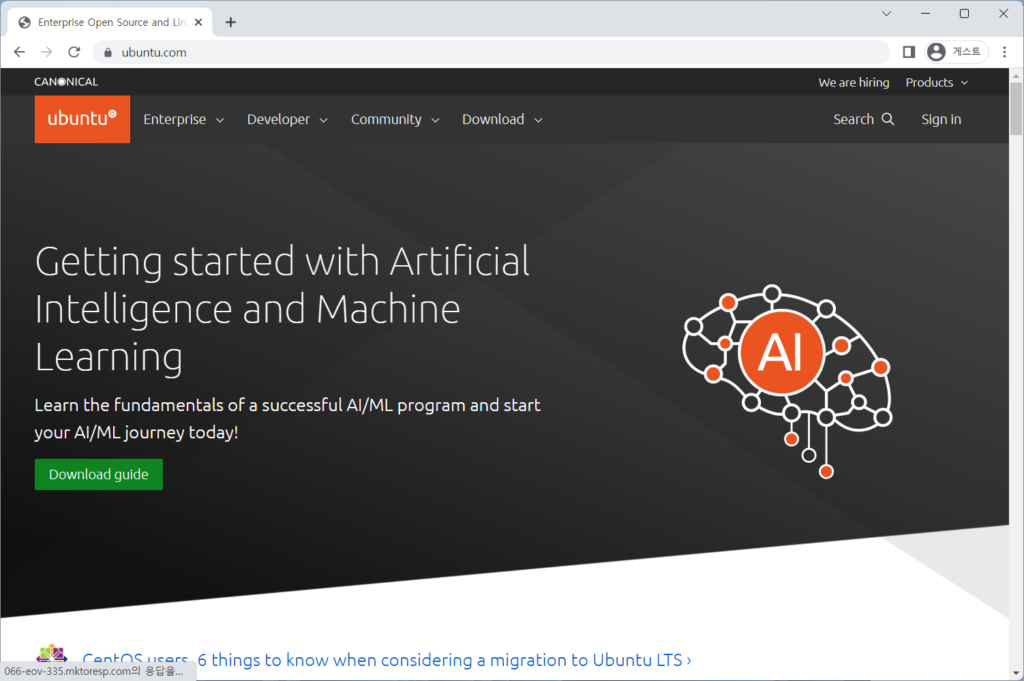
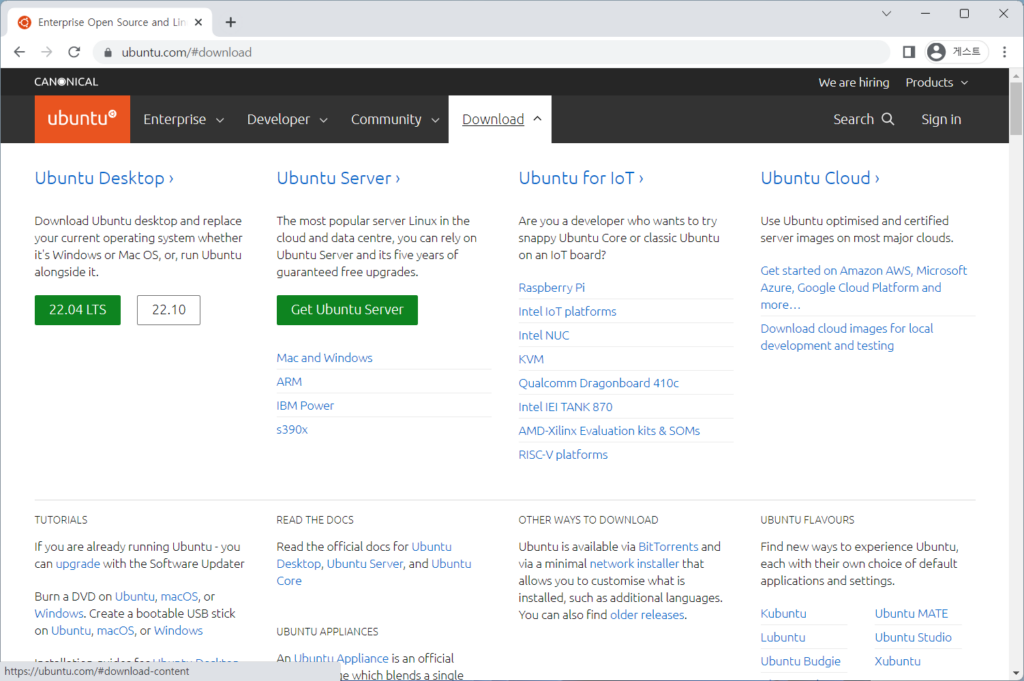
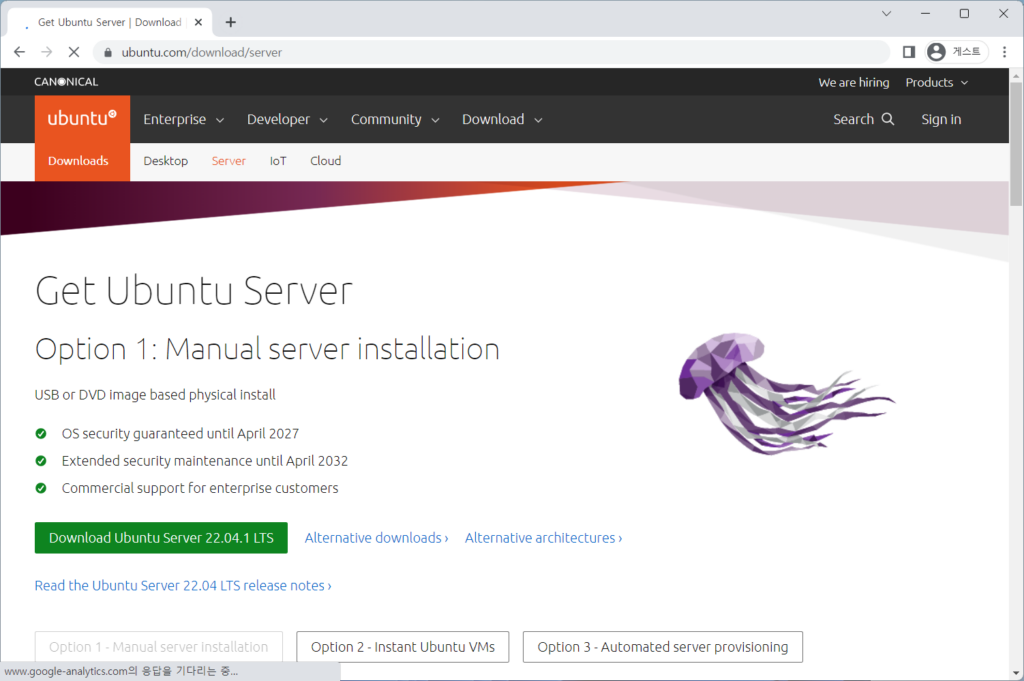
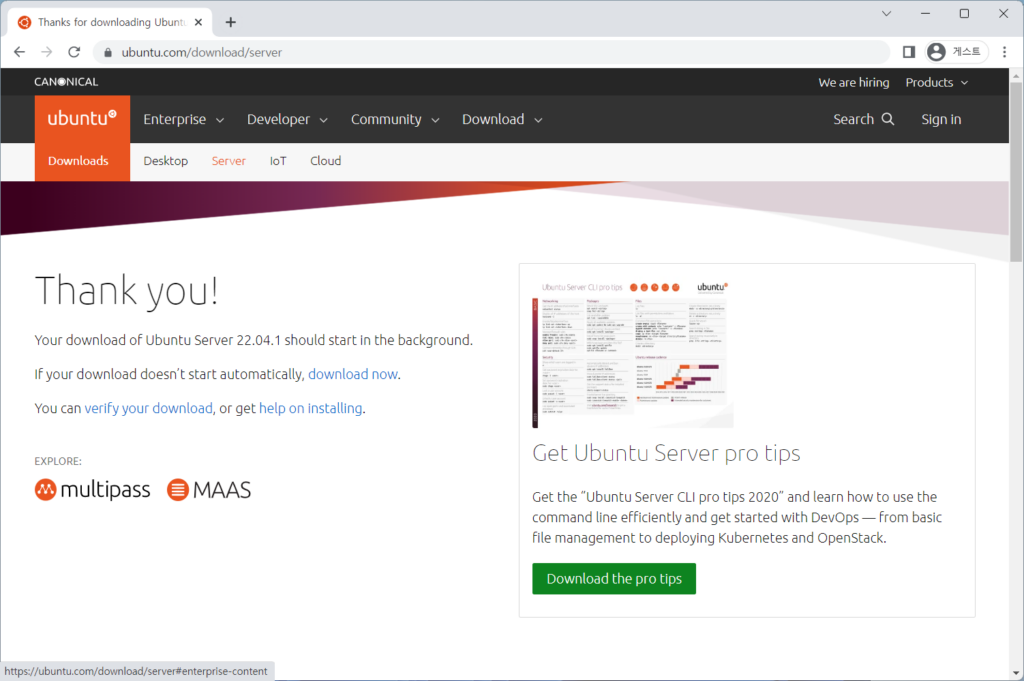
5) Download Ubuntu
Download link: https://ubuntu.com/
2. Set up virtual machine ubuntu in Virtualbox
1) Ubuntu settings
You can configure the virtual machine Ubuntu at an appropriate level according to the specifications of your host computer.
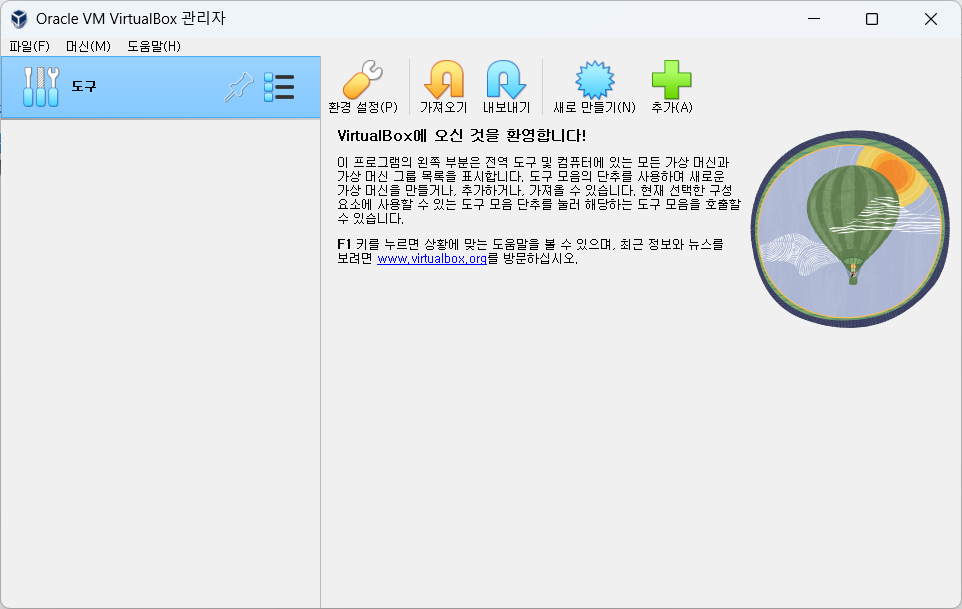
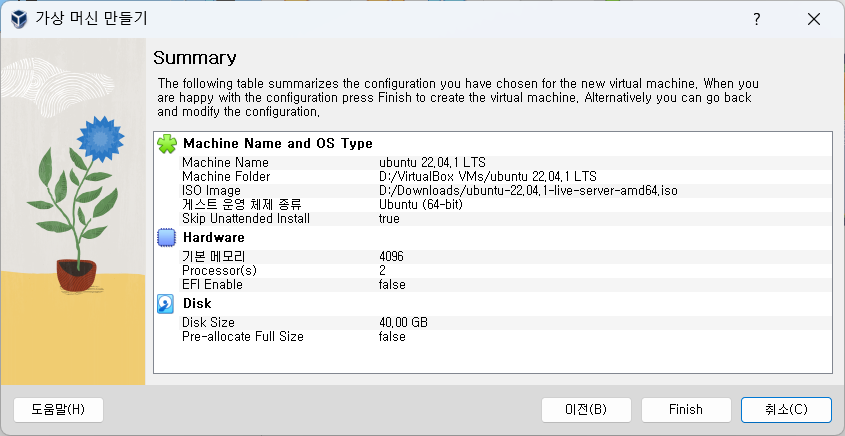
Select the name of the virtual machine, the storage folder, and the downloaded ubuntu iso image.
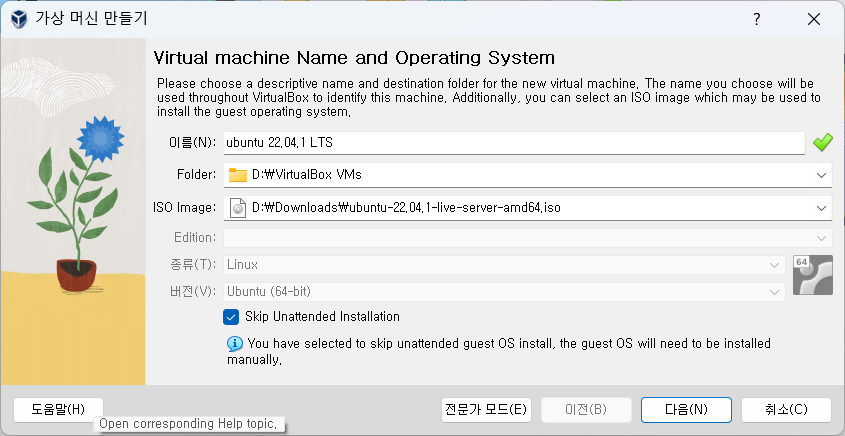
Set the default memory and number of Processors to be used by the virtual machine, taking into account the host computer specifications.
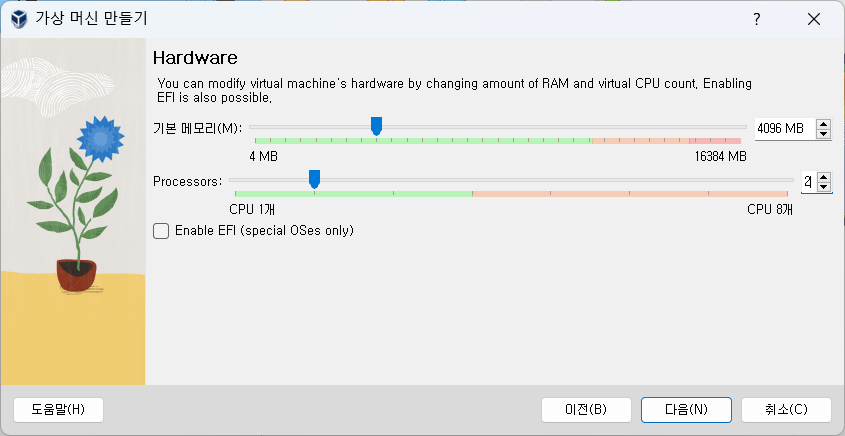
Although you can use an existing virtual disk, we are creating a virtual disk here.
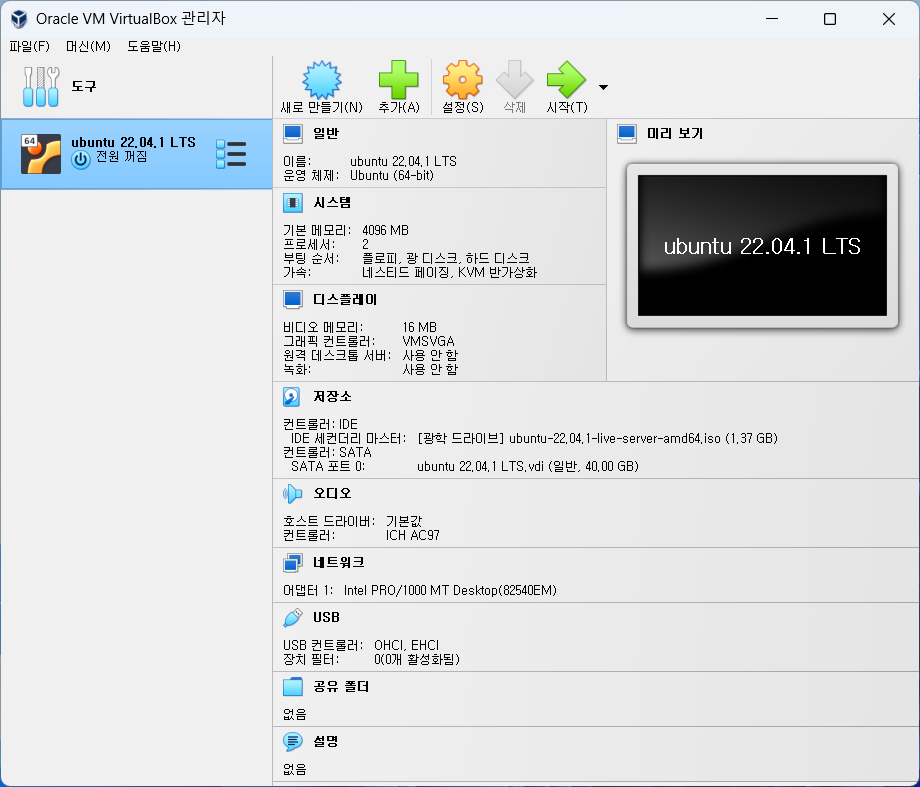
Once setup is complete, you can check your virtual PC’s hardware configuration in the VirtualBox admin menu.
Good article to read together
- VirtualBox Virtual Box virtual machine download and installation
- Install Ubuntu 22.04.1 (VirtualBox)
- Setting up and connecting Ubuntu SSH ports
- ubuntu update and upgrade
- Install and enable Ubuntu firewall iptables
Related Reading
Continue with these related Thinknote English articles in the Server & Infrastructure cluster.
- Nextcloud installation and settings
- Install memory caching APCu, Redis, Memcached
- Free HTTPS setup (Let’s Encrypt, Cloudflare)
- Install OpenSSL
- Installing and managing MariaDB (MySQL)
- Setting up Nginx + Php8
FAQ
What is this article about?
This article is part of Thinknote’s English server and infrastructure archive. It focuses on practical Linux, Ubuntu, web-server, database, SSH, firewall, or hosting operations that readers can adapt to their own environment.
How should I use this guide?
Use it as a practical checklist and concept guide. Before applying commands on a live server, verify package names, OS versions, ports, and backup requirements for your own setup.
Where can I read the original Korean article?
The original Korean article is available here: Original Korean article.