
1. Open Ubuntu SSH port
To open the SSH port, you need to do two things. First, you need to open port 22 to Ubuntu iptables, and second, you need to forward the port of virtualbox. If you installed Ubuntu using an external IP, you can just do the first step. If the host PC is connected to the router, you must connect port 22 to the host PC through DMZ settings and port forwarding to be able to access it from outside.
Original Korean article: Setting up and connecting Ubuntu SSH ports
1) Basic environment configuration
The content starting from now on assumes the following environment.
- Ubuntu is installed as virtual
- The host PC is assigned an IP from the internal router.
- Virtual IP: 10.0.2.15
2) Allow Iptables SSH port
SSH port uses 22. Open IPtables to use TCP port 22.
- -A : Add to chain
- -p tcp : protocol tcp
- -m tcp: tcp match, extended match
- –dport: Port number
- — j : Jump to target
- ACCEPT: Allow
sudo iptables -A INPUT -p tcp -m tcp --dport 22 -j ACCEPTPrints rules to see if the chain is registered in iptables. Save the added rules and reload.
sudo iptables -S
sudo netfilter-persistent save
sudo netfilter-persistent reload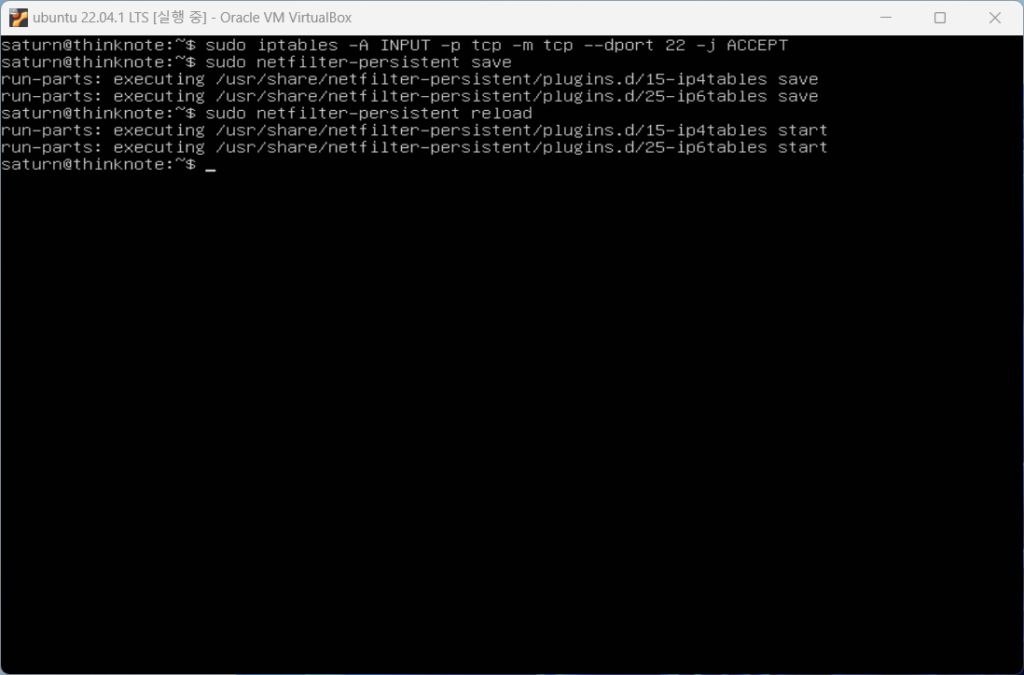
Let’s check the IP of ubuntu. When you check the IP using the ip addr command, the following output appears and it is confirmed that Ubuntu’s IP is 10.0.2.15.
ip addr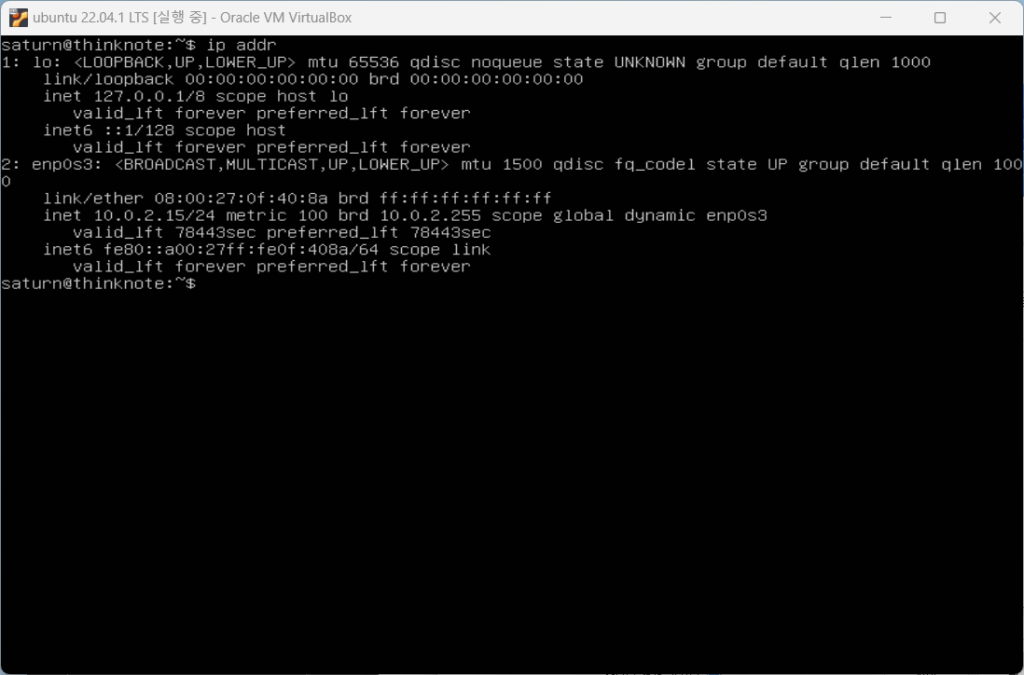
2. SSH port forwarding in VirtualBox
Opening Ubuntu’s SSH port allows Ubuntu to connect, but connection is not yet possible from the host computer. To connect to Ubuntu using MobaXterm on the host computer, you need to forward the port in VirtualBox.
In VirtualBox, you can enable port foreclosure in the settings without shutting down the virtual machine. Click Network in Virtual PC Settings.
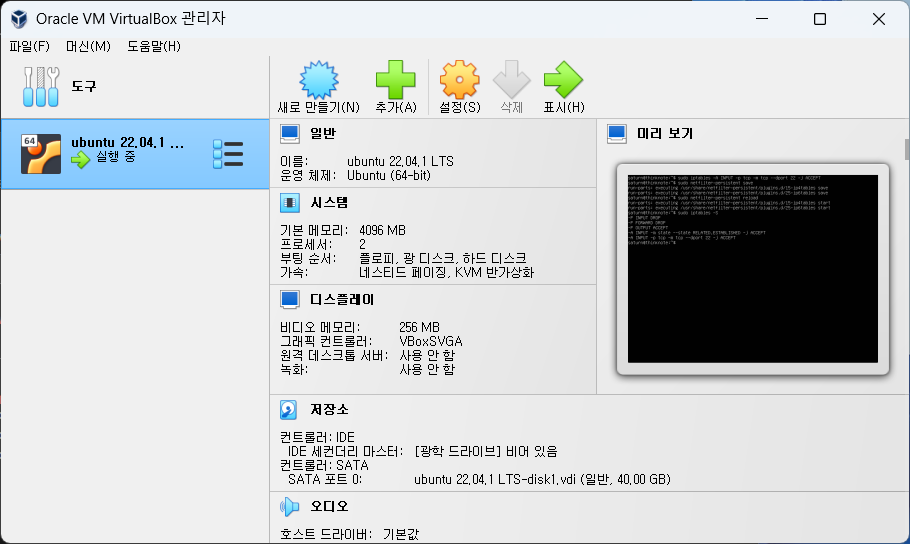
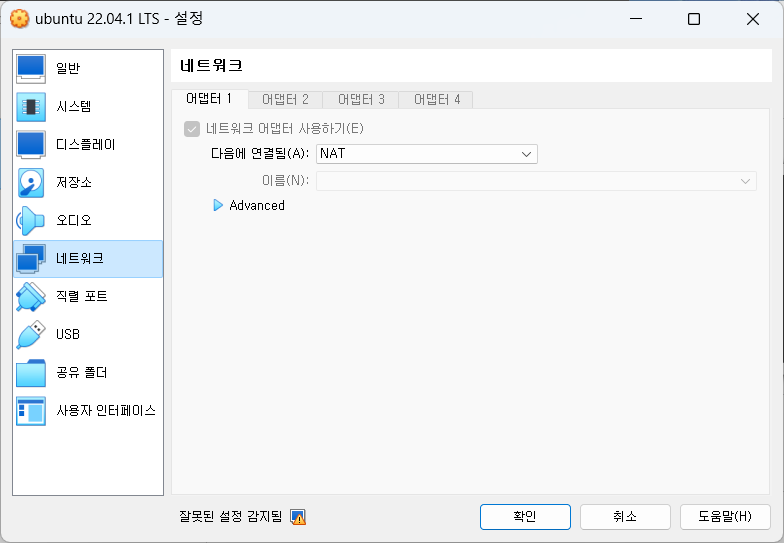
Expand Network Advanced and click the Port Forwarding button.
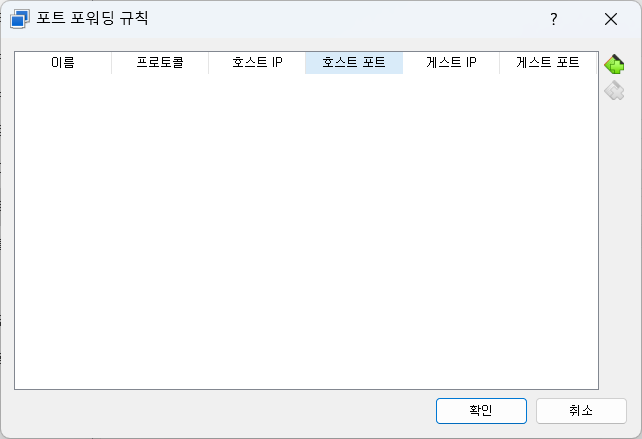
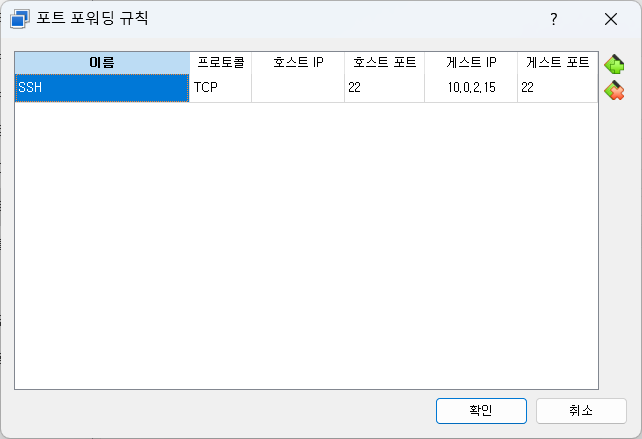
Click the plus icon at the top right to add a port forwarding rule. Enter the name [SSH], protocol [TCP], host IP (you can leave it blank because you are connecting as a local host) [ ], host port [22], guest IP (ubuntu IP can be checked with the ip addr command) [10.0.2.15], and guest port [22].
3. Access Ubuntu terminal using MobaXterm
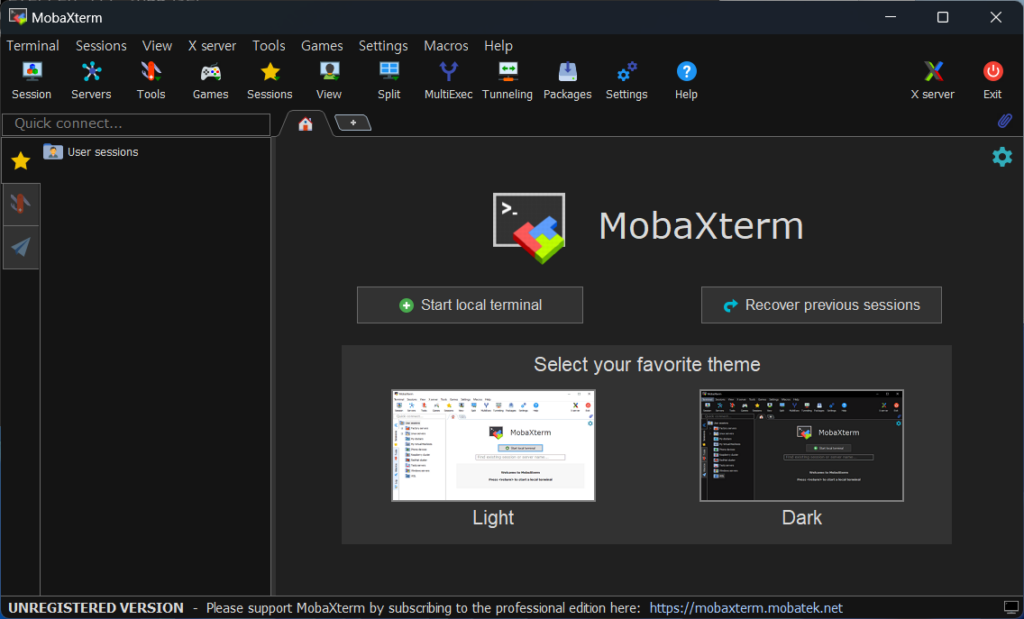
Run MobaXterm. Since there are no registered sessions yet, click Session at the top left to register a new session.
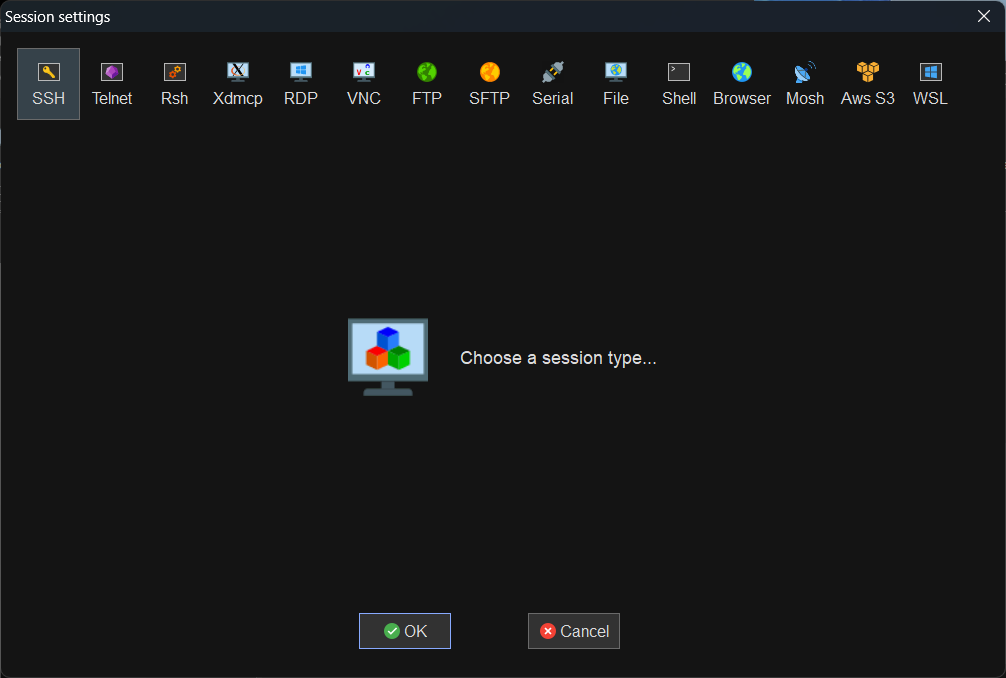
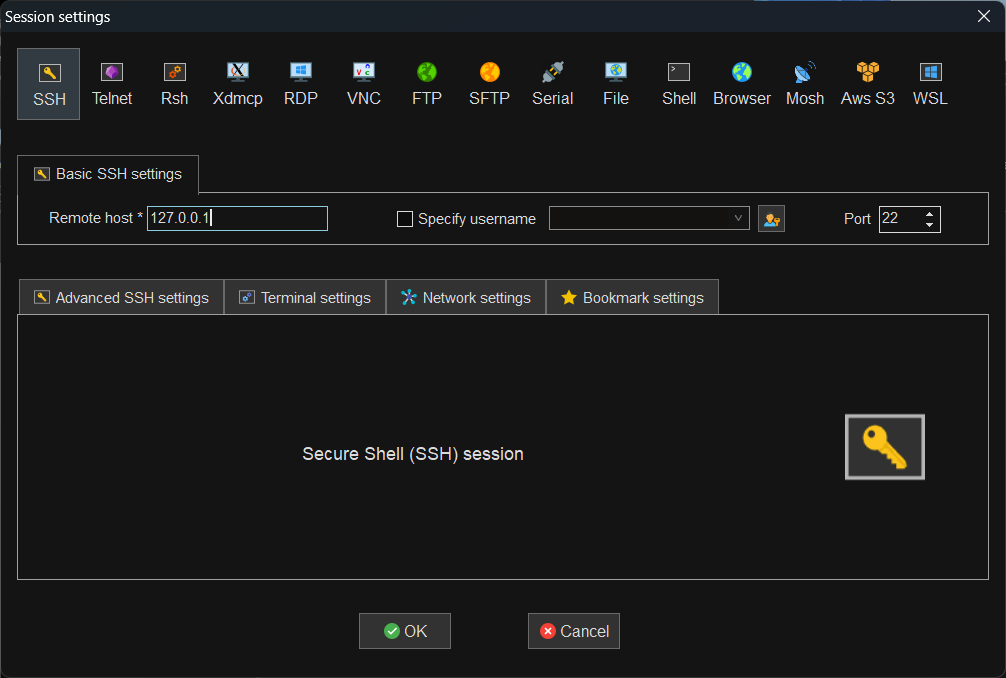
To connect to Ubuntu using SSH, click SSH in the upper left corner.
Remnote Host refers to the IP of the host PC, not the ubuntu IP. The Host IP can be checked by running the terminal on the host PC using the cmd command and using the ipconfig /all command. Since we are connecting using localhost IP here, we will enter 127.0.0.1. Click the OK button to close the window.
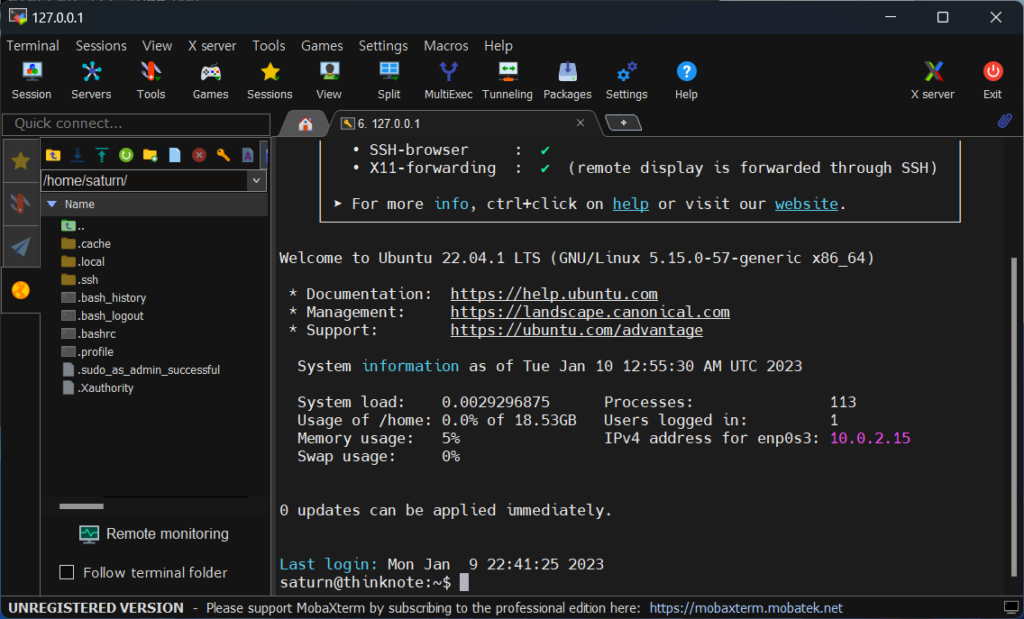
You can see that the 127.0.0.1 session has been added to the user session section on the left side of MobaXterm. If you double-click the session and the login terminal appears, the port is normally open.
Good article to read together
- Install Ubuntu OpenSSH and install MobaXterm
- VirtualBox Virtual Box virtual machine download and installation
- Download Ubuntu and set up Ubuntu (virtualbox)
- Install Ubuntu 22.04.1 (VirtualBox)
- firewall settings
Related Reading
Continue with these related Thinknote English articles in the Server & Infrastructure cluster.
- Nextcloud installation and settings
- Install memory caching APCu, Redis, Memcached
- Free HTTPS setup (Let’s Encrypt, Cloudflare)
- Install OpenSSL
- Installing and managing MariaDB (MySQL)
- Setting up Nginx + Php8
FAQ
What is this article about?
This article is part of Thinknote’s English server and infrastructure archive. It focuses on practical Linux, Ubuntu, web-server, database, SSH, firewall, or hosting operations that readers can adapt to their own environment.
How should I use this guide?
Use it as a practical checklist and concept guide. Before applying commands on a live server, verify package names, OS versions, ports, and backup requirements for your own setup.
Where can I read the original Korean article?
The original Korean article is available here: Original Korean article.