
1. Update and Upgrade
To keep Ubuntu up to date, use the update or upgrade command. Update and upgrade may be the same, but there is a difference. The update command does not change the package to the latest version, but instead retrieves information about the latest version available on the system.
Original Korean article: ubuntu update and upgrade
That is, it does not download or install any packages. You must use the upgrade command to download and install the package. The system operates on a database of available packages.
The database does not contain packages, only the package’s metadata (version, repositories, dependencies, etc.). So without updating the database the system won’t know whether there is a newer package available or not.
Update and upgrade are administrative commands and must be executed with root privileges. sudo allows you to run commands as Ubuntu root. So I log in as root or use sudo for both commands.
1) apt update
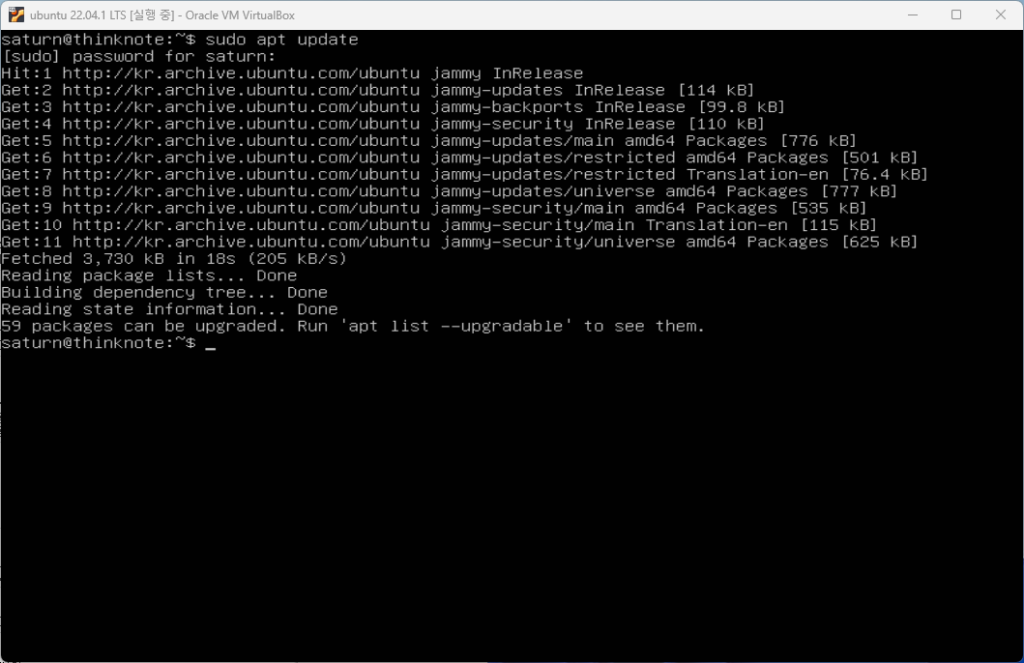
Get updated metadata from a package with the apt update command. Your local package cache will be updated and you will see which packages are available for upgrade.
apt update: Updates the package cache (knows which package versions can be installed or upgraded)
- package update
sudo apt updateYou can use the apt and apt-get commands to update the package cache. The two commands are the same, but the difference is that the apt command displays the number of upgradeable packages. Here it shows that there are 59 upgradeable packages.
2) apt upgrade
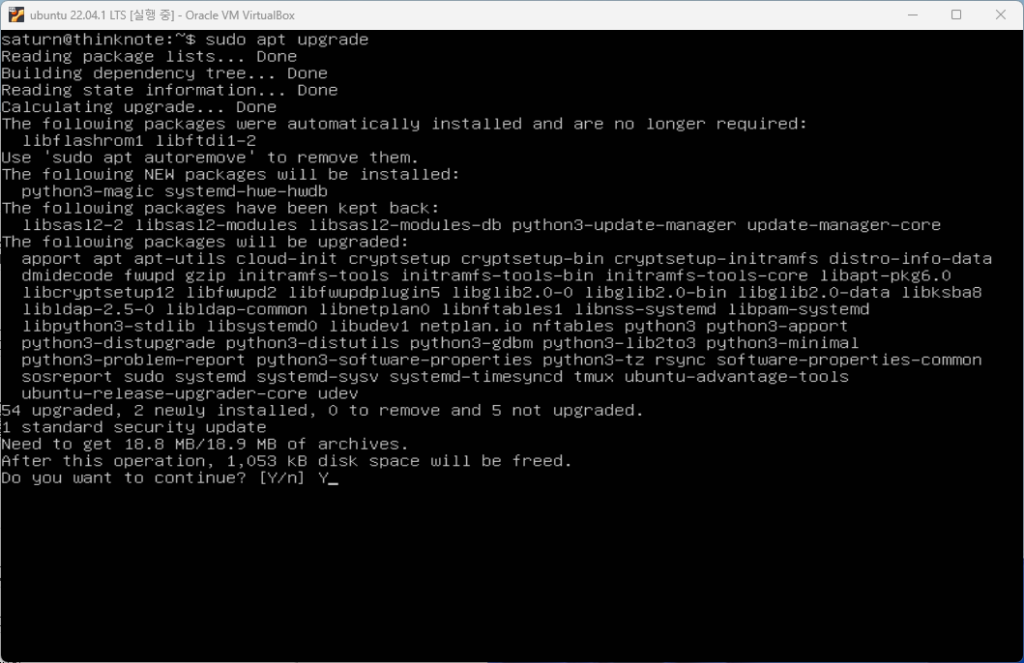
You can upgrade all (upgradable) packages with sudo apt upgrade. You can press Enter or Y to proceed with the upgrade, or press N to cancel.
apt upgrade: Upgrade a package to a new version
- View package upgrade list
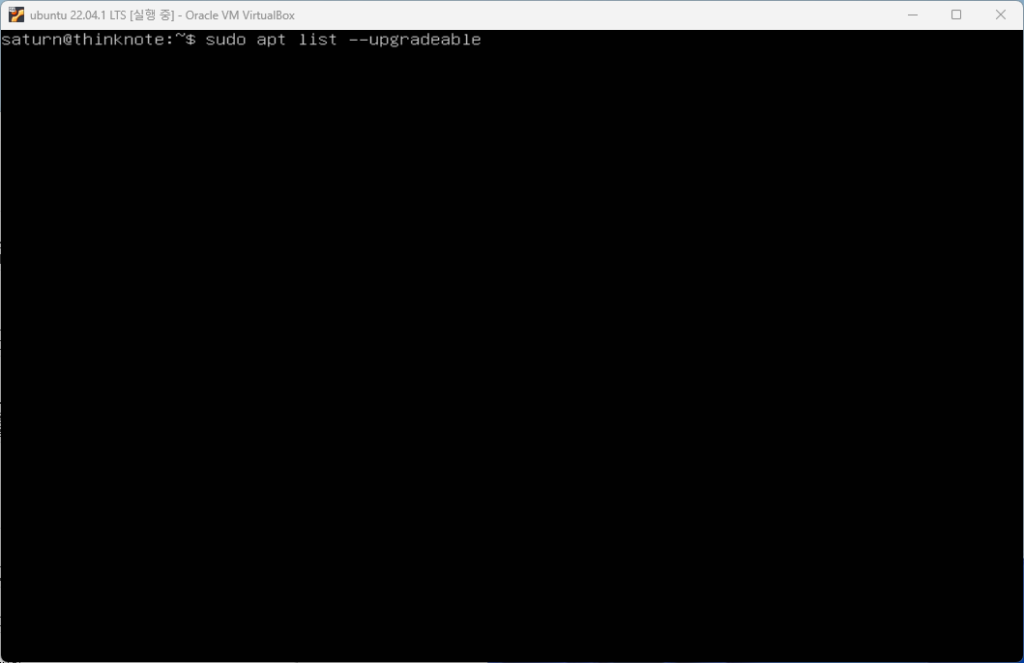
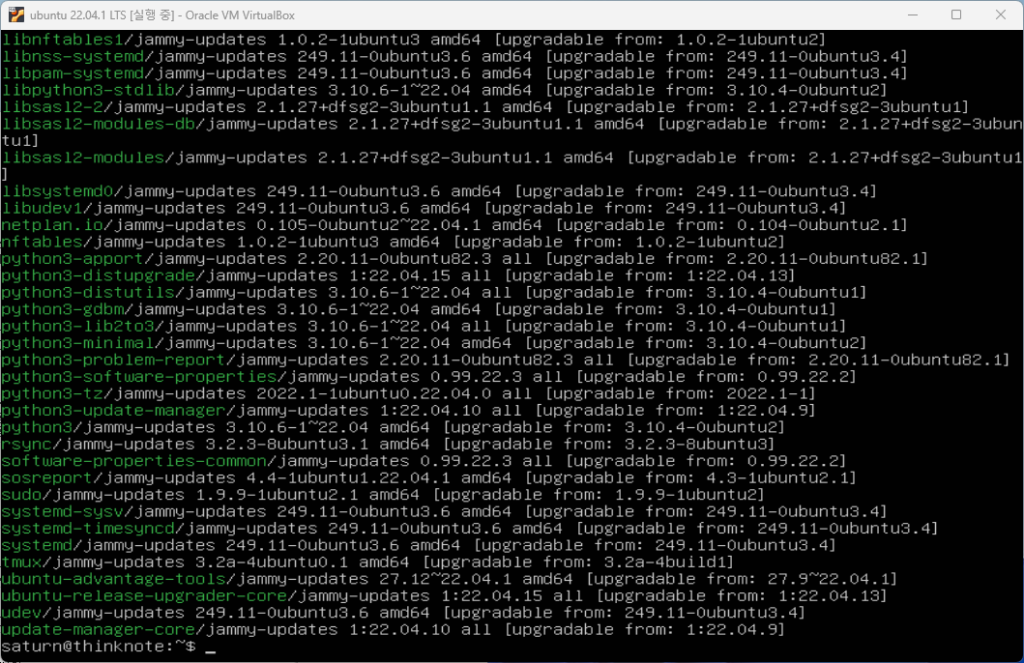
sudo apt list --upgradeableYou can upgrade the entire package with the sudo get upgrade command, but before that, you can check the list of packages that can be upgraded.
- package upgrade
sudo apt upgradeBefore the upgrade begins, you will be asked whether you want to continue. Type Y to proceed with the upgrade, n to cancel, and then press enter. Here, type Y to proceed with the upgrade and proceed.
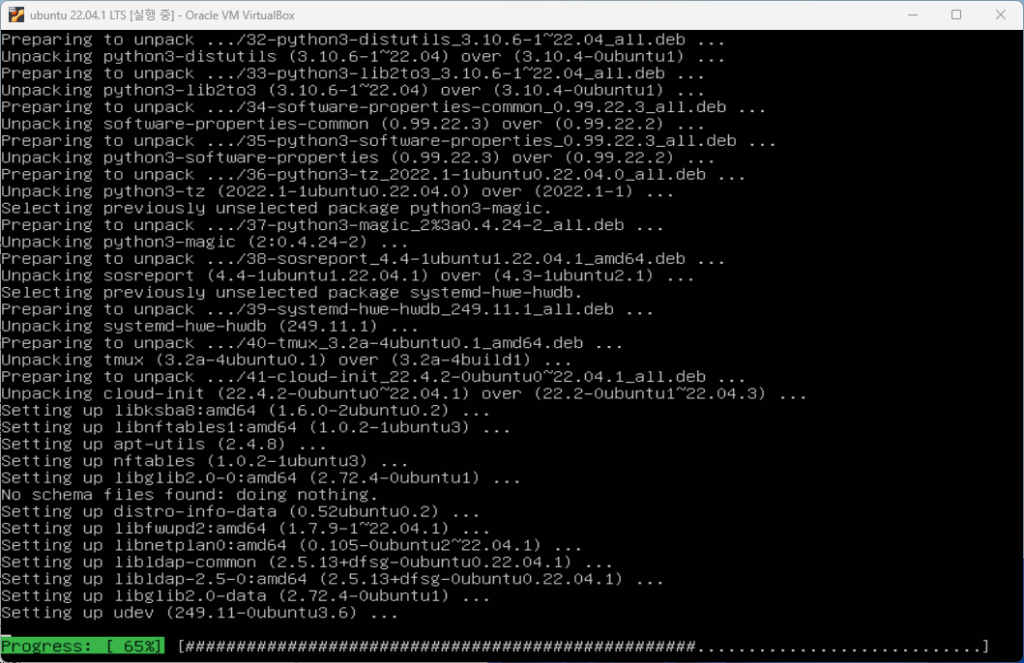
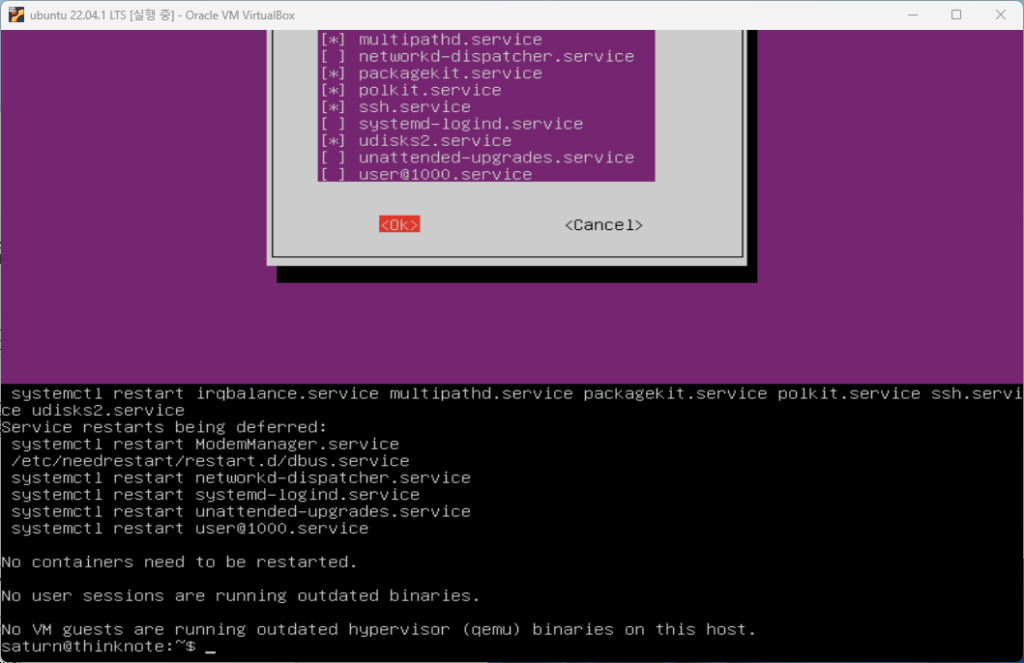
When the upgrade is complete, a window will appear asking you to restart the service. Here we select OK and continue. When the upgrade is complete, you can check the restarted services.
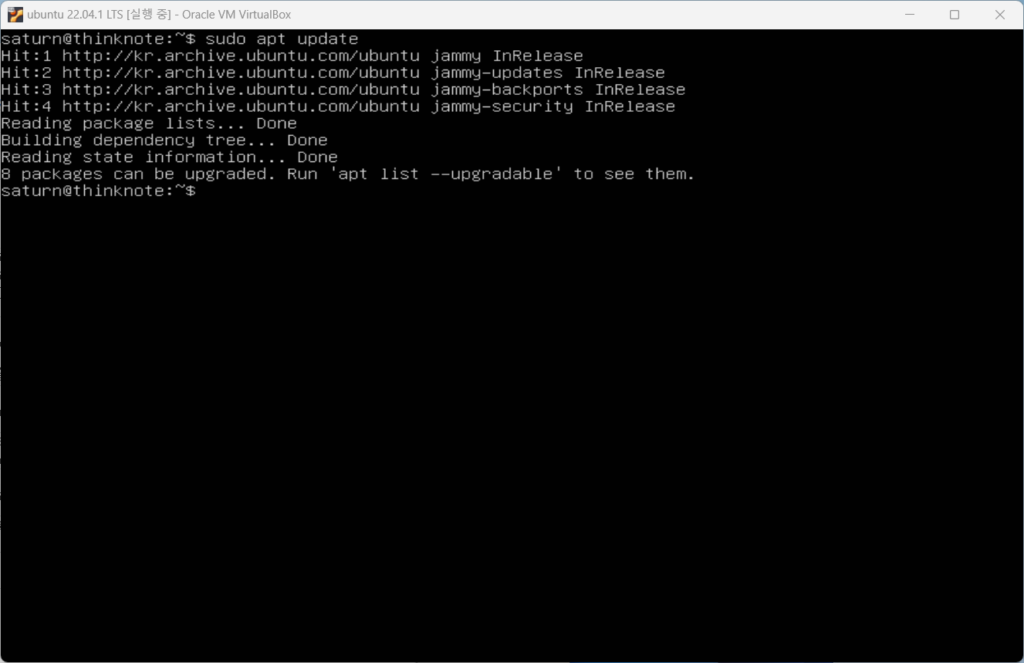
If you re-enter the sudo apt update command, you can see that there are no upgradeable packages.
Good article to read together
- VirtualBox Virtual Box virtual machine download and installation
- Download Ubuntu and set up Ubuntu (virtualbox)
- Install Ubuntu 22.04.1 (VirtualBox)
- Install and enable Ubuntu firewall iptables
- Ubuntu firewall iptables setup and management
Related Reading
Continue with these related Thinknote English articles in the Server & Infrastructure cluster.
- Nextcloud installation and settings
- Install memory caching APCu, Redis, Memcached
- Free HTTPS setup (Let’s Encrypt, Cloudflare)
- Install OpenSSL
- Installing and managing MariaDB (MySQL)
- Setting up Nginx + Php8
FAQ
What is this article about?
This article is part of Thinknote’s English server and infrastructure archive. It focuses on practical Linux, Ubuntu, web-server, database, SSH, firewall, or hosting operations that readers can adapt to their own environment.
How should I use this guide?
Use it as a practical checklist and concept guide. Before applying commands on a live server, verify package names, OS versions, ports, and backup requirements for your own setup.
Where can I read the original Korean article?
The original Korean article is available here: Original Korean article.